
Chrome Page Unresponsive Fix: When to Wait, When to Exit, and How to Stop It Happening
You are in the middle of something — reading, filling in a form, checking a dashboard — and the page just stops. Clicks do nothing. Scrolling does nothing. Then Chrome puts a small box in front of you and asks you to make a choice you do not really understand.
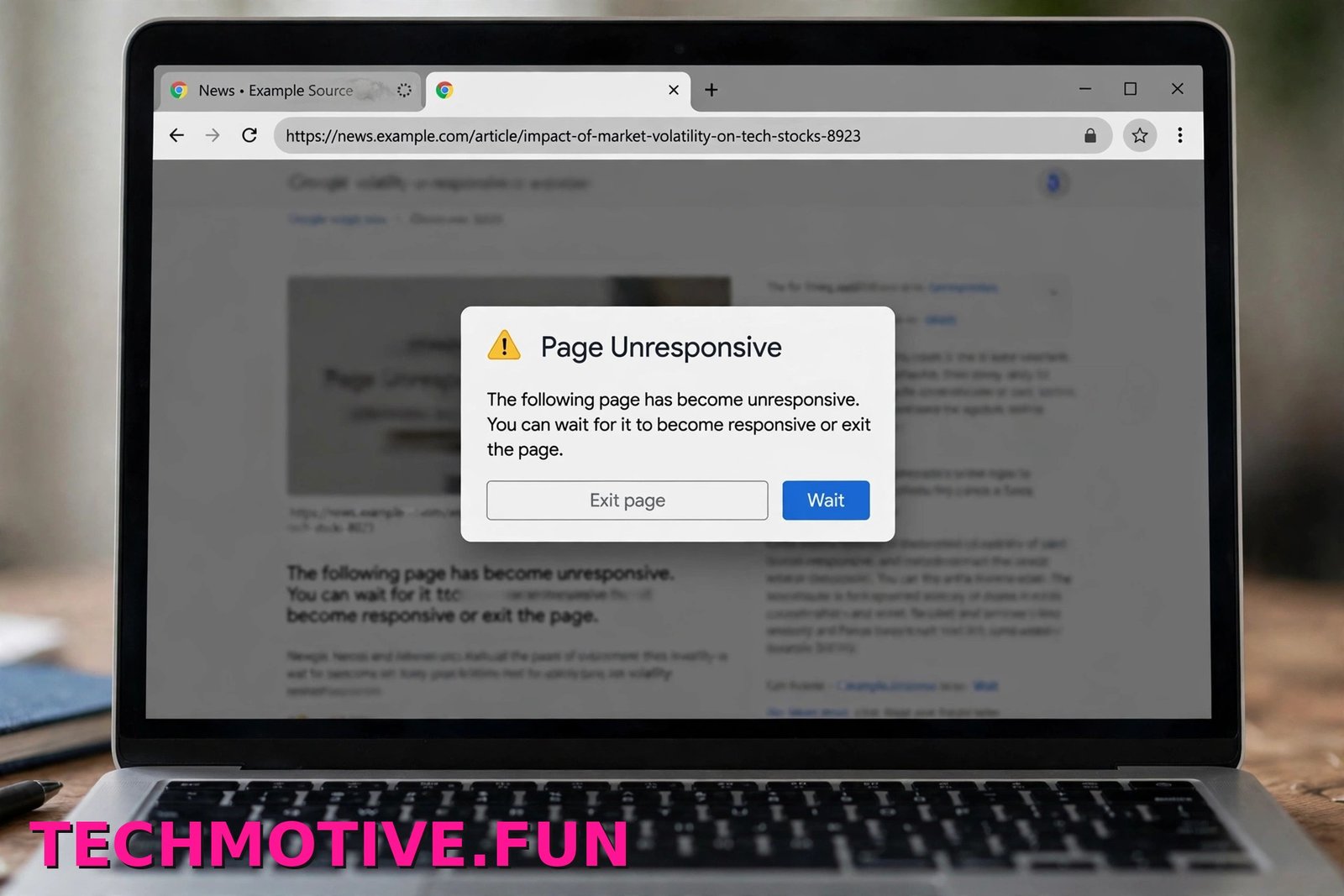
The box reads: “The following page has become unresponsive. You can wait for it to become responsive or exit the page.” Underneath are two buttons: Wait and Exit page. Picking the wrong one can cost you an unsaved form or another two minutes staring at a frozen tab.
This chrome page unresponsive fix starts with that moment: what to do when the dialog appears, how to find the tab or extension that caused the freeze, and the fixes that stop it coming back.
Wait or Exit? How to Read That Dialog
The dialog is not a normal error message. Chrome is telling you a page has stopped responding for a while. It may still be working hard in the background — loading a heavy script, rendering something complicated — or it may be completely stuck.
Google groups this with other page loading errors in its help pages, a reminder that an unresponsive page and a page that failed to load are related but not the same. See Google’s help on fixing page loading errors.
Choose Wait first if the page was doing something heavy just before it froze, if you have unsaved work on it, or if this is the first time it has frozen. Give it 20 to 30 seconds and watch for signs of life — a spinner moving, text appearing, scrolling working again. If the dialog comes straight back, waiting again rarely helps. The page is stuck, not just slow.
Choose Exit page if you already clicked Wait once and the dialog returned, if the page is easy to reopen, or if the whole browser feels sluggish and you need that tab gone.
What about unsaved work? With Exit page, anything typed into a form is usually lost, unless the website saved a draft itself. Webmail and document editors often save as you type; many smaller forms do not. That is why Wait is worth trying once when you have typed a lot — just not five times.
In older Chrome versions you may see a Kill pages button instead — it does the same job as Exit page. If a page closes completely with a crash message instead of hanging, see our guide to the Chrome Aw, Snap error and how to fix it.
Find the Real Culprit With Chrome’s Task Manager
Restarting the whole browser works, but it teaches you nothing, and the same page often freezes again later. Check Chrome’s own Task Manager first. It shows which tab or extension is using the most memory and processor power.
- Press Shift + Esc on your keyboard.
- If that does not open it, click the three-dot Menu button in the top-right corner.
- Go to More tools.
- Click Task Manager.
The window lists everything Chrome is running, with columns including Memory footprint and CPU.
- Click the Memory footprint heading to sort by memory use, highest first.
- Then check the CPU column the same way.
- Look for one tab or extension sitting far above the rest, especially if its CPU stays very high.
- Click that row to select it.
- Click End process in the bottom-right corner.
Ending the process closes just that tab or extension, not the whole browser. Other tabs stay open, and the closed tab can be reloaded — though reloading the same heavy page straight away can freeze it again.
Note what you find. If the top entry is always the same website, that site is the likely problem. If it is an extension you barely recognise, the extension fix below matters most. If several tabs are all heavy at once, memory pressure is more likely — see the advanced checks. If Chrome feels heavy even when nothing is frozen, look at why Chrome is using too much CPU too.
Fixes That Stop Pages From Freezing
Work through these in order. Stop when pages stop freezing, and note which fix helped.
Clear the Cache and Cookies
Chrome stores copies of images, scripts, and site files so pages load faster next time. When those files get old or damaged, a page can use a broken copy and hang. Cookies can cause a similar problem when saved session data no longer matches what a site expects. See Google’s guide to clearing cache and cookies in Chrome.
- Click the three-dot Menu button and go to Settings.
- Click Privacy and security.
- Click Clear browsing data.
- Set the time range to All time for a long-running problem, or Last 7 days for a recent one.
- Tick Cookies and other site data and Cached images and files.
- Leave Passwords unticked — you do not need to delete saved passwords for this fix.
- Click Delete data, restart Chrome, and test the page again.
You will be signed out of most websites afterwards. That is normal; bookmarks and saved passwords stay in place.
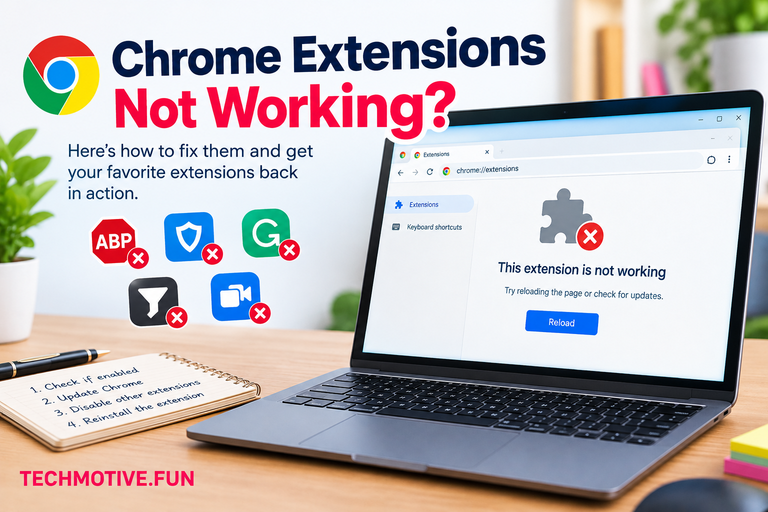
Turn Off Extensions, Especially Heavy Ones
Extensions run on top of almost every page. Ad blockers, coupon finders, script injectors, and page customisers all read and change content as it loads, so one badly written or out-of-date extension can freeze page after page.
- Type
chrome://extensionsinto the address bar and press Enter. - Turn off every extension using its toggle switch. This pauses them; it does not delete them.
- Restart Chrome and visit the pages that used to freeze.
- If the freezes stop, turn extensions back on one at a time, browsing a little after each one.
- When freezing returns, the last extension you enabled is the likely cause. Leave it off, remove it with its Remove button, or check for an update.
If you run several content-blocking tools together, try using just one for a few days. Tools that all rewrite the same page can trip over each other.
Turn Off Hardware Acceleration
With hardware acceleration on, Chrome hands page drawing and video work to your graphics processor. On most PCs this is smoother. On some, especially with older or buggy graphics drivers, it causes stuttering and freezes. Turning it off is a safe, reversible test.
- Click the three-dot Menu button and go to Settings.
- Click System in the left-hand menu.
- Turn off Use graphics acceleration when available.
- Click Relaunch when Chrome asks.
If the dialogs stop, leave it off. A browser that does not freeze beats one that renders slightly more smoothly. If nothing changes after a day or two, turn it back on.
Turn On Memory Saver and Close Heavy Tabs
Every open tab stays ready to use, and tabs with video, web apps, or updating feeds can use a lot of memory in the background. When memory runs short, pages respond slowly — and that is when the dialog appears. Chrome can put inactive tabs to sleep:
- Click the three-dot Menu button and go to Settings.
- Click Performance in the left-hand menu.
- Turn on Memory Saver and choose the balanced option to start with.
- Add any sites you always need active, such as webmail, under Always keep these sites active.
A sleeping tab is not closed; click back to it and it reloads. You may lose your scroll position on some pages, a small price for a responsive browser. And be honest about tab count — if you keep 40 or 50 tabs open, no setting fully makes up for that on a PC with limited memory. Bookmark tabs for later and close them.
Update Chrome
Updates fix real bugs, including ones that make pages hang. Chrome normally updates itself, but this can stall if Chrome is never fully closed.
- Click the three-dot Menu button.
- Go to Help and click About Google Chrome.
- Chrome will check for and download any available update.
- Click Relaunch to finish installing it.
Your tabs should reopen as they were. If Chrome is already up to date, rule this fix out and move on.
If Only One Website Hangs
If everything else runs fine but one website freezes every time — or when you do one specific thing on it, like opening your account page — the cause is usually that site’s stored data on your PC.
- Press Ctrl + Shift + R on the problem page. This hard reload ignores the cached copy and downloads everything fresh. If the page then works, the cache was the problem.
- Test the site in an Incognito window via Menu and New Incognito window. Incognito runs without your usual extensions and stored data. If the site works there, an extension or your site data is to blame.
- Clear data for just that site. Go to Settings, then Privacy and security, then Third-party cookies to view all site data and permissions, search for the site, and delete its data.
- Sign back in and test the page that used to hang.
Deleting one site’s data signs you out of that site only. If it also hangs in Incognito, the fault is probably on the website’s side — try again later.
Advanced Checks for a PC That Keeps Struggling
If pages still become unresponsive across many sites after the fixes above, the PC itself may be running out of headroom. First, check memory pressure while Chrome is open:
- Press Ctrl + Shift + Esc to open Windows Task Manager.
- Click the Performance tab, then Memory, and see how much is in use.
- If memory sits near full, use the Processes tab, sorted by Memory, to see which apps are taking the most.
If a game, video editor, or syncing tool is using most of your memory, Chrome will struggle whatever you change in its settings. Close heavy apps you are not using, and restart the PC.
Second, check for pending Windows updates, which can slow a system down until a restart completes them. Open Windows Settings, go to Windows Update, click Check for updates, install what is offered, and restart when asked.
Third, test with a fresh Chrome profile, which can quietly become damaged over time:
- Click your profile picture in the top-right corner of Chrome.
- Click Add, or Manage profiles then Add profile, depending on your version.
- Set it up without signing in for now — this is only a test.
- Browse the pages that usually freeze in this clean profile for a good stretch of time.
If the new profile runs smoothly, your old profile is the problem. Move over gradually: sign in to sync bookmarks and passwords, then add extensions back one at a time. If it freezes in the same places, the cause is outside the profile. If whole tabs keep closing on their own rather than just hanging, also see our guide on fixing Chrome tabs that keep crashing.
How to Make Freezes Less Likely
Keep Chrome updated, and click Relaunch when an update is ready instead of leaving it pending. Restart the whole PC every few days rather than only sleeping it.
Be picky about extensions: remove ones you no longer use, and be wary of unfamiliar tools that ask to read and change data on every site. Leave Memory Saver on if your PC has limited memory, and close tabs you have finished with. A quick tidy once a month is enough for most people.
Frequently Asked Questions
Why does the same page keep becoming unresponsive?
Usually because that page does something heavy every time it loads — a large script, lots of auto-playing media, or a dashboard constantly pulling in new data. Damaged cache or cookies for that site can also make it stick in the same place. Clear that site’s data first, then test in an Incognito window to rule out extensions.
Does clicking Wait ever actually work?
Yes. If a page was busy with a genuine task, like processing a big file or loading a complex document, a short wait lets it finish and your work is still there. Try it once. If the dialog returns straight away, the page is stuck, and Exit page is the sensible choice.
Can an extension really freeze a whole page?
Yes. Extensions that block content, rewrite pages, or inject scripts run inside the page itself. If one gets stuck or clashes with the site’s code, the page stops responding even though the site is fine. That is why disabling all extensions and re-enabling them one at a time is such a reliable test.
What does Kill pages mean in older versions of Chrome?
Older Chrome versions labelled the button differently, and Kill pages was one of those labels. It does the same job as Exit page now — it ends the stuck page so the rest of the browser keeps working. You lose that page and any unsaved work on it, nothing else.
Why does this happen more on low-memory PCs?
Every tab needs memory for the page, its images, and its scripts. On a PC with little to spare, many open tabs and apps leave almost nothing free, so a page needing a bit more memory to finish loading can stall completely. That is why Memory Saver, closing heavy tabs, and checking memory in Windows Task Manager help so much on older machines.
Will clearing the cache delete my saved passwords?
No, not if you choose the right boxes. In Clear browsing data, passwords are a separate option from Cached images and files and Cookies and other site data. Leave passwords unticked and your logins stay as they are. Clearing cookies signs you out, but Chrome will still fill in saved passwords when you sign back in.
The Bottom Line
A frozen page feels urgent, but the choice is usually simple: click Wait once if you have unsaved work, and choose Exit page if the dialog comes back. That decision is the start of any good chrome page unresponsive fix, not the end of it.
To stop it returning, find the culprit in Chrome’s Task Manager, clear old cache and site data, test your extensions, and try turning off hardware acceleration. Turn on Memory Saver if your PC is short on memory, and keep Chrome updated. Work through those steps in order and most unresponsive pages settle down.



One Comment