Chrome Won’t Save Passwords? Here’s How to Get the Prompt Back
You log in to a site, everything works, and then nothing happens. No little prompt asking if you want to save the password. No key icon. Nothing. So the next day you visit the same site and you are typing the whole password again, probably after digging it out of a note somewhere.
That loop gets old fast, especially for sites you use every day.
When chrome wont save passwords, the cause is usually not a big failure. Most of the time, one setting has been turned off, or the site was blocked from saving at some point in the past and Chrome has quietly remembered that choice ever since.
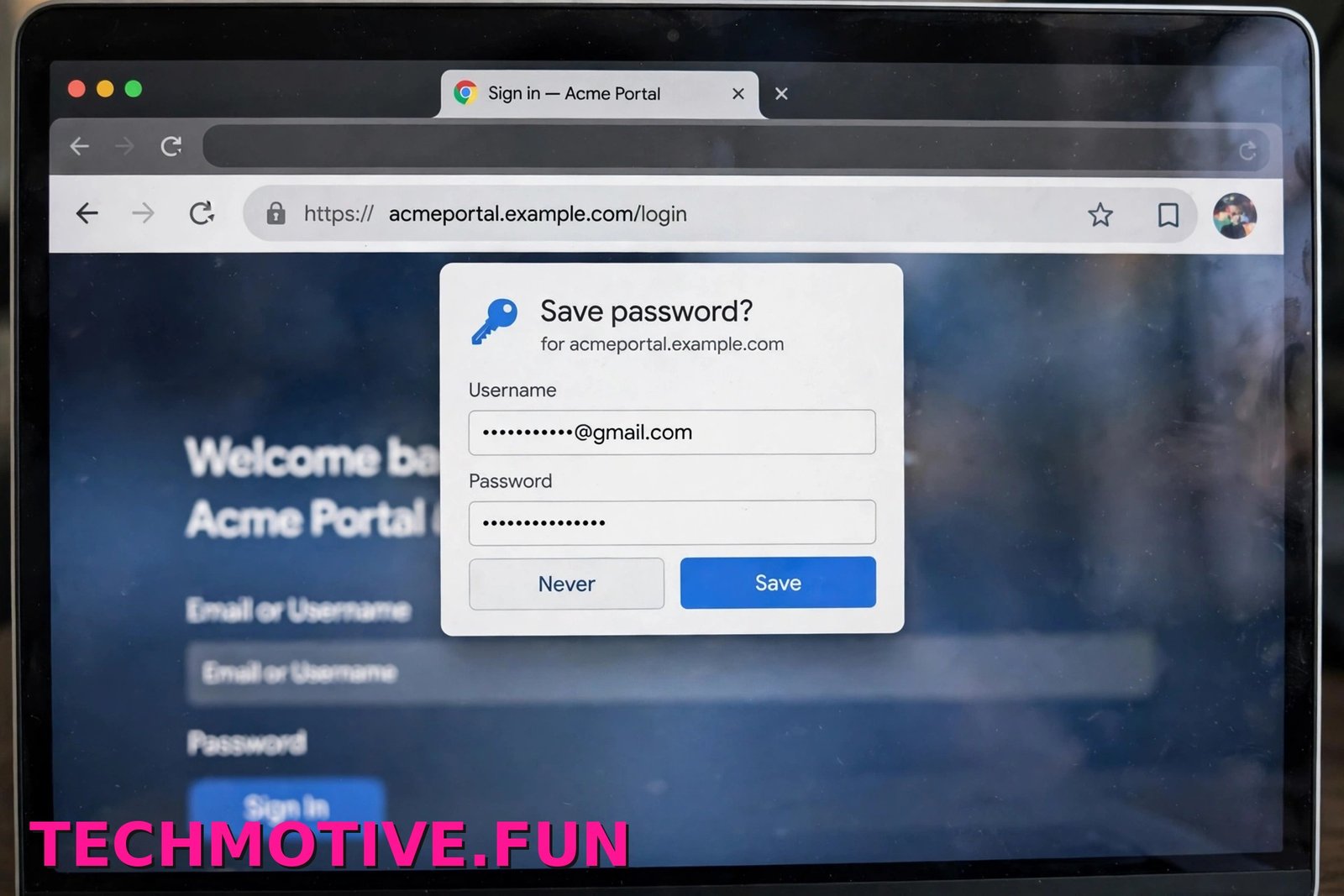
Here is the fastest first check. Open a normal Chrome window, not an Incognito one, sign in to a site you use often, and watch the address bar right after you log in. If no prompt appears at all, start with the master setting below. In most cases, that one toggle is the whole problem.
Quick Answer: The Setting That Controls It All
Every save prompt in Chrome is controlled by a single switch in Google Password Manager. If that switch is off, Chrome will never offer to save a password, no matter which site you visit and no matter how many times you log in. It will also stop offering to save new passkeys on newer versions.
The wording can vary slightly depending on your version of Chrome. On many installs it reads Offer to save passwords. On current versions you may see Offer to save passwords and passkeys instead. It is the same setting.
Here is how to check it:
- Open Chrome and click the three-dot menu in the top right corner.
- Click Settings.
- In the left sidebar, click Autofill and passwords.
- Click Google Password Manager.
- Click the Settings gear icon inside Password Manager.
- Find the Offer to save passwords toggle at the top and make sure it is switched on.
You can also go straight there. Type chrome://settings/passwords into the address bar and press Enter, then open the Settings gear from that page.
Once the toggle is on, test it properly. Go to a site, log out, and log back in again. Chrome normally offers to save the password right after a successful login, not while you are still typing it. If the prompt appears now, you are done. If it still does not show up for one particular site, the next section is the likely reason.
Google’s own help page covers the same switch. See Google’s guide to managing passwords in Chrome for the official version.
Already Clicked ‘Never’ for This Site?
This is the second most common cause, and it is an easy one to miss because there is no warning anywhere on the site itself.
When the save prompt appears, if you click Never, Chrome adds that site to a blocked list and will never ask about it again. It only takes one click, and it is easy to do by accident when you are hurrying to close a popup.
Luckily, that choice is not permanent. Blocked sites sit in a list called Never saved, and you can remove a site from it in seconds.
- Open Chrome and go to
chrome://settings/passwords, or follow the path through Settings and then Autofill and passwords and then Google Password Manager. - Click the Settings gear icon.
- Scroll down to the Never saved section.
- Find the site that is not prompting you.
- Click the X next to that site to remove it from the list.
You do not need to restart Chrome. The next time you log in to that site, Chrome should offer to save the password again.
Only remove the sites you actually want prompts for. Some people deliberately block banking or other sensitive sites, and those entries are fine to leave as they are.
If the site is not in the Never saved list and the main toggle is already on, keep reading.
Other Reasons Chrome Stays Silent
If the master switch is on and the site is not blocked, one of the situations below is usually responsible. They are not all equally common, so they are ordered roughly by how often they actually turn out to be the cause.
You Are Browsing in Incognito Mode
Incognito windows never save passwords. That is by design — anything you do there is meant to leave no trace once the window closes, and that includes new logins.
If the window shows the Incognito indicator in the top right, close it, open a regular Chrome window with Ctrl + N, and log in again. The save prompt should appear there if your other settings are correct.
The Website Itself Blocks the Prompt
Some websites stop browsers from offering to save the login. Banks and other security-focused sites sometimes do this on purpose. Others are not blocking it deliberately; their login form is just built in a way Chrome cannot read properly.
You can usually tell this is the case when Chrome offers to save passwords on most sites but stays silent on one or two specific ones. There is no Chrome setting that forces a prompt on a site like that. The practical workaround is to add the login manually, covered in the next section.
The Prompt Is Hidden Behind Something Else
Sometimes Chrome does try to show the prompt, but you never see it. A cookie banner, a chat widget, or an extension window can sit in the same corner of the screen at exactly the wrong moment, and the prompt disappears before you notice it.
Watch the address bar after your next login. On many versions, a small key icon appears at the right end of the address bar when a prompt is available. Clicking it can reopen the prompt even if the popup vanished.
A third-party password manager extension can also suppress Chrome’s prompt because it is trying to handle saving itself. That kind of clash shows up with autofill too, which is why our guide on Chrome autofill not working is worth a look if saved details are not filling in either.
Your Chrome Profile Is Damaged
This is less common, but a corrupted Chrome profile can stop password saving. The profile is where Chrome keeps your settings, saved logins, bookmarks, and extensions, and damage there can cause odd behaviour like this.
The safest test is not to delete anything. Create a fresh profile and see if the problem follows you:
- Click your profile picture in the top right corner of Chrome.
- Click Add Chrome profile.
- Choose Continue without an account if you just want to test.
- In the new profile window, open a site and log in.
If the prompt appears in the new profile, your original profile is the problem. If it does not appear there either, the cause is more likely a Chrome-wide setting or the site itself, and you can delete the test profile.
You Are Signed Out or Sync Is Paused
Chrome can still save passwords locally when you are signed out, but a paused profile can behave differently from what you expect. If sync is paused, often because Chrome wants you to sign in again, new passwords may stay on this computer only, which can look like a saving problem when you check another device.
Click your profile picture and check whether Chrome says sync is paused. If it does, sign back in and test again. If passwords save on one device but never appear on another, that is a sync problem rather than a saving problem, and our guide on Chrome sync not working covers those fixes.
Add the Password Yourself When Chrome Won’t Ask
If a site will not trigger the prompt, you do not have to wait for Chrome to cooperate. You can add the login to Google Password Manager yourself, and from then on Chrome will fill it in for you on that site just like any other saved password.
- Open Google Password Manager through Settings, then Autofill and passwords.
- Click Add.
- Type the website address in the Website field. Use the main site address, for example the same address you see on the site’s login page.
- Enter your Username, which is usually your email address for that site.
- Enter your Password exactly as you type it when you log in.
- Click Save.
Take care with the website address. If it does not match the address on the real login page, Chrome may not offer that saved login. Compare the two and correct the entry if it does not fill in the first time.
You can also check and edit everything you have saved at passwords.google.com, where your Google Password Manager entries live when synced to your Google Account.
There is also an import option in the Password Manager Settings screen, which accepts a password file exported from another browser or password manager. Only use a file you exported yourself, and delete it afterwards, since anyone who opens it can read your passwords.
Still Not Saving? Try These Advanced Checks
If the main toggle is on, the Never saved list is clean, and a fresh profile has the same problem, work through these final checks in order.
First, update Chrome. An out-of-date or half-updated browser can behave strangely, and password features do change between versions.
- Click the three-dot menu and go to Settings.
- Click About Chrome in the left sidebar.
- Chrome will check for updates automatically. If one is found, click Relaunch when it finishes.
Next, look at your extensions again. Any extension that manages passwords can conflict with Chrome’s built-in manager, because both are trying to do the same job on the same login forms. Go to chrome://extensions, turn off any other password manager extension, and test a login. Pick one manager and let it handle saving on its own.
After that, restart your computer once. A Windows restart clears stuck background processes. Antivirus interference with Chrome is a rare possibility rather than a main cause, so do not uninstall your security software over this — just note whether the problem started right after a security tool was installed or updated, and test again after the restart.
If none of that helps, resetting Chrome’s settings is the last resort. Find it here:
- Click the three-dot menu and open Settings.
- Click Reset settings in the left sidebar.
- Click Restore settings to their original defaults.
- Read the confirmation box and click Reset settings.
Understand what this does before you click. A reset restores Chrome’s settings to their defaults, resets your startup page, new tab page, and search engine, and disables your extensions. It does not delete your bookmarks, history, or saved passwords. Afterwards, check the Offer to save passwords toggle again and turn it back on if needed.
One related problem: if passwords save fine but the saved entries never appear when you need them, that is a display issue, not a saving issue. Our article on the Chrome password manager not showing your saved logins explains that one.
Frequently Asked Questions
Why does Chrome ask to save passwords on some sites but not others?
Usually because those sites are on your Never saved list, or because the site itself blocks the prompt. Some login forms, especially on banking sites, are built to stop browsers from offering to save the password. Check the Never saved list first, then add the login manually if the site is blocking it.
Did clearing my cache delete my saved passwords?
No. Saved passwords are stored separately from your cache and cookies, so clearing cached images and files does not remove them. The only clearing option that affects logins is Passwords and other sign-in data, which is a separate checkbox in Chrome’s Delete browsing data window. If you did not tick that box, your saved passwords are still there.
Where are my saved passwords actually stored?
They are stored in Google Password Manager. If you are signed in to Chrome with sync on, they are also stored in your Google Account, which is why you can view and edit them at passwords.google.com from any device. If you are not signed in, they are stored locally on that computer only, inside your Chrome profile.
Why did the save prompt stop after a Chrome update?
Updates occasionally change the wording of the setting or move things around in the menus, and very rarely a setting can end up off after a major change. The fix is the same as usual. Go to the Password Manager Settings screen and confirm the Offer to save passwords toggle is on. In current versions the label may read Offer to save passwords and passkeys.
Can two password managers conflict with each other?
Yes. If another password manager extension is installed, it may take over login forms and stop Chrome’s own prompt from appearing, or both tools may try to fill the same fields. The cleanest setup is to use one password manager and disable the other.
How do I make Chrome ask again for just one site?
Remove that site from the Never saved list. Go to Google Password Manager, open the Settings gear, scroll to Never saved, and click the X next to the site. The next time you log in there, Chrome will offer to save the password again.
Chrome saves the password but fills in the wrong username. Can I fix that?
Yes. Open the saved entry in Google Password Manager and check the username field. If you have two accounts on the same site, Chrome may hold two entries and offer the older one first. Edit or delete the wrong entry, and make sure its website address matches the real login page.
The Short Version
If chrome wont save passwords on your computer, start with the one setting that controls everything: the Offer to save passwords toggle in Google Password Manager. Then check the Never saved list, because a single click on Never in the past will silence prompts for that site forever until you remove it. After that, rule out an Incognito window, a site that blocks saving, another password manager extension, and a damaged profile.
If a stubborn site still refuses to show a prompt, add the login yourself with the Add button in Password Manager and move on. That takes under a minute, and once the entry is saved, Chrome will fill it in for you every time, prompt or no prompt.