Chrome Downloads Folder Not Opening? Here’s How to Fix It
The download itself finished fine. The file is sitting in Chrome’s list at 100%, and all you want to do is open the folder it landed in. So you click Show in folder — and nothing happens. No window, no error, just nothing. Or maybe an error flashes up, or File Explorer opens and then hangs before you can see a single file.
If you’re dealing with a chrome downloads folder not opening problem, the good news is that the file is almost certainly still safe. This is usually not a download problem at all. Chrome hands the job of opening that folder to Windows File Explorer, so the fault can sit in Chrome’s settings, in the folder location Chrome is pointing to, or in Windows itself.
Before changing any settings, do the 10-second test below: open the Downloads folder yourself, directly in File Explorer. That one check splits the problem in half and tells you which side to work on.
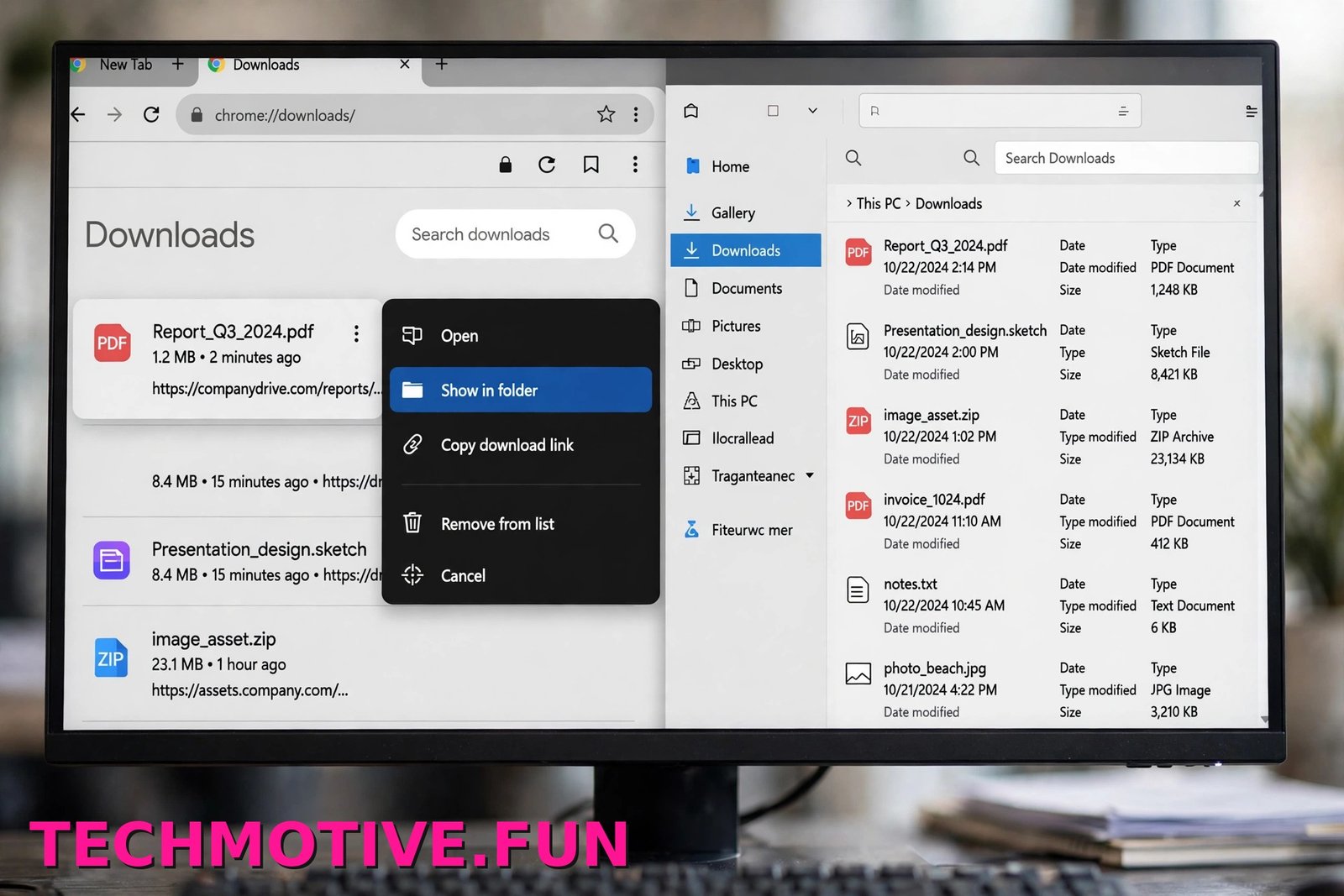
The Quickest Test: Open the Folder Yourself
Forget Chrome for a moment and open the folder the plain Windows way.
- Press the Windows key + E to open File Explorer.
- Click Downloads in the left-hand pane.
- Look for the file you just downloaded.
What happens next tells you a lot:
- The folder opens and your file is there. Windows and the folder are fine. The problem is on Chrome’s side — most likely the location Chrome is pointing to, a stuck downloads panel, or a damaged Chrome profile. Work through the Chrome checks below.
- The folder won’t open here either, or Explorer freezes. This is a Windows or File Explorer problem, not a Chrome one. Jumping straight to the File Explorer restart further down will save you time.
- The folder opens, but your file isn’t in it. Chrome is probably saving files somewhere else. The next section shows you how to check where.
This distinction matters, because resetting Chrome will not fix a broken File Explorer, and Windows repairs will not fix a wrong folder path inside Chrome. Microsoft’s own guide to fixing File Explorer when it won’t open or start covers the Windows side of this.
Check Where Chrome Thinks Your Downloads Live
Chrome doesn’t have to use the standard Windows Downloads folder. It saves to whatever location is set in its settings, and that location can quietly become wrong. A USB drive you removed, a folder that was moved or deleted, or a network location that is currently offline can all leave Chrome pointing at a place that no longer exists. When you then click Show in folder, Chrome asks Windows to open a folder that isn’t there — and sometimes Windows responds by doing nothing at all.
Here is how to check:
- Open Chrome and go to chrome://settings/downloads, or click the three-dot menu, then Settings, then Downloads.
- Look at the path shown under Location. On most Windows PCs it should read C:\Users\<your name>\Downloads.
- If that path names a drive letter or folder you don’t recognise, or one you know was removed or moved, click Change and select the real Downloads folder.
- Download a small test file and click Show in folder again.
While you’re there, you’ll also see the Ask where to save each file before downloading toggle. Turning it on is a handy temporary test: Chrome asks for a save location every time, which lets you confirm that saving to a known-good folder works. Google’s help page on downloading a file in Chrome covers these same settings.
Fixes for Chrome Downloads Folder Not Opening, in the Order to Try Them
Work through these in order. Each one targets a different cause, and the early ones take under a minute.
1. Restart File Explorer from Task Manager
Show in folder doesn’t open a Chrome window — it asks File Explorer to open one. If Explorer is stuck in the background, the request goes nowhere and the click appears to do nothing. Restarting Explorer clears that hang without restarting your whole PC.
- Press Ctrl + Shift + Esc to open Task Manager.
- In the Processes list, find Windows Explorer.
- Right-click it and choose Restart.
Your taskbar and desktop icons will disappear for a few seconds and then come back. That’s normal. Now go back to Chrome, press Ctrl + J to open the downloads list, and click Show in folder on your file again.
2. Make Sure the Drive and Folder Still Exist — and Aren’t Full
If your download location sits on an external drive, a USB stick, or a network folder, that drive has to be connected and available. If it isn’t, Chrome has nowhere real to point Explorer to. Open This PC in File Explorer and check that the drive appears there.
While you’re looking, check the space bar under the drive. A completely full drive causes all sorts of odd behaviour around saving and opening files. If the bar is red or the free space is nearly zero, clear some room — empty the Recycle Bin and remove large files you no longer need — then test again.
Also scroll through the folder list and confirm the download folder itself still exists. If it was renamed or deleted, go back to chrome://settings/downloads and use Change to point Chrome at a folder that is actually there.
3. Check the Folder Permissions, Simply
Windows folders carry permissions that decide which accounts can open them. If those permissions got changed — after moving a folder, copying it from another PC, or restoring from a backup, for example — your account might be blocked from opening it, even though it’s “your” folder.
- Right-click the Downloads folder and choose Properties.
- Open the Security tab.
- Click your user account name in the list and look at the permissions below it. Your account should normally have Read & execute, List folder contents, and Read allowed.
If your account isn’t listed, or those permissions are set to deny, that’s a likely cause. Take care here: don’t change advanced settings at random, because you can lock yourself out further. On a work or school PC, ask the person who manages it. On your own PC, a safer test is to point Chrome at a fresh folder using Change and see whether that opens normally.
4. Check Whether Windows Security or Your Antivirus Is Getting in the Way
Security software sits between apps and your folders, so it can occasionally interfere with opening or saving files. One specific Windows feature is worth knowing about: Controlled folder access, part of Windows Security, can block apps it doesn’t trust from reaching protected folders, and Downloads is commonly one of those protected folders. That blocking is more often linked to saving problems, but it can also show up as an app failing to work with the folder as expected.
To check, open Windows Security, go to Virus & threat protection, then Ransomware protection, and look at Controlled folder access and its Protection history. Blocked actions involving Chrome around the time your downloads failed would point in this direction. Don’t switch protection off and leave it off. With a third-party antivirus, check its history for anything involving Chrome or the folder, and only test with it paused briefly if you understand the risk — then turn it straight back on.
5. Clear Chrome’s Download History
Sometimes the problem is the downloads panel itself. A single damaged or half-finished entry can make the list behave strangely, including clicks that do nothing.
- Press Ctrl + J, or go to chrome://downloads.
- Click the three-dot menu at the top right of the downloads page.
- Choose Clear all.
Be clear on what this does: it only empties the list inside Chrome. It does not delete the actual files from your folder — they stay exactly where they are. After clearing, download a fresh test file and try Show in folder on it. Note that clearing this list won’t fix a download that failed partway through because the connection dropped; if files keep getting cut off mid-download, our walkthrough on fixing ERR_CONNECTION_RESET in Chrome covers that separate issue.
When the Folder Opens but the Wrong One
Sometimes Show in folder works — it just opens a folder you didn’t expect, and your file isn’t in the one you usually check. Two common explanations cover most of these cases.
The first is that the Windows Downloads folder itself was moved at some point. Windows lets you relocate it to another drive, and afterwards the shortcut in File Explorer leads to the new place. To check, right-click Downloads in File Explorer, choose Properties, and open the Location tab. The path shown there is where Windows believes the folder lives.
The second is OneDrive. If OneDrive backup is turned on for your folders, Downloads may have been redirected so its real path runs through your OneDrive folder, something like C:\Users\<your name>\OneDrive\Downloads. The folder looks the same, but the path is different — and if Chrome is still pointing at the old, non-OneDrive location, the two won’t match up. Compare the Location path in Chrome’s settings with the Location tab in Explorer, and use Change in Chrome to make them agree.
A stale page request is a different fault again; our guide to the ERR_CACHE_MISS error in Chrome explains that one if you ever see it.
The Last Few Things to Check
If the folder location is correct, Explorer has been restarted, and the panel has been cleared, try these final steps before giving up.
Run a System File Checker scan. System File Checker is a built-in Windows tool that scans protected Windows system files and repairs ones that are damaged or missing. Since opening your downloads depends on File Explorer, a damaged system file behind Explorer is a sensible last thing to rule out. To run it:
- Right-click the Start button and choose Terminal (Admin) or Windows PowerShell (Admin), and approve the prompt.
- Type the command below and press Enter.
sfc /scannow- Let the scan finish — it can take a while — then restart your PC and test again.
Test with a new Chrome profile. Click your profile icon in Chrome and choose Add to create a fresh profile, then download a test file in it. If Show in folder works there, your original profile — or one of its extensions — is the problem, and you can narrow it down by disabling extensions in the old profile. If the new profile also throws connection errors, the ERR_CONNECTION_REFUSED fix guide is the right next read.
Reset Chrome, as the genuine last resort. Go to Settings, then Reset settings, then Restore settings to their original defaults, and confirm with Reset settings. This resets things like your startup page, search engine, and pinned tabs, disables all extensions, and clears temporary data such as cookies. Your bookmarks, history, and saved passwords are not deleted. Because it undoes your custom setup, only do this once everything above has failed.
Frequently Asked Questions
Why does Show in folder not do anything when I click it?
Because the click relies on two things working: Chrome pointing at a real folder, and File Explorer being able to open it. If the download location in Chrome’s settings names a removed drive or a deleted folder, there’s nothing to open. If File Explorer itself is stuck, the request never lands. Restarting Explorer and checking the Location path at chrome://settings/downloads fixes most cases.
Where did my downloaded file actually go?
It went to the folder shown under Location at chrome://settings/downloads, which isn’t always the standard Downloads folder. Open that exact path in File Explorer and look there. If you had the Ask where to save each file before downloading toggle on, the file went to whichever folder you picked in the save window at the time.
Can I change the downloads folder to another drive?
Yes. Go to chrome://settings/downloads, click Change next to Location, and pick a folder on the other drive. From then on, Chrome saves there and Show in folder opens that location. Just remember the drive needs to be connected — if it’s an external drive that’s unplugged, you’re back to the folder not opening.
Does clearing download history delete my files?
No. Choosing Clear all from the three-dot menu on the downloads page only removes the list of downloads inside Chrome. The files themselves stay in your downloads folder, untouched. You can clear the list safely whenever it gets cluttered or starts behaving oddly.
Why does File Explorer freeze when I open Downloads?
A freeze usually points to Windows rather than Chrome. Common reasons include a very large number of files in the folder, a damaged file that Explorer struggles to preview, or Explorer itself being in a bad state. Restarting Windows Explorer in Task Manager is the quick first step. If it keeps happening with this one folder, move some files out into subfolders and test again.
Is the Downloads folder the same as Chrome’s download location?
Not necessarily. The Windows Downloads folder is a fixed system folder, usually at C:\Users\<your name>\Downloads. Chrome’s download location is a setting that normally points to that folder, but it can be changed to any folder on any drive — and the Windows folder itself can also be moved or redirected by OneDrive. When the two point to different places, confusion follows.
Final Checklist
If the chrome downloads folder not opening problem is still with you, run through this list in order — most people find their fix somewhere in the first four:
- Open Downloads manually in File Explorer to learn whether the fault is Chrome-side or Windows-side
- Check the Location path at chrome://settings/downloads and use Change if it points to a removed, moved, or offline folder
- Restart Windows Explorer from Task Manager with Ctrl + Shift + Esc
- Confirm the drive exists, is connected, and isn’t full
- Check the folder’s Properties and Security tab so your account can read it
- Look at Controlled folder access and your antivirus history for blocked actions
- Use Clear all on the downloads page to remove a corrupt history entry
- Compare the folder’s Location tab with Chrome’s setting if the wrong folder opens
- Run
sfc /scannow, test a new Chrome profile, and reset Chrome only as the last resort
Start at the top, test Show in folder after each step, and stop as soon as it works — there’s no need to do them all once the folder opens again.