ERR_CACHE_MISS in Chrome: Why “Confirm Form Resubmission” Appears and What to Do
Why Chrome Shows This Message
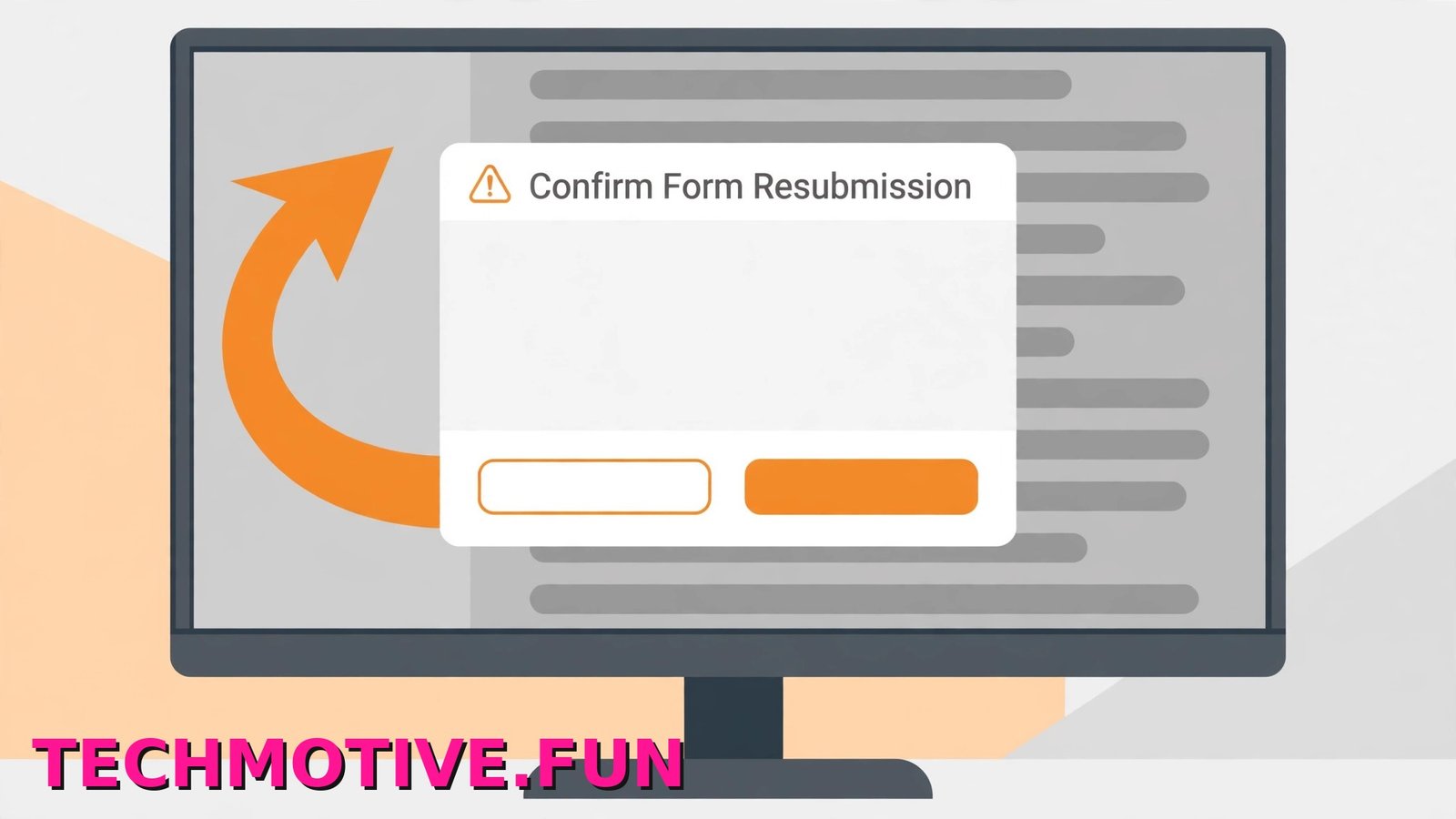
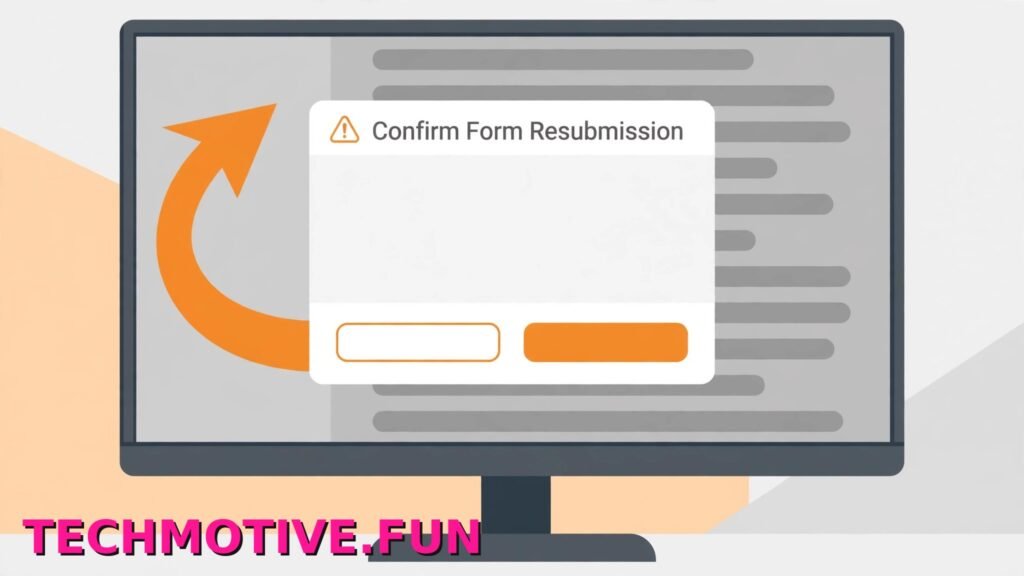
You fill in a form, click submit, land on the result page — and then you press Back, Forward, or Reload and Chrome stops you. Instead of the page you expected, you get a plain message headed Confirm Form Resubmission, with ERR_CACHE_MISS written underneath it.
Google’s own explanation, on its list of common Chrome error messages, is short: “The page needs information you entered earlier to be submitted again.” And that really is the whole mechanism.
When you submit a form — a login, a checkout, a search, a file upload, a booking — your browser sends the information you typed to the website. That kind of request is called a POST request, and the page you see next is built from the data you just sent.
Chrome does not store that kind of page in its cache in the normal way, and there is a sensible reason for that. Form data can be private, and it can also be one-off: a payment, an order, a message you posted once. Quietly replaying it could send the same thing twice without you meaning to.
So when you press Back or Reload on a page that was created from form data, Chrome cannot just pull a saved copy out of the cache. The cache copy, in effect, is missing — hence ERR_CACHE_MISS. To show the page again, Chrome would have to send your form information a second time, and it stops and asks for your permission first.
In most cases, that is the whole story. This is not your cache breaking down — it is Chrome being careful.
The message only becomes a real problem when it appears in a loop, shows up during ordinary browsing where you never submitted anything, or blocks you from getting back to something important. Those cases start with the one decision that actually matters — whether to press Reload at all.
When It’s Safe to Press Reload — and When It Isn’t
Pressing Reload on this screen does one thing: it sends the form data again. Whether that is harmless or a genuine problem depends entirely on what the form was doing.
It is usually safe in these situations:
- You ran a search on a website and want to see the results page again.
- You used filters on a shopping or listings page — price, size, location — and pressed Back to adjust them.
- You submitted a login form that clearly did not complete, and you are still sitting on the login screen.
In cases like these, the worst that normally happens is a duplicate search or the same settings saved twice. Press Reload once and carry on.
Be much more careful with anything involving money or a one-time action:
- Payments and checkouts
- Orders on shopping sites
- Flight, hotel, train, or ticket bookings
- Bank transfers or bill payments
- Posts, applications, or submissions that should only exist once
Here is the risk. Your first attempt may have already gone through, even if you never saw a confirmation page — the site may have taken your payment before something interrupted the final screen. If you press Reload and send that form again, you can end up with two orders, two charges, or two bookings.
So before you resubmit anything that involves money, stop and check first:
- Look in your email inbox, including the spam folder, for an order or booking confirmation.
- Open the website in a fresh tab, sign in, and check your account’s order history or bookings page.
- If a payment was involved, check your bank or card app for a pending charge.
If you find a confirmation, do not press Reload — your order already exists. If you find nothing after a reasonable wait, resubmitting is far less risky, though on a large payment, contacting the site first is still safer.
How to Get Back to What You Were Doing
For a safe page, such as search results or a filtered listing, press Reload once and let the page rebuild itself. That normally ends it.
If you have just submitted something and want to move around the site, avoid the browser’s Back button for a while. Use the website’s own navigation instead — its menus, its Home link, View Cart, My Orders, or Order History. Those links take you to fresh pages the site builds directly, so Chrome never has to ask about resending old form data.
If the message keeps returning every time you try the same route, stop fighting it. Start again from the beginning:
- Open a new tab and go to the website’s homepage.
- Sign in again if you need to.
- Navigate to the form or page using the site’s menus.
- Fill it in and submit it once.
A clean run breaks the loop, because there is no stale form result in your tab’s history waiting to be replayed.
One more habit helps: after submitting a form, let the result page finish loading before you click anything. Pressing Back or Reload while a submission is still processing is a common way to land on this screen.
If It Keeps Happening on Normal Browsing
A single appearance after pressing Back is normal. But if ERR_CACHE_MISS shows up repeatedly — on pages where you never submitted a form, or almost every time you go back — something on your side may be interfering. Work through the steps below in order, and stop when the problem stops.
Google covers several of these checks in its guide to fixing connection and loading errors, and they apply here too when the message becomes constant rather than occasional.
Clear the cache and cookies for the affected site
Old or damaged site data can leave Chrome stuck on pages it should handle quietly, so clearing it forces a clean start.
To clear everything:
- Open Chrome and click the three-dot menu in the top-right corner.
- Go to Settings → Privacy and security → Delete browsing data.
- Set the time range to All time.
- Tick Cookies and other site data and Cached images and files.
- Click Delete data, then restart Chrome and try the site again.
You will be signed out of websites by this, so make sure you know your passwords before you do it.
If the problem only affects one site, you can clear just that site instead:
- Open the website.
- Click the icon at the left of the address bar.
- Click Cookies and site data, and delete the data stored for that site.
- Reload the page and sign in again.
Test the page in an Incognito window
Click the three-dot menu and choose New Incognito window, then open the site and repeat what you were doing. Incognito starts without your usual extensions and with clean, temporary site data.
If the error does not appear there, the cause is almost certainly an extension or stored site data in your normal profile — which makes the next step the important one.
Turn off extensions that block or filter content
Ad blockers, privacy tools, and script-blocking extensions sit between you and the page, and they can interfere with form pages and the redirects that follow a submission.
- Type
chrome://extensionsin the address bar and press Enter. - Switch off your ad-blocking and privacy extensions first.
- Go back to the site and test the form again.
- If the problem is gone, turn the extensions back on one at a time until it returns, so you know which one is responsible.
Once you have found the culprit, check whether it lets you allowlist the affected website, so you can keep the extension and still use the site.
Update Chrome
- Type
chrome://settings/helpin the address bar and press Enter. - Chrome will check for updates automatically.
- If an update is offered, install it and click Relaunch when prompted.
Reset Chrome settings
Leave this until last. Resetting returns Chrome’s settings to their original defaults, turns off extensions, and clears temporary data, but it does not delete your bookmarks, history, or saved passwords.
- Go to Settings → Reset settings.
- Click Restore settings to their original defaults.
- Click Reset settings to confirm.
- Restart Chrome and test the site before changing anything else.
Other Chrome errors point in very different directions: a page that fails with a reset connection is covered in our guide to fixing ERR_CONNECTION_RESET in Chrome, a site that refuses the connection altogether in our ERR_CONNECTION_REFUSED fix guide, and a name that cannot be found at all in our guide to fixing DNS_PROBE_FINISHED_NXDOMAIN. ERR_CACHE_MISS is different from all three: the connection has not failed, Chrome is pausing before it resends something.
If It Only Happens on One Website
If every other site behaves normally and only one site keeps throwing up Confirm Form Resubmission, your PC is almost certainly fine.
Some websites are built in a way that makes this message hard to avoid. If a site produces important pages directly from form submissions — and does not redirect you to a clean results page afterwards — then Back, Forward, and Reload on those pages will trigger the warning every time. That is a design choice on the site’s side, not a fault on yours.
Your options then are practical rather than technical:
- Use the site’s own buttons and menus instead of the browser’s navigation after submitting anything.
- If the site has an app, try completing the task there instead.
- Contact the site’s support team and tell them the page where it happens. If their form handling is at fault, they are the only ones who can change it.
Do not keep resetting Chrome for the sake of one stubborn website. Once you have confirmed the problem does not follow you elsewhere, you have done the checks that matter.
One Last Thing to Remember
ERR_CACHE_MISS is badly named for what it actually does. It is not a report that your cache is broken. It is Chrome asking, “This page was made from information you sent — do you want me to send it again?”
Most of the time the answer is yes, and pressing Reload on a search or a login is perfectly fine. The one habit worth keeping is the pause before resubmitting anything that involves money: check your email and your order history first. That thirty-second check is the real chrome err cache miss fix in the cases that matter, because it stops a harmless warning turning into a duplicate payment. And if the message starts appearing on ordinary pages, clear the site’s data, test in Incognito, and check your extensions — in that order.
Frequently Asked Questions
Is ERR_CACHE_MISS a virus?
No. It is a standard Chrome message, not a sign of infection. It appears because the page you are revisiting was created from form data Chrome did not store in its cache, so Chrome asks before sending that data again. If you see it on a page where you never entered anything, an extension or damaged site data is a more likely explanation than malware.
Will pressing Reload charge me twice?
It can, if the form was a payment or checkout and your first attempt actually completed. The confirmation screen does not always appear even when an order goes through. Before resubmitting anything involving money, check your email for a confirmation and look at the order history in your account. If the order is already there, close the error tab instead of reloading it.
Why does it appear when I press Back?
Because the page you are going back to was the result of a form submission. Chrome did not keep a cached copy of it, partly so private form data is not quietly replayed. To rebuild that page it would need to send your information again, and it asks for permission first. Normal pages reached by clicking links are cached as usual, so Back works there without any warning.
How do I stop ERR_CACHE_MISS from appearing?
You cannot switch the warning off completely, and you would not want to — it protects you from accidental double submissions. You can see it less often by using a website’s own navigation after submitting a form instead of the Back button, and by letting result pages finish loading. If it appears on pages where you submitted nothing, clear that site’s cookies and cache and test in an Incognito window.
What is the difference between ERR_CACHE_MISS and a normal cache problem?
A normal cache problem usually means Chrome is showing you an old or damaged saved copy of a page. ERR_CACHE_MISS is almost the opposite: Chrome has no saved copy of this page, because it was built from data you submitted. Clearing the cache is still a useful test when the message appears in the wrong places, but the error itself does not mean your cache is faulty.
Does this happen in other browsers or only in Chrome?
Other browsers handle form resubmission in a similar way, because the underlying issue is the same — a results page built from submitted data cannot simply be redisplayed from storage. The wording differs, and ERR_CACHE_MISS is Chrome’s specific error code, but pausing to ask before resending form data is a deliberate safety step, not a defect.