Seeing ERR_CONNECTION_REFUSED in Chrome? Start With This One Question
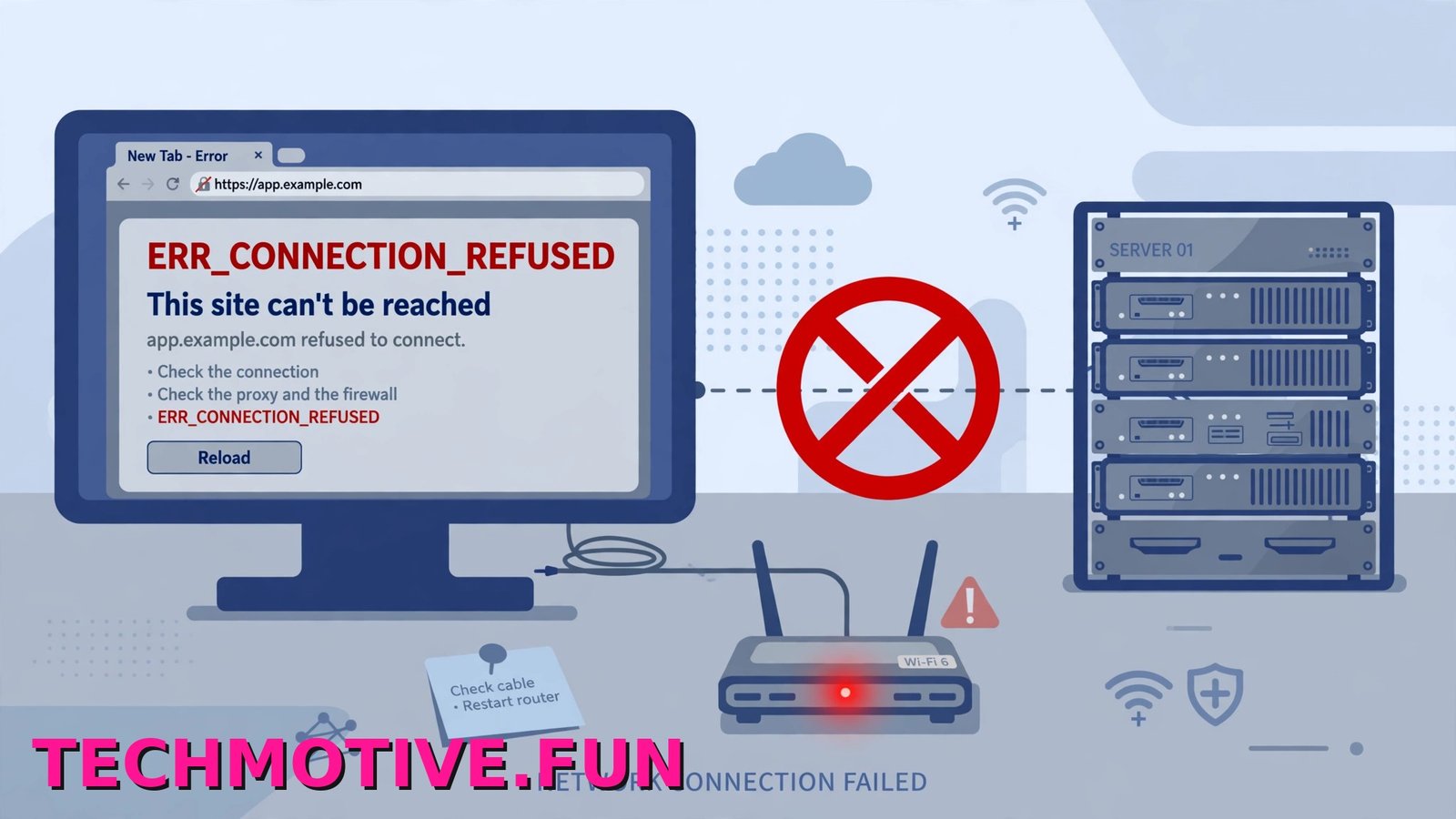
You open a page you use every day, and instead of the site you get a grey screen and the words “This site can’t be reached.” Underneath, Chrome adds that the site “refused to connect” and shows the code ERR_CONNECTION_REFUSED.
That wording tells you more than most error messages do. Chrome tried to connect, something answered back, and that something said no. The connection was not slow, and it was not lost halfway through. It was rejected right at the start. Google puts it in plainer language on its help pages: the page did not let Chrome connect.
That “something” could be the website’s own server, down or too busy to accept new connections. It could also be a firewall or security program on your PC, your router, or a block on the network between you and the site. Because the cause can sit at either end, randomly changing settings rarely helps. The fastest chrome err connection refused fix starts with one simple question, and your answer decides which half of this article you need.
One Site or Every Site? Your Answer Changes Everything
Before you touch a single setting, spend two minutes on three quick tests:
- Open two or three other well-known websites in Chrome, such as a search engine and a news site.
- Try the failing site in a different browser, such as Microsoft Edge, already installed on Windows 11.
- Try the same site on your phone while it is connected to the same Wi-Fi as your computer.
Now read the results like this:
- If only one website fails, and it also fails in Edge, the problem is probably that website or the path your network takes to reach it. Head to the next section.
- If no website opens in Chrome but sites open fine in Edge, the problem is likely inside Chrome or in a security tool treating Chrome differently.
- If nothing opens on your computer and your phone also fails on the same Wi-Fi, your router or internet connection is the main suspect.
- If the site fails on Wi-Fi but loads on mobile data, your home network or internet provider is probably involved.
Remember which pattern you got, and work through only the section that matches it first.
If It’s Only One Website
When every other site loads, your connection works and Chrome is broadly fine. The refusal is tied to that one address, so the fixes here stay narrow.
The site’s server may simply be refusing everyone
A server can refuse connections when it is offline for maintenance, restarting, overloaded, or misconfigured. In that case nothing is broken on your computer, and no setting you change will bring the site back sooner. Try again after a short wait. The section on website-end problems below explains how to tell a site-wide outage from a block that only affects you.
Clear the data Chrome has stored for that one site
Sometimes Chrome holds on to old cookies or cached files for a site, and the server rejects the connection that comes with that stale data. Clearing the whole browser is overkill. Clear just the one site:
- Open the failing site’s address in Chrome, even though it does not load.
- Click the icon to the left of the address, then choose Site settings.
- Click Delete data, and confirm if Chrome asks.
- Close the tab, open a new one, and type the address again.
This does not remove saved passwords. It signs you out of that site, so you will sign in again once it loads.
Check the Windows hosts file
Windows keeps a small text file called the hosts file. It can override the normal address lookup for a website and point it somewhere else, or at your own computer, which makes the connection fail. Malware and old ad-blocking tools can add lines to it. Check it if one site never loads on this PC but works everywhere else.
The file lives at C:\Windows\System32\drivers\etc\hosts. To check it:
- Click Start, type Notepad, right-click it, and choose Run as administrator.
- In Notepad, click File and then Open.
- Paste the folder path above into the address bar of the open window, change the file type filter to All Files, and open the file named hosts.
- Look for any line that mentions the website that will not load.
Most lines start with a # symbol, meaning they are comments and do nothing. Only worry about a line containing the blocked site’s name that you did not add, and an IT admin did not add for you. Delete that line only, save, restart Chrome, and test again. If unsure about a line, leave it alone. Do not delete the whole file.
A different error can look similar here. If Chrome instead says a site’s address could not be found, that is a name lookup problem, covered in our guide to the DNS_PROBE_FINISHED_NXDOMAIN error in Chrome.
If No Website Will Connect
When every site refuses to connect, work through these checks in order, from the most common causes to the less common ones.
Restart Chrome and your computer properly
A stuck Chrome process or a network driver in a bad state can refuse every connection until it is restarted.
- Close all Chrome windows.
- Press Ctrl + Shift + Esc to open Task Manager.
- If Chrome is still in the list, select it and click End task.
- Restart your computer from Start, then Power, then Restart.
- Open Chrome and test two or three sites.
If everything loads now, you are done. If not, keep going.
Check whether your firewall or antivirus is blocking Chrome
Security software sits between your apps and the internet, and it can block Chrome after an update, through a mistaken rule, or because it flagged Chrome’s behaviour as suspicious. This is a common reason for a sudden refusal across all sites.
First, check the Windows firewall rule:
- Open Windows Security from Start.
- Click Firewall & network protection.
- Click Allow an app through firewall.
- Click Change settings if the list is greyed out.
- Find Google Chrome in the list and make sure it is ticked, with the box for your current network type ticked as well.
- Click OK, restart Chrome, and test again.
If you use a third-party antivirus, open it, check its list of blocked apps, and confirm Chrome is allowed there too. As a short test only, pause that protection for a couple of minutes and try a well-known site. If it loads straight away, you have found the cause: turn protection back on, then fix the rule in that program or reinstall it so it rebuilds its rules. Never leave protection paused while browsing normally.
The page where Google explains common Chrome error messages confirms what each code means, which stops you chasing the wrong problem.
Turn off a proxy that should not be on
A proxy is a middleman server your traffic passes through. Work and school computers use them on purpose. On a home PC, a proxy switched on by an old app or removed VPN can send Chrome’s requests to a server that refuses them all.
- Open Settings and go to Network & internet.
- Click Proxy.
- Under Manual proxy setup, if Use a proxy server is on and you did not set it up, turn it Off.
- Restart Chrome and test a few sites.
If your employer or school manages your computer, do not change these settings. The proxy may be required, so ask your IT department instead.
Restart your router
Your router handles every connection leaving your home, and a stalled router can look like every site refusing you.
- Unplug the router’s power cable. If you have a separate modem, unplug that too.
- Wait a full 30 seconds, so the connection fully drops.
- Plug the modem back in first, wait for its lights to settle, then plug in the router.
- Wait two or three minutes, then test Chrome again.
Clear the DNS cache in Windows
Windows stores recent address lookups in a cache so pages load faster. If it holds a bad entry, Chrome can keep trying a route that refuses the connection. Flushing empties the cache, and Windows looks addresses up fresh next time. It does not delete files, passwords, or history.
Open Terminal (Admin) by right-clicking Start, then run this command:
ipconfig /flushdnsYou should see a message confirming the cache was successfully flushed. Restart Chrome and test again. If you instead see a cousin of this error where the connection starts then drops, our guide about fixing ERR_CONNECTION_RESET in Chrome explains how that one differs.
Check the date and time, then try a clean Chrome profile
First, a badly wrong Windows clock can break secure connections. Go to Settings, then Time & language, then Date & time, and turn on Set time automatically.
Second, test your Chrome profile. Open a Guest window from the profile menu and try a few sites. If they load, an extension or damaged profile setting is likely. Back in your normal profile, open Extensions from the Chrome menu and turn extensions off one at a time, testing after each. If that does not help, go to Settings, then Reset settings, and choose Restore settings to their original defaults. This keeps bookmarks, history, and saved passwords. A stale cache state can produce its own error, covered in our article on fixing ERR_CACHE_MISS in Chrome.
When the Problem Is at the Website’s End
Sometimes the honest answer is that the fault is not yours. A few patterns give it away.
If the site loads on mobile data but refuses on every device on your home Wi-Fi, your provider’s route to that site, or a block on your network, is likely. Restarting the router is worth one try. Beyond that, wait for your provider or the site to fix the route, or use mobile data for that site meanwhile.
If the site fails on mobile data too, and fails for other people, the site itself is down or refusing everyone. There is no fix at your end. Wait and try later, or let the site know through its social accounts.
One special case for developers: this error is very common with localhost addresses, and it usually just means the local server is not running. Start the server, confirm the port in the address matches the one the app uses, and the error normally disappears.
Google also publishes a step-by-step page on fixing Chrome connection and loading errors, which lines up with the order used here.
Wrapping It Up
ERR_CONNECTION_REFUSED has a simple meaning: Chrome asked, and something said no. The opening test tells you who. One site failing points to that site, its stored data in Chrome, or a stray hosts file entry. Every site failing points closer to home: a firewall or antivirus rule, a proxy that should not be on, a router needing a restart, or a stale DNS cache.
Work through the section that matches your result, change one thing at a time, and retest as you go. When the page loads, you will know which fix did it.
Frequently Asked Questions
What’s the difference between ERR_CONNECTION_REFUSED and ERR_CONNECTION_RESET?
Refused means the connection was rejected before it really began: the server, or something in between, actively said no. Reset means the connection did start, then got cut off partway through, like a call connecting and then dropping. They can share causes such as security software, but refused points more strongly to a block or a server not accepting connections at all.
Can my antivirus cause this error?
Yes. If an antivirus or firewall blocks Chrome by mistake, every site can come back as refused. The giveaway is that other browsers still work, or sites load during a brief test with protection paused. The proper fix is to allow Chrome in that program’s settings or reinstall the security software, not to leave protection off.
Does this error mean the site blocked me?
Not usually. A site blocking your account still loads its pages, showing a sign-in or access message instead. A network-level block, where a site refuses connections from your network or region, can cause this error, but it is far less common than an outage or a problem on your own PC. Test on mobile data: if the site loads there, the refusal is tied to your Wi-Fi network, not to you personally.
Why does only one website show ERR_CONNECTION_REFUSED while others work fine?
Because the refusal is specific to that site’s server or to the data Chrome uses for it. The server may be down, it may be refusing your network, Chrome may hold damaged cookies for it, or the Windows hosts file may contain an entry for it. Clearing that site’s data and checking the hosts file are the two fixes aimed at this pattern.
Will clearing cache and cookies fix ERR_CONNECTION_REFUSED?
It can, mainly in the one-site case, where stale cookies or cached files are part of the problem. It will not help if your firewall blocks Chrome, your proxy is wrong, or the website is down. That is why the opening test matters: it stops you clearing everything for a problem that lives elsewhere.
Why do I get ERR_CONNECTION_REFUSED on localhost?
Almost always because nothing is listening at that address. The local server you expect is not running, or it is running on a different port than the one in the address. Start the app, check the port it reports, and make sure the address in Chrome matches it exactly.