Why Is Chrome Using So Much CPU on Windows 11, and How Do You Stop It?
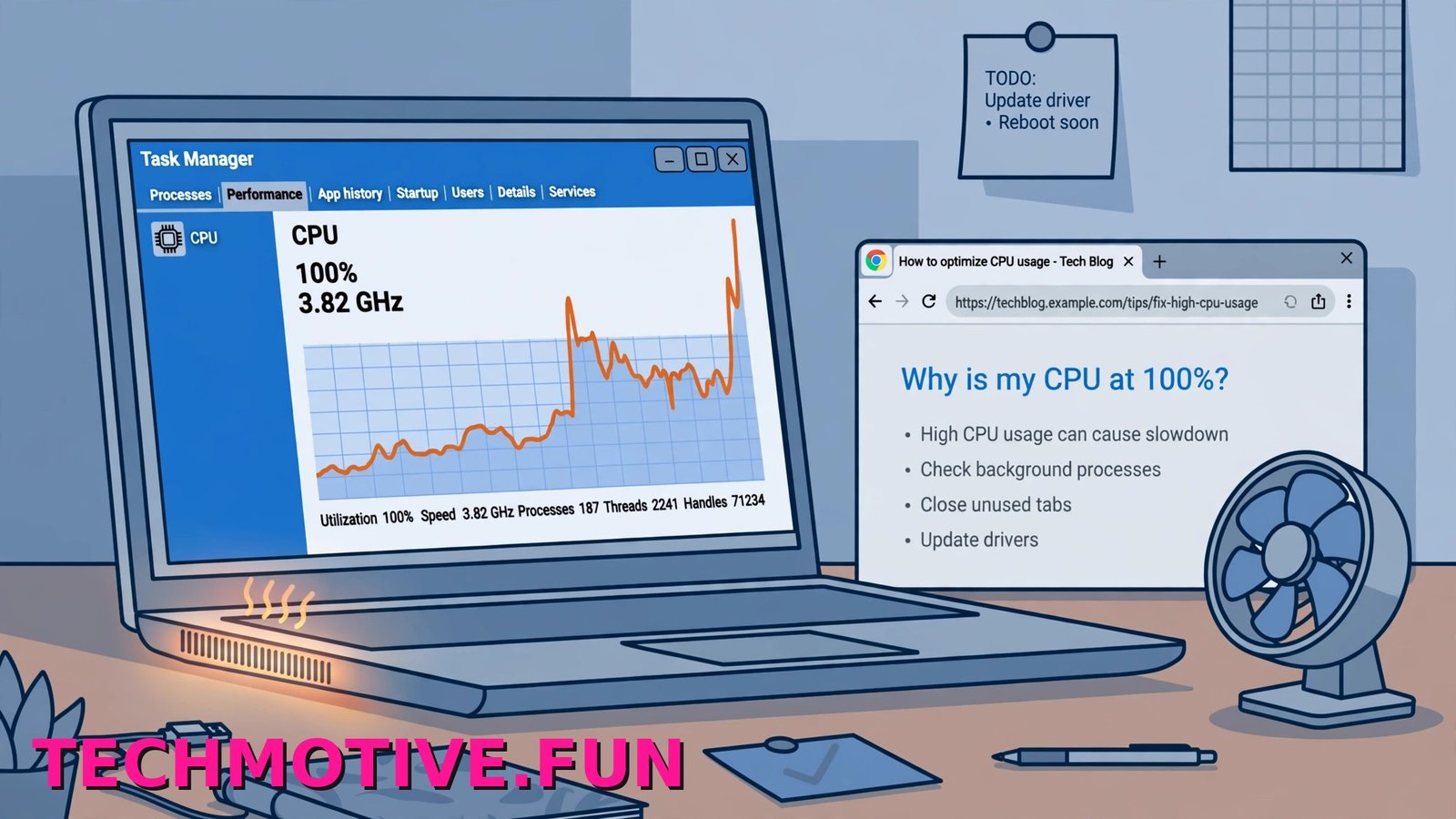
You open a few tabs, and suddenly the fan gets loud. Your laptop feels hot, the mouse starts to stutter, and everything else on Windows 11 slows down with it. Open Windows Task Manager and there it is at the top: Google Chrome, taking a big slice of your CPU while you are barely doing anything.
Chrome itself is not always the real problem. Usually one tab, one extension, or one background process inside Chrome is doing all the heavy work. Restarting Chrome helps for a few minutes, then the same tab loads again and the fan starts all over.
Do not start by reinstalling anything. Find out what inside Chrome is busy first. The fix is often surprisingly small.
Start With Chrome’s Own Task Manager
Most people only check the Windows Task Manager, but that view is limited. It shows Chrome as a group of processes, without clearly telling you which tab is misbehaving. Chrome has its own built-in task manager, and for this problem it is far more useful.
- Click anywhere inside Chrome so the browser window is active.
- Press Shift + Esc. You can also click the three-dot Menu, go to More tools, and select Task Manager.
- Click the CPU column heading to sort by CPU use. Click it again if the highest numbers are not at the top.
- Leave it open for 20 to 30 seconds and watch the numbers, because a bad process often jumps up and down rather than sitting still.
Now look at the names in the Task column. Chrome lists each item separately, so you will see the actual title of a tab, the name of an extension, or lines such as GPU Process and Utility: Network Service. If one tab, web app, or extension sits far above everything else, you have found your culprit.
To stop it right away:
- Click the row for that tab, extension, or process once to select it.
- Click End process in the bottom corner of the window.
- Check whether the fan noise and lag ease off within a minute or so.
If it was a tab, that tab will show as crashed or need a reload. Reload it and watch the CPU column again. If the same tab shoots straight back up, the page itself is the issue. Leave it closed or find an alternative.
One warning: ending the GPU Process or the main Browser row will close or restart large parts of Chrome, so only do that if you have saved your work. For single tabs and extensions, End process is safe — you might lose unsaved text in that one page, and that is about it.
Now work through the fixes below in order, from the quickest and most common onwards.
Check Your Extensions First
A heavy extension is one of the most common reasons for Chrome using too much CPU. Ad blockers, coupon finders, and grammar tools all run on every page you visit. If one goes wrong after an update, it can work endlessly in the background while you see nothing unusual on screen.
- Type
chrome://extensionsinto the address bar and press Enter. - Turn off the toggle on every extension card. You do not need to remove them yet.
- Use Chrome normally for a few minutes, with your usual tabs open, and keep an eye on CPU use.
- If things calm down, turn the extensions back on one at a time, using Chrome briefly after each one.
- When the CPU jumps again after turning one back on, that extension is the problem. Click Remove on its card, or leave it off until its developer updates it.
With the bad extension off, pages should stop feeling sticky and the fan should settle. If turning everything off changes nothing, your extensions are probably fine, so turn them back on and move on.
Try Turning Hardware Acceleration Off (or On)
Chrome can hand some work, especially video and graphics, to your graphics card instead of your CPU. That setting is called Use graphics acceleration when available. On most computers it lowers CPU use. On some, usually because of an older or buggy graphics driver, it does the opposite and causes high CPU or freezing.
The test is simple: change it from whatever it is now, restart Chrome, and compare.
- Click the three-dot Menu and open Settings.
- Click System in the left-hand menu.
- Find Use graphics acceleration when available and switch it to the opposite position.
- Click the Relaunch prompt that appears, or close Chrome completely and open it again.
Give it a few minutes of normal browsing after the restart. If CPU use drops, leave the setting as it is. If nothing changes, or things feel worse, put it back. You can undo it in seconds.
Stop Chrome Running After You Close It
Sometimes CPU use looks strange because Chrome never fully closed. By default, Chrome can keep apps and extensions running in the background after you close the last window, so its processes can stay busy when you think the browser is shut.
- Open the three-dot Menu and go to Settings.
- Click System in the left-hand menu.
- Turn off Continue running background apps when Google Chrome is closed.
- Close Chrome, wait a few seconds, and then check Windows Task Manager.
This time, Chrome should disappear from the list once all its windows are closed. Some extension notifications may stop arriving while Chrome is fully closed.
Give Memory Saver a Hand With Too Many Tabs
Chrome runs each tab as its own process, which is good for stability but heavy when you keep dozens open for days. Twenty or thirty tabs, with several playing media or refreshing themselves, can keep the CPU working constantly.
If your tab bar is full of pages you are not actually reading, that is part of the problem. Close what you do not need, or bookmark it for later.
Chrome also has a built-in setting that puts inactive tabs to sleep:
- Open Settings from the three-dot Menu.
- Click Performance in the left-hand menu.
- Turn on Memory Saver and pick how quickly inactive tabs should be put to sleep.
- If some sites must always stay active, such as webmail or a work tool, add them under Always keep these sites active.
After this, inactive tabs take a moment longer to wake up, because Chrome has to reload them. In return, they stop using resources in the background. If high CPU and high memory arrive together for you, our guide on Chrome using too much memory and RAM covers the memory side of this.
Make Sure Chrome Is Up to Date
An outdated build can carry a bug that a newer version has already fixed. Chrome normally updates itself, but an update can get stuck if Chrome is rarely closed completely.
- Open the three-dot Menu, go to Help, and select About Google Chrome. Or type
chrome://settings/helpin the address bar and press Enter. - Wait while Chrome checks. If an update is available, it will start downloading on its own.
- When prompted, click Relaunch to finish the update.
- Go back to the same page and confirm it says Chrome is up to date.
You will lose nothing by updating. Your bookmarks, passwords, and history stay in place, and open tabs normally come back after the relaunch. If the update fails, restart Windows once and try again.
Test With a Fresh Chrome Profile
If CPU use stays high even with extensions off and only a simple page open, your Chrome profile may be damaged. Profiles hold your settings, cache, and extension data, and a fault in there can follow you across every tab.
Testing this does not mean deleting anything. You create a second, clean profile and compare.
- Click your profile picture or initial in the top-right corner of Chrome.
- Click Add or Add Chrome profile, then continue without signing in if asked.
- Browse a few normal sites for several minutes in the fresh window that opens.
- Check CPU use in Chrome’s Task Manager with Shift + Esc, and compare it with your old profile.
If the new profile runs cool and quiet on the same websites, your old profile is the problem. Move across to it, sign in to sync your bookmarks and passwords back, and add extensions back slowly. If the new profile is just as busy, go back to your original one and try the next step. If your old profile also had tabs that keep crashing alongside the high CPU, that points even more strongly to a profile or extension fault.
Run a Full Scan for Unwanted Software
This check is worth doing if high CPU started suddenly, your homepage or search engine changed on its own, or you see pop-ups and extensions you do not remember adding. Unwanted software can use your processor quietly in the background.
- Open Windows Security from the Start menu.
- Click Virus & threat protection.
- Click Scan options, select Full scan, and click Scan now.
- Let it finish, and follow the prompts for anything it finds.
Also check chrome://extensions again afterwards for anything unfamiliar, and remove it. Google’s page on removing unwanted software and malware from Chrome is worth following if the scan finds something or the odd behaviour continues. If the scan comes back clean, unwanted software is unlikely to be your cause.
If pages regularly freeze alongside the CPU spikes, the steps for fixing unresponsive “Page Unresponsive” pages cover that side of the problem in more detail.
Keeping Chrome’s CPU Use Down Afterwards
Once things are back to normal, a few small habits stop the same problem creeping back:
- Keep your extension list short. If you have not used one in weeks, remove it rather than leaving it running on every page.
- Do a quick Shift + Esc check whenever the fan gets loud. Ten seconds in Chrome’s Task Manager usually names the page responsible.
- Restart Chrome properly now and then, especially if you normally just close the laptop lid.
- Close heavy tabs such as endless social feeds, live dashboards, and multiple video pages. They keep working even when you are not looking at them.
- Leave Memory Saver on if you are a heavy tab user.
What Usually Fixes It
For most people, it is one of three things: a single heavy tab found through Chrome’s Task Manager, an extension that has gone wrong, or the graphics acceleration setting clashing with the graphics driver. Start with Shift + Esc, end whatever is at the top of the CPU list, then test extensions and the Use graphics acceleration when available toggle next.
Work in that order and you will usually fix Chrome using too much CPU without resetting the browser or losing anything. If a clean profile still runs hot on simple pages, go through Google’s own crash-fix guide for the next checks, and make sure Windows itself is fully updated too.
Frequently Asked Questions
Is it normal for Chrome to use some CPU when it should be idle?
A small amount, yes. Pages check for messages and extensions do background work, so the number rarely sits at zero. What is not normal is Chrome holding a large share of the CPU for minutes while you are not touching it. That usually means one tab or extension is stuck working, and Chrome’s Task Manager will show you which one.
Can one bad tab really spike CPU for the whole browser?
Yes. One page with a looping video, a faulty script, or a live chart can use more CPU than all your other tabs combined. Because Chrome separates tabs into their own processes, that page can be ended with End process without closing the whole browser. Reload it once to confirm, and if it spikes again straight away, leave it closed.
Does hardware acceleration raise or lower CPU use?
It is meant to lower it, by moving graphics and video work from the CPU to the graphics card, and on most Windows 11 computers it does. With an old or faulty graphics driver, it can do the opposite. So do not guess: switch Use graphics acceleration when available over, relaunch Chrome, and compare.
Why is Chrome still using CPU after I close it?
That is usually the background apps setting. If Continue running background apps when Google Chrome is closed is on, parts of Chrome stay active after the window closes. Turn it off under Settings, then System, fully close Chrome, and check Windows Task Manager again. Chrome should now drop away within seconds.
Will resetting Chrome fix high CPU use?
It can, especially if the cause is a bad setting or a damaged profile, but treat it as a later step. A reset turns off extensions and restores default settings, so you will need to set things up again. Try the profile test first: if a clean new profile runs normally, you already know where the problem lives.
How many tabs is too many for Chrome on Windows 11?
There is no single number. Ten simple text pages are light work; ten pages with video, web apps, and auto-refreshing feeds are not. If your tab bar needs scrolling and the fan is loud, you have too many for your machine at that moment. Closing a few heavy ones, or turning on Memory Saver under Settings, then Performance, makes a real difference.