
Chrome Tabs Keep Crashing? How to Fix One Tab Without Losing the Rest
The Short Answer
If your chrome tabs keep crashing, the cause is usually smaller than it looks. One tab dying on its own rarely means the whole browser is broken. More often it comes down to one bad extension, one heavy or damaged website, a computer running low on memory, or a Chrome profile that has picked up corrupt data.
The pattern matters, so work out which one you have first.
If only one tab crashes, the problem is probably that page — a failing script, too much memory use, or an extension interfering with that site. If all tabs crash together, or Chrome itself closes, think bigger: low memory, an extension that runs everywhere, hardware acceleration trouble, or a damaged profile. If crashes happen on one website only, that points to the site itself or its cached files on your PC.
That check saves time. A single-tab problem does not need a reinstall, and a whole-browser problem will not be fixed by reloading one page.
What’s Actually Happening When a Tab Crashes
Chrome does not run as one single block. Each tab generally runs in its own process, often called a renderer process. That is deliberate. If one page goes wrong, Chrome can end that one process and protect the rest of the browser instead of letting everything fall over.
When a tab crashes, Chrome has usually decided that the process behind the page is stuck, broken, or using resources it cannot recover from. It stops the process, and you get an error page instead of the website.
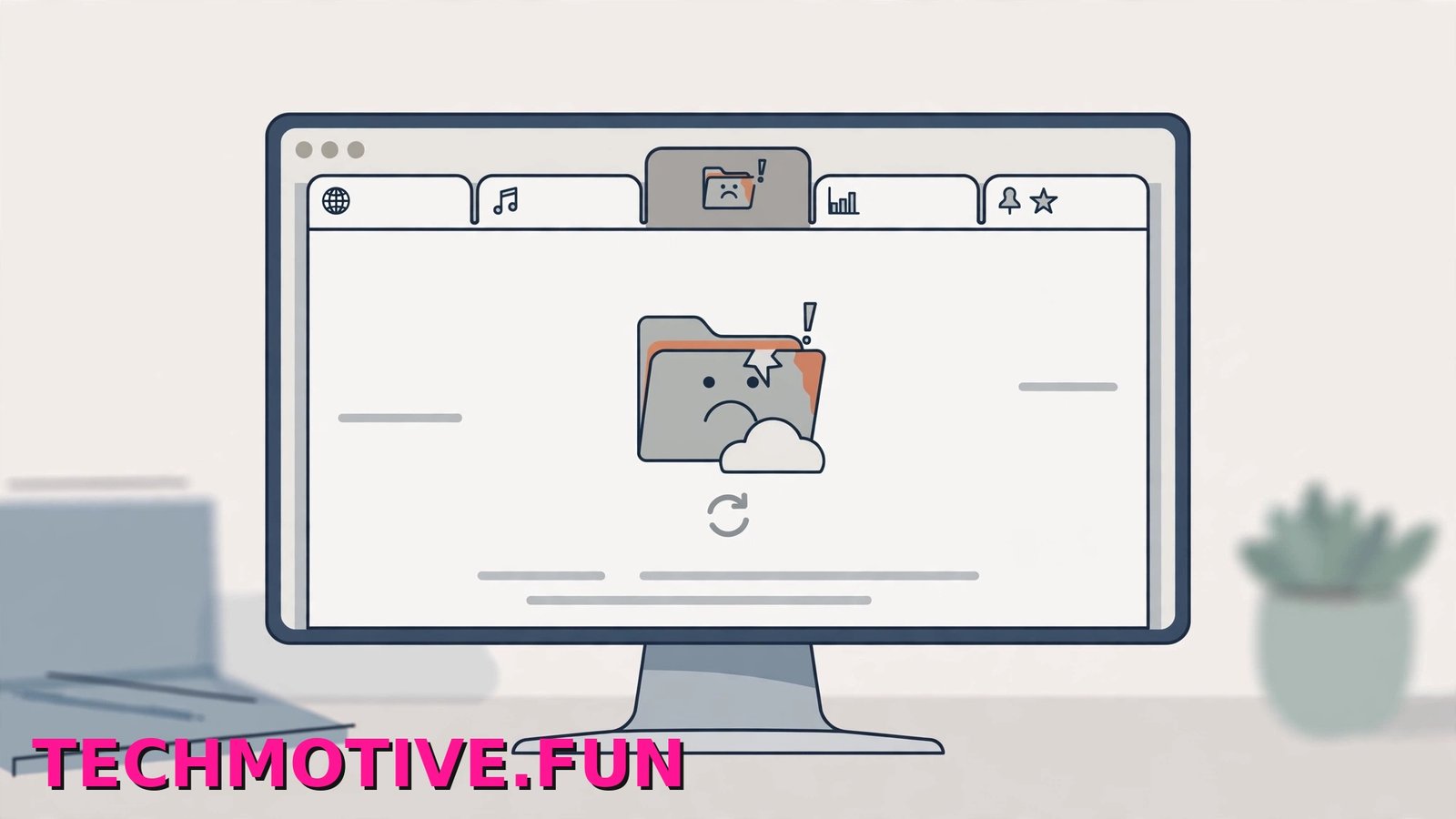
You will often see the Aw, Snap! message with a sad folder icon and a Reload button. Sometimes the page goes blank or freezes first. If you have seen that full-page error before, our guide to the Aw, Snap! error and how to fix it explains that screen in more detail.
Windows users also sometimes report result codes under the error, such as STATUS_ACCESS_VIOLATION or STATUS_BREAKPOINT. In plain English, they usually mean the tab’s process tried something Windows or Chrome did not allow, or hit an unexpected fault and stopped. Treat them as clues, not a diagnosis — the same code can come from a bad extension, a graphics issue, damaged cache, or a page that pushed memory too far.
A renderer crash is contained by design. Your other tabs, bookmarks, and passwords do not disappear because one tab failed.
Things to Check First
Run through these quick checks in order before you change any settings.
- Hard refresh the page. Click the crashed tab and press Ctrl + Shift + R. This reloads the page while bypassing some cached files for that site. If it now stays up, a damaged cached copy may have been the cause.
- Close and reopen the tab. Close it completely, open a new tab, and visit the same address again. Press Ctrl + Shift + T if you closed it by mistake.
- Restart Chrome fully. Closing one window is not always a full restart if Chrome runs in the background. Type
chrome://restartin the address bar and press Enter — Chrome will reopen and should restore your tabs. Or close every window and relaunch it from the Start menu. - Note whether it happens on one site only. Open a few simple pages and use them for a minute. One site only? Focus on that site, its cache, and its extensions. Every site? Move to the main fixes.
- Check memory and disk space. Press Ctrl + Shift + Esc to open Task Manager and check the Memory column. Then open Windows Settings > System > Storage and make sure your main drive is not completely full.
- Update Chrome. Click the three-dot menu, then Help > About Google Chrome. Let it check and install any update, then click Relaunch when prompted.
If tabs still crash after this, something that loads with every page — or something stored in your profile — is likely responsible.
The Main Fixes
Work through these one at a time, testing the problem tab after each. Changing five things at once tells you nothing about which one helped.
Fix 1: Disable Extensions One by One
Extensions are the most common reason a healthy Chrome starts crashing tabs. One that worked last month can break after it updates, or after a website it modifies changes.
- Type
chrome://extensionsin the address bar and press Enter. - Turn off the toggle on every extension.
- Reload the page that was crashing. If it works now, an extension is involved.
- Turn extensions back on one at a time, reloading the problem page after each.
- When crashes return, the last one you enabled is the likely culprit. Leave it off, click Remove, or check its Chrome Web Store listing for an update.
Pay extra attention to ad blockers, coupon tools, and security extensions — they change how pages load, so they break pages more often.
Fix 2: Test the Page in Incognito Mode
Incognito gives you a clean test in under a minute. By default it opens without most extensions and without your normal site data.
- Press Ctrl + Shift + N to open an Incognito window.
- Visit the page that keeps crashing and use it normally for a few minutes.
If it works in Incognito, something in your normal window is at fault — usually an extension, cached data, or your profile. If it crashes there too, the site, your memory, or the system is more likely. Google’s guidance on the steps to try when a page will not load properly follows a similar order.
Fix 3: Clear the Cache, Not Everything
If a stored copy of a page is damaged, the tab can fail every time Chrome tries to use it. You do not need to wipe your full history to fix that.
- Press Ctrl + Shift + Delete to open Clear browsing data.
- Set the time range to All time if several sites are affected, or Last 24 hours if it started today.
- Tick Cached images and files. Tick Cookies and other site data only if the problem is limited to one site — this signs you out of that site.
- Leave Browsing history unticked, then click Clear data and reload the page.
Fix 4: Turn Off Hardware Acceleration
Hardware acceleration lets Chrome hand graphics work to your graphics hardware. It usually helps, but on some PCs — especially after a driver or Windows update — it causes crashes, flickering, or blank pages.
- Click the three-dot menu and open Settings.
- Click System in the left sidebar.
- Turn off Use graphics acceleration when available.
- Click Relaunch when Chrome asks.
If crashes stop with it off, leave it off. Chrome still works fine for browsing and video.
Fix 5: Free Up Memory and Close Heavy Tabs
Dozens of tabs, video streams, large online documents, and web apps together can push a modest PC over the edge — and the weakest tab is the one Chrome sacrifices.
- Close tabs you are not using. Bookmark anything you need first with Ctrl + D.
- Open Task Manager and watch the Memory column as you reopen your important pages.
- Close other heavy apps you do not need right now.
If this happens often, our walkthrough on reducing Chrome’s high memory use covers Memory Saver in Chrome’s Performance settings. Note too that a crash is not a hang: a tab that stops responding without an error is a different fault, covered in our guide to fixing a page that stays unresponsive in Chrome.
Fix 6: Scan Windows for Malware
Older advice may tell you to run Chrome’s built-in Cleanup tool on Windows. That tool has been removed from Chrome, so do not go looking for it in settings — it is no longer there.
Use Windows Security instead:
- Search for Windows Security in the Start menu and open it, or go to Settings > Privacy & security > Windows Security.
- Click Virus & threat protection.
- Click Scan options, select Full scan, and click Scan now.
A full scan takes a while, so let it finish. It rules out unwanted software that interferes with browsers.
Advanced Fixes for Stubborn Crashes
If the main fixes did not help, the problem is likely a damaged profile, a system issue, or security software getting in the way. Save these for last.
Create a New Chrome Profile and Test It
A new profile starts clean — no extensions, no old settings, none of your profile’s stored data. It is the fastest way to test whether your profile is the problem.
- Click your profile picture or initial in the top-right corner of Chrome.
- Click Add or Add Chrome profile.
- Continue without an account for the test.
- Open the sites that were crashing and use them for a while.
If tabs stop crashing there, your original profile is damaged. Move across gradually: sign in to sync bookmarks and passwords, then add extensions back one by one. Google’s help page on how Chrome profiles and sync work is worth reading before you delete anything from the old profile.
Be Careful With the Profile Folder
Some guides suggest renaming Chrome’s User Data folder. Treat that as advanced, not routine — that folder holds your profiles, and renaming it forces Chrome to create a fresh one.
If you try it, close Chrome completely, copy the folder somewhere safe as a backup, and only then rename the original. If anything looks wrong, close Chrome and put the backup back. Never delete the only copy, especially if you do not use sync.
Check Windows Event Viewer
After a crash, open Event Viewer from the Start menu and look under Windows Logs > Application around that time. Look for repeated errors naming the same module, driver, or security program — that is a real lead. One vague entry proves nothing.
Test Memory and Disk Health
If tabs crash alongside problems in other apps, stop treating it as a Chrome problem. Search for Windows Memory Diagnostic to check memory, and check your drive in Settings > System > Storage. Back up anything important first — faulty memory or a failing drive will keep crashing things however often you reinstall a browser.
Temporarily Test Your Antivirus Web Shield
Some third-party antivirus programs inspect web traffic as pages load, and that web shield occasionally clashes with Chrome.
As a short test only, pause the web shield, reload the problem pages, and see if crashes stop. Turn protection straight back on afterwards. If the test helped, update the antivirus or contact its support team — do not leave protection off.
Reset Chrome Settings
A reset restores default settings, disables extensions, and clears temporary data, while keeping bookmarks, history, and saved passwords.
- Open Settings and click Reset settings in the left sidebar.
- Click Restore settings to their original defaults.
- Confirm with Reset settings.
You will need to set up extensions again afterwards.
Reinstall Chrome as the Last Resort
If a fresh profile also crashes, a reset did not help, and other apps are fine, a clean reinstall is reasonable.
- Uninstall Chrome from Settings > Apps > Installed apps.
- Restart your PC, download Chrome from Google’s official site, and install it.
- Sign in again if sync was on.
If sync was on, your bookmarks, passwords, and history come back when you sign in. If sync was off, export your bookmarks from Bookmark Manager before uninstalling. Reinstalling fixes damaged program files — it does not fix faulty memory, an extension you immediately reinstall, or a website that crashes for everyone.
Frequently Asked Questions
Why does only one tab crash while the others are fine?
Because Chrome isolates tabs into separate processes. When one page’s process fails — a bad script, a memory spike, an extension breaking that site — Chrome ends it and leaves the rest running. Start with a hard refresh, then test the page in Incognito.
Why do my Chrome tabs keep crashing on just one website?
Yes. Heavy pages with lots of video, live updates, or complex web apps strain one renderer process, and a damaged cached copy or page-rewriting extension makes it worse. Clear cached files, test in Incognito, and try with extensions off.
Do I lose my tabs when Chrome restarts?
Usually, no. After a crash or a restart using chrome://restart, Chrome normally restores your session or offers to. Press Ctrl + Shift + T to bring back closed tabs, or use History in the three-dot menu. For more reliability, go to Settings > On startup and select Continue where you left off. Unsaved text in a web form can still be lost, so save drafts first.
Can low RAM really crash tabs?
Yes. When Windows runs low on memory, a busy Chrome tab is a common casualty — especially when Chrome competes with video calls, games, or large apps. Close unused tabs and apps, and try Memory Saver in Chrome’s Performance settings.
Why did my tabs start crashing after a Windows update?
Updates change graphics drivers and system components, which can clash with hardware acceleration or an extension that was fine before. Update Chrome too, try turning off Use graphics acceleration when available, and check for a newer graphics driver. If several apps are affected, the update is a stronger suspect than Chrome.
Is reinstalling Chrome actually worth it?
Sometimes, but only at the right point. It replaces damaged program files, but it does not fix a profile you sign straight back into unchanged, faulty hardware, or a crashing website. Test a new profile and reset settings first — those solve more cases.
Keeping Tabs Alive
Most tab crashes come back to a short list: a misbehaving extension, a heavy page or damaged cache, a PC short on memory, or a profile needing a fresh start. Working out your pattern — one tab, all tabs, or one website — points you to the right fix faster than trying everything at random.
A few habits keep it rare: keep Chrome updated, remove extensions you no longer use, close finished tabs instead of letting them pile up, and leave some free space on your system drive.
And when chrome tabs keep crashing again, do not reach for a reinstall first. Hard refresh, test in Incognito, and turn extensions off. Those three checks take five minutes, and more often than not, one of them will show you exactly where the fault lives.




2 Comments