
Free Alternative to Camtasia: Screen Recording and Editing Without the Price Tag
If you have ever searched for a way to record your screen and turn that recording into a polished video, you have probably come across Camtasia. It is one of the best-known names in screen recording and video editing, and for good reason. It combines recording and editing in a single package, which makes it appealing to teachers, trainers, YouTubers, and office workers alike.
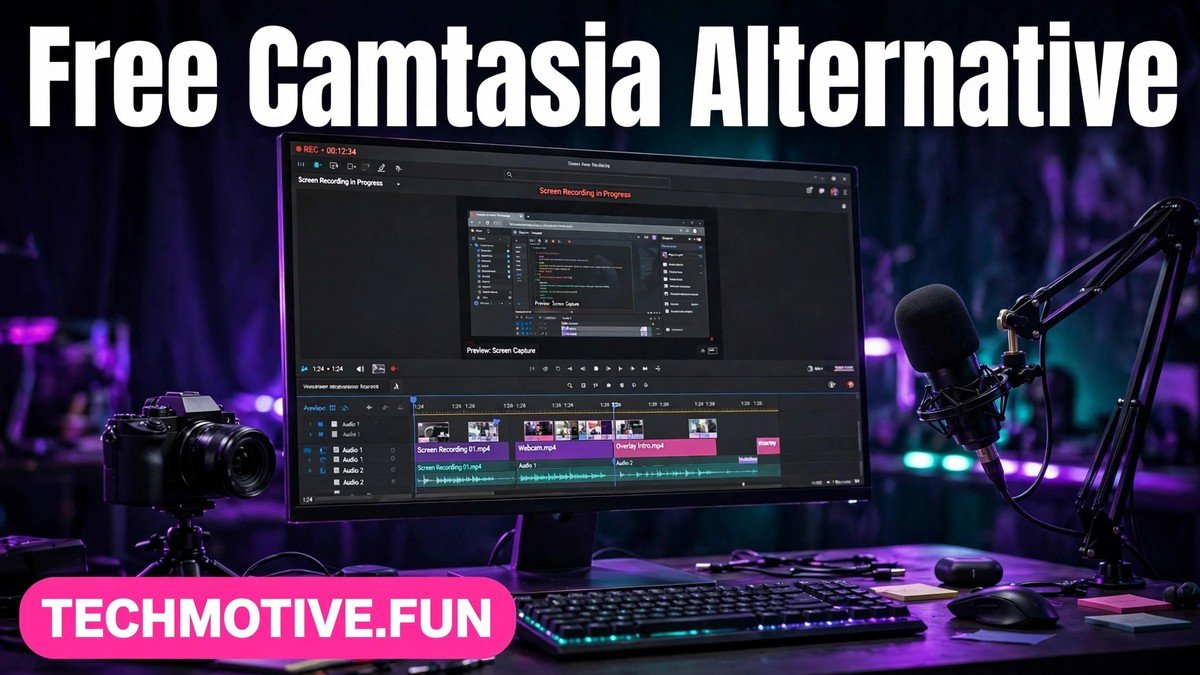
The catch is the price. Not everyone who needs to record a tutorial or make a short explainer video can justify paying for premium software, especially when the project is a one-off task, a school assignment, or the early days of a new channel. The good news is that you do not have to. A free alternative to Camtasia exists for almost every common use case, and in many situations the free tools are more than good enough.
This guide looks at the best free options, explains what each one is good at, and helps you pick the right tool for the job you actually have. You will not find any exaggerated promises here. Free tools come with trade-offs, and we will talk about those honestly too.
What Camtasia Is Used For
Before picking a replacement, it helps to be clear about what people actually use Camtasia for. At its core, it is a screen recorder paired with a video editor. You press record, capture what happens on your screen, and then trim, annotate, and polish the result into a finished video.
Teachers and trainers use this kind of software to create lessons, walkthroughs, and software demonstrations. A trainer can record a process step by step, add callouts and highlights, and share the finished video with students or colleagues. The same approach works for onboarding videos, product demos, and how-to guides.
Content creators use screen recording for tutorials, reviews, and reaction-style videos. Gamers record gameplay, often with a webcam overlay and live commentary. Office workers record quick explanations instead of writing long emails. In each case, the goal is the same: show rather than tell.
Free Alternatives at a Glance
The table below compares the main free options by what they are best suited for. No single tool does everything, so think about your primary task first and choose accordingly.
| Tool | Best for | Recording | Editing | Learning curve |
| OBS Studio | Recording tutorials and gameplay | Yes | Basic trimming only | Moderate |
| Shotcut | Editing recorded footage | No | Yes, full timeline editing | Moderate |
| Windows built-in recorder | Quick, no-install captures | Yes | No | Easy |
| Mac built-in recorder | Quick, no-install captures | Yes | Basic trimming | Easy |
| OBS Studio + Shotcut together | Complete record-and-edit workflow | Yes | Yes | Moderate |
The combination in the last row is the closest free equivalent to an all-in-one tool. You record with OBS Studio, then edit the footage in Shotcut. It takes two programs instead of one, but the workflow is straightforward once you have done it once or twice.
OBS Studio: The Free Recording Workhorse
OBS Studio is the most widely used free screen recorder, and it has earned that reputation honestly. It is open-source software, which means it is free to download and use, and it is maintained by a community of developers rather than a single company selling licences.
With OBS Studio, you can record your full screen, a single window, or a selected region. You can capture your webcam at the same time and place it in a corner of the recording, which is useful for tutorials where viewers benefit from seeing the presenter. You can also record microphone audio and system audio together, so narration and on-screen sound end up in the same file.
Gamers like OBS Studio because it handles demanding recording tasks well, including high-resolution capture and long sessions. Teachers like it because scenes can be set up in advance, so switching between a slideshow, a browser window, and a webcam view takes a single click during a live lesson.
OBS Studio does include some basic editing options, but it is not a video editor. You cannot easily cut out mistakes in the middle of a recording, add text overlays after the fact, or arrange multiple clips on a timeline. For that, you need a separate editor, which is where Shotcut comes in.
Shotcut: The Free Editor for Your Recordings
Shotcut is a free, open-source video editor that runs on Windows, Mac, and Linux. It gives you a timeline where you can arrange clips, cut out unwanted sections, add transitions, and adjust audio. In other words, it covers the editing half of the workflow that OBS Studio leaves out.
For a typical tutorial, the editing tasks are simple. You trim the silence at the start and end, remove a mistake or a long pause, and perhaps add a title card at the beginning. Shotcut handles all of this comfortably. It also supports filters, text overlays, and basic colour adjustments for creators who want a more polished look.
The interface takes a little getting used to. Shotcut is more powerful than the simplest editors, and that power comes with more buttons and panels. Spending an hour learning the basics pays off quickly, though, because the same skills apply to every future project.
This pairing idea is not unique to screen recording. The same logic applies elsewhere in free software, where combining two focused tools often beats waiting for one perfect program. Readers who enjoy this approach may also like our guide to a free alternative to Photoshop for beginners, which follows a similar philosophy of matching the right free tool to the task.
Built-In Recorders: The Zero-Install Option
Sometimes the best tool is the one already on your computer. Both Windows and Mac include built-in screen recording features, and for quick jobs they are genuinely useful.
The Windows built-in recorder is designed for short, simple captures. It is handy when you need to show a colleague a bug, demonstrate a quick setting change, or record a brief walkthrough without installing anything. The Mac built-in recorder offers similar convenience, with basic trimming so you can cut the ends off a clip before sharing it.
These built-in tools have clear limits. They generally lack webcam overlays, scene switching, annotations, and advanced audio controls. They are not meant for long tutorials or polished productions. But for a two-minute explanation, opening a built-in recorder is faster than launching a full studio program, and the result is often perfectly adequate.
How to Choose by Need
Choosing the right free alternative to Camtasia comes down to what you record most often. Different tasks reward different tools, and picking based on your real workload saves frustration later.
For Tutorials and Lessons
If you make tutorials, lessons, or software demonstrations, the OBS Studio and Shotcut combination is the strongest free choice. Record with OBS Studio, using scenes to switch smoothly between your slides and your screen. Then edit in Shotcut, trimming mistakes and adding titles and simple annotations.
For Gameplay
Gamers should start with OBS Studio. It is built for the demands of game capture, including long sessions and high-resolution recording, and it is the tool many streamers and creators already use. Add a webcam overlay and commentary if that suits your style, and keep your recordings organised so editing later is painless.
For Quick Edits and Short Clips
For short clips, quick explanations, and one-off recordings, a built-in recorder is often enough. Record, trim the ends, and share. There is no setup, no learning curve, and no new software to maintain.
For Office and Workplace Videos
Workplace videos are usually short and practical: a process demo, a handover explanation, or a recorded walkthrough for a new team member. The built-in recorder handles the simplest of these, while OBS Studio is better when you need webcam commentary or a longer, structured recording.
This needs-based approach also helps when you are comparing other kinds of software. Our guide to a free alternative to Illustrator takes the same route, matching free design tools to the kind of work you actually do rather than listing features you may never use.
A Simple Starter Workflow
If you are new to screen recording, follow this simple workflow for your first project. It keeps the process manageable and avoids the common beginner mistake of trying to learn everything at once.
First, plan your recording. Write down the steps you will demonstrate, in order, and keep the list short. A simple plan prevents rambling and reduces the amount of editing needed later. If you will speak during the recording, jot down the key points rather than a full script, so your narration sounds natural.
Second, set up your recording. Close unrelated windows and silence notifications so nothing unexpected appears on screen. Open the program you will demonstrate, start OBS Studio or your built-in recorder, and do a ten-second test recording. Play it back and check that the picture is clear and the audio is audible.
Third, record the real thing. Work through your plan at a calm pace, pausing briefly between steps so editing is easier later. If you make a mistake, pause, then repeat the step cleanly rather than stopping the whole recording. Editors can remove the mistake, but only if there is a clean take to keep.
Fourth, edit in Shotcut. Import your recording, trim the start and end, and cut out mistakes and long pauses. Add a simple title at the beginning if you like, and check the audio level so your voice is consistent throughout.
Fifth, export and review. Export the finished video, watch it all the way through, and fix anything that looks or sounds wrong before sharing it. This final review catches small problems, such as a missing step or a section where the audio drops out, that are easy to miss during editing.
Limitations to Expect From Free Tools
Free tools are genuinely capable, but honesty about their limits helps you avoid disappointment. The biggest difference from a paid all-in-one tool is convenience. Using two programs instead of one means learning two interfaces and moving files between them. That is a minor inconvenience, not a blocker, but it is real.
Support is another difference. Paid software usually comes with official customer support and structured tutorials. Free, community-supported tools rely on forums, documentation, and video guides made by other users. The help is often excellent, but you may need to search for it rather than asking a support team directly.
Free tools also tend to assume a little more technical confidence. OBS Studio, in particular, presents many settings on first launch, and beginners can find that intimidating. The good news is that the default settings work well for most recordings, and you can ignore the advanced options until you need them.
None of these limitations should stop you. Millions of creators, teachers, and professionals use free tools every day and produce excellent work with them. Knowing the trade-offs in advance simply means you can plan around them instead of being surprised by them.
Frequently Asked Questions
Is a free alternative to Camtasia really good enough for YouTube tutorials?
Yes, for most tutorial creators it is. OBS Studio records high-quality footage with webcam and microphone support, and Shotcut edits it into a finished video. Many successful tutorial channels started with free tools, and some never switched. The quality of your teaching matters more than the price of your software.
Do I need both OBS Studio and Shotcut, or is one enough?
It depends on your task. If you only record and share without editing, OBS Studio alone is enough. If you only edit footage recorded elsewhere, Shotcut alone is enough. If you both record and edit, using the two together gives you the closest free equivalent to an all-in-one tool.
Can I record my screen without installing any software?
Yes. Both Windows and Mac include built-in screen recording features that work without installing anything extra. They are best for short, simple captures rather than long tutorials or polished productions, but for a quick explanation they are perfectly adequate.
Is OBS Studio hard to learn for a complete beginner?
OBS Studio looks complex at first because it shows many settings, but basic recording is simple. You add a display or window source, add your microphone, and press record. Most beginners can make their first successful recording within a short session, and they can explore advanced features gradually as their needs grow.
Conclusion
Finding a free alternative to Camtasia is less about finding one perfect program and more about assembling the right combination for your needs. OBS Studio handles recording superbly, Shotcut handles editing, and the built-in recorders on your computer handle quick jobs with no setup at all.
Start with the simplest option that fits your task. If you only need a short clip, use the built-in recorder. If you make tutorials or record gameplay, learn OBS Studio and pair it with Shotcut for editing. You can always add tools later as your projects grow more ambitious.
The money you save is real, and the skills you build are transferable. Learning to record cleanly, edit thoughtfully, and export properly will serve you in any software, free or paid. And if you ever do decide to invest in a premium tool later, you will know exactly which features are worth paying for, because you will have already done the work without them.
For readers sorting out other document and design needs on a budget, our guide to a free alternative to Adobe Acrobat follows the same practical approach, focusing on what free tools genuinely handle well.
Sources
- OBS Studio — https://obsproject.com/
- Shotcut — https://shotcut.org/




2 Comments