Free Alternative to Adobe Acrobat: 7 Free Tools for Everyday PDF Work
PDF files are everywhere. You open them to read a bill, sign a form, check a manual, or share a document that should look the same on every screen. For a long time, one well-known program has been the default answer for all of that work. But for many everyday tasks, you do not need a paid subscription at all.
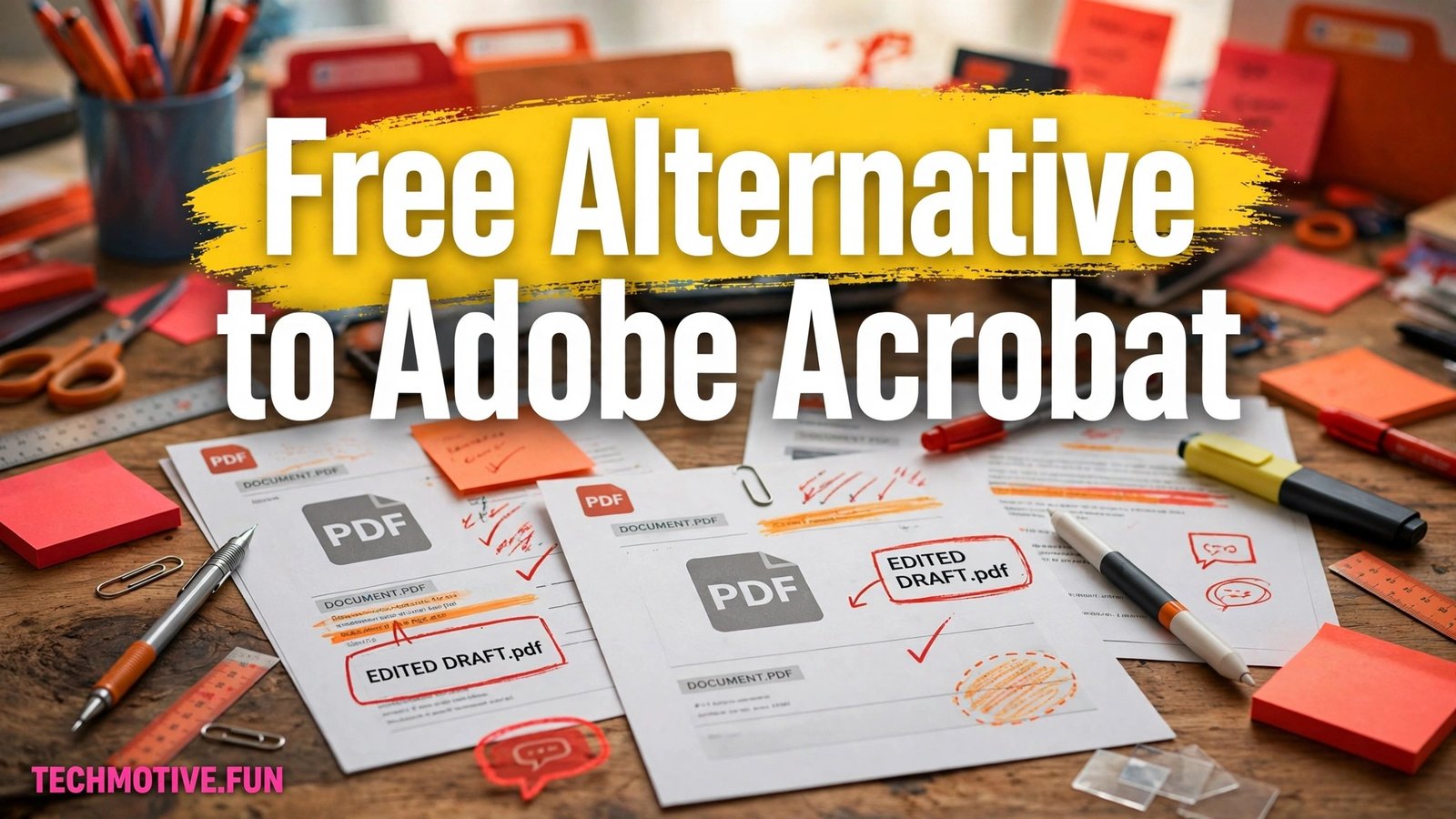
A free alternative to Adobe Acrobat can be a good choice when your needs are simple. If you mainly read PDFs, fill in a form, add a signature, merge a few pages, or convert a document into a PDF, free tools can handle those jobs well. The trick is picking the right kind of tool for the job in front of you, rather than installing the first program that promises to do everything.
Start by Naming Your Task
Most PDF frustration comes from using the wrong kind of tool. A fast reader is not necessarily a good editor, and a tool that merges pages may not be the best choice for filling in a form. Before you download anything, name your task in one sentence.
Reading is the simplest job. You open a file, scroll through it, search for a word, and perhaps zoom in on a diagram or print a page. Almost any modern device can do this without extra software, and a lightweight reader is often faster than a full editing suite.
Editing can mean changing a few words, adding a comment, highlighting a passage, or rearranging pages. Small changes are often possible in free tools, but rebuilding a complex layout is different, and it is where free tools are most likely to struggle.
Converting means turning one kind of file into another, for example turning a word-processing document into a PDF so it can be shared without changing its layout. Turning a PDF back into editable text is harder, especially when the original file is a scanned image rather than real text.
Signing and form filling are everyday tasks: typing into fields, ticking a box, adding a signature, and saving the result. Some free tools handle this smoothly, while others only let you view the form, which can be confusing if you discover the problem after opening the file.
Splitting breaks one long PDF into smaller files, and merging joins several PDFs into one. These are useful for study notes, receipts, and application documents, and they do not usually require a heavy editor.
Seven Free Options Worth Knowing
The tools below cover different jobs. Some are desktop programs you install once. Others are built into software you may already have. Together, they show how much can be done without paying for a PDF suite, provided you accept that each tool has its own strengths.
LibreOffice Draw for light editing. Draw is part of the LibreOffice office suite, and it is useful when you need to make small changes to a PDF. It can open a PDF and let you work with text boxes, shapes, and other objects on the page. That makes it a reasonable choice for correcting a short passage, adding a note, or adjusting a simple layout. It is not a magic tool for rebuilding a complicated PDF from scratch, so check the result before you share it. For everyday corrections, though, it is a practical free option.
SumatraPDF for fast, simple reading. SumatraPDF is a lightweight reader for Windows that focuses on opening files quickly and getting out of the way. If your main job is reading, this kind of tool can feel refreshing. You can search, zoom, and move through pages without learning a large program. That makes it a good choice for manuals, study material, and reference documents. Its limits follow from the same simplicity: it is not designed as a full editor, so for rewriting pages you will need a different tool.
PDFsam Basic for splitting and merging. PDFsam Basic is made for page-level jobs. It can split a PDF into smaller files, merge several files into one, and help you organise pages in a more useful order. These tasks sound small, but they save time when you are preparing documents for work, study, or an application. One advantage of a dedicated tool is clarity: you choose the pages you want, decide what to do with them, and produce a new file. Always check the finished file, though, since page order and blank pages affect how professional the result looks.
Okular for reading and annotation. Okular is a document viewer well known on Linux systems, and it is useful for more than simple reading. It supports annotation, which means you can highlight text, add notes, and mark passages for later. That is helpful for students, reviewers, and anyone who reads actively rather than passively. A highlighted section or a short note can turn a long report into something you can return to quickly. As with other free viewers, it is not a full replacement for a paid editing suite, but for reading and marking up documents it is comfortable and capable.
Evince for straightforward viewing. Evince, also known as GNOME Document Viewer, is another established viewer commonly found on Linux desktops. It focuses on opening documents cleanly and presenting them clearly, without unnecessary complexity. For many readers, that is exactly what is needed: open a file, read it, search it, and print it if necessary. A simple viewer is also easier to learn, which matters if you only open PDFs occasionally. If your work grows beyond reading, you can pair it with a separate tool for editing or merging. No rule says one program must do everything.
Your browser’s built-in PDF viewer. Modern web browsers include a built-in PDF viewer, and for many people this is the easiest free option of all. You can open a PDF from a website or from your computer, read it, search within it, and often fill in simple forms or print it, without installing anything extra. It is especially convenient for quick tasks, such as checking a file someone just sent you. Its limits are worth knowing: browser viewers vary in what they support, and they are generally better for reading and basic form filling than for detailed editing.
Preview on macOS for everyday tasks. If you use a Mac, the built-in Preview app is a capable everyday PDF tool. It can open PDFs, let you view and search them, and help with common tasks such as filling in forms and adding a signature. Because it is already on the system, there is nothing extra to install for basic work. Before you search for new software, check what your device already provides. Like other built-in tools, Preview is not meant to replace a full professional suite, but for everyday personal and office tasks it can be more than enough.
How to Choose Without Installing Everything
It is tempting to install several programs at once and compare them. A calmer approach is to start with what you already have, then add one tool only if a specific job is still missing.
Try your browser viewer or your operating system’s built-in viewer first. Open a typical PDF, search for a word, and try filling in a form if that is part of your work. If that covers your needs, you are done, and you have avoided extra software entirely.
If you need to edit a short document, try LibreOffice Draw. If you need to split or merge files, add PDFsam Basic. If you mainly read long documents and want speed, try SumatraPDF. Each addition should solve a named problem, not just add another icon to your desktop.
Keep your expectations realistic, too. A tool that reads beautifully may edit poorly, and a tool that merges pages well may not be a good form filler. Choosing by task, rather than by reputation, leads to fewer disappointments.
A Simple Everyday Workflow
A practical workflow keeps PDF work organised and reduces mistakes. It does not require special software, and it works whether you use one tool or several.
Start by keeping the original file unchanged. If you are going to edit, merge, or sign a document, work on a copy. That way, if something goes wrong, you can start again without asking the sender to resend the file. This simple habit prevents a large share of PDF problems.
Next, do the main job in the right tool. Read in a reader, edit short passages in an editor, and split or merge in a page tool. Avoid forcing one program to do a job it was not designed for, because that is when formatting tends to break.
Then review the result before you share it. Open the finished PDF and check that pages are in the right order, text is readable, and any signature or filled-in field appears as expected. Finally, save the finished file with a clear name, so it is easier to find later.
Safety Checks Before You Download or Upload
Free software is widely available, but not every download site is equally trustworthy. The safest habit is to download only from the official site of the tool you want, or from a source you already trust, such as your operating system’s app store. Search results can include lookalike sites and misleading download buttons, so using an official address you trust is safer than clicking the first result.
During installation, read each step rather than clicking through quickly. Some free installers offer extra software or change default settings, so decline extras you do not need. If an installer seems pushy or unclear, stop and look for the official version instead.
Online PDF tools deserve the same caution. Uploading a document means sending a copy of it to someone else’s server. For a public flyer, that may be fine, but for a contract, medical form, or financial statement, use a desktop tool that works on your own computer instead.
You should also check what “free” covers before signing up for anything. Some tools are free for basic use and paid for advanced features, and a few require an account even for simple tasks. It is better to learn the limits before you rely on a tool for important work, rather than discovering them in the middle of a deadline.
When a Free Tool Is Not Enough
Free tools cover a great deal of everyday PDF work, but there are situations where paid software, or a specialised tool, is the honest recommendation. Recognising those cases early saves time and avoids a poor result.
Complex editing is the most common limit. If a PDF has intricate formatting or precise print requirements, a free editor may change the layout in ways that are hard to fix. In that case, edit the original document, if you have it, rather than rebuilding the PDF itself.
Legal and official documents deserve extra care. A signature or filing may need to meet specific requirements, and a tool that looks correct on screen may not produce a file that is accepted elsewhere. When the stakes are high, check the requirements first and keep a copy of the original. For most people, though, these limits are the exception: ordinary reading, signing, form filling, splitting, and merging are well within the reach of free tools.
Conclusion
A free alternative to Adobe Acrobat does not have to mean settling for a poor experience. It means choosing a tool that matches your task, using built-in viewers where they are enough, and adding a focused free program only when a specific job calls for it. Readers, light editors, page tools, and built-in viewers each have a place, and together they cover most everyday PDF work.
Start small, keep your original files safe, download only from official sites, and check what “free” includes before you depend on a tool. That way you can handle PDFs confidently without paying for features you may never use.
Related Guides
If you are building a small set of free tools for everyday computer work, these guides cover similar choices in plain language: a free alternative to Notepad, a free alternative to WinRAR, and help when Windows 11 PDF files are not opening.
Frequently Asked Questions
Is there really a free alternative to Adobe Acrobat?
Yes, but it depends on what you mean by alternative. There are strong free tools for reading, light editing, form filling, signing, splitting, merging, and converting PDFs. No single free program matches every feature of a full paid suite, so the best choice depends on your task. For everyday work, one or two free tools are often enough.
Which free tool is best for simply reading PDFs?
For simple reading, a lightweight reader or your browser’s built-in viewer is usually enough. A fast reader opens files quickly and lets you search, zoom, and print without extra complexity. If you also want to highlight passages or add notes, a viewer with annotation features may be a better fit.
Can free tools edit a PDF?
Some free tools can make small edits, such as changing short text, adding a note, or inserting a shape. They are less reliable for rebuilding a complex layout or changing a heavily formatted document. For small corrections, a free editor can work well, but always review the result before sharing it.
Can I sign a PDF for free?
In many cases, yes. Built-in viewers and several free tools let you add a signature to a PDF and save the result. The exact steps vary by tool, and the type of signature accepted can depend on who is receiving the document. For everyday forms, a basic signature feature is often sufficient, but for legal or official use, check what the recipient requires.
Is it safe to use free online PDF tools?
It can be safe for non-sensitive documents, but caution is important. Uploading a file means sharing it with another service, so avoid online tools for contracts, financial records, medical forms, or anything containing personal details. For sensitive files, a desktop tool that works on your own computer is the safer choice.
Why does my edited PDF look different from the original?
PDFs are designed to preserve layout, not to be edited like ordinary documents. When a tool changes text or objects, spacing and formatting can shift, especially in complex files. This is normal, and it is why reviewing the finished file matters. If exact layout is essential, editing the original document is usually better than editing the PDF.
Do I need to install anything to open a PDF?
Usually not. Most modern browsers and operating systems can open PDFs without extra software. Installing a dedicated tool becomes useful only when you need features your built-in viewer does not provide, such as merging pages, detailed annotation, or light editing.
Sources
For the tools discussed in this guide, the official project sites are the safest place to download and learn more: LibreOffice and SumatraPDF.