
Google Sheets Dropdown Not Working? How to Fix It Step by Step
You click a cell in Google Sheets, expecting a neat little dropdown list, and nothing happens. No arrow, no list, no options to pick from. Or maybe the arrow shows up but the list is empty, greyed out, or missing items you know should be there. It is a small problem that can slow down a whole spreadsheet, especially when a team relies on consistent entries.
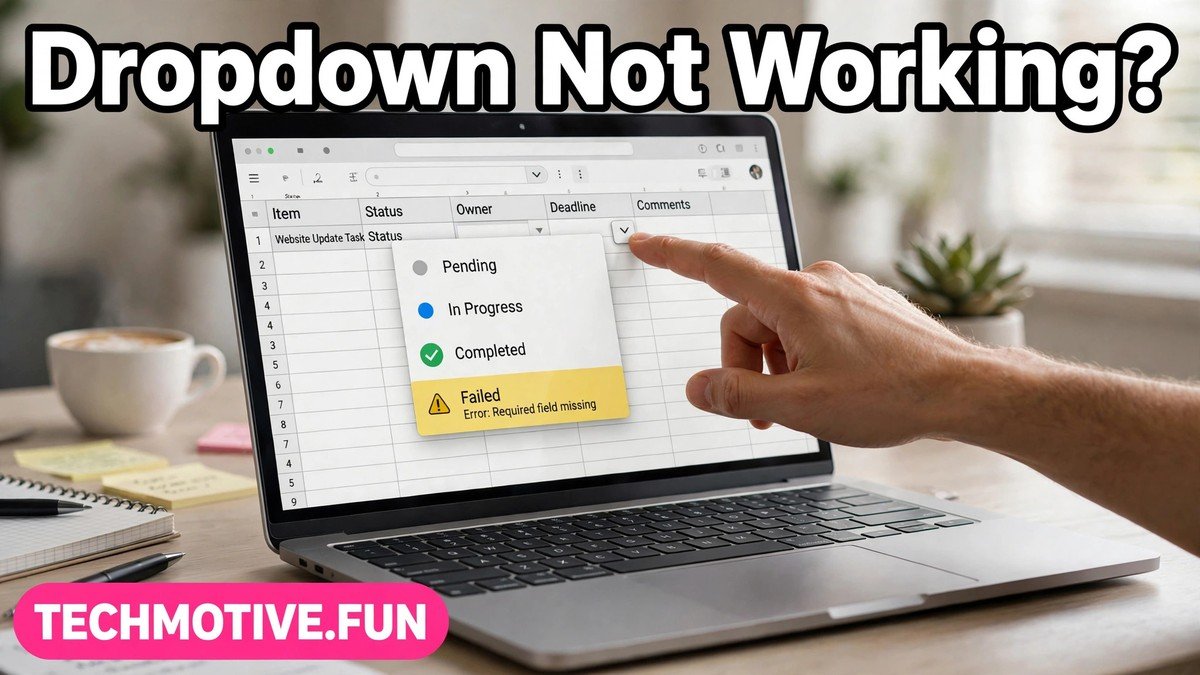
The good news is that most dropdown problems come from a handful of common causes: a removed validation rule, a shifted source range, a protected sheet, or a filter hiding what you expect to see.
Before you change anything, one warning matters. If the sheet belongs to someone else or is shared with a team, ask the owner before changing validation rules. Editing a shared sheet can affect other people’s work, and the owner may have set the rules on purpose. A quick message now can save an awkward fix later.
How Dropdowns Work in Google Sheets, in Plain Terms
A dropdown in Google Sheets is not a special button or a separate object. It is a data validation rule applied to a cell or a range of cells. The rule tells Sheets what values are allowed in those cells and, when the rule uses a list, what options to offer.
There are two common ways to build that list. The first is a list typed directly into the rule, such as a short set of options separated by commas. The second is a list taken from a range of cells somewhere in the spreadsheet, often on the same sheet or on a separate list sheet. When you click the cell, Sheets reads the rule, looks up the list, and shows the options.
That simple setup explains most failures. If the rule is gone, there is no dropdown at all. If the source range is empty, moved, or deleted, the list comes up blank or incomplete. If the cell itself cannot be edited, you may not be able to open or use the list. Keeping that chain in mind — rule, source, permission, view — makes diagnosis much faster.
Quick Diagnosis Checklist
Work through these questions before changing settings. Each answer points to a different fix, and most take less than a minute to check.
First, is there actually a validation rule on the cell? Click the cell and look for the small dropdown arrow on its right edge. If there is no arrow at all, the rule may have been removed or never applied to that exact cell. Copying and pasting values over a cell can also wipe out its rule, which surprises a lot of people.
Second, is the source range correct? If the dropdown uses a range of cells, open the rule and check where it points. A range that was moved, cleared, or partly deleted will give you a short or empty list. A range that points to the wrong sheet or the wrong columns will show the wrong options entirely.
Third, is the sheet or range protected? Protected sheets and ranges can stop you from editing a cell, even if you can still see it. If you can click the cell but cannot type or select anything, protection is a likely cause. View-only access to a shared file has a similar effect.
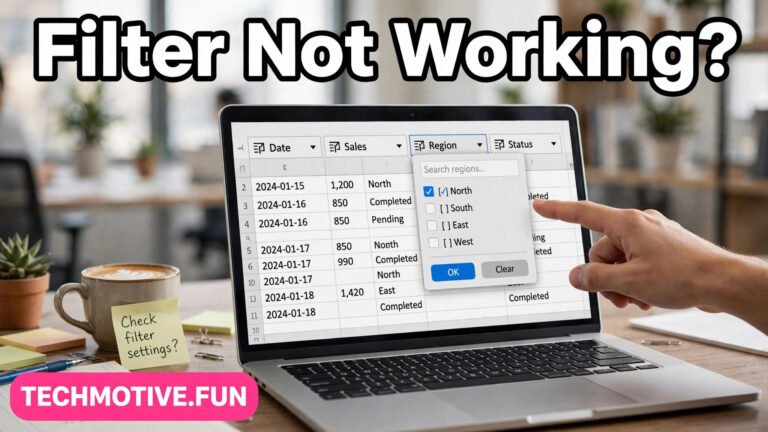
Fourth, is it a view or filter issue? Filters hide rows, and a filtered view can make a dropdown look broken when the real problem is what is visible. Frozen rows, hidden rows, and grouped rows can also confuse the picture. If the dropdown works in one view but not another, the rule itself is probably fine.
9 Fixes, Easiest First
Fix 1: Click the Cell Properly and Check for the Arrow
Start with the simplest test. Click once on the cell and look for the small arrow on its right side. In some views the arrow only appears when the cell is selected, so a quick glance at an unselected cell can mislead you.
If the arrow appears but nothing opens when you click it, try clicking directly on the arrow rather than the middle of the cell. Try a different cell in the same dropdown range too. If neighbouring cells work and one does not, that one cell probably lost its rule.
This check sounds basic, but it separates a real fault from a display quirk. Similar small display problems show up in other Google tools as well, and they often have equally simple explanations. For a related example, see this guide on why spell check stops working in Google Docs.
Fix 2: Turn Off Filters and Clear the View
Filters are a frequent hidden cause. When a filter is active, rows are hidden, and a dropdown tied to a filtered range can behave oddly. Turn off the filter, then test the dropdown again.
Also check for filter views, which are saved views that different people can use on the same sheet. If you are in someone else’s filter view, switch back to the normal view. Hidden rows and columns can cause similar confusion, so unhide anything relevant around the cell and its source range before moving on.
Fix 3: Check Whether the Sheet or Cell Is Protected
Open the sheet menu and look at the protection settings. If the sheet is protected, or the specific range is protected, you may be blocked from editing or selecting from the list. The owner or an editor with the right permission can adjust this.
If you are a viewer on a shared file, you will not be able to use dropdowns that require editing the cell. Ask the owner for editor access, or ask them to make the change for you. Do not try to work around protection on a file you do not own, since that protection may guard important data.
Fix 4: Re-Apply the Data Validation Rule
If the rule is missing, re-applying it is the direct fix. Select the cell or range, open the Data menu, and choose Data validation. This is where you rebuild the link between the cell and its list.
For a typed list, enter the options separated by commas, exactly as you want them to appear. For a list from a range, select the range carefully, making sure it covers every option and nothing extra. Blank cells at the end of a range can show up as blank options, so trim the range to the real list.
For most everyday lists, showing the dropdown and rejecting invalid input keeps entries tidy.
Fix 5: Check and Repair the Source Range
A dropdown is only as good as its source. Open the validation rule and look at the range it points to. Then go to that range and inspect it directly.
Common source problems include blank cells inside the list, a range that stops short of the newest items, and a range that was shifted when rows were inserted or deleted. If someone inserted a row above the source list, the range may now point one row off. If someone deleted the list sheet, the rule may point nowhere at all.
Fix the source itself first, then check the rule. Add missing items to the source range, remove stray blank cells, and make sure the rule’s range covers the full list. If the list lives on a separate sheet, confirm that sheet still exists. A deleted and recreated sheet does not restore the old reference.
Fix 6: Look for Overwritten Cells and Pasted Values
Pasting is one of the quietest ways to break a dropdown. When you paste plain values over a cell, the paste can replace the validation rule as well as the value. The cell then looks normal but has no dropdown at all.
Check whether the broken cells were recently pasted over. If so, re-apply the validation rule to those cells, as described in Fix 4. Going forward, use paste special for values only when you need to preserve formatting and rules, and be careful with large pastes that cover validated columns.
Fix 7: Check Your Permissions on a Shared File
If the file is shared, your role matters. Viewers and commenters cannot edit cells, so they cannot pick from a dropdown that requires an edit. Even editors can be blocked by a protected range.
Ask the owner to confirm your access level and whether any range protections apply to you. If you need to enter data regularly, editor access to the relevant ranges is the clean solution. If you only need to view the sheet, the owner may prefer to keep you as a viewer and enter values on your behalf.
Fix 8: Try Another Browser, Window, or Device
If the rule, source, and permissions all look right, test the file in a different browser or an incognito window. Browser extensions, especially ones that block scripts or modify pages, can interfere with how Sheets behaves. Clearing the browser cache is another step worth trying if the problem follows you across files.
Display and layout quirks in Google Docs and Sheets often share this pattern: the file is fine, but the view is not. A similar layout problem is covered in this guide on tables not fitting the page in Google Docs, which is worth a read if you also see odd formatting nearby.
Fix 9: Check Offline Mode and Sync Problems
Offline mode adds one more layer. If you are working offline, Sheets may not show the latest version of the file, including recent validation changes. A dropdown added by someone else while you were offline may not appear until the file syncs.
Reconnect to the internet, let the file sync, and refresh the page. If you see a sync conflict or an older version of the sheet, check the version history to see whether the validation rule was added recently. For more on offline behaviour, see this guide on offline mode not working in Google Docs.
Rebuild the Dropdown From Scratch
When fixes have not worked, rebuilding is the reliable option. It takes a few minutes, and it removes any doubt about hidden damage to the old rule.
First, remove the old validation rule from the affected cells. Select the range, open Data validation, and delete the rule. This clears any half-broken setting that might linger.
Next, tidy the source list. Put the options in a clean range with no blank cells in the middle, no extra spaces at the start or end of items, and no duplicates unless you genuinely need them. Extra spaces are a quiet cause of mismatch, because an option with a trailing space looks identical but is treated as different text.
Then create a fresh rule. Select the cells that need the dropdown, open Data validation, and choose the list option that matches your setup, either a typed list or a range. Set the display and invalid-input options the way you want them, add a short help text if it will help other users, and save.
Test the new dropdown thoroughly: pick each option once, try an invalid value, and check a few cells across the range. If the sheet is shared, tell other users it was rebuilt.
Frequently Asked Questions
Why is my Google Sheets dropdown arrow missing?
The most common reason is that the data validation rule is no longer on that cell. Pasting values over the cell, importing data, or editing the rule for only part of a range can all remove it. Re-apply the rule to the full range and test again.
Why is my dropdown list empty or missing items?
An empty or short list usually means the source range is empty, too short, or pointing at the wrong cells. Open the validation rule, check the range, and inspect the source cells directly. Blank cells, moved rows, or a deleted list sheet are the usual culprits.
Why can I see the dropdown but not select anything?
This usually points to permissions. A protected sheet, a protected range, or view-only access on a shared file can all block selection. Ask the file owner to check your access and the protection settings for that range.
Why does the dropdown work for others but not for me?
Differences between users usually come down to permissions, filter views, or browser issues. Check whether you are in a filter view, try an incognito window, and confirm your access level with the owner. If it works on another device, the problem is local to your browser.
Can I use a dropdown from another sheet or file?
Yes, a dropdown can use a range on another sheet in the same file, which is a common and tidy setup. Cross-file dropdowns are not supported in the same direct way, so keep the source list inside the file where the dropdown lives.
What should I do before editing a dropdown on a shared sheet?
Ask the owner first. Validation rules affect everyone who uses the sheet, and changing a list can break other people’s entries or reports. A quick check with the owner, plus a note about what you changed, keeps shared sheets reliable.
Conclusion
A broken dropdown in Google Sheets is frustrating, but it is rarely mysterious. Work through the chain in order: confirm the rule exists, check the source range, rule out protection and permissions, clear filters and view issues, and only then rebuild. Most problems resolve at one of the early steps, and a rebuild settles the rest.
Keep the source list tidy, guard it against accidental pastes, and check with the owner before changing rules on a shared file.
Sources
- Google Docs Editors Help: https://support.google.com/docs/
- Microsoft Excel Support: https://support.microsoft.com/en-us/excel

One Comment