Chrome High Memory Usage Fix: Find What’s Eating Your RAM and Calm It Down
How Much Memory Is Normal, Anyway?
If you have opened Windows Task Manager and seen Chrome sitting at the top of the memory list, you are not alone. It looks alarming, especially when the number keeps growing the longer your PC stays on. Before changing settings at random, know this: Chrome is designed to use a fair amount of memory.
Chrome runs as a multi-process browser. Every tab, extension, and important background task gets its own process, so if one tab crashes, the others usually keep working. Splitting things up makes Chrome more stable and often faster. The trade-off is a bigger Chrome memory footprint. A simple text page might only need a few tens of megabytes, while a heavy web app, a video call, or a long social media feed can use several hundred megabytes on its own. Those are rough figures, not rules, but they explain why a handful of modern tabs can add up quickly.
So when is it a real problem? Watch for the warning signs rather than the raw number. Your whole PC slows down when you switch apps. Fans spin up for no clear reason. Chrome keeps refreshing tabs you left open, which is a sign it discarded them to free memory. Windows Task Manager shows memory use sitting close to 100% for long stretches. Or one tab freezes while everything else is fine.
If that sounds familiar, you need a proper chrome high memory usage fix, not a random tweak you saw in a comment. The best approach is diagnostic first: find out exactly what is using the memory, then fix that thing. Guessing usually wastes time, and sometimes makes things worse.
Find Out Which Tab or Extension Is Responsible
Do not start by closing everything. First, look inside Chrome itself. Chrome has its own Task Manager, and it is the single most useful tool for this job.
- With Chrome open, press Shift + Esc on your keyboard.
- If nothing appears, click the three-dot Menu button in the top-right corner instead.
- Hover over More tools, then click Task Manager.
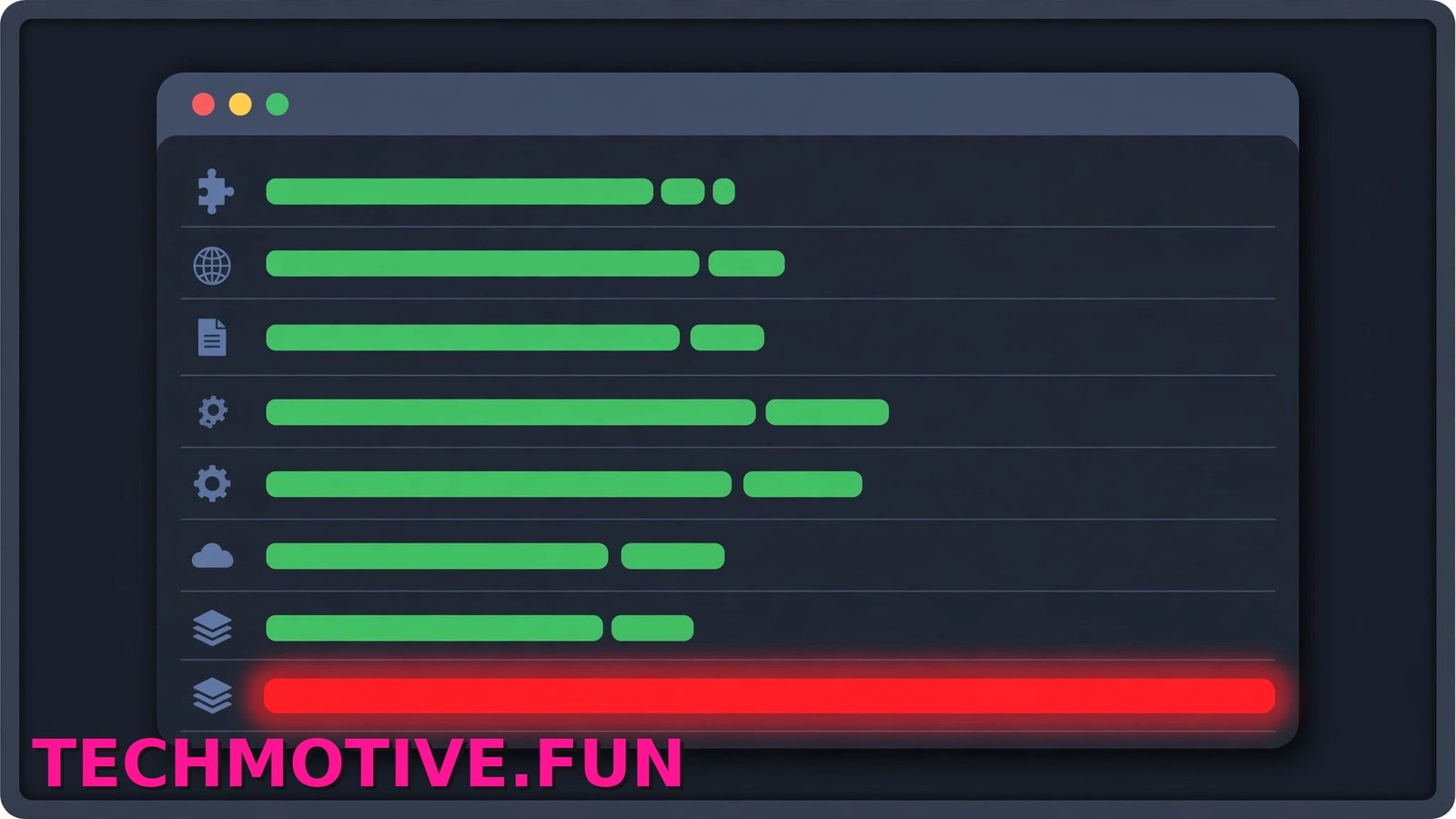
- Click the Memory footprint column heading to sort the list, so the biggest memory users sit at the top.
- Look down the list. Tabs, extensions, and Chrome processes such as the GPU process are all shown separately.
Now read the list like a detective. Is one tab using far more than everything else? That tab is your prime suspect. It could be a page with endless scrolling, a web app with a memory leak, or a tab that has simply been open for days. You can select that row and click End process to close just that tab safely. Chrome will show a dead tab page, and you can reload it later if you still need it. Nothing else in Chrome is affected.
Extensions show up here too, listed by name. An extension using a lot of memory even when you are not using it deserves a closer look. Note its name for later, because you will deal with extensions properly in the next section.
Next, check the bigger picture in Windows:
- Press Ctrl + Shift + Esc to open Windows Task Manager.
- Click the Memory column to sort all your apps by memory use.
- Expand the Google Chrome group to see how many processes it is running and what they add up to.
This view answers a different question. If Chrome is high but total memory use is still comfortable, Chrome may not be hurting your PC at all. If total memory is nearly full and other apps also take a large share, the problem is wider than one browser. And if one page keeps growing until it stops responding, our guide to fixing a Chrome page that keeps becoming unresponsive covers that specific tab.
The pattern matters. One runaway tab or extension points to a quick, targeted fix. Dozens of ordinary tabs adding up points to habits and settings instead.
Fixes That Bring Memory Use Down
Once you know whether you are dealing with one culprit or general bloat, work through these fixes in order. Most people see a real improvement from the first two or three.
Start With the Simplest Chrome High Memory Usage Fix: Memory Saver
Chrome has a built-in feature made for exactly this problem.
- Click the three-dot Menu and open Settings.
- Click Performance in the left-hand menu.
- Turn on Memory Saver.
- Choose how aggressively it should work.
In general terms, the modes decide how quickly Chrome puts inactive tabs to sleep. A more aggressive setting frees memory sooner but reloads tabs more often when you return to them. A gentler setting waits longer, so tabs feel instant when you switch back, but memory stays higher. Pick the middle ground first and adjust after a day or two.
Some tabs should never sleep, like a pinned email tab. Under the Memory Saver settings, use the option to add sites that should always stay active, and add only the few pages that truly need it. Sleeping tabs look faded and reload when you click them. If sleeping tabs start causing trouble alongside crashes, our notes on why Chrome tabs keep crashing and how to stop it will help you separate the two problems.
Close, Pin, or Bookmark Tabs Instead of Hoarding Them
This one is unglamorous, and it works better than almost anything else. Every open tab costs memory, even ones you have not looked at since yesterday.
Build a small routine. When you finish with a page, close it. If you might need it next week, bookmark it instead of keeping it alive. If a page is part of your daily work, pin it by right-clicking the tab and choosing Pin. Pinned tabs take less space on the tab bar, and they are a good reminder that only a few tabs deserve permanent status.
Tab groups help too. Right-click a tab and choose Add tab to new group to bundle related pages together, then collapse the group when you are not using it. Collapsing does not free memory by itself, but a tidier tab bar is much easier to close down.
Remove or Disable Heavy Extensions
Extensions run all the time, and each one adds its own memory cost. Some are worth it. Many are forgotten installs from months ago.
- Type
chrome://extensionsin the address bar and press Enter. - Go through the list one by one.
- For anything you do not recognise or no longer use, click Remove.
- For anything you use only now and then, use the toggle to switch it off until you need it.
Be especially suspicious of extensions that touch every page you visit, such as ad blockers, tab managers, new tab replacements, or coupon tools. Their memory cost follows you everywhere. After removing a few, check Chrome’s Task Manager again to see whether the numbers improved.
Update Chrome
Memory bugs do get fixed in updates, and running an old version helps nobody.
- Click the three-dot Menu.
- Go to Help, then About Google Chrome.
- Chrome will check for updates and install any it finds.
- Click Relaunch when asked.
Clear the Cache
A bloated or damaged cache can contribute to sluggish behaviour, and clearing it is quick.
- Open Settings and click Privacy and security.
- Click Clear browsing data.
- Choose Cached images and files. Leave passwords and other data alone unless you want those gone too.
- Click Clear data.
Pages may load a little slower the first time afterwards, because Chrome has to download fresh copies. That is normal.
Restart Chrome Properly
Putting your PC to sleep is not the same as restarting Chrome. If Chrome has been running for days, a clean restart clears out processes that have quietly piled up. Close Chrome fully, wait a few seconds, and open it again. If memory use climbs only when the processor is working hard as well, read our walkthrough on what to do when Chrome is using too much CPU, because high CPU and high memory often arrive together but need different fixes.
Settings and Habits Worth Changing
With the big fixes done, these smaller settings are worth a look. None of them is magic on its own, but together they stop memory problems creeping back.
Hardware acceleration lets Chrome hand graphics work to your GPU. Usually that helps, but on some PCs it causes high memory use, flickering, or crashes. Test it both ways. Go to Settings, click System, toggle Use graphics acceleration when available off, then relaunch Chrome and use it for a while. If things get better, leave it off. If they get worse, turn it back on.
Next, look at the toggle just below it in System: Continue running background apps when Google Chrome is closed. When this is on, parts of Chrome keep running after you close the window. If you do not rely on extensions or web apps working in the background, turn this off.
Preloading is a trade-off. In Settings under Performance, Chrome offers speed options that preload pages it thinks you might visit next. That can feel faster, but loading pages in advance uses extra resources. If memory is tight, try turning preloading down or off and see whether the speed difference bothers you at all.
Finally, check startup behaviour. In Settings, click On startup. If Continue where you left off is selected and you end the day with dozens of tabs open, Chrome reopens all of them every morning and uses a big chunk of memory before you have done anything. Switching to Open a specific page or set of pages with just one or two essentials gives you a calmer start.
Still Hungry? The Deeper Checks
If Chrome is still using too much RAM after all of that, it is time to test whether Chrome itself is actually the problem.
Start with a fresh profile test. Click your profile picture in Chrome and add a new profile, or browse as a guest. Use the same sites for a while in that clean profile, with no extensions and no old settings. If memory stays sensible, your original profile is the problem, usually an extension or a setting. If the clean profile behaves the same way, look outside Chrome.
Run a malware scan next. Some unwanted software injects itself into browsers and inflates memory use. Open Windows Security from the Start menu, go to Virus & threat protection, and run a Full scan. Microsoft also publishes a broader set of tips to improve PC performance in Windows, worth working through if your whole PC feels slow, not just the browser.
Be honest about total system pressure, too. If your PC has a modest amount of RAM and you keep Chrome, a video call, a game launcher, and several office apps open at once, something has to give. Chrome may simply be the biggest visible app, not the real problem. Closing apps you are not using is a genuine fix here, even if it feels too simple.
As a last step, reinstall Chrome. Export or sync your bookmarks first, uninstall Chrome from Settings and then Apps in Windows, restart your PC, and download a fresh copy from Google. If problems survive even that, work through Google’s official help for fixing Chrome problems before assuming your hardware is at fault.
Frequently Asked Questions
Why does Chrome use more RAM than other browsers?
Mainly because of its design. Chrome gives each tab and extension its own process, so one failure does not take the whole browser down. That isolation is safer and often smoother, but separate processes need more memory than sharing one process would. Other browsers have moved in a similar direction over the years, so the gap is smaller than it used to be.
Is Memory Saver safe to leave on all the time?
Yes. Memory Saver does not delete anything. It pauses inactive tabs and reloads them when you click back. The only real annoyance is a tab refreshing when you return to it, which is why the always-active list exists for pages like webmail or a document you are editing. If a tab must never reload, add its site to that list.
Will adding more RAM fix the problem?
It can help if your PC genuinely runs out of memory during normal use, because more RAM means Windows has to shuffle things around less. But it will not fix a broken extension or one faulty tab with a memory leak. Those will just eat into the bigger supply. Do the diagnostic steps first, then decide whether an upgrade is worth it.
Why does one tab use over 1 GB of memory?
Usually because the page itself is heavy. Web apps like online editors, dashboards, video calls, and endless social feeds keep loading new content into the same tab, and the tab grows as the session gets longer. Sometimes a page has a genuine leak and never releases memory it no longer needs. Reloading the tab is the quick test: if the number drops sharply, the session had simply grown too big.
Does hardware acceleration affect memory use?
It can, in either direction. Offloading graphics to the GPU can reduce the load on your main processor and memory in some setups, while on other PCs, especially with older graphics drivers, it can increase memory use or cause glitches. That is why the honest advice is to test it on your own machine rather than follow a blanket rule.
How do I stop Chrome running in the background after I close it?
Go to Settings, then System, and turn off Continue running background apps when Google Chrome is closed. After that, closing the last Chrome window ends Chrome’s processes properly. You can confirm it in Windows Task Manager, where Chrome should disappear from the list within a few seconds.
Keeping Chrome Lean
A good chrome high memory usage fix is rarely one dramatic change. It is finding the one tab or extension doing the damage, switching on Memory Saver, clearing out the extensions you forgot you installed, and not letting forty tabs reopen every morning.
Get into the habit of checking Chrome’s Task Manager whenever things feel slow, before they get bad. Sort by Memory footprint, deal with the worst offender, and move on. Two minutes of that, once in a while, keeps Chrome fast and your PC feeling like itself again.