Chrome Extensions Disappeared? Pin Them Back, Check Your Profile, and Reinstall Missing Ones
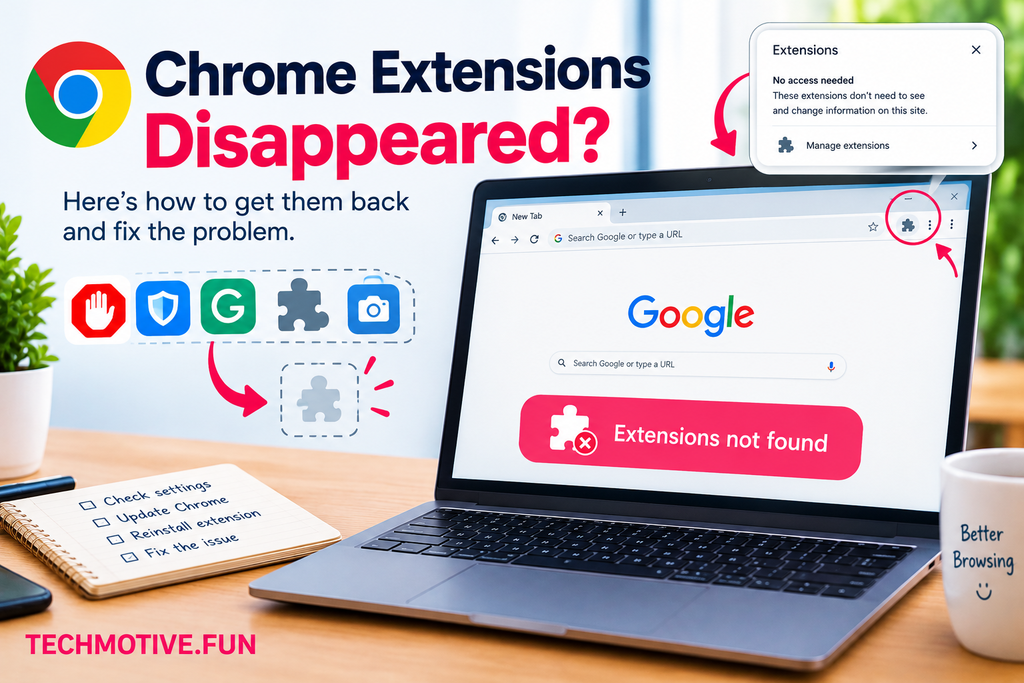
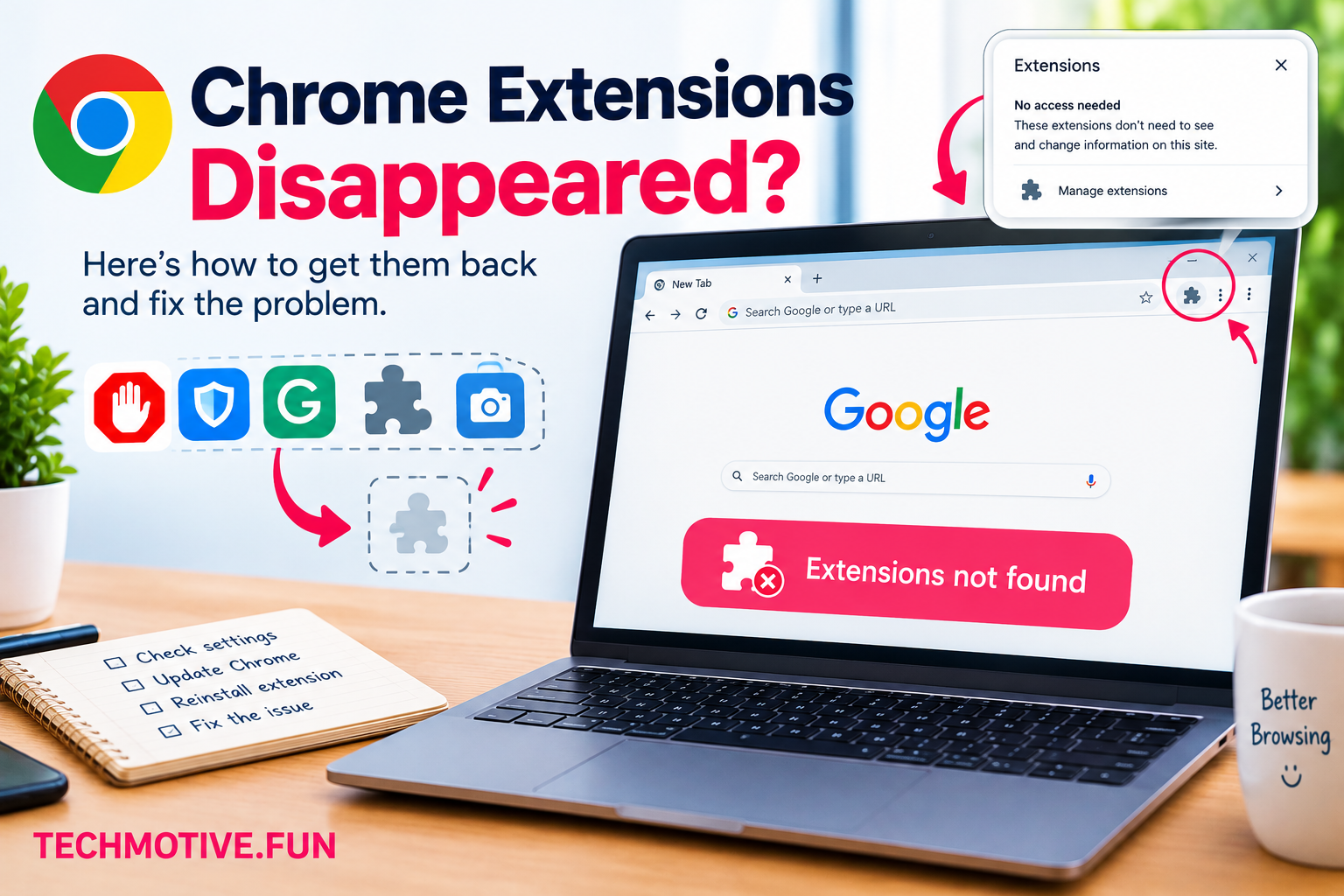
Have your Chrome extensions disappeared from the toolbar, or can you no longer find extensions you previously installed? This can happen after a Chrome update, a change in browser settings, switching profiles, or accidentally removing an extension from the toolbar.
The first thing to check is whether your extensions are actually missing or simply hidden. Chrome lets you manage extensions from a dedicated menu, so an extension that disappears from the toolbar may still be installed and working normally.
Related Fixes: Chrome Extensions Not Working, Chrome Not Opening on Windows 11, and Chrome Keeps Freezing on Windows 11
If the extensions are missing from Chrome entirely, you will need to check the Extensions page, confirm that you are using the correct Chrome profile, and look for warnings that could explain why they were disabled or removed.
This guide explains how to restore missing Chrome extensions, recover access to your installed add-ons, and identify the cause without unnecessarily resetting your browser.
1. Check the Chrome Extensions Menu First
Before reinstalling anything, check whether your extensions are simply hidden. Chrome allows you to access installed extensions through its Extensions menu, even when their icons are not displayed directly on the toolbar.
Follow these steps:
- Open Google Chrome.
- Look near the upper-right corner of the browser toolbar.
- Click the Extensions icon, which looks like a puzzle piece, if it is visible.
- Review the list of installed extensions.
- Click the extension you want to use.
If your missing extension appears in this menu, it is probably still installed. You may only need to restore its toolbar visibility or adjust its settings.
If you cannot find the Extensions icon, continue to the next step.
2. Pin Your Missing Extensions Back to the Toolbar
Sometimes Chrome extensions disappear from the toolbar because they are no longer pinned. This does not necessarily mean they have been uninstalled.
Chrome’s toolbar layout can change, especially if you have recently installed extensions or adjusted your browser window.
To pin an extension again:
- Open Chrome.
- Click the Extensions puzzle-piece icon.
- Find the extension you want to restore.
- Look for the pin control beside its name.
- Click the pin icon to display the extension on the toolbar.
Depending on your Chrome version, the pin control may look different, but it should be available in the Extensions menu for extensions that support toolbar buttons.
Repeat this process for other extensions you want to keep visible.
If an extension does not appear in the menu at all, open chrome://extensions to see whether Chrome still has it installed.
3. Open the Extensions Page to Find Out What Happened
The Chrome Extensions page is the best place to check whether an extension is installed, disabled, corrupted, or unavailable.
To open it, type the following address into Chrome’s address bar and press Enter:
chrome://extensions
Look through the list for the extensions you remember installing.
If the extension is listed but switched off
Turn on its switch, then test it. Chrome may have disabled it, or you might have switched it off while troubleshooting.
If the extension is listed with a warning
Click Details and read the message. Chrome may be reporting a compatibility issue, a security restriction, or another problem that prevents the extension from running.
Follow the recommended action if one is provided.
If the extension is completely missing
Check that you are using the correct Chrome profile. If you are, the extension may have been removed, become unavailable, or failed to remain installed.
Do not immediately reset Chrome. First, check the profile and browser update history, as these are easier issues to investigate.
4. Make Sure You’re Using the Correct Chrome Profile
One of the easiest explanations for missing Chrome extensions is that you are using a different browser profile.
Chrome profiles keep separate extensions, bookmarks, settings, and browsing data. If you accidentally switch profiles, your usual extensions may seem to have disappeared even though they remain installed in another profile.
For example, you might normally use Chrome while signed into your personal profile but accidentally open a work profile instead.
Here’s how to check:
- Open Chrome.
- Click the profile icon near the upper-right corner.
- Review the available profiles.
- Select the profile you normally use.
- Open
chrome://extensionsand check whether your extensions have returned.
If the extensions reappear, you have found the problem.
If you have several profiles, consider giving each one a recognizable name so you can identify the correct profile more easily.
Important: Signing into a Google account does not guarantee that every extension will automatically appear. Extension syncing and account settings can affect what is restored, and some extensions may need to be installed again manually.
5. Restart Chrome and Check for Updates
A temporary Chrome problem can sometimes prevent extensions from appearing correctly. Restarting the browser is a simple way to rule out a temporary issue.
First, save any unfinished work in your browser. Close Chrome completely, then reopen it and check the Extensions page again.
If that does not help, update Chrome:
- Open the three-dot menu in Chrome.
- Select Help → About Google Chrome.
- Let Chrome check for available updates.
- Install any update that is offered.
- Click Relaunch if prompted.
After restarting, visit chrome://extensions and check whether the missing extensions are listed.
If Chrome was already up to date, an update may not solve the problem. Continue with the next checks rather than repeatedly restarting the browser.
6. Check Whether Chrome Disabled or Blocked an Extension
Chrome may disable or block an extension if it is considered unsafe, incompatible, corrupted, or restricted by browser policies.
This situation is different from an extension being accidentally unpinned.
Open chrome://extensions and look for warning messages beside the affected extension. Click Details to read any available explanation.
Possible reasons include:
- The extension is no longer compatible with your Chrome version.
- Chrome has identified a security concern.
- The extension developer has discontinued or removed it.
- A workplace or school administrator has restricted the extension.
- The extension’s installed files are corrupted.
If Chrome identifies a security issue, do not try to bypass the restriction just to restore the extension. Look for an official update or contact the developer.
If the browser is managed by an organization, you may also visit chrome://management to check whether Chrome is managed. Some extension settings may be controlled by an administrator.
If the warning suggests corrupted files and Chrome offers a repair option, follow its instructions. Otherwise, you may need to reinstall the extension from the official Chrome Web Store.
7. Reinstall Extensions That Are No Longer Installed
If an extension is missing from chrome://extensions, is not present in another profile, and cannot be restored through Chrome’s available repair options, reinstalling it may be necessary.
Before removing or replacing anything, consider whether the extension stores important information locally. Some extensions keep notes, preferences, or other data that may not be backed up.
To reinstall an extension:
- Open the official Chrome Web Store at
https://chromewebstore.google.com/. - Search for the missing extension by name.
- Check the extension’s name and developer to make sure you have the correct one.
- Open its listing.
- Click Add to Chrome if the extension is available.
- Review the requested permissions and confirm the installation.
- Open
chrome://extensionsto verify that it appears. - Pin it to the toolbar if needed.
If the extension is no longer available in the Chrome Web Store, check the developer’s official website or support page for information.
Avoid installing copies from unfamiliar websites. An extension with a similar name may not be the same product, and its permissions could put your browsing information at risk.
8. Check Extension Sync and Restore Your Usual Setup
If your extensions disappeared after signing into Chrome on a new computer or changing your Google account settings, synchronization may be involved.
Chrome can sync certain browser data between devices, depending on your settings. However, you should not assume that every extension will automatically be restored on every device.
To check your setup:
- Open Chrome.
- Click the three-dot menu and select Settings.
- Open the section for you and Google or synchronization settings. The wording can vary by Chrome version.
- Review whether you are signed into the expected Google account.
- Check the available sync settings.
- If extension syncing is available in your configuration, verify that it is enabled.
If you are using a managed work or school account, some sync features may be restricted by your administrator.
You can also check whether the extensions remain installed on your original computer. If they do, note their names and reinstall them manually on the current device if necessary.
Do not sign out of your Google account or clear all browser data simply to force extensions to sync. Those actions may create additional inconvenience without fixing the underlying issue.
9. Repair Chrome if Extensions Keep Disappearing
If your extensions repeatedly disappear after restarting Chrome, updating the browser, or switching profiles, the problem may involve a damaged profile, a browser policy, or software that is changing your Chrome configuration.
Start with a new Chrome profile to see whether the issue affects only your existing profile.
- Click the Chrome profile icon.
- Choose the option to add a new profile.
- Create the profile and open
chrome://extensions. - Install one extension from the official Chrome Web Store.
- Restart Chrome and check whether it remains installed.
If the extension stays in the new profile, the original profile may have a configuration problem.
You can continue using the new profile or carefully move your essential browser data after backing it up. Do not delete your original profile until you have verified that important bookmarks, passwords, and local extension data are safe.
If extensions disappear in multiple profiles, check whether security software or an administrator is applying restrictions. On a managed computer, contact the administrator before changing policies.
As a later step, you can consider reinstalling Chrome. Before doing so, back up important information and confirm that you know how to restore it. Reinstalling the browser will not necessarily fix an extension that Chrome has blocked for security reasons or a restriction imposed by an administrator.
How to Stop Chrome Extensions from Disappearing Again
Once your extensions are back, a few simple habits can help prevent the same problem from returning.
- Keep Chrome updated. Browser updates can address bugs and compatibility problems.
- Use the correct profile. Check the profile icon if your extensions suddenly seem unfamiliar or missing.
- Install extensions from trusted sources. Prefer the official Chrome Web Store and verify the developer.
- Review extension warnings. Investigate security or compatibility messages instead of ignoring them.
- Back up important extension data. Do not assume every extension stores its information in your Google account.
- Avoid unnecessary browser resets. A reset can disable extensions and change settings without addressing the real cause.
If one particular extension repeatedly disappears, check its official support information. The developer may have changed its availability or compatibility.
Frequently Asked Questions
Why did my Chrome extensions suddenly disappear?
They may have become unpinned, been disabled, or disappeared because you switched Chrome profiles. An extension can also be blocked, removed, or affected by a browser update. Start by checking the Extensions menu and chrome://extensions.
How do I get my Chrome extensions back on the toolbar?
Click Chrome’s Extensions puzzle-piece icon, find the extension, and click its pin control. If the extension is not listed, open chrome://extensions to check whether it is installed.
Why are my extensions missing after a Chrome update?
An update may coincide with a compatibility issue or a change in extension status, but it does not automatically mean the update deleted your extensions. Check the Extensions page for warnings and confirm that you are using the correct profile.
Can I recover a Chrome extension that was removed?
If it is still available, you can usually reinstall it from the official Chrome Web Store. Whether its previous settings or local data can be recovered depends on the extension and whether that information was backed up or synchronized.
Why do my Chrome extensions disappear every time I restart the browser?
Repeated disappearance may indicate a profile problem, an extension compatibility issue, or a policy or security tool that changes browser settings. Test a new profile and check for warnings before reinstalling Chrome.
Will reinstalling Chrome restore missing extensions?
Not necessarily. You may need to reinstall extensions manually, and reinstalling Chrome will not restore an extension that has been discontinued or blocked. Check your profile, extension status, and Chrome policies first.
Why are Chrome extensions missing on one computer but not another?
The computers may use different Chrome profiles, sync settings, browser versions, or administrator policies. Compare the extension lists and settings on both devices before changing your account or deleting browser data.
Final Thoughts
If Chrome extensions disappeared, first check whether they are simply hidden in the Extensions menu. Next, open chrome://extensions, confirm that you are using the correct profile, and look for disabled extensions or warning messages.
If an extension is genuinely missing, reinstall it from the official Chrome Web Store when available. If the problem keeps returning, test a new profile and check for browser restrictions before considering a full reinstall.
These checks will help you restore your extensions while avoiding unnecessary changes to your Chrome settings and personal data.