
ERR_CONNECTION_RESET in Chrome: What It Means and How to Fix It
What This Error Actually Means
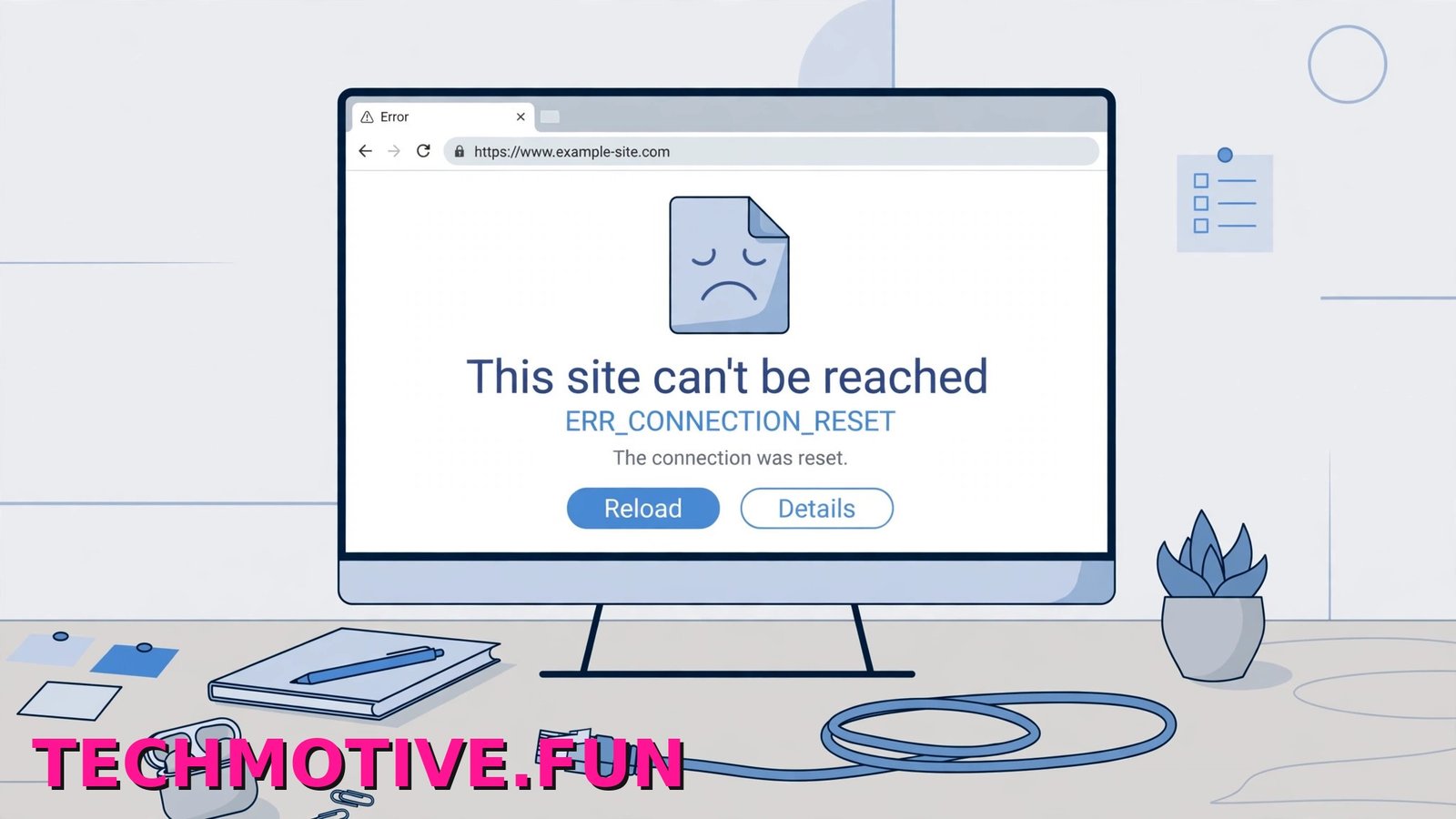
You open a website, the page starts to load, and then it stops. Chrome shows This site can’t be reached, The connection was reset, and the code ERR_CONNECTION_RESET.
In plain English, Chrome asked for the page, a connection to the site’s server started, and then that connection was cut off in the middle. The conversation never finished, so Chrome has nothing complete to show you — like a phone call that drops after the other person picks up.
That “something” is usually not the address you typed. A reset can come from unstable Wi-Fi, a router that needs a restart, a VPN or proxy changing your route, antivirus or firewall software inspecting the connection, or the site’s server closing it. Google puts it in similar terms on its page explaining common Chrome error messages: something interrupted your connection to the page.
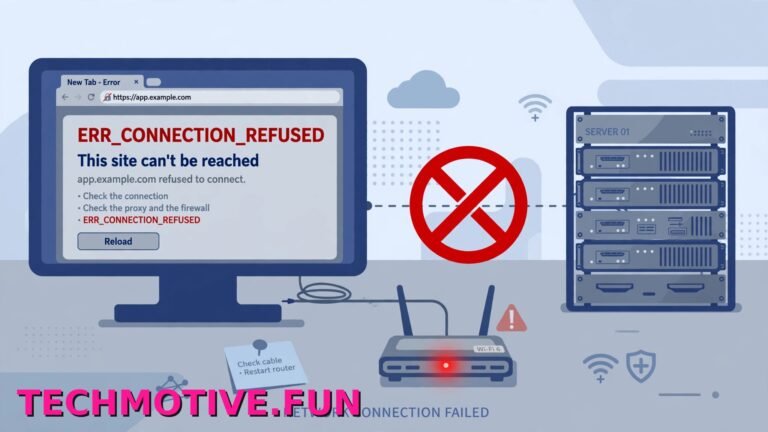
This is different from a refused connection. If you see that wording instead, read our guide to the similar ERR_CONNECTION_REFUSED error. A reset means a connection started and was interrupted; a refusal means the other end would not accept it.
If only one site fails, the problem may not be your computer. If every site fails, your network, security software, or Chrome is more likely.
Quick Checks Before the Real Fixes
Do not start by changing settings. These short tests tell you where the problem sits.
- Press Ctrl + R to reload the page. If the connection dropped for a second, it may load normally now.
- Open two or three other well-known websites. If they all fail, the problem is probably local. If only one fails, it may be that site.
- Try the same site in another browser, such as Microsoft Edge. If it fails there too, Chrome is probably not the cause.
- Restart your router and modem. Unplug the power, wait a full 30 seconds, plug it back in, and give it a few minutes to reconnect before testing again.
- Connect a phone to the same Wi-Fi and open the site there. If the phone fails too, focus on the network or the site. If the phone works, focus on your PC and Chrome.
Turn Off Your VPN and Check the Proxy Settings
A VPN changes the route your traffic takes. That is the point of it, but an overloaded, blocked, or misbehaving VPN server can cut connections partway through. A proxy server, which sits between Chrome and the websites you visit, can do the same.
If you use a VPN app, disconnect completely, close the app, and try the site again. If it loads, the VPN was part of the problem. Leave it off while you test the other fixes.
Next, check the Windows proxy setting. Chrome on Windows uses the system proxy, so a leftover proxy entry affects Chrome even if you never set one in the browser.
- Open Settings and go to Network & internet.
- Click Proxy.
- Under Manual proxy setup, check Use a proxy server. If it is on and you did not set it up yourself, turn it off.
- Click Save if Windows asks you to confirm.
- Restart Chrome and try the site again.
If you use a work or school proxy on purpose, note the settings before changing them, so you can restore them.
Clear Chrome’s Cache and Cookies
Chrome stores copies of page files in its cache so sites load faster next time, and cookies so sites can remember you. When those files are damaged or out of date, Chrome can keep loading a broken version of a page instead of asking for a fresh one.
Clearing them forces Chrome to fetch everything again. You will be signed out of most websites afterwards.
- In Chrome, press Ctrl + Shift + Delete. This opens Delete browsing data.
- Set Time range to All time.
- Tick Cookies and other site data and Cached images and files. You do not need to tick Browsing history for this fix.
- Click Delete data.
- Close Chrome completely, reopen it, and try the site again.
This differs from the issue in our guide to the ERR_CACHE_MISS message, which is about a page asking Chrome to resend information. Here, you are just clearing stored files so Chrome starts clean.
Test in an Incognito Window and Check Your Extensions
Extensions change how Chrome loads pages, and a faulty or outdated one — an ad blocker, privacy tool, or security extension — can break a connection that would otherwise work.
An Incognito window is a quick test, because extensions are off there by default.
- Press Ctrl + Shift + N to open an Incognito window.
- Go to the site that was failing.
- If it loads in Incognito, one of your extensions is the likely cause.
If that test points to an extension:
- Click the puzzle piece icon, then Manage extensions, or type
chrome://extensionsin the address bar and press Enter. - Switch off every extension, restart Chrome, and test the site.
- Turn extensions back on one by one, testing after each one, until the error returns. The last one enabled is the one to remove or update.
If the site also fails in Incognito, extensions are probably not the cause.
Pause Antivirus and Firewall Web Protection, Just to Test
Many antivirus programs scan web traffic as it arrives. That protection is useful, but scanning that is too strict — or an update that changes how secure connections are handled — can cut off legitimate pages.
This step is a test only. Do not browse around with your protection off.
- Open your antivirus program and look for a setting like Web protection, Web shield, or HTTPS scanning. The name varies by product.
- Pause that one feature briefly, if allowed. Windows Security users can also check Firewall & network protection in the Windows Security app, but only change a setting you can easily reverse.
- Immediately try the failing site in Chrome, and nothing else.
- Turn the protection back on straight away, whether the test worked or not.
Warning: turn antivirus and firewall protection back on as soon as this test ends. Do not leave it off, and do not use this as a long-term fix.
If the site loaded while protection was paused, update the antivirus, look for a setting that excludes the site, or contact its support.
Reset the Windows Network Stack
If other browsers are affected too, Windows’ networking settings may be tangled. Old DNS records, a damaged Winsock catalogue, or TCP/IP settings changed by other software can all drop connections. Resetting them puts them back to their defaults.
You will run three commands, one at a time, in a terminal opened as administrator.
- Click Start and type
TerminalorCommand Prompt. - Right-click the result and choose Run as administrator.
- Click Yes if Windows asks for permission.
The first command clears the DNS cache. DNS is how Windows finds the numeric address behind a website name, and Windows stores past results to save time. Clearing a wrong or stale result forces a fresh lookup.
ipconfig /flushdnsYou should see a message confirming the DNS resolver cache was flushed.
The second command resets Winsock, the catalogue Windows uses to let apps like Chrome plug into the network. Antivirus tools and VPNs add entries to it, and a broken entry can interrupt connections.
netsh winsock resetThe third command resets TCP/IP, the basic rules Windows uses to send and receive data over a network. This returns those settings to their defaults.
netsh int ip resetWhen all three have run, restart your PC — the Winsock and TCP/IP resets do not fully take effect until Windows starts again. Then test a few sites, including the one that failed.
If a command reports access is denied, the terminal was not opened as administrator. Close it and repeat the opening steps.
Change Your DNS Servers
Your provider supplies DNS servers automatically. When they are slow or faulty, lookups go wrong and connections can break before a page loads. Switching to Google’s public DNS tests whether your provider’s DNS is involved, and separates this error from a pure lookup failure, covered in our guide to the DNS_PROBE_FINISHED_NXDOMAIN error.
- Open Settings and go to Network & internet.
- Click your active connection, either Wi-Fi or Ethernet, and open its properties if Windows shows that option.
- Find DNS server assignment and click Edit.
- Change the setting from Automatic (DHCP) to Manual.
- Turn on IPv4.
- In Preferred DNS, enter
8.8.8.8. - In Alternate DNS, enter
8.8.4.4. - Click Save.
- Restart Chrome and try the site again.
If this makes no difference, return to the same screen and set DNS server assignment back to Automatic (DHCP).
Reset Chrome’s Settings
Leave this until later. Resetting Chrome returns settings to their original defaults, turns off extensions, and clears temporary data, but does not delete bookmarks, history, or saved passwords. It is a good clean-up step when the problem is inside Chrome itself.
- In Chrome, click the three-dot menu and open Settings.
- In the left-hand menu, click Reset settings.
- Click Restore settings to their original defaults.
- Read the confirmation box, then click Reset settings.
- Restart Chrome and test the site before turning any extensions back on.
If the page works clean, then stops after you re-enable something, you have found the cause.
Still Seeing ERR_CONNECTION_RESET?
A few last checks can point you in the right direction.
Try a completely different network. Turn on your phone’s mobile hotspot, connect your PC to it, and open the site. If it works there, your home network, router, or provider is involved, not Chrome. If it fails there too, the PC or the site itself is more likely.
Check whether the site is down for everyone: ask someone else to open it, or try your phone on mobile data. If nobody can reach it, wait — no setting fixes an offline server.
Look at your router again. Very old firmware can drop connections in ways that look like browser errors. Follow the maker’s firmware instructions for your model.
If every site fails at home but works elsewhere, tell your provider that connections are being reset on multiple devices. That detail helps them, because it rules out a single browser on a single PC. Google also keeps its own guide to fixing connection and loading errors, worth working through alongside these steps.
Final Checklist
Use this short chrome err connection reset fix checklist to confirm you have covered the main causes, in order.
- Reloaded the page; tested other sites and another browser
- Restarted the router after unplugging it for 30 seconds
- Tested a phone on the same Wi-Fi
- Disconnected the VPN; turned off an unused proxy in Proxy settings
- Cleared cookies and cached files with Ctrl + Shift + Delete
- Tested in Incognito; checked extensions one by one
- Tested web protection briefly, then turned it back on
- Ran the three network reset commands as administrator, then restarted the PC
- Tried DNS servers
8.8.8.8and8.8.4.4 - Reset Chrome under Reset settings, only after the earlier steps
- Tested on a different network, such as a phone hotspot
For most people, the fix is an earlier item: a router restart, a VPN or proxy, stored data, or one extension. Work in order.
Frequently Asked Questions
Why does Chrome keep saying the connection was reset?
A connection started and was interrupted before the page finished loading. The break can happen on your network, in security or VPN software, between you and the site, or on the site’s server. Testing another browser and another device shows which side it is on.
Is ERR_CONNECTION_RESET a problem with my computer or the website?
It can be either. If only one site fails, and it fails on your phone on mobile data too, the website is likely. If many sites fail on your home Wi-Fi, your network, router, provider, or PC is more likely.
Will clearing cache and cookies fix ERR_CONNECTION_RESET?
It can, if old or damaged stored files stop Chrome loading a fresh copy of the page. Press Ctrl + Shift + Delete, choose All time, and clear cookies and cached files. You will need to sign in again afterwards.
Can a VPN cause ERR_CONNECTION_RESET?
Yes. A faulty VPN server, a blocked route, or a dropped VPN connection can reset a site’s connection. Disconnect the VPN completely and test again. If the page loads, try a different VPN location.
What do the network reset commands actually do?
They return Windows networking to its defaults. ipconfig /flushdns clears stored website addresses, netsh winsock reset resets the catalogue apps use to reach the network, and netsh int ip reset resets TCP/IP settings. Restart your PC afterwards.
Does resetting Chrome delete my bookmarks and passwords?
No. Restore settings to their original defaults resets settings, turns off extensions, and clears temporary data, but bookmarks, history, and saved passwords are kept. You may need to turn extensions back on again.
Why does the error happen on one site but not others?
That usually points to the site, its server, or the route to that server, though an antivirus tool, extension, or VPN treating one site differently can also do it. Test it on mobile data. If it fails there too, waiting is often the only option.



One Comment