
Chrome Autofill Not Working? Simple Fixes to Get Forms Filling Again
Short Answer
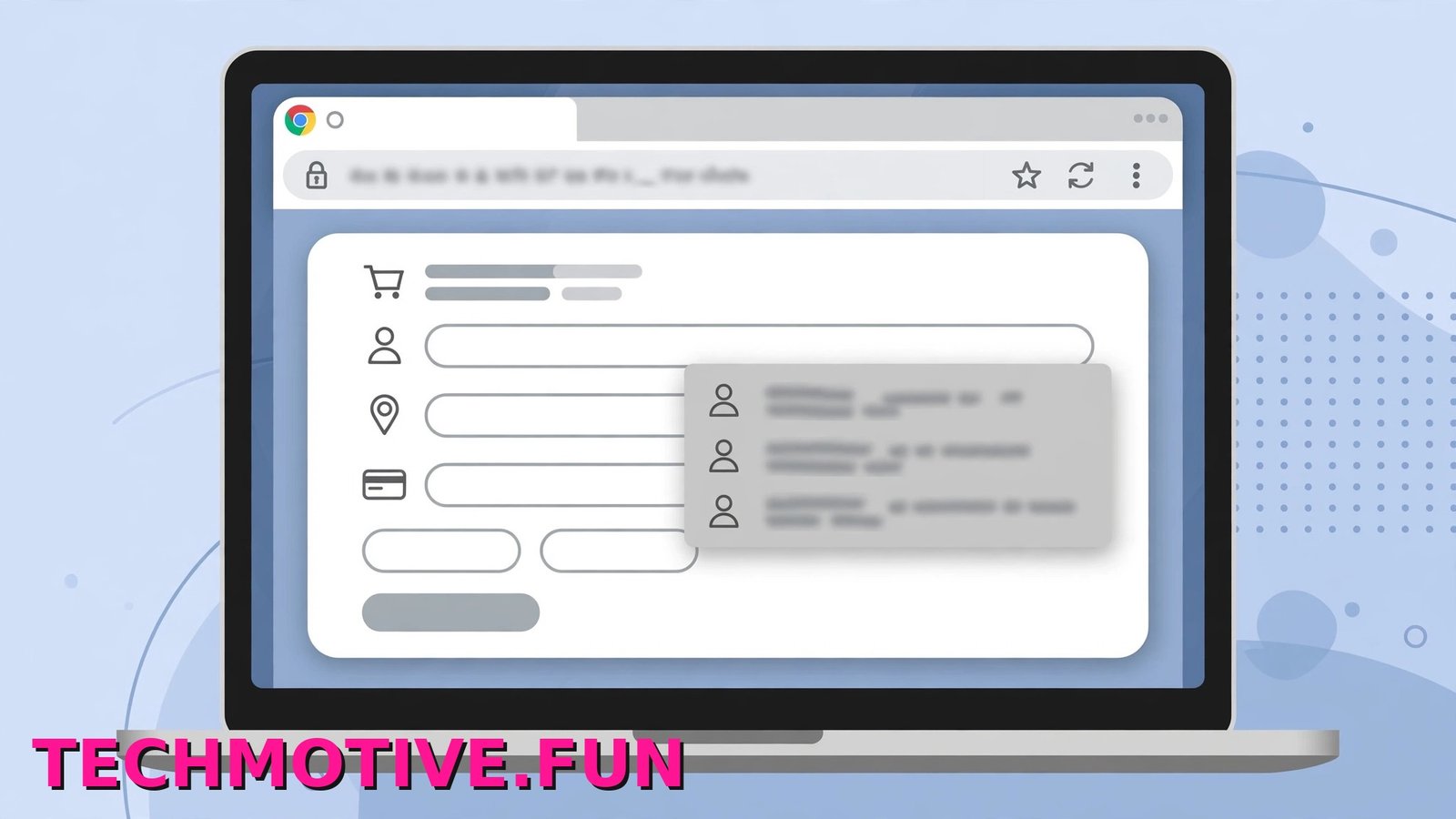
If you have run into chrome autofill not working, the cause is usually simple. Autofill is either switched off, the information it needs was cleared at some point, or sync is paused so your saved details never reach the device you are using.
Start here. Open Chrome, click the three-dot menu in the top right, and go to Settings, then Autofill and passwords. That one section controls almost everything autofill does. Inside it, passwords, payment methods, and addresses are handled separately, and each has its own switch.
That detail trips up a lot of people. You can have addresses enabled while payment methods are off, or passwords working while addresses do nothing. Check all three areas before trying anything more drastic.
If those settings look fine, the next likely causes are missing saved data, a paused sync, an extension getting in the way, or a website that blocks autofill. The fixes below go through them in order, starting with the quickest checks.
The Most Likely Culprit
There is usually one clear reason behind the problem. As you read through these, you will probably spot yours quickly.
The Autofill Toggles Are Switched Off
This is the most common cause. Chrome has no single master autofill switch. Save and fill addresses, Save and fill payment methods, and the password setting in Google Password Manager are separate toggles in separate places.
So your name may appear on forms while your card never shows up at checkout, simply because one toggle is on and the other is off. Toggles end up off for ordinary reasons too — someone sharing the computer changed one, or a setting was turned off while fixing another problem and forgotten.
Your Saved Data Was Cleared or Never Saved
Autofill can only fill what it actually has. If no address is saved, there is nothing to suggest when you click an address field. The same applies to cards.
Saved details can disappear if browsing data was cleared with the wrong boxes ticked, or if a cleaner tool removed them. Sometimes they were never saved at all. Chrome usually offers to save an address or card after you submit a form, but if that prompt was dismissed, the details may never have been stored.
Passwords have a similar issue of their own. If the password manager is not appearing when it should, treat that as a separate password-side check rather than assuming the whole autofill system is broken.
Sync Is Paused or You Are in the Wrong Profile
If you use Chrome on more than one device, your saved details travel with you through your Google Account — but only when sync is running, and only in the same profile.
Sync can pause after a password change, after signing out, or when a sign-in prompt gets ignored. The data is not lost. It just stops arriving. That is why one computer can fill everything perfectly while another fills nothing.
Profiles cause the same confusion. A work profile and a personal profile each hold their own saved data. Shop in your work profile, and your personal home address will not be there, even though autofill is working as designed.
The Website Itself Blocks Autofill
Sometimes Chrome is not the problem. Some sites, especially banking sites and some checkout pages, deliberately limit autofill for security. Others are built so Chrome cannot recognise the fields properly, even though they look like a normal name and address form.
That is why autofill not working on websites often follows a pattern: it works on most sites, then fails completely on one or two. If it only happens on a single site, suspect the site before changing lots of settings.
A Damaged Profile or a Conflicting Extension
Your Chrome profile holds your settings, saved data, and extensions in one place. If it becomes corrupted, autofill can behave strangely, suggestions can stop appearing, or settings may not stay saved.
Extensions can interfere too. Password managers, form fillers, and privacy tools often try to control the same fields as Chrome’s built-in autofill. When two tools compete for the same field, sometimes neither works properly.
The Fixes Worth Trying, In Order
Try these in order. The early fixes take a minute or two and solve the problem for most people. Leave the new profile and the reset until the simple checks have failed.
Fix 1: Turn On the Three Autofill Toggles
- Open Chrome, click the three-dot menu, and click Settings.
- In the left sidebar, click Autofill and passwords.
- Click Addresses and more and turn on Save and fill addresses.
- Go back, click Payment methods, and turn on Save and fill payment methods.
- Go back again, click Google Password Manager, open its Settings, and turn on Offer to save passwords.
While you are in Payment methods, check the option that lets sites see whether you have payment methods saved. If your cards are saved but never offered at checkout, that setting may be off.
Fix 2: Check the Saved Data Is Actually There
Turning toggles on is not enough if there is nothing saved.
- Go to Settings > Autofill and passwords > Addresses and more and look at the saved list. If it is empty, click Add and enter your details.
- Open Payment methods and check your card is listed. Add it again if it is missing.
- Open Google Password Manager and search for a site you use often to confirm your logins are saved.
If you find an old entry here, edit or remove it. An outdated address sitting next to your current one is a common reason Chrome keeps suggesting the wrong details. And if your passwords themselves are missing, the reasons Chrome refuses to store new logins are worth checking as well, since the same profile or sync problem can affect both.
Fix 3: Check Sync and Confirm the Right Account Is in Use
If the toggles are on and data exists on one device but not another, sync is the likely gap.
- Click your profile picture in the top right of Chrome. If sync is paused, click the message and sign in again.
- Go to Settings > You and Google and check the account shown at the top.
- Click Sync and Google services, then Manage what you sync, and make sure addresses, payment methods, and passwords are included if you customise what syncs.
- Check the profile name too, to be sure you are not in a work or guest profile.
Give Chrome a minute or two after fixing sync. If sync keeps pausing again, work through the checks for when Chrome sync stops working properly before going further. Google’s own overview also explains how autofill works and what the different settings control.
Fix 4: Test in Incognito to Rule Out Extensions
Incognito disables most extensions by default, which makes it a fast way to separate Chrome itself from its add-ons.
- Click the three-dot menu and select New Incognito window, or press Ctrl + Shift + N.
- Visit a site where autofill usually fails, sign in if needed, and click into a form field.
If saved addresses appear here but not in a normal window, an extension is almost certainly the cause. Open Extensions > Manage extensions in a normal window and turn extensions off one at a time, starting with password managers, form fillers, and privacy tools. Test after each one. When the problem disappears, you have found the conflict.
Fix 5: Clear Cache and Cookies Carefully
Old site data can stop forms behaving properly, and clearing the cache and cookies sometimes fixes a stubborn problem, especially on one site that used to work.
Do this carefully. Clearing cookies will sign you out of most websites. It should not delete passwords saved in Google Password Manager, but your current sessions will end.
- Press Ctrl + Shift + Delete to open the clear browsing data window.
- Set the time range to All time, or a shorter range if the problem only started recently.
- Tick Cookies and other site data and Cached images and files.
- Leave Passwords and Autofill form data unticked.
- Click Clear data, restart Chrome, and test a form.
That fourth step matters. Tick the autofill box by accident and you can delete the very addresses you are trying to fix.
Fix 6: Update Chrome
Autofill problems sometimes appear when Chrome is out of date or an update did not finish cleanly.
- Click the three-dot menu and go to Help > About Google Chrome.
- Chrome will check for updates and install any it finds.
- Click Relaunch when prompted, then test autofill again. Updates quietly fix a lot of small bugs.
Fix 7: Create and Test a Fresh Chrome Profile
If nothing so far has helped, test whether your profile is the problem. A new profile is just a test, not a commitment, and you can delete it afterwards.
- Click your profile icon in the top right and click Add Chrome profile.
- Follow the prompts, then sign in with the same Google Account so your synced data comes across.
- Wait for sync to finish, then test autofill on a familiar site.
If autofill works in the new profile but not the old one, the old profile is likely damaged or has a conflicting setting. You can then move over gradually. If it fails in a new profile too, look again at the website or the account.
Fix 8: Reset Chrome Settings as a Last Resort
Resetting returns many settings to their defaults, which can clear out a bad setting nothing else found. It does not delete your bookmarks, history, or saved passwords. It does reset your startup page, new tab page, search engine, and pinned tabs, disables your extensions, and clears temporary data such as cookies. You will need to turn the autofill toggles back on afterwards. Google explains what a settings reset changes and how to do it in detail.
- Go to Settings and click Reset settings in the left sidebar.
- Click Restore settings to their original defaults.
- Read the confirmation box, then click Reset settings.
Afterwards, revisit Fix 1 to re-enable the toggles, and turn extensions back on one at a time.
Keeping Autofill Reliable
Once autofill works again, a few habits help it stay that way.
Keep sync on, and deal with sign-in prompts when they appear instead of closing them. A sync left paused for weeks is how saved addresses not appearing turns into a recurring problem.
Review your saved addresses after moving house, changing your phone number, or getting a new card. Two minutes deleting an old address in Addresses and more saves you from picking the wrong one in a hurry at checkout.
Be careful with settings and tools that clear data automatically. Under Privacy and security there is an option to clear cookies and site data when you close all windows, and third-party cleaner tools can be more aggressive still. They have legitimate uses, but if sign-ins and form data keep resetting, check this setting first.
Finally, keep one profile for personal data. Splitting addresses and cards across a work profile, a personal profile, and a guest session is a reliable way to make autofill feel random.
Frequently Asked Questions
Why Does Chrome Keep Filling in My Old Address?
Because the old address is still saved, and Chrome does not know you have moved until you tell it. Go to Settings > Autofill and passwords > Addresses and more, click the old entry, and edit it or delete it. Check for duplicates while you are there, because two similar addresses are what cause that hesitation at checkout.
Why Does Autofill Work on Some Sites but Not Others?
Usually because sites are built differently. Chrome relies on form fields being labelled in a recognisable way, and not every website does that well. Some sites, particularly banks and payment pages, also limit autofill on purpose for security. If your details fill correctly everywhere except one site, that site is the most likely explanation.
Does Incognito Mode Disable Autofill?
Not completely. Saved addresses and payment methods can still be suggested in an Incognito window, which is why Incognito is useful for testing extensions. However, your normal cookies are not used there, so you will usually need to sign in to sites again.
Why Is Chrome Autofill Not Working After an Update?
An update can leave a setting changed, an extension incompatible, or sync needing a fresh sign-in. Restart Chrome fully, check the three toggles in Autofill and passwords, and confirm sync is not paused. If the problem started right after the update, also test with extensions disabled, because an extension that has not been updated yet is a common cause at exactly that moment.
Is It Safe to Save Payment Methods in Chrome?
That is a personal choice, and Chrome gives you control over it. Chrome may ask you to confirm a card’s security code at checkout instead of filling every detail automatically. If you share your computer or profile with other people, think carefully before saving cards there. You can remove a card at any time from Payment methods, and turning the toggle off stops Chrome offering to save new ones.
How Do I Delete a Wrong Saved Entry?
Go to where the entry lives. Addresses are in Settings > Autofill and passwords > Addresses and more, and cards are in Payment methods. Click the entry, or the three-dot menu next to it, and choose edit or remove. For a wrong login, open Google Password Manager, find the site, and delete it there. Removing the bad entry works better than adding the correct one beside it, because then Chrome has only the right details to suggest.
Final Thoughts
Most autofill problems turn out to be small: a toggle that was off, the wrong profile open, or a sync that quietly paused weeks ago. Work through the fixes in order, check that the saved data is actually there rather than assuming it is, and you will usually fix chrome autofill not working without needing a new profile or a reset.
And if autofill works everywhere except one stubborn website, let that one go. Type your details in by hand there.




One Comment