Best Free Alternative to Illustrator for Beginners and Pros
If you need to design a logo, a poster, or an illustration, Adobe Illustrator is often the first name people mention. It is powerful, widely used in design studios, and packed with professional tools. The problem for many beginners, students, and small business owners is the ongoing subscription cost, which can be hard to justify when you only design now and then.
The good news is that you do not need to pay to start learning vector design. Several free tools can handle everyday logo work, social media graphics, simple illustrations, and print-ready artwork. They will not match Adobe Illustrator feature for feature, but for many projects, they are more than enough.
In this article, we compare the main free options, explain what to check before you switch, and help you choose a free alternative to Illustrator that fits the kind of work you actually do.
Vector vs Raster: Why the Difference Matters
Before you pick a tool, it helps to understand the difference between vector and raster graphics. Raster images, such as JPEGs and PNG photos, are made of tiny coloured squares called pixels. When you enlarge a raster image too far, those squares become visible and the edges look soft or blocky.
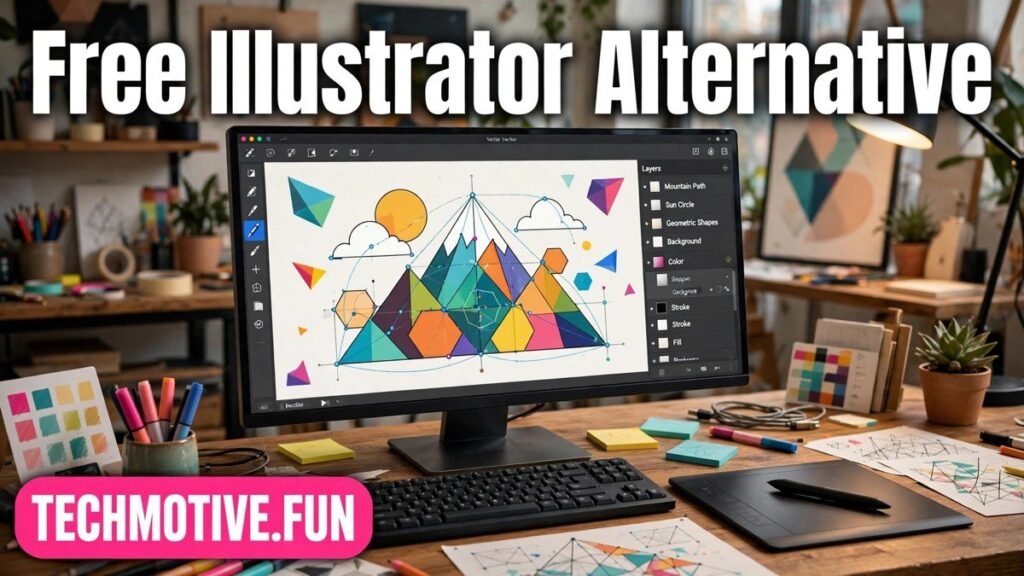
Vector graphics work differently. Instead of pixels, they are built from mathematical paths, points, and curves. That means you can scale a vector logo from a small website icon to a large shop banner without losing sharpness. The lines stay clean, the shapes stay smooth, and the file usually stays small.
This is why a true Illustrator alternative must be vector software. A photo editor, however good, is built for editing pixels. It may let you draw shapes, but it will not give you the same control over paths, anchor points, and scalable artwork. If your main goal is logos, icons, illustrations, or print design, start with a vector editor and use a photo editor only for photos.
What to Look for Before You Switch
Not every free design tool is a good replacement for Adobe Illustrator, so it is worth checking a few basics before you settle on one. The first is file format support. SVG is the most common open vector format, and most free vector editors use it as their native format. PDF export is also useful for sharing work and sending files to print.
Compatibility with AI files deserves special attention. Some free tools can open simpler AI files, but results vary, especially with complex effects, linked images, and newer file features. Warning: No free tool opens every Illustrator file perfectly. If you regularly receive AI files from clients, test a few real files in the free tool before you commit to it.
Next, look at the drawing tools. A pen tool for drawing and adjusting curves is essential for serious vector work. Layers help you organise a design, lock background elements, and edit one part without disturbing the rest. You should also check export options: can you save a transparent PNG for the web, an SVG for a website, and a PDF for print?
Finally, think about how you like to learn. A powerful desktop editor may take longer to learn but give you more control in the long run. A simpler browser tool may feel easier on day one but limit what you can do later. Pick the balance that matches your patience and your projects.
Free Illustrator Alternatives at a Glance
| Tool | Best for | Where it runs |
|---|---|---|
| Inkscape | Full logo, illustration, and print work | Desktop computer |
| Figma | Web graphics, social posts, and team projects | Web browser |
| Vectr | Simple first designs and quick graphics | Web browser |
Each of these tools is free to start with, but their strengths are different. The sections below explain who each one suits best. For the latest download and pricing details, check each vendor’s current download or pricing page, since offers and plans can change.
Inkscape: The Full Desktop Vector Editor
Inkscape is the closest free match to Adobe Illustrator for many desktop users. It is a dedicated vector editor, which means drawing paths, editing shapes, and building illustrations is its main job, not an extra feature. It runs on your computer, works with SVG files natively, and includes a pen tool, layers, text tools, and path operations for combining and cutting shapes.
This makes Inkscape a strong choice for logos, icons, posters, and illustrations that need precise control. You can draw a logo from scratch, adjust individual curves, align objects, and prepare artwork for print or the web. Because it is a full desktop program, it suits longer projects where you want to save your work locally and return to it over time.
The trade-off is the learning curve. Inkscape has many tools and panels, and beginners may need a few practice sessions before the workflow feels natural. Free tutorials and community guides can help, and the skills you learn, such as working with anchor points and layers, transfer well to other vector software. If you want a free alternative to Illustrator that can grow with you, Inkscape is the natural starting point.
Figma: The Browser-Based Design Tool
Figma is best known as a design tool for websites and apps, but it also includes solid vector drawing tools. Because it runs in a browser, you do not need to install a large desktop program to start, and you can open your work from different computers. That flexibility makes it popular with students, freelancers, and small teams.
For everyday graphics, Figma handles shapes, text, colour, and layout well. It is a practical choice for social media graphics, presentation visuals, website mock-ups, and simple illustrations. Sharing is also straightforward: you can send a link so someone else can view your design or leave feedback, which is handy when a client or classmate needs to review your work.
There are limits to keep in mind. Figma is built mainly for screen design rather than traditional print work, so it may not be the best pick if your main job is preparing complex print files. It also works best with an internet connection. Before you rely on it, check the vendor’s current pricing page for the latest details of the free plan. For browser-based design and collaboration, though, Figma is a strong free alternative to Illustrator.
Vectr: The Beginner-Friendly Option
If Inkscape feels too advanced and Figma feels too focused on screen design, Vectr offers a gentler way in. It is a simple vector editor with a clean workspace, basic shapes, text, and straightforward editing tools. You can put together a simple logo, a social media graphic, or a classroom poster without first learning a large set of professional features.
Vectr suits people who want a quick result rather than a deep design toolkit. Beginners can learn the basics of vector drawing, such as resizing shapes without losing quality and arranging layers, in a short time. It is also useful for testing an idea before moving it into a more powerful editor later.
The simplicity does come with limits. Advanced path editing, detailed print preparation, and complex illustrations are harder in a beginner tool, and you may outgrow it as your skills improve. That is not a failure, though. Many designers start simple, learn what good vector work feels like, and then move on when a project demands more control.
Moving Your Work Over to a Free Tool
Switching tools goes more smoothly if you plan the move instead of converting everything at once. Start with a new project in the free editor, rather than trying to rebuild your most complex old file on day one. That gives you time to learn the workspace, find the pen tool and layers panel, and test exports before real work depends on them.
When you do need to bring old work across, export from your original program in a widely supported format such as SVG or PDF, and keep a copy of the original file untouched. Open the exported copy in the new tool and check it carefully: text, spacing, colours, and layered elements can shift during conversion. Fonts deserve a separate check, since a missing font can change the look of a design. Install the fonts you need on the new computer, or check whether the tool lets you convert text to shapes so the lettering stays fixed.
It also helps to test your exports early. Save a PNG for the web, an SVG for a website, and a PDF if you plan to print, then open each one to confirm it looks right. A short test like this can save a lot of rework later, especially for logos that will appear in several places. Keep your originals backed up, work on copies, and rebuild only the files you truly need in the new format.
Who Should Still Consider a Paid Tool
Free tools cover a lot of ground, but a paid tool still makes sense for some people. If you work in a studio that exchanges AI files every day, or if a print shop asks for files in a specific format, staying with Adobe Illustrator may save time and avoid conversion problems. The same applies if you rely on specialised plug-ins, automation, or features that free tools do not offer.
Paid software can also be worth it when design is your full-time job and the time saved each week outweighs the subscription cost. For a business producing client work daily, speed, support, and compatibility may matter more than saving money on software. Check the vendor’s current pricing page and compare it with how much design work you actually do.
For everyone else, a free tool is a sensible place to start. Learn the basics, build a few real projects, and only pay when you hit a clear limit that affects your work. Many hobbyists, students, and small business owners never reach that point, and their logos and graphics look professional without a subscription.
Frequently Asked Questions
Is there a completely free alternative to Illustrator?
Yes. Inkscape is a free, open-source vector editor, and Figma and Vectr offer free ways to start designing in a browser. A free alternative to Illustrator can handle logos, illustrations, and social graphics well, though it may not include every professional feature found in paid software.
Can free tools open AI files?
Sometimes, but not always reliably. Simple AI files may open in a free vector editor, while complex files with special effects or newer features may not convert cleanly. Always test your actual files, keep the originals, and ask clients for SVG or PDF versions when possible.
Which free alternative is best for logo design?
For most logo work, Inkscape is the strongest free choice because it is a full vector editor with precise path tools and SVG support. If you only need a simple logo quickly, Vectr is easier to learn, and Figma works well for logos that will mainly appear on websites and social media.
Can I use free vector tools for commercial work?
In general, yes, but check the licence terms for the tool and for any fonts, icons, or images you use. A tool being free to download does not always mean every asset inside it is free for commercial use, so read the vendor’s current terms before selling work made with it.
Do I need a powerful computer for vector design?
Most vector projects do not need a high-end computer. Inkscape runs on an ordinary desktop or laptop, and browser tools such as Figma and Vectr shift much of the work to the web. Very large or detailed illustrations may still benefit from more memory, but beginners can start on a normal home computer.
Can beginners learn vector design without Illustrator?
Absolutely. The core skills are the same in any vector editor: drawing with paths, adjusting curves, working with layers, and choosing colours and type. Once you understand those ideas in a free tool, you can move to paid software later with far less trouble if you ever need to.
Related Guides
If you are replacing other paid design software too, these guides may help:
- Free Alternative to Photoshop for Beginners
- Free Alternative to Microsoft Publisher
- Free Alternative to Adobe Acrobat
Sources
For downloads and current plan details, check the official sites: