
Google Docs Spell Check Not Working? How to Fix It Fast
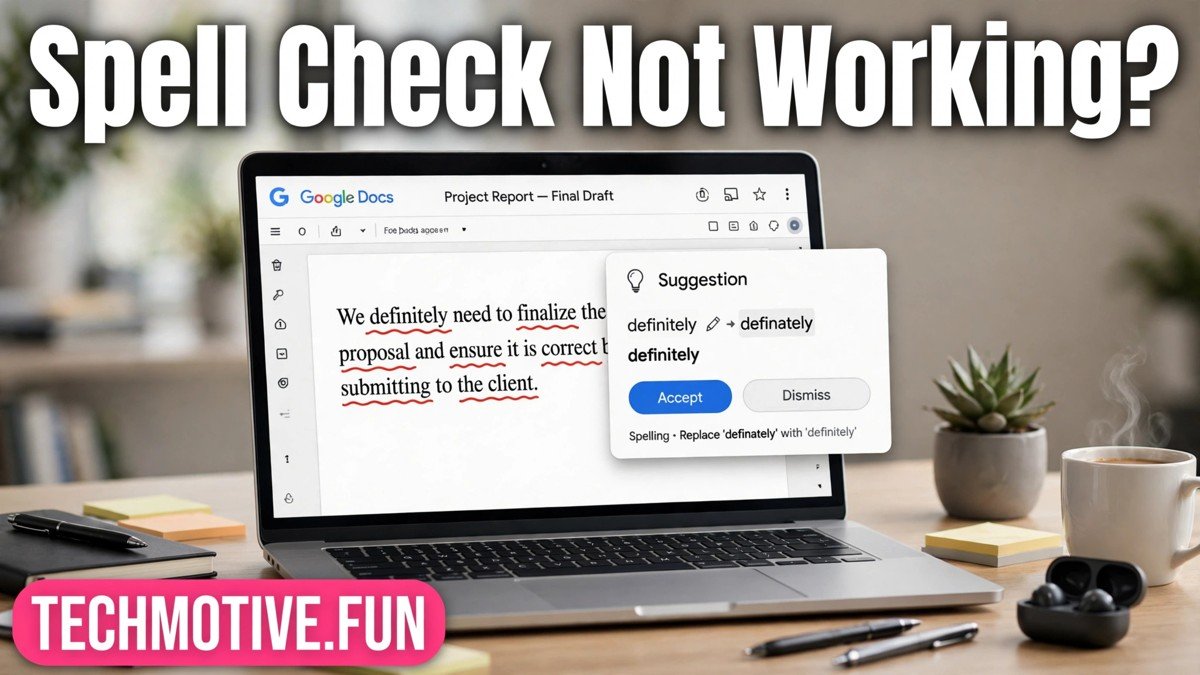
You type a word you know is wrong, and nothing happens. No red underline, no suggestion, no gentle nudge. The document looks clean, but you know it is not. That quiet failure is more annoying than an obvious error message, because you are left guessing whether spell check is off, broken, or simply looking at the wrong thing.
Before you reinstall anything or rewrite your document, work through the checks below in order. Most cases of google docs spell check not working come down to a setting changed by accident, a language mismatch, or a browser issue hiding the underlines. Each fix below takes a minute or two.
First, Confirm What Is Actually Broken
Not every spell check problem is the same problem, and the fix depends on which symptom you have. Take thirty seconds to describe what you are seeing before changing settings.
The first possibility is that there are no red underlines at all. You can type obvious mistakes and the text stays plain. This usually points to spell check being switched off, or to the document language being set to something unexpected.
The second possibility is that underlines appear sometimes but suggestions are missing. You might see a wavy line, yet right-clicking gives you no useful replacement, or the suggestion box looks empty. This can happen when the word is in a different language, when the text carries formatting from another program, or when the suggestion feature is not responding in that browser session.
The third possibility is that spell check works, but it flags correct words or misses real mistakes. A document written in British English, for example, may flag American spellings, or the other way round. Names, technical terms, and words borrowed from another language can also be flagged again and again. That is not a breakdown. It is a language or dictionary mismatch, and it has a different fix from a switched-off checker.
Try this quick test: type a clearly misspelled word such as “teh” on a fresh line. If nothing is underlined, you are dealing with the first case. If it is underlined but no suggestion appears, you are in the second case. If everyday words are flagged, you are in the third case.
Check the Spell Check Toggle and the Language Setting
Start inside Google Docs itself, because this is where the problem most often lives. Open the document that is giving you trouble, then look at the menus at the top of the screen.
Go to Tools, then Spelling and grammar, and make sure Show spelling suggestions is turned on. If it is already on and spell check still does nothing, turn it off, wait a moment, and turn it back on again. This simple reset clears the occasional state where the setting looks correct but is not actually active in that document.
Next, check the language. In the File menu, choose Language and confirm that the language matches the language you are writing in. If you write in English but the document is set to another language, the checker will judge your words against the wrong dictionary. It may flag correct words, miss real errors, or appear to do nothing at all. Change the language to the one you actually use, then retype a test word and see whether the underline appears.
Also run the full check once, rather than relying only on underlines. Go to Tools, then Spelling and grammar, then Check spelling and grammar. This panel walks through each flagged word with a suggested replacement. If it finds mistakes the underlines missed, the checker itself is working and the problem is with how underlines are displayed.
Warning: changing the language setting affects the whole document, so check it again if you share the file with someone who writes in a different variant of English.
Look for Browser-Level Causes
When the Docs settings look right, the browser is the next place to look. Google Docs runs in your browser, so anything that interferes with the page can also interfere with spell check.
Extensions are the most common culprit here. Grammar tools, ad blockers, and other writing assistants can clash with the built-in checker, hiding underlines or blocking suggestions. Open your document in an incognito or private window, where most extensions are disabled by default, and test a misspelled word there. If spell check works in the private window, disable extensions one at a time in your normal window, retesting after each one, until you find the one causing the clash.
Your browser also has its own spell check, and the two systems can confuse each other. If your browser is set to a different language from your document, its suggestions may disagree with Docs, or its own checker may be switched off and leave you with no underlines. Check your browser language and spell check settings and make sure they match your document.
Offline mode is another quiet cause. If you have offline access turned on and your connection drops, some features may behave differently until you reconnect. If spell check stopped working on patchy Wi-Fi or while offline, reconnect, reload the document, and test again before changing anything else.
Finally, check your keyboard language. On many computers, a shortcut can switch the input language without any visible warning. Look at the language indicator in your system tray or menu bar and switch it back to the language you intend to type in. If none of these steps help, try a different browser: if underlines appear there, the problem is specific to your first browser.
Check Document-Level Causes
Sometimes the document itself is the problem, not the setting or the browser. This is especially common with documents that were not typed from scratch inside Docs.
Text pasted from another program, a website, or a PDF often carries hidden formatting with it. That formatting can include a language tag or a “do not check spelling” instruction that you cannot see but Docs still follows. If only one paragraph refuses to show underlines while the rest of the document works fine, pasted formatting is a strong suspect. Select the problem paragraph, copy it, and paste it back using Paste without formatting. You will lose bold and italics in that section, but you can reapply them afterwards, and the checker will usually start working on the clean text.
Tables can hide marks too. Underlines can be harder to spot in a narrow cell, and a table copied from elsewhere may carry the same hidden formatting problem. If the trouble is limited to a table, try the paste-without-formatting fix inside the cells, or test the same words outside the table.
Suggestion mode is another trap. If you are working in Suggesting mode rather than Editing mode, your changes appear as suggestions for someone else to accept, and the normal spell check underlines may not behave the way you expect. Look at the pencil icon in the top-right corner of Docs and make sure you are in Editing mode when you test spell check. If a collaborator put the document into suggesting mode, switch back and retest.
Warning: pasting without formatting removes links and styling as well as hidden language tags, so keep a copy of the original paragraph until you are happy with the result.
The Personal Dictionary and the “Ignore” Trap
There is one cause that feels like a fault but is actually Docs remembering a choice you made earlier. When you right-click a flagged word, Docs offers you the option to ignore it. If you click Ignore or add a word to your personal dictionary, Docs stops flagging that word, in that document or across your account, depending on which option you chose.
This is useful for names, brand terms, and technical words you use often. It becomes a problem when you ignore a word by accident, or when you add a misspelling to the dictionary and then wonder why Docs never corrects it again. A word you added months ago can quietly survive every later check.
To fix this, go to Tools, then Spelling and grammar, then Personal dictionary. You will see the list of words you have added. Look for the word that is not being flagged, or any word you do not recognise, and remove it. Then type that word again in your document and check whether the underline returns.
The same logic applies to words ignored in a single document. If a word is ignored in one file but flagged in another, that is the ignore feature doing its job, not a bug. Reopen the spell check panel through Tools, then Spelling and grammar, then Check spelling and grammar, and work through the flagged words again rather than skipping past them. This gives you a chance to catch a word you dismissed too quickly the first time.
It is worth reviewing the personal dictionary every few months and removing old project names and anything you added in a hurry. A short, clean dictionary means the checker flags real mistakes instead of waving through words you no longer need.
Checking on Mobile vs Desktop Differences
Spell check does not behave identically on every device, and this catches many people out. What works on a laptop may look different on a phone, and that difference is not always a fault.
On a desktop browser, you get the full Docs experience: red underlines as you type, right-click suggestions, and the full spelling panel under Tools. This is the best place to test whether spell check is genuinely broken, because every feature is available and visible.
On the Google Docs mobile app, spell check is more limited. The app may underline mistakes, but the suggestions and the full checking panel are not the same as on desktop, and some settings that exist in the browser version are not present in the app at all. If spell check seems to be missing on your phone, first check the same document on a desktop browser. If it works there, the mobile app is simply showing you a reduced version, not a broken one.
Mobile keyboards add another layer. Your phone keyboard has its own autocorrect and spell check, which can correct words before Docs ever sees them. If your phone keeps changing a word that Docs on desktop leaves alone, the keyboard is the likely source. Try turning off autocorrect temporarily to test this.
The practical rule is simple: use the desktop browser version whenever you need a thorough check, and treat the mobile app as a way to read and make quick edits rather than as the final proofreading step.
Quick Fix Checklist
Work through this list in order, and stop as soon as spell check starts working again.
- Type a test word such as “teh” and note whether it is underlined, underlined without suggestions, or not flagged at all.
- In Tools, then Spelling and grammar, confirm Show spelling suggestions is on, toggling it off and on if needed.
- In File, then Language, confirm the document language matches the language you are writing in.
- Run Check spelling and grammar from the Tools menu and work through the full panel.
- Open the document in a private window to rule out browser extensions, then disable the conflicting extension if the private window works.
- Check your browser language and spell check settings, and confirm your keyboard language has not switched.
- Reconnect and reload the document if you have been working offline or on an unstable connection.
- For a paragraph that will not check, select it and re-paste it with Paste without formatting.
- Confirm you are in Editing mode, not Suggesting mode, using the pencil icon in the top-right corner.
- Open Personal dictionary under Tools, then Spelling and grammar, and remove any word you added or ignored by mistake.
- If the problem only appears on mobile, test the same document in a desktop browser before changing anything else.
If you reach the end of this list and spell check still does nothing, create a new document, paste your text in without formatting, reapply your headings and styling, and test again. This clears any hidden formatting the steps above could not reach.
Frequently Asked Questions
Why is Google Docs not underlining my spelling mistakes?
The most common reasons are that Show spelling suggestions is switched off, the document language does not match the language you are writing in, or a browser extension is hiding the underlines. Work through the toggle, the language setting, and a private-window test in that order, and the cause usually reveals itself quickly.
How do I turn spell check back on in Google Docs?
Open your document, go to Tools, then Spelling and grammar, and turn on Show spelling suggestions. Then go to File, then Language, and confirm the correct language is selected. Type a test word to confirm the underlines have returned.
Why does Google Docs flag words that are spelled correctly?
This usually means the document language is set to a different variant of English, or the word is a name or technical term that is not in the built-in dictionary. Check the language setting first. If the word is correct and you use it often, adding it to your personal dictionary will stop it being flagged.
Does Google Docs spell check work on mobile?
It works in a reduced form on the mobile app. You may see underlines, but the full checking panel and some settings available on desktop are not present in the app. For a thorough check, open the document in a desktop browser and run Check spelling and grammar from the Tools menu.
How do I remove a word from my personal dictionary?
Go to Tools, then Spelling and grammar, then Personal dictionary. Find the word in the list and remove it. The next time you type that word, Docs will flag it again if it is not in the built-in dictionary.
Why does spell check work in one document but not another?
This points to a document-level cause. The problem document may have a different language setting, pasted text with hidden formatting, or a word you previously ignored. Compare the language settings, and try re-pasting the problem section without formatting.
Related Guides
- Google Docs Table Not Fitting Page
- Google Docs Images Not Moving
- Google Docs Voice Typing Not Working

One Comment