
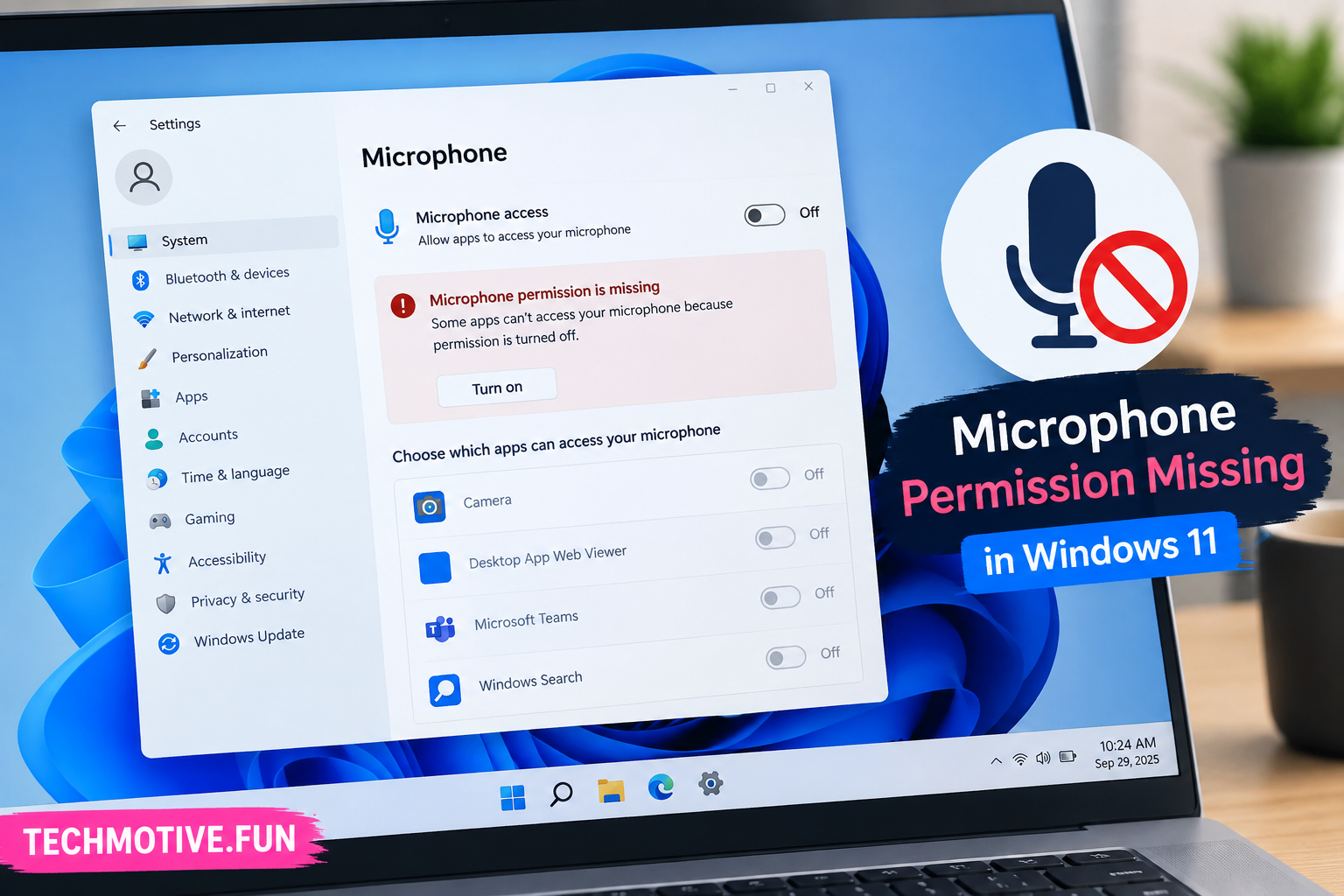
Windows 11 Microphone Permission Missing? Turn On Access, Check Apps, and Update Drivers
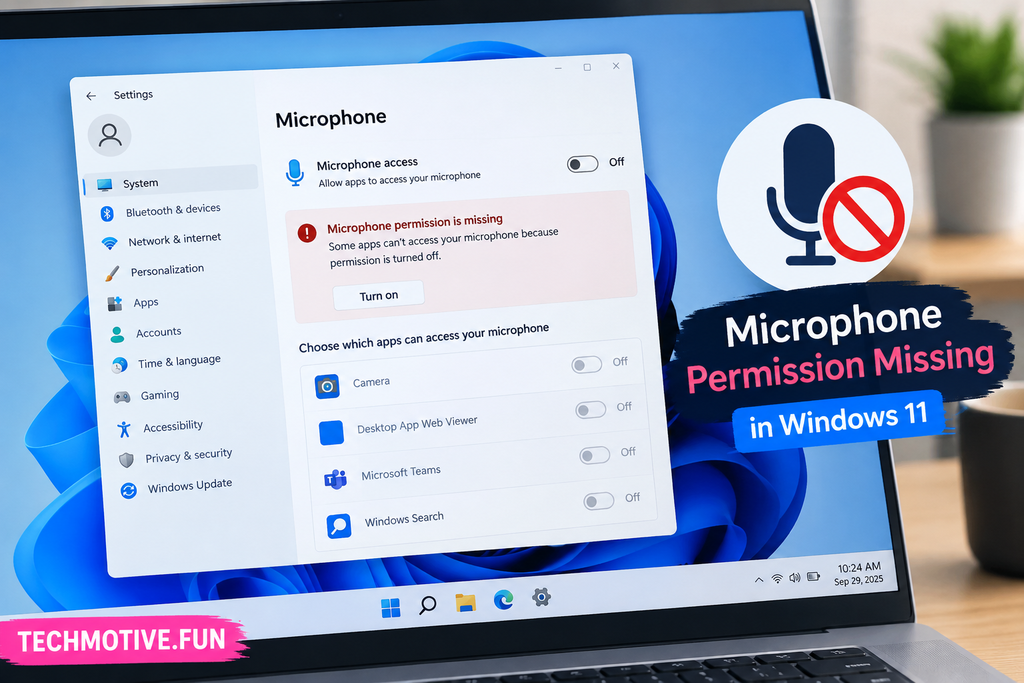
If microphone permission is missing in Windows 11, open Settings > Privacy & security > Microphone and turn on microphone access. Make sure apps are also allowed to use the microphone. If the option is missing or still doesn’t work, check Device Manager, update the audio driver, restart Windows Audio services, and run the audio troubleshooter.
Related Fixes: Windows 11 Microphone Not Working and Windows 11 Camera Not Working
Also Read Windows 11 Headphones Not Detected? 9 Ways to Fix It
Why Is Microphone Permission Missing in Windows 11?
Windows 11 controls microphone access through its privacy settings. If microphone access is turned off, apps such as Teams, Zoom, Discord, browsers, and recording software may not be able to use your microphone.
Sometimes the permission option itself can appear to be missing because of a driver problem, Windows settings issue, administrator restrictions, or a recent system update.
Common reasons include:
- Microphone access is turned off
- Apps aren’t allowed to use the microphone
- Desktop app microphone access is disabled
- The microphone driver is outdated or corrupted
- The microphone device is disabled
- Windows Audio services aren’t working correctly
- A recent Windows update changed privacy settings
- Your microphone isn’t being detected by Windows
Before trying more advanced fixes, check whether your microphone works with another app or another computer. This can help determine whether the problem is with Windows or the microphone itself.
How to Fix Windows 11 Microphone Permission Missing
1. Turn On Microphone Access
The first thing to check is Windows 11’s microphone privacy settings.
Go to:
Settings > Privacy & security > Microphone
Make sure Microphone access is turned on.
Then enable:
Let apps access your microphone
If you’re using a desktop program, also make sure:
Let desktop apps access your microphone
is enabled.
After changing these settings, close and reopen the app you’re trying to use.
2. Check the App’s Microphone Permission
Even when general microphone access is enabled, an individual app may not have permission.
Go to:
Settings > Privacy & security > Microphone
Look through the list of apps and check whether the application you’re having trouble with is allowed to access your microphone.
For example, if your microphone isn’t working in Microsoft Teams, make sure Teams has microphone access.
The same applies to browsers, Discord, Zoom, and other apps that need audio input.
3. Check Your Microphone in Sound Settings
Windows may detect the microphone but have another device selected as the input.
Go to:
Settings > System > Sound
Scroll down to Input.
Look for your microphone and select it.
Speak into the microphone and watch the input level. If the indicator moves when you talk, Windows is receiving audio from the microphone.
If you have multiple microphones connected, make sure the correct one is selected.
4. Make Sure the Microphone Is Not Disabled
A disabled microphone can prevent Windows and apps from accessing it.
Press Windows + X and open Device Manager.
Expand:
Audio inputs and outputs
Look for your microphone.
If the device is disabled, right-click it and choose Enable device.
Also check Sound, video and game controllers for any audio devices with a warning icon.
5. Update the Microphone Driver
A corrupted or outdated audio driver can cause microphone permission and detection problems.
Open Device Manager and expand Audio inputs and outputs.
Right-click your microphone and select:
Update driver > Search automatically for drivers
Let Windows search for a suitable driver.
If Windows doesn’t find anything useful, check your laptop or PC manufacturer’s support website for the latest audio driver designed for your particular model.
6. Reinstall the Audio Driver
If updating the driver doesn’t fix the problem, reinstalling it may help.
Open Device Manager, right-click your microphone, and select:
Uninstall device
Follow the instructions and restart your computer.
Windows may automatically reinstall the device after restarting.
If it doesn’t, download the appropriate audio driver from your computer manufacturer’s official support website and install it manually.
7. Restart Windows Audio Services
Windows uses audio services to manage microphones and other sound devices. If these services aren’t running correctly, microphone access can stop working.
Press Windows + R, type:
services.msc
and press Enter.
Find:
- Windows Audio
- Windows Audio Endpoint Builder
Right-click each service and choose Restart.
Make sure the services are running and their startup type is set to Automatic.
Then restart the application that needs microphone access.
8. Run the Windows Audio Troubleshooter
Windows 11 has built-in troubleshooting tools that can identify common microphone and audio problems.
Go to:
Settings > System > Troubleshoot > Other troubleshooters
Look for the available Audio troubleshooter and click Run.
Follow the instructions and allow Windows to apply any recommended fixes.
The troubleshooter may identify problems with your microphone, audio driver, or sound configuration.
9. Check Windows Updates and Privacy Settings
If the microphone stopped working after a Windows update, another update may contain a fix.
Go to:
Settings > Windows Update
and click Check for updates.
Install any available updates and restart your computer.
After restarting, return to:
Settings > Privacy & security > Microphone
and check your microphone permissions again. Sometimes privacy settings can change after system updates or configuration changes.
What If Microphone Permission Is Still Missing?
If the microphone permission option is completely missing from Windows 11, first check whether Windows detects the microphone in Device Manager.
If the microphone isn’t listed, install the latest audio and chipset drivers from your computer manufacturer’s website.
For a USB microphone, disconnect it and connect it to another USB port. Avoid using a faulty USB hub while troubleshooting.
If you’re using a Bluetooth headset, make sure Bluetooth is enabled and the headset is properly connected. You may need to remove the device and pair it again.
You should also test the microphone with another computer or device. If it doesn’t work anywhere, the microphone itself could be damaged.
If the microphone works elsewhere but Windows 11 still doesn’t provide the permission option, the issue is more likely related to Windows configuration, drivers, or privacy settings.
Frequently Asked Questions
Why is microphone permission missing in Windows 11?
Microphone permission can be missing because access is disabled, the microphone driver isn’t working correctly, the device isn’t detected, or Windows privacy settings have changed.
How do I enable microphone permission in Windows 11?
Go to Settings > Privacy & security > Microphone and turn on Microphone access. Also enable app and desktop-app microphone access if those options are available.
Why can’t my apps access my microphone?
The app may not have permission to use your microphone. Check Settings > Privacy & security > Microphone and make sure microphone access and the relevant app permissions are enabled.
Why is my microphone not showing in Windows 11?
A missing microphone can be caused by a disabled device, faulty connection, Bluetooth problems, or a missing or corrupted audio driver. Check Device Manager and reinstall the appropriate driver.
How do I fix microphone permission after a Windows update?
Check your microphone privacy settings first. Then update the audio driver, restart Windows Audio services, install any available Windows updates, and restart your PC.
Why does my microphone work in Windows but not in one app?
The individual application may not have microphone permission. Go to Settings > Privacy & security > Microphone and make sure the app is allowed to access your microphone.
Can an outdated audio driver cause microphone permission problems?
Yes. An outdated, corrupted, or incompatible audio driver can cause Windows to stop detecting the microphone correctly. Updating or reinstalling the driver can often resolve the problem.



One Comment