Windows 11 Headphones Not Detected? Check Output, Pairing, and Drivers
If Windows 11 is not detecting your headphones, first check the connection and make sure the correct output device is selected. Then restart your PC, check Device Manager, update or reinstall the audio driver, restart Windows audio services, and run the built-in troubleshooter. For Bluetooth headphones, remove and pair the device again.
Related Fixes: Windows 11 Sound Not Working After Update and Windows 11 Bluetooth Keeps Disconnecting
Also Read Windows 11 No Sound Output Device? 9 Ways to Fix It
Why Are My Headphones Not Detected in Windows 11?
Windows 11 may fail to detect headphones for several different reasons. Sometimes the problem is as simple as a loose cable or incorrect output setting. In other cases, an outdated audio driver or Windows configuration can be responsible.
Common causes include:
- Headphones are not connected properly
- Windows is using the wrong audio output
- Bluetooth headphones are not paired correctly
- Audio drivers are outdated or corrupted
- Headphones are disabled in Device Manager
- Windows Audio services are not working properly
- A recent Windows update caused an audio problem
- The headphone jack or headphones have a hardware issue
Before trying advanced fixes, disconnect your headphones, restart your computer, and connect them again.
How to Fix Windows 11 Headphones Not Detected
1. Check the Headphone Connection
Start with the simplest solution. If you’re using wired headphones, remove the plug and connect it firmly again.
If your PC has multiple audio ports, try another compatible port. On a desktop computer, make sure you’re plugging the headphones into the correct headphone or audio-out port.
If possible, test the headphones on another device. This helps determine whether the problem is with Windows 11 or the headphones themselves.
2. Select Your Headphones as the Output Device
Windows may detect your headphones but continue sending audio through your speakers.
Go to:
Settings > System > Sound
Under Output, look for your headphones and select them.
Play some audio to see whether the headphones start working.
If you have several audio devices connected, make sure the correct one is selected as the default output.
Read solution at official website
3. Restart Your Windows 11 PC
A restart can fix temporary problems with audio drivers and connected devices.
Click:
Start > Power > Restart
After Windows starts again, connect your headphones and check the sound settings.
This is especially useful if your headphones worked previously but suddenly stopped appearing.
4. Check Your Headphones in Device Manager
Device Manager can show whether Windows is detecting your audio hardware.
Press Windows + X and select Device Manager.
Expand:
Sound, video and game controllers
Also check:
Audio inputs and outputs
Look for your headphones or audio device.
If you see a downward arrow beside the device, right-click it and select Enable device.
If you see a yellow warning icon, the driver may need to be repaired or reinstalled.
5. Update Your Audio Driver
An outdated or incompatible audio driver can prevent Windows 11 from detecting headphones correctly.
Open Device Manager, expand Sound, video and game controllers, and right-click your audio device.
Select:
Update driver > Search automatically for drivers
Let Windows search for an available driver.
For the best compatibility, you can also check your laptop, PC, or motherboard manufacturer’s official support website for the latest Windows 11 audio driver.
6. Reinstall the Audio Driver
If updating the driver doesn’t solve the problem, the existing driver may be corrupted.
Open Device Manager and right-click your audio device.
Select:
Uninstall device
Follow the instructions and restart your computer.
After restarting, Windows may automatically reinstall the audio driver. If it doesn’t, download and install the correct driver from your computer manufacturer’s website.
7. Restart Windows Audio Services
Windows uses audio services to manage speakers, headphones, and other sound devices.
Press Windows + R, type:
services.msc
and press Enter.
Find:
- Windows Audio
- Windows Audio Endpoint Builder
Right-click each service and choose Restart.
Also make sure the services are running and their startup type is set to Automatic.
Then reconnect your headphones and test them again.
8. Run the Windows 11 Audio Troubleshooter
Windows has a built-in troubleshooting tool that can identify some common audio problems.
Go to:
Settings > System > Troubleshoot > Other troubleshooters
Find the available Audio troubleshooting option and run it.
Follow the instructions provided by Windows and allow it to apply any recommended fixes.
The troubleshooter may identify problems with the audio device, drivers, or sound configuration.
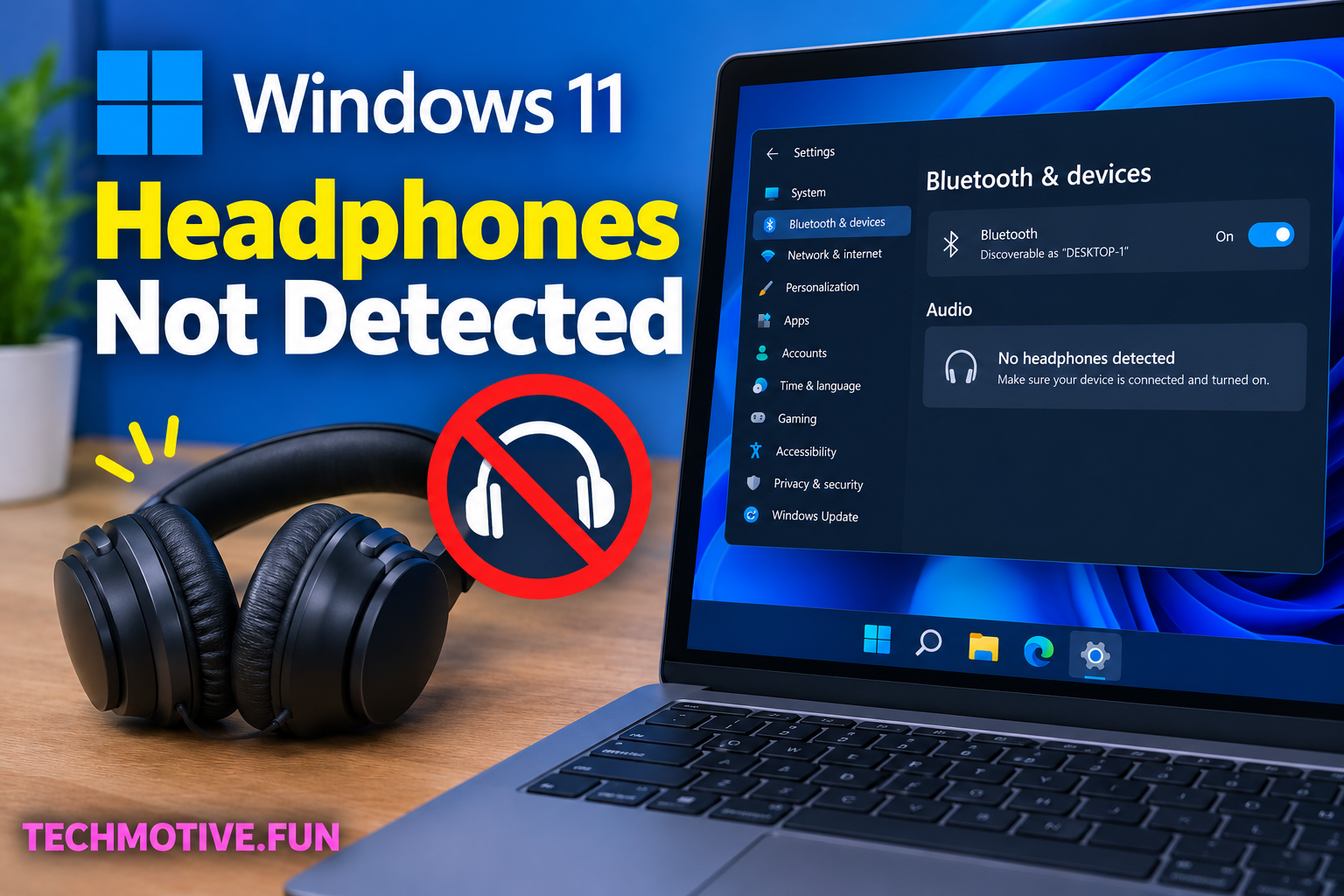
9. Fix Bluetooth Headphones Not Detected
If you’re using wireless Bluetooth headphones, the problem may be related to pairing rather than your audio driver.
Go to:
Settings > Bluetooth & devices
Make sure Bluetooth is turned on.
Find your headphones in the list of connected devices. If they’re already listed but aren’t working, remove them and pair them again.
Put the headphones into pairing mode and select Add device > Bluetooth.
After pairing, go to Settings > System > Sound and select your headphones as the output device.
What If Windows 11 Still Doesn’t Detect My Headphones?
If your headphones are still missing after trying these fixes, test them on another computer or phone. If they don’t work there either, the headphones or cable may be faulty.
For wired headphones, try another headphone port if your computer has one.
For Bluetooth headphones, check whether they can connect to another device. You can also turn Bluetooth off and back on before pairing them again.
If other headphones work normally on your PC, the original headphones are likely the problem.
If no headphones or other audio devices are detected, focus on the audio driver and Device Manager. Installing the correct driver directly from your PC or motherboard manufacturer’s website is often better than relying on a generic Windows driver.
If the audio device is completely missing from Device Manager, even after installing the correct drivers, there may be a hardware or motherboard issue that requires further inspection.
Frequently Asked Questions
Why are my headphones not showing up on Windows 11?
Your headphones may not appear because of an incorrect output setting, disabled audio device, outdated driver, Bluetooth pairing problem, or a hardware issue.
How do I get Windows 11 to recognize my headphones?
Reconnect the headphones, restart your PC, and check Settings > System > Sound. If they’re still missing, check Device Manager and update or reinstall the audio driver.
Why does Windows 11 detect my headphones but no sound comes out?
Windows may be using another output device. Open Settings > System > Sound and select your headphones under Output. Also check the volume and make sure the headphones aren’t muted.
How do I fix headphones not detected through the headphone jack?
Reconnect the headphones, try another compatible audio port, restart your PC, and update your audio driver. If the headphones work on another device, the computer’s audio port or driver may be causing the problem.
Why are my Bluetooth headphones not detected in Windows 11?
Make sure Bluetooth is enabled and your headphones are in pairing mode. If they’re already listed, remove the device and pair the headphones again.
Should I reinstall my audio driver if my headphones are not detected?
Yes. If updating the driver doesn’t help, uninstalling and reinstalling the audio driver can fix corrupted driver files and restore proper headphone detection.
Can a Windows 11 update cause headphone problems?
Yes. An update can sometimes cause compatibility problems with existing audio drivers. Installing a newer driver or checking for additional Windows updates may resolve the issue.