Windows 11 File Thumbnails Not Showing? Enable Thumbnails, Clear the Cache, and Reset Folder Options
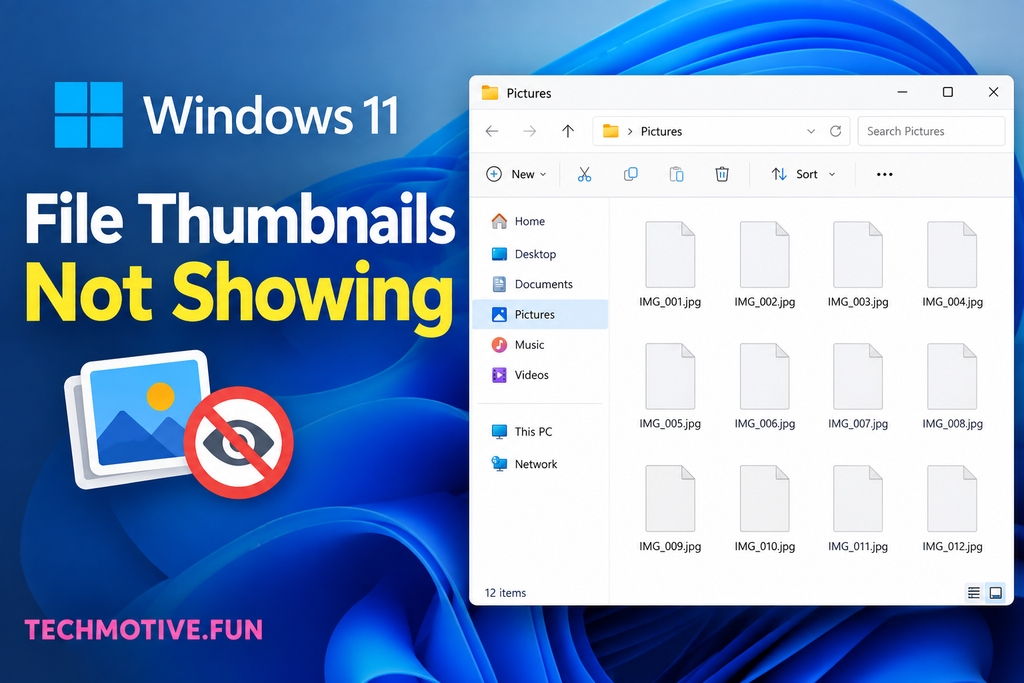
If Windows 11 is showing generic file icons instead of thumbnails, the thumbnail setting may be disabled or File Explorer’s cache could be corrupted. Start by enabling thumbnails in Folder Options, then restart File Explorer. If that doesn’t work, clear the thumbnail cache, check Windows performance settings, and update Windows.
Related Fixes: Windows 11 File Explorer Not Responding and Windows 11 Desktop Icons Disappeared
Why Are File Thumbnails Not Showing in Windows 11?
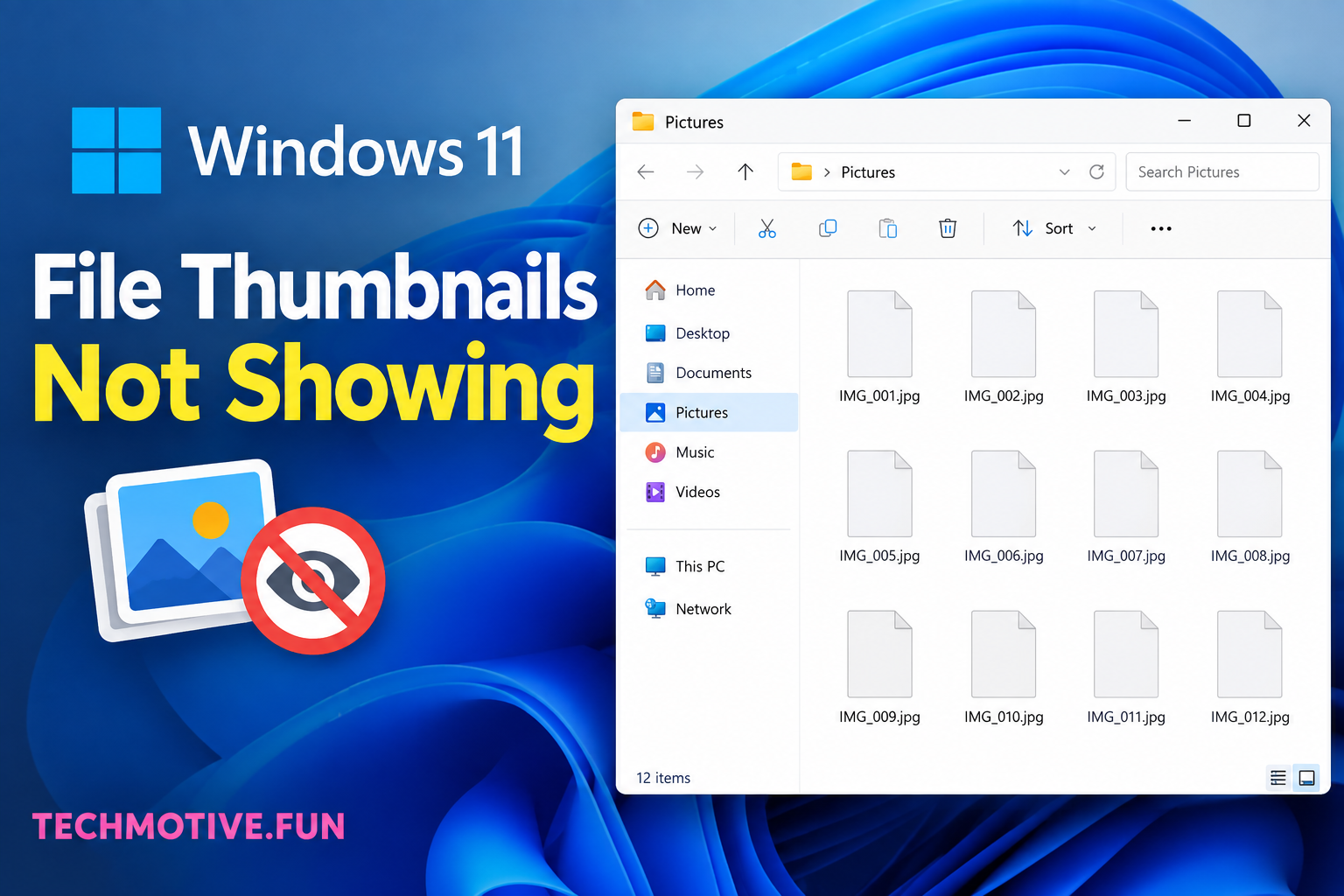
File thumbnails make it easier to recognize photos, videos, PDFs, and other files without opening them. When they stop appearing, Windows may display the same generic icon for every file.
This problem can happen for several reasons. Thumbnail previews may be disabled in File Explorer, the thumbnail cache may be damaged, or Windows may be configured to show icons instead of thumbnails.
A recent Windows update, graphics driver problem, or corrupted system files can also cause thumbnails to disappear. Fortunately, you can usually fix the problem without reinstalling Windows.
How to Fix File Thumbnails Not Showing in Windows 11
1. Enable Thumbnails in Folder Options
The first thing to check is whether Windows is configured to show icons instead of thumbnails.
- Open File Explorer.
- Click the three dots at the top.
- Select Options.
- Open the View tab.
- Look for Always show icons, never thumbnails.
- Make sure this option is unchecked.
- Click Apply and then OK.
Open a folder containing pictures or videos and check whether the thumbnails have returned.
2. Check Windows Performance Settings
Windows has a performance setting that controls whether thumbnail previews are displayed.
- Press Windows + S and search for Adjust the appearance and performance of Windows.
- Open the result.
- In the Visual Effects tab, find Show thumbnails instead of icons.
- Make sure it is checked.
- Click Apply and then OK.
Now check your files again.
3. Restart File Explorer
Sometimes File Explorer simply needs to be restarted.
- Press Ctrl + Shift + Esc to open Task Manager.
- Find Windows Explorer in the list.
- Right-click it.
- Select Restart.
Your taskbar and desktop may briefly disappear. This is normal. Once File Explorer restarts, open your folder again and see if the thumbnails are visible.
4. Clear the Thumbnail Cache
A corrupted thumbnail cache is one of the common reasons previews stop working.
You can clear it using Windows’ built-in Disk Cleanup tool.
- Press Windows + S.
- Search for Disk Cleanup.
- Select your Windows drive, usually C:.
- Check Thumbnails.
- Click OK.
- Select Delete Files.
Windows will rebuild the thumbnail cache as you browse your folders again.
5. Change the Folder View
The problem may sometimes be related to the way a folder is displayed.
Open the affected folder in File Explorer and click View. Try Medium icons, Large icons, or Extra large icons.
Thumbnail previews are generally more noticeable when using one of the larger icon views. If you’re using Details or List, switch to a larger icon view and check again.
6. Check the File Type
Not every file type automatically gets a thumbnail preview in Windows 11.
For example, common JPG, PNG, and MP4 files usually display thumbnails, while some less common formats may require a compatible application or additional codec support.
Try opening a folder containing standard JPG or PNG images. If those thumbnails appear normally, the issue may be related to the particular file format rather than Windows itself.
7. Update Windows 11
A Windows update can sometimes fix bugs affecting File Explorer and thumbnail previews.
To check for updates:
- Press Windows + I.
- Go to Windows Update.
- Click Check for updates.
- Install any available updates.
- Restart your computer.
After restarting, open File Explorer and check whether thumbnails are working again.
8. Run the System File Checker
If Windows system files are damaged, File Explorer may not work correctly.
You can check for corrupted files using System File Checker.
- Search for Command Prompt.
- Right-click it and select Run as administrator.
- Type:
sfc /scannow
- Press Enter.
- Wait for the scan to finish.
- Restart your PC.
The scan can take some time, so don’t close the Command Prompt while it is running.
9. Reset File Explorer Folder Options
If none of the previous solutions worked, resetting File Explorer’s folder settings may help.
Open File Explorer Options and go to the View tab. Click Reset Folders and confirm the change.
You can also click Restore Defaults if you want to return File Explorer’s settings to their original configuration.
Restart File Explorer afterward and check your thumbnails again.
What If File Thumbnails Are Still Not Showing?
If thumbnails are still missing after trying these fixes, check whether the problem affects all files or only certain folders and file types.
If only one type of file is affected, the required application or codec may be missing. If thumbnails are missing everywhere, the issue is more likely related to File Explorer, Windows settings, or corrupted system files.
You can also create a new test folder and copy a few JPG or PNG images into it. If thumbnails appear there, the original folder may have a problem with its saved view settings.
As a final step, make sure your graphics driver and Windows installation are up to date. These components can sometimes affect how Windows renders file previews.
Frequently Asked Questions
Why are my picture thumbnails not showing in Windows 11?
The thumbnail option may be disabled, the thumbnail cache may be corrupted, or Windows may be configured to display icons instead of thumbnails. Checking Folder Options and clearing the thumbnail cache usually helps.
How do I turn thumbnails back on in Windows 11?
Open File Explorer Options, select the View tab, and make sure Always show icons, never thumbnails is unchecked. Then click Apply and OK.
Why does File Explorer only show icons instead of thumbnails?
This usually happens when thumbnail previews are disabled or the thumbnail cache is damaged. Windows performance settings can also prevent thumbnails from appearing.
Does clearing the thumbnail cache delete my pictures?
No. Clearing the thumbnail cache only removes temporary preview files created by Windows. Your original photos, videos, and other files remain untouched.
Why are thumbnails missing for only some files?
Some file formats don’t have built-in thumbnail support in Windows 11. The required application or codec may also be missing for certain formats.
Will updating Windows fix missing thumbnails?
It can. If the problem is caused by a Windows bug, installing the latest available updates may resolve the issue.
Why are thumbnails not showing after a Windows update?
An update can sometimes change File Explorer settings or cause a temporary cache problem. Restarting File Explorer, checking thumbnail settings, and clearing the thumbnail cache are good first steps.