
Windows 11 Second Monitor Not Working? Check Input, Extend the Display, and Update Drivers
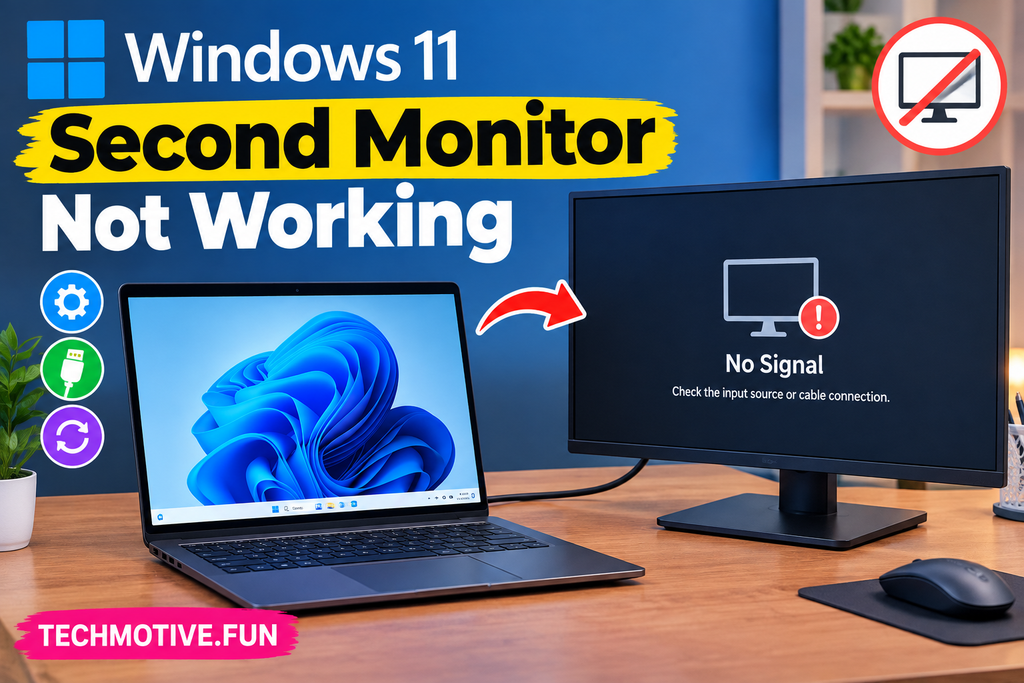
If your second monitor is not working in Windows 11, check the cable and monitor input first. Then press Windows + P and select Extend. You can also use Settings → System → Display → Detect to find the monitor. Updating your graphics driver, restarting the graphics driver, or rebooting your PC can also help.
Related Fixes: Windows 11 Black Screen After Login and Windows 11 Brightness Slider Missing
Also Read Windows 11 External Monitor Not Detected? 9 Ways to Fix It
Why Is the Second Monitor Not Working in Windows 11?
A second monitor can stop working for several reasons. Sometimes the problem is as simple as a loose HDMI or DisplayPort cable. In other cases, Windows may be using the wrong display mode or failing to recognize the monitor.
Graphics driver problems, incorrect resolution settings, faulty adapters, docking stations, and Windows glitches can also cause the issue. The good news is that you can check most of these things yourself.
How to Fix Windows 11 Second Monitor Not Working
Check the Cable and Monitor Connection
Start by checking the cable connecting your second monitor to your PC or laptop.
Make sure the HDMI, DisplayPort, USB-C, or other cable is firmly connected at both ends. If possible, disconnect it and plug it back in.
You can also try another cable or a different port on your computer. A faulty cable or port can make it look like Windows isn’t detecting the monitor.
Check the Monitor Input Source
Your monitor may be connected correctly but set to the wrong input.
Use the buttons on the monitor to open its menu and check the input source. For example, if you’re using an HDMI cable, select the correct HDMI input.
Also make sure the monitor is switched on and receiving power.
Press Windows + P and Select Extend
Windows 11 includes a quick menu for managing multiple displays.
Press:
Windows + P
You’ll see options including:
- PC screen only
- Duplicate
- Extend
- Second screen only
Select Extend if you want to use the second monitor as an additional desktop.
Detect the Second Monitor Manually
If the second monitor still isn’t showing up, ask Windows to search for it manually.
Go to:
Settings → System → Display
Scroll down to Multiple displays and click Detect.
Windows will check for connected displays. If the connection is working properly, your second monitor should appear.
Restart Your Computer
A normal restart can fix temporary display problems.
Turn off the second monitor, restart your Windows 11 PC, and turn the monitor back on after Windows has loaded.
Once you’re back on the desktop, check Settings → System → Display to see if the monitor is detected.
Restart the Graphics Driver
Windows has a useful keyboard shortcut that can restart the graphics driver without restarting your computer.
Press:
Windows + Ctrl + Shift + B
Your screen may briefly go black or flicker. That’s normal. Once the display returns, check whether the second monitor starts working.
Update Your Graphics Driver
A graphics driver that is outdated or having problems can cause issues with multiple monitors.
To check your driver:
- Right-click the Start button.
- Open Device Manager.
- Expand Display adapters.
- Right-click your graphics card.
- Select Update driver.
- Follow the instructions on screen.
Restart your PC after installing an available update.
Check Display Resolution and Refresh Rate
If Windows detects the second monitor but the screen remains blank or doesn’t display correctly, check its display settings.
Go to:
Settings → System → Display
Select the second monitor and check the Display resolution and Advanced display settings.
Try a resolution and refresh rate supported by your monitor. Using an unsupported setting can sometimes cause display problems.
Disconnect Adapters and Docking Stations
If you’re using an HDMI adapter, USB-C hub, or docking station, it could be causing the problem.
Disconnect the adapter or dock and connect the monitor directly to your computer if possible. Then check whether Windows recognizes it.
If the monitor works without the adapter, the adapter, dock, cable, or its drivers may need further attention.
What If the Second Monitor Is Still Not Working?
If you’ve tried all the fixes above and the second monitor still doesn’t work, test the monitor with another computer if one is available. This can help you determine whether the problem is with the monitor or your Windows 11 system.
You should also test a different HDMI or DisplayPort cable and try another display port on your computer.
If the monitor works perfectly with another computer, the issue is more likely related to your PC’s graphics driver, display port, adapter, or Windows configuration.
If neither computer detects the monitor, the monitor, cable, or power/input connection may need to be checked.
Frequently Asked Questions
Why is my second monitor not working in Windows 11?
The problem may be caused by a loose cable, incorrect input source, wrong display mode, outdated graphics driver, faulty adapter, or temporary Windows issue. Start by checking the cable and pressing Windows + P to select Extend.
How do I get Windows 11 to recognize my second monitor?
Open Settings → System → Display, scroll to Multiple displays, and click Detect. Windows will then search for connected monitors.
Why does my second monitor say “No Signal”?
“No Signal” generally means the monitor isn’t receiving a video signal. Check the cable, monitor input source, computer port, and any adapter or docking station you’re using.
What does Windows + P do?
Windows + P opens Windows 11’s display projection menu. It lets you choose between PC screen only, Duplicate, Extend, and Second screen only.
Can a graphics driver cause a second monitor to stop working?
Yes. A faulty or outdated graphics driver can interfere with multiple-monitor support. Updating or reinstalling the graphics driver may resolve the problem.
How do I restart the graphics driver in Windows 11?
Press Windows + Ctrl + Shift + B at the same time. The screen may briefly flicker while Windows refreshes the graphics driver.
Can an HDMI cable stop a second monitor from working?
Yes. A damaged or incompatible HDMI cable can prevent the monitor from receiving a signal. Trying another compatible cable is a simple way to rule out a cable problem.
Why does Windows detect my monitor but show a black screen?
This can happen because of an incorrect resolution or refresh rate, graphics driver issue, cable problem, or display configuration. Check the monitor’s display settings and try a supported resolution and refresh rate.



One Comment