Windows 11 Bluetooth Keeps Disconnecting? Restart the Service, Check Battery, and Update Drivers

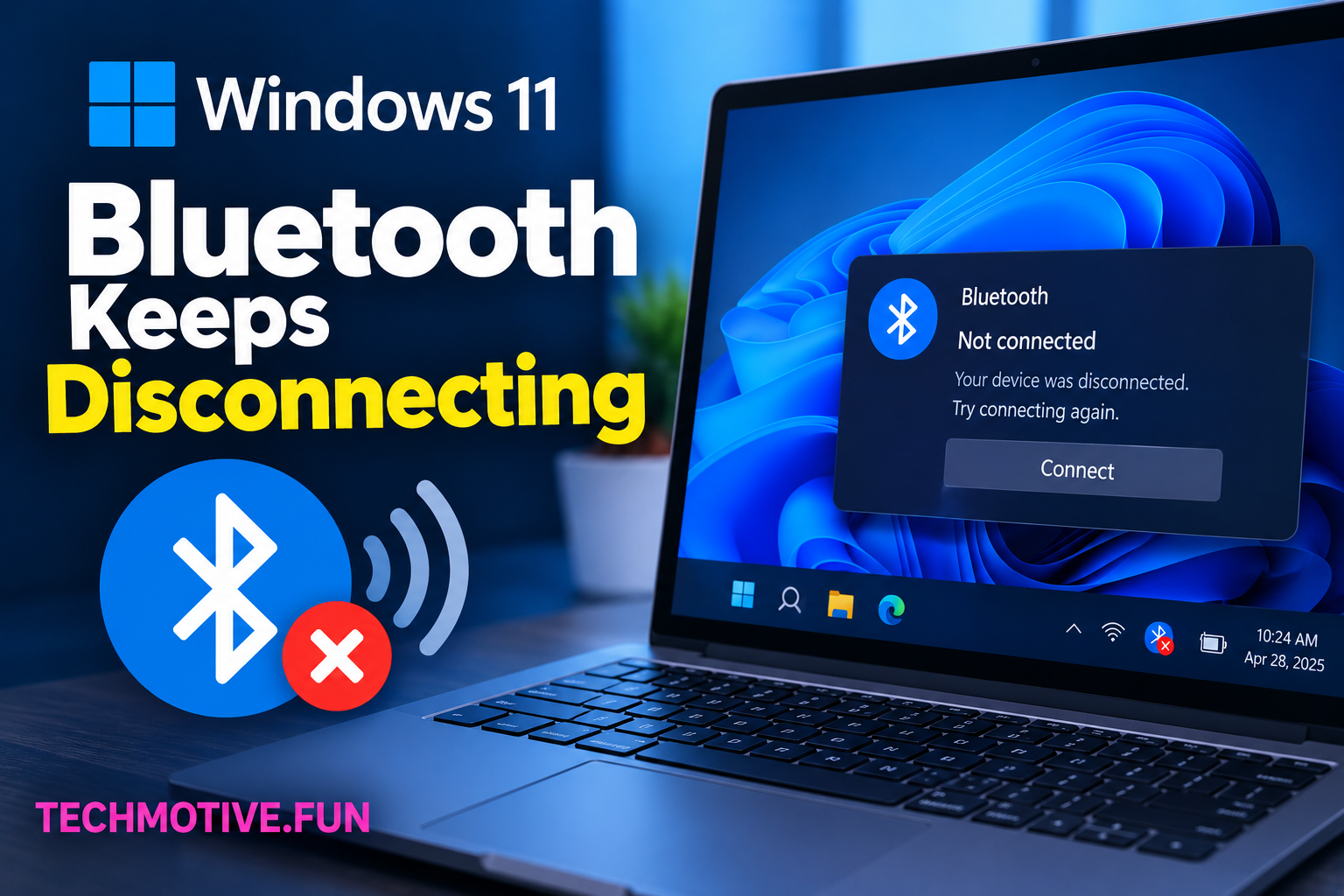
If Windows 11 Bluetooth keeps disconnecting, first restart your PC and Bluetooth device. Then check the Bluetooth driver, restart Bluetooth services, disable power-saving for the Bluetooth adapter, and run the Windows Bluetooth troubleshooter. If the problem continues, remove the Bluetooth device and pair it again or reinstall the Bluetooth driver.
Related Fixes: Windows 11 Bluetooth Option Missing, Windows 11 Bluetooth Driver Missing, and Windows 11 Headphones Not Detected
Why Does Windows 11 Bluetooth Keep Disconnecting?
Bluetooth can disconnect repeatedly in Windows 11 for several reasons. The problem may be caused by an outdated or corrupted Bluetooth driver, low battery on the connected device, wireless interference, or a temporary Windows problem.
Sometimes Windows power-saving settings can also turn off the Bluetooth adapter when it is not actively being used. Problems with Bluetooth services or an incorrectly paired device can cause frequent disconnections too.
Before changing Windows settings, check the Bluetooth device itself. Make sure it has enough battery and is within a reasonable range of your computer.
You Can Read: Windows 11 WiFi Keeps Disconnecting? 9 Ways to Fix It
How to Fix Windows 11 Bluetooth Keeps Disconnecting
1. Restart Your PC and Bluetooth Device
Start with the easiest fix. Turn off your Bluetooth device and restart your Windows 11 computer.
After Windows starts again, turn the Bluetooth device back on and try connecting it.
A simple restart can clear temporary Bluetooth problems and refresh the connection between your computer and the device.
2. Check the Bluetooth Device Battery
Low battery can cause a Bluetooth keyboard, mouse, headphones, speaker, or other device to disconnect repeatedly.
Charge the Bluetooth device fully and try connecting it again.
If the device works normally after charging, the repeated disconnections were likely related to its battery rather than Windows 11.
3. Keep the Bluetooth Device Close to Your PC
Bluetooth has a limited range, and walls or other objects can interfere with the signal.
Move your Bluetooth device closer to your computer and check whether the connection becomes stable.
Also move away from other wireless devices if possible. If Bluetooth only disconnects when you move farther away, signal strength may be the main issue.
4. Restart Bluetooth Support Service
Windows uses Bluetooth services to manage connected devices. If one of these services stops responding, Bluetooth may disconnect unexpectedly.
Press Windows + R, type:
services.msc
and press Enter.
Find Bluetooth Support Service in the list. Right-click it and select Restart.
Open its properties and make sure the startup type is set to Automatic.
5. Update the Bluetooth Driver
An outdated or incompatible Bluetooth driver can cause connection problems in Windows 11.
To update it:
- Right-click the Start button.
- Select Device Manager.
- Expand Bluetooth.
- Right-click your Bluetooth adapter.
- Select Update driver.
- Choose Search automatically for drivers.
If Windows cannot find an updated driver, check your computer manufacturer’s official support website for the latest Bluetooth driver.
6. Reinstall the Bluetooth Driver
If updating the driver does not help, the Bluetooth driver may be corrupted.
Open Device Manager and expand Bluetooth. Right-click your Bluetooth adapter and select Uninstall device.
Restart your computer afterward. Windows may automatically reinstall the required driver.
If the driver does not return automatically, download the correct Bluetooth driver from your computer manufacturer’s support website.
7. Disable Bluetooth Power Saving
Windows may turn off Bluetooth hardware to save power, especially on laptops.
Open Device Manager, expand Bluetooth, and right-click your Bluetooth adapter.
Select Properties and look for the Power Management tab.
If you see Allow the computer to turn off this device to save power, uncheck it and click OK.
Restart your PC and check whether Bluetooth stays connected.
8. Remove and Pair the Bluetooth Device Again
Sometimes the saved Bluetooth connection becomes corrupted.
Go to:
Settings > Bluetooth & devices > Devices
Find the device that keeps disconnecting and select Remove device.
Turn Bluetooth off and back on, then put your device into pairing mode and connect it again.
This creates a new Bluetooth connection and can fix problems caused by an incorrect or damaged pairing profile.
9. Run the Bluetooth Troubleshooter
Windows 11 includes troubleshooting options that can help identify Bluetooth problems.
Go to:
Settings > System > Troubleshoot > Other troubleshooters
Look for the Bluetooth troubleshooter and run it if it is available on your Windows version.
Follow the instructions on screen and allow Windows to apply any recommended fixes.
What If Bluetooth Is Still Disconnecting?
If Windows 11 Bluetooth keeps disconnecting after trying all these fixes, test the Bluetooth device with another computer or phone.
If the device disconnects everywhere, the Bluetooth device itself may have a hardware, battery, or firmware problem.
If it works normally with other devices but keeps disconnecting from your Windows 11 PC, focus on the computer’s Bluetooth driver, Windows updates, and Bluetooth adapter.
You can also check your PC manufacturer’s support page for updated Bluetooth, chipset, and BIOS drivers. If you recently installed a Windows update and the problem started afterward, checking for another available update may also help.
Frequently Asked Questions
Why does my Windows 11 Bluetooth keep disconnecting?
Bluetooth may keep disconnecting because of an outdated driver, low device battery, wireless interference, power-saving settings, Bluetooth service problems, or a corrupted pairing.
How do I stop Bluetooth from disconnecting on Windows 11?
Restart both devices, keep them close together, update the Bluetooth driver, disable Bluetooth power saving, restart the Bluetooth Support Service, and pair the device again.
Can an outdated Bluetooth driver cause disconnecting?
Yes. An outdated or corrupted Bluetooth driver can cause unstable connections. Updating or reinstalling the driver can often resolve Bluetooth connection problems.
Why does my Bluetooth headset keep disconnecting from Windows 11?
A Bluetooth headset can disconnect because of low battery, interference, distance from the computer, an outdated driver, or problems with the saved Bluetooth pairing.
How do I reconnect a Bluetooth device in Windows 11?
Open Settings > Bluetooth & devices, select the device, and connect to it. If it does not connect properly, remove the device and pair it again.
Does Bluetooth power saving cause disconnections?
It can. Windows may turn off certain Bluetooth hardware to reduce power usage. Disabling the adapter’s power-saving option can help if this is causing the disconnections.
Should I reinstall my Bluetooth driver?
If updating the Bluetooth driver does not solve the problem, reinstalling it is worth trying. Windows may automatically install the driver again after you restart the computer.