
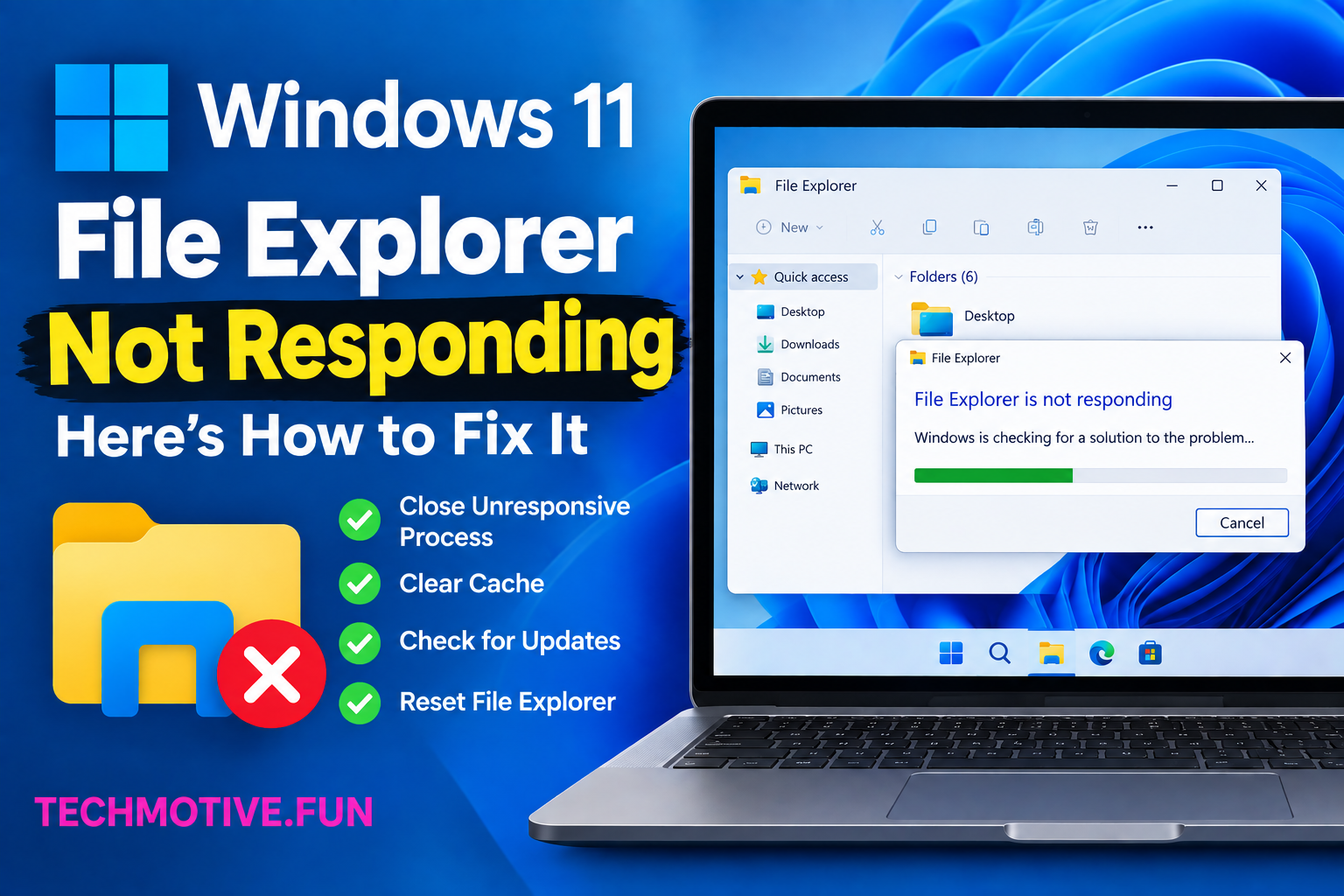
Windows 11 File Explorer Not Responding? Restart Explorer, Clear History, and Check Your Drive

If Windows 11 File Explorer is not responding, restart Windows Explorer from Task Manager first. If that doesn’t help, restart your PC, clear File Explorer history, disable unnecessary startup items, check for Windows updates, and scan for corrupted system files. You can also run SFC and DISM to repair Windows components.
Related Fixes: Windows 11 Taskbar Not Responding, Windows 11 File Thumbnails Not Showing, and Windows 11 Settings App Not Opening
Why Is Windows 11 File Explorer Not Responding?
File Explorer can become unresponsive for several reasons. Sometimes it is simply a temporary Windows glitch. Other times, a damaged system file, problematic background application, or a folder containing too many files can cause Explorer to slow down or freeze.
The problem can also appear after a Windows update or when File Explorer is trying to load a network location that is unavailable.
Some common causes include:
- A temporary Windows problem
- Too many File Explorer processes running
- Corrupted system files
- A problematic folder or file
- Damaged File Explorer history
- Outdated Windows
- Third-party software interfering with Explorer
- Problems with storage drives
- Network locations taking too long to respond
Before trying advanced fixes, start with the easier solutions below.
How to Fix Windows 11 File Explorer Not Responding
Try these fixes one at a time. After each method, open File Explorer and check whether it is responding normally.
1. Restart Windows Explorer
The quickest fix is often to restart the Windows Explorer process.
Press:
Ctrl + Shift + Esc
to open Task Manager.
Find Windows Explorer in the list of processes. Right-click it and select Restart.
Your taskbar and desktop may disappear for a few seconds. That’s normal. Windows Explorer should automatically start again.
Once everything appears again, open File Explorer and see if the problem is gone.
2. Restart Your Computer
If restarting Explorer doesn’t help, restart the entire computer.
A background process or Windows service may be stuck and causing Explorer to freeze. Restarting Windows gives these processes a fresh start.
Click:
Start → Power → Restart
After the computer boots up, open File Explorer again.
If it works normally after the restart, the issue was likely temporary.
3. Clear File Explorer History
File Explorer stores information about recently accessed files, folders, and locations. Sometimes this history can become corrupted and cause Explorer to behave strangely.
Open Control Panel and search for File Explorer Options.
Open it and stay on the General tab.
Under Privacy, click Clear.
You can also adjust the options for recently used files and frequently used folders if needed.
After clearing the history, close File Explorer and open it again.
4. Open File Explorer to This PC
Sometimes File Explorer becomes slow because it is trying to load Quick Access items, network locations, or recently used files.
You can change what File Explorer opens by default.
Open File Explorer Options from Control Panel.
Under General, find the option that says Open File Explorer to.
Change it from Home to This PC.
Click Apply and then OK.
Now open File Explorer again.
If the problem was caused by something loading through Home or Quick Access, this simple change may make Explorer much faster.
5. Check for Windows Updates
An outdated Windows version can sometimes cause File Explorer problems.
Open:
Settings → Windows Update
Click Check for updates.
If updates are available, install them and restart your PC.
Windows updates often include bug fixes and improvements for system components such as File Explorer.
If File Explorer started freezing after a recent update, check whether another update is available that may contain a fix.
6. Run System File Checker
If File Explorer continues to freeze, damaged Windows system files could be responsible.
Windows includes a tool called System File Checker that can scan and repair corrupted system files.
Open Windows Terminal or Command Prompt as administrator.
Run:
sfc /scannow
Wait until the scan reaches 100%.
If Windows finds damaged files, it will attempt to repair them automatically.
Once the scan is complete, restart your computer and test File Explorer again.
7. Run DISM to Repair Windows
If SFC doesn’t fix the problem, you can use DISM to repair the Windows component store.
Open Windows Terminal or Command Prompt as administrator and run:
DISM /Online /Cleanup-Image /RestoreHealth
The process may take several minutes, so don’t close the window while it is running.
When it finishes, restart your computer.
You can then run sfc /scannow again if necessary and check whether File Explorer is responding normally.
8. Check Your Storage Drive
A problem with your hard drive or SSD can also make File Explorer freeze, especially when you open folders stored on the affected drive.
If Explorer becomes unresponsive only when opening a particular drive or folder, pay attention to that location.
You can check the drive for errors using Windows’ built-in drive checking tools.
Also make sure your system drive isn’t almost completely full. Very low free storage can cause Windows to become slower and less responsive.
If you hear unusual sounds from an older hard drive, or Windows frequently reports disk errors, consider backing up important files as soon as possible.
9. Perform a Clean Boot
Third-party applications can sometimes interfere with File Explorer. If Explorer works normally after a clean boot, a background application or service may be responsible.
A clean boot starts Windows with a minimal set of drivers and startup programs.
You can use System Configuration to disable unnecessary startup services and then restart your PC.
If File Explorer works normally after the clean boot, enable the disabled services gradually to identify which program is causing the problem.
Be careful when disabling services. Avoid changing important Microsoft services unless you know what they do.
What If File Explorer Is Still Not Responding?
If File Explorer continues to freeze after trying all nine methods, check whether the problem happens with every folder or only a particular location.
For example, if Explorer freezes only when you open your Downloads folder, there may be a damaged file or thumbnail causing the problem.
You can also try opening a simple folder such as Documents or Desktop. If those folders work normally, the issue may be related to a specific file or folder.
If multiple Windows components are also freezing, the problem could be related to damaged system files or a larger Windows issue.
You should also check your storage drive for errors and make sure important files are backed up.
If the problem started recently, System Restore may be another option if restore points are available.
As a last resort, Windows recovery or reset options can repair the operating system. However, don’t reset Windows before trying the less destructive solutions first.
Frequently Asked Questions
Why is File Explorer not responding in Windows 11?
File Explorer may stop responding because of a temporary Windows problem, corrupted system files, damaged Explorer history, problematic files, outdated Windows, or third-party software.
How do I restart File Explorer in Windows 11?
Press Ctrl + Shift + Esc to open Task Manager. Find Windows Explorer, right-click it, and select Restart.
Why does File Explorer keep freezing?
Repeated freezing can be caused by corrupted files, storage problems, problematic folders, outdated drivers, third-party applications, or damaged Windows system components.
How do I clear File Explorer history?
Open Control Panel → File Explorer Options. Under the General tab, find the Privacy section and click Clear.
Can SFC fix File Explorer problems?
Yes. If corrupted Windows system files are causing File Explorer to malfunction, running sfc /scannow can identify and repair some of those files.
Should I restart Windows Explorer or my computer?
Try restarting Windows Explorer first because it’s faster and doesn’t close everything on your computer. If that doesn’t help, restart the entire PC.
Why does File Explorer freeze when I open a specific folder?
A particular folder may contain a damaged file, problematic thumbnail, very large number of files, or an unavailable network location. Try opening other folders to see whether the problem is limited to one location.
Can a full hard drive make File Explorer slow?
Yes. Very low free storage can affect Windows performance and may make File Explorer slower. Keeping reasonable free space on your system drive is recommended.
Do I need to reinstall Windows if File Explorer isn’t responding?
Usually, no. Restarting Explorer, clearing its history, installing updates, repairing system files, and checking your storage drive can solve many File Explorer problems. Windows reset or reinstallation should generally be a last resort.
Final Thoughts
When Windows 11 File Explorer is not responding, start with the simplest solution: restart Windows Explorer from Task Manager. If that doesn’t work, clear File Explorer history, restart your PC, and check for Windows updates.
For more stubborn problems, run SFC and DISM, check your storage drive, and look for third-party software that may be interfering with Explorer. In most cases, you can get File Explorer working again without reinstalling Windows.


2 Comments