Windows 11 Ethernet Not Working? Check the Cable, Adapter, and Network Reset
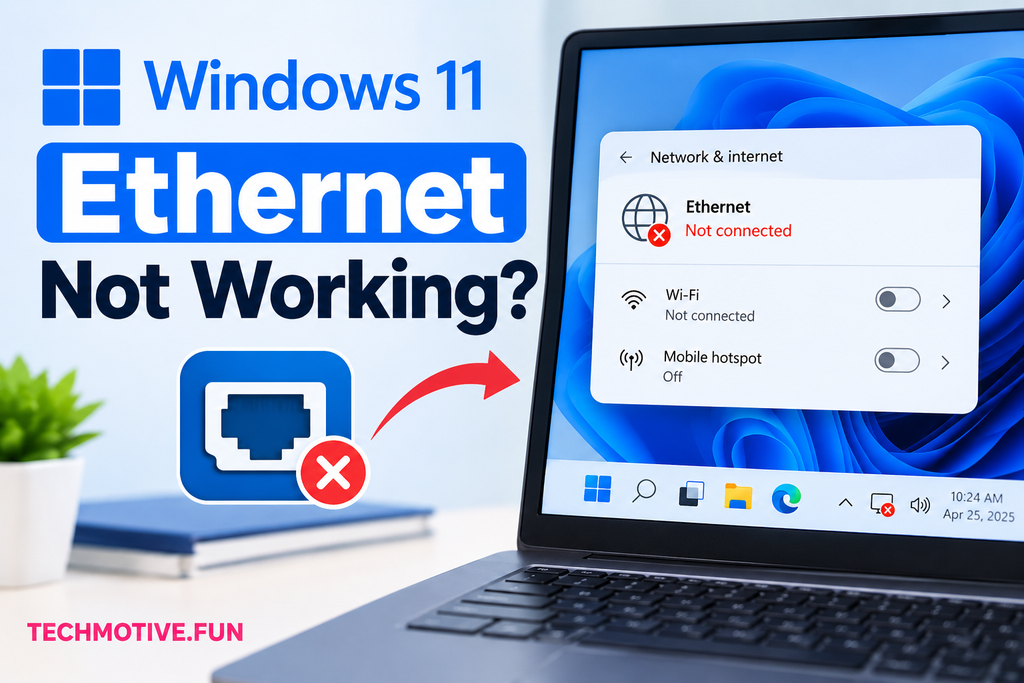
If Ethernet is not working in Windows 11, first check the Ethernet cable and router port, then restart your PC and router. Make sure the Ethernet adapter is enabled in Network Connections and Device Manager. If the connection still fails, update or reinstall the network driver, run Windows troubleshooting, or reset your network settings.
Related Fixes: Windows 11 WiFi Keeps Disconnecting and Windows 11 Airplane Mode Stuck
Why Is Ethernet Not Working in Windows 11?
Ethernet is usually more reliable than WiFi, so it can be confusing when Windows 11 suddenly says there is no internet connection even though your cable is plugged in.
The problem can be caused by a loose or damaged Ethernet cable, a faulty router port, disabled network adapter, outdated driver, incorrect network settings, or a temporary Windows problem.
Sometimes Windows detects the Ethernet connection but shows “No Internet” or “Unidentified network.” In other cases, the Ethernet option may disappear completely from Network Connections.
Before changing anything, check the physical connection and then work through the fixes below.
Also read: Windows 11 Network Adapter Missing? 9 Ways to Fix It
How to Fix Windows 11 Ethernet Not Working
1. Check the Ethernet Cable and Router Port
Start with the easiest thing first: check the Ethernet cable.
Make sure both ends are firmly connected:
- One end should be connected to your PC.
- The other end should be connected to your router or modem.
- Check whether the Ethernet port lights are blinking.
- Try another LAN port on your router.
- If possible, test with another Ethernet cable.
A damaged cable or faulty router port can make it look like Windows has a network problem when the actual issue is physical.
2. Restart Your Router and PC
A temporary network or DHCP problem can sometimes prevent Windows 11 from getting an IP address.
Turn off your router and wait about 30 seconds. Turn it back on and allow it a few minutes to reconnect to the internet.
Then restart your computer.
Once Windows loads, check whether the Ethernet connection is working again.
3. Make Sure Ethernet Is Enabled
Your Ethernet adapter may have been disabled accidentally or by a system change.
Press Windows + R, type:
ncpa.cpl
and press Enter.
Look for Ethernet.
If it is greyed out, right-click it and select Enable.
Wait a few seconds and check the network icon in the taskbar.
4. Check the Ethernet Adapter in Device Manager
Device Manager can show whether Windows is detecting your wired network adapter.
Right-click Start and select Device Manager.
Expand Network adapters.
Look for an adapter with names such as Realtek, Intel, Broadcom, or Ethernet.
If you see a small arrow next to it, right-click the adapter and choose Enable device.
If there is a yellow warning icon, the driver may have a problem.
You can also select View → Show hidden devices to check whether the Ethernet adapter is hidden.
5. Update or Reinstall the Ethernet Driver
A damaged or outdated network driver can cause Ethernet to stop working after a Windows update.
In Device Manager, right-click your Ethernet adapter and select:
Update driver → Search automatically for drivers
If that doesn’t solve the problem, you can reinstall the driver.
Right-click the Ethernet adapter and select Uninstall device, then restart your computer.
Windows may automatically reinstall the driver after restarting.
If it doesn’t, download the correct LAN driver from your computer or motherboard manufacturer’s official support website. If your PC has no internet connection, use another device to download the driver and transfer it to the affected computer.
6. Run Windows Network Troubleshooter
Windows 11 includes troubleshooting tools that can help identify common connection problems.
Go to:
Settings → System → Troubleshoot → Other troubleshooters
Run the available network or internet troubleshooter.
Follow the instructions provided by Windows and apply any recommended fixes.
After the troubleshooting process finishes, restart your computer and test Ethernet again.
7. Check Your IP and Network Configuration
Windows may fail to connect if the network configuration is incorrect.
Open Settings → Network & internet → Ethernet and check whether Windows recognizes the Ethernet connection.
You can also open Command Prompt as administrator and run:
ipconfig /release
Then:
ipconfig /renew
Finally, run:
ipconfig /flushdns
These commands can refresh your IP address and clear cached DNS information.
Restart your PC afterward and check the connection.
8. Restart Network Services
Windows relies on several background services to maintain network connections.
Press Windows + R, type:
services.msc
and press Enter.
Look for services such as:
- DHCP Client
- DNS Client
- Network Connections
- Network List Service
- Network Location Awareness
If a relevant service has stopped, right-click it and select Start or Restart.
Restart your computer afterward.
9. Reset Network Settings
If Ethernet still isn’t working, a network reset can repair corrupted network configurations.
Go to:
Settings → Network & internet → Advanced network settings → Network reset
Click Reset now and confirm.
Windows will remove and reinstall network adapters and restore network-related settings to their defaults.
You’ll need to restart your PC afterward. If you use VPN software or custom network settings, you may also need to configure them again.
What If Ethernet Is Still Not Working?
If you’ve tried everything above and Windows 11 still doesn’t recognize Ethernet, check whether the Ethernet adapter appears in Device Manager.
If it is completely missing, Windows may not be detecting the hardware.
Download and install the latest LAN driver from your PC or motherboard manufacturer’s official website. Also check for Optional updates under:
Settings → Windows Update → Advanced options → Optional updates
If you’re using a desktop PC, try another Ethernet port on the router and, if available, another cable.
You can also test the same Ethernet cable and router port with another computer. If the second computer works normally, the issue is more likely related to your Windows 11 PC.
If the Ethernet adapter remains missing from Device Manager after driver installation, the problem could involve BIOS/UEFI settings or the network hardware itself.
Frequently Asked Questions
Why is Ethernet not working on Windows 11?
Ethernet may stop working because of a damaged cable, router problem, disabled network adapter, outdated driver, incorrect network settings, or a Windows networking issue.
How do I fix Ethernet not connected on Windows 11?
Check the Ethernet cable and router port first. Then make sure the Ethernet adapter is enabled, update its driver, restart network services, and run Windows network troubleshooting.
Why does Windows 11 say Ethernet is connected but there is no internet?
Your PC may be connected to the router but unable to reach the internet. Restarting the router, renewing the IP address, checking DNS settings, or troubleshooting the connection can help.
How do I enable Ethernet in Windows 11?
Press Windows + R, type ncpa.cpl, and press Enter. Right-click Ethernet and select Enable if the adapter is disabled.
Why is Ethernet missing from Device Manager?
A missing Ethernet adapter can be caused by a missing driver, disabled hardware, BIOS/UEFI settings, or a hardware detection problem.
Should I reinstall my Ethernet driver?
If Ethernet stopped working after a Windows update or the adapter shows a warning icon in Device Manager, reinstalling or updating the correct driver may resolve the problem.
Will resetting network settings delete my files?
No. A network reset does not delete your personal files. However, it removes network adapters and restores network settings, so you may need to reconnect to networks and reconfigure some network software.
Can a bad Ethernet cable cause Windows 11 to show no internet?
Yes. A damaged or faulty Ethernet cable can prevent the computer from establishing a reliable network connection. Testing another cable is one of the quickest ways to rule this out.
Final Thoughts
When Windows 11 Ethernet is not working, start with the physical connection before changing system settings. Check the cable and router port, make sure the Ethernet adapter is enabled, and inspect Device Manager for driver problems. If the basic fixes don’t work, update the driver, troubleshoot Windows networking, and use network reset as a final software-based fix.