Windows 11 Bluetooth Driver Missing? Scan, Reinstall, and Restore the Missing Driver
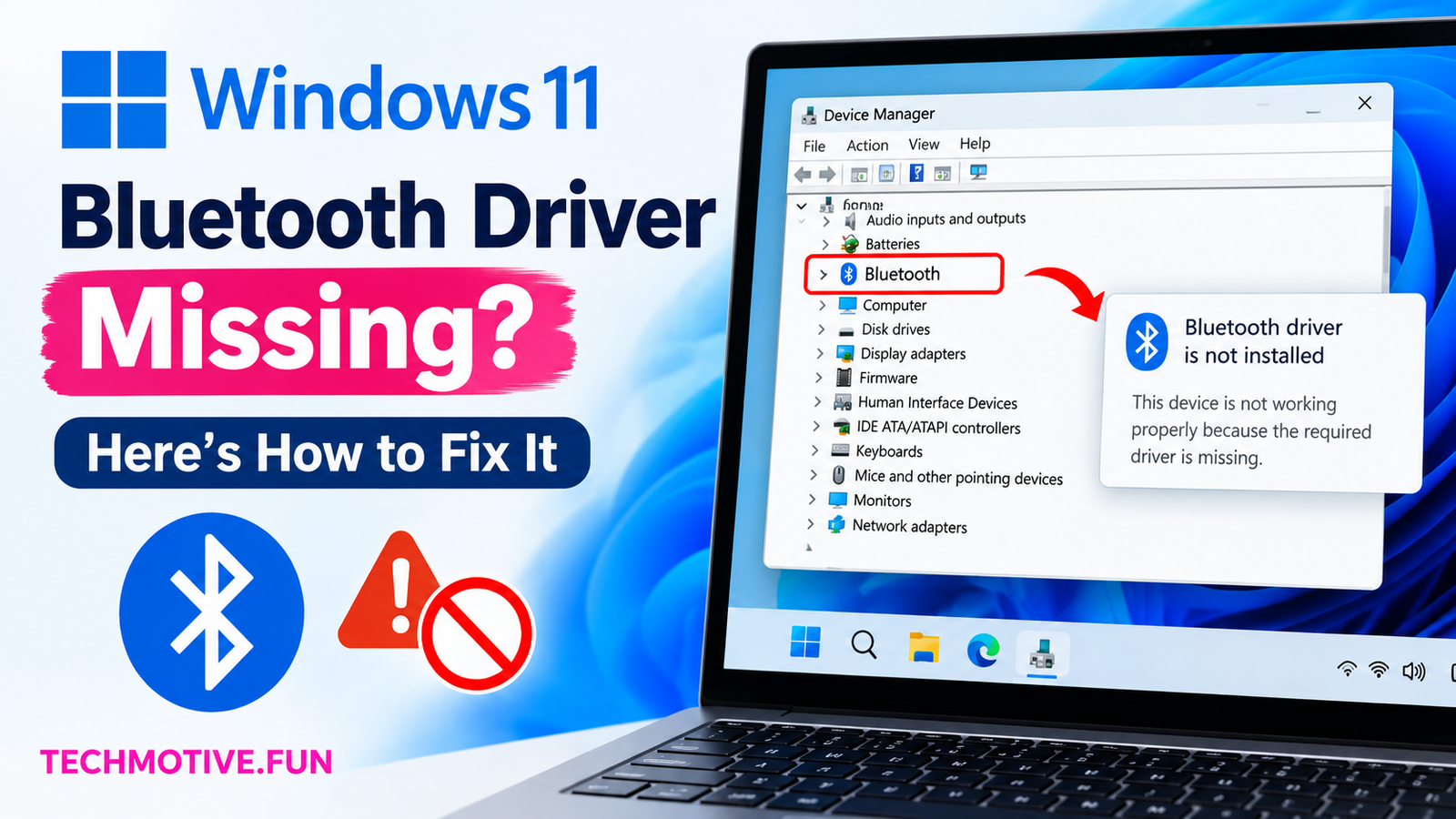
If the Bluetooth driver is missing in Windows 11, first restart your PC and check Device Manager for the Bluetooth adapter. If it is not listed, show hidden devices, install the latest Bluetooth driver from your laptop or motherboard manufacturer, run Windows Update, and check whether Bluetooth is disabled in BIOS or UEFI.
Related Fixes: Windows 11 Bluetooth Option Missing and Windows 11 Bluetooth Keeps Disconnecting
Why Is the Bluetooth Driver Missing in Windows 11?
The Bluetooth driver can disappear for several reasons. Sometimes a Windows update causes a driver problem, while in other cases the driver may become corrupted or disabled.
Common reasons include:
- A Windows update removed or replaced the driver
- The Bluetooth driver is corrupted
- Bluetooth is disabled in Device Manager
- The Bluetooth adapter is not detected
- The wrong driver was installed
- Laptop manufacturer drivers are outdated
- A temporary Windows hardware problem occurred
- Bluetooth is disabled in BIOS or UEFI
- The Bluetooth hardware itself has a problem
Before trying complicated fixes, restart your computer. A simple restart can sometimes make Windows detect the Bluetooth hardware again.
How to Fix Bluetooth Driver Missing in Windows 11
1. Check Device Manager
Device Manager is the first place to check when the Bluetooth driver disappears.
- Press Windows + X.
- Click Device Manager.
- Look for Bluetooth in the list.
- Expand the Bluetooth section if it is available.
- Check whether your Bluetooth adapter appears there.
If you see a yellow warning icon beside the adapter, Windows may be having a driver problem.
If Bluetooth is not listed at all, click View > Show hidden devices and check again.
2. Scan for Hardware Changes
Windows can sometimes detect the Bluetooth adapter after you manually ask Device Manager to scan for hardware.
Open Device Manager and click Action from the top menu. Select Scan for hardware changes.
Wait a few seconds and check whether the Bluetooth section appears.
If the adapter appears after the scan, restart your computer and check Bluetooth again.
3. Reinstall the Bluetooth Driver
If the Bluetooth adapter appears in Device Manager but is not working correctly, reinstalling its driver can help.
- Open Device Manager.
- Expand Bluetooth.
- Right-click your Bluetooth adapter.
- Select Uninstall device.
- Confirm the uninstall.
- Restart your PC.
After restarting, Windows may automatically install the driver again.
If Windows does not reinstall it, download the correct Bluetooth driver from your computer manufacturer’s official support website.
4. Download the Bluetooth Driver From the Manufacturer
If the Bluetooth driver is completely missing, manually installing the correct driver may be necessary.
For a laptop, visit the manufacturer’s support page and search for your exact model. Look under Drivers, Downloads, or Wireless/Bluetooth.
For a desktop PC, check your motherboard manufacturer’s website.
Make sure you download a driver specifically designed for your Windows version and hardware. Installing a random Bluetooth driver can cause additional problems.
5. Run Windows Update
Windows Update sometimes provides missing or updated hardware drivers.
Go to:
Settings > Windows Update
Click Check for updates and install any available updates.
Also check:
Advanced options > Optional updates > Driver updates
If a Bluetooth driver is listed there, install it and restart your computer.
6. Check Hidden Devices
The Bluetooth adapter may still be installed but hidden from the normal Device Manager view.
To check:
- Press Windows + X.
- Select Device Manager.
- Click View.
- Select Show hidden devices.
- Look under Bluetooth and Network adapters.
If you find a greyed-out Bluetooth device, right-click it and check the available options.
You can also scan for hardware changes afterward.
7. Run the Bluetooth Troubleshooter
Windows 11 includes troubleshooting tools that can detect common Bluetooth problems.
Open:
Settings > System > Troubleshoot > Other troubleshooters
Look for the available Bluetooth troubleshooting option and run it if it is provided on your version of Windows.
Follow the instructions on the screen and restart your PC when the process finishes.
8. Check Bluetooth Support Service
The Bluetooth Support Service needs to be running for Windows Bluetooth features to work properly.
Press Windows + R, type:
services.mscand press Enter.
Find Bluetooth Support Service in the list.
Right-click it and select Properties. Set Startup type to Automatic, if appropriate, and click Start if the service is stopped.
Click Apply and then OK.
Restart your computer and check whether Bluetooth is available.
9. Check BIOS or UEFI Settings
If Windows cannot detect the Bluetooth hardware at all, check whether Bluetooth or wireless hardware has been disabled in your computer’s BIOS/UEFI settings.
Restart the computer and enter BIOS/UEFI using the key shown during startup. The exact key varies between manufacturers.
Look for settings related to:
- Wireless devices
- Bluetooth
- WLAN
- Internal devices
- Wireless LAN
If Bluetooth or wireless hardware is disabled, enable it, save the changes, and restart Windows.
Only change settings you recognize in BIOS/UEFI. If you’re unsure about an option, leave it unchanged.
What If Bluetooth Driver Is Still Missing?
If you have tried all the fixes above and Bluetooth is still missing, the problem may be deeper than a normal driver issue.
First, check your computer manufacturer’s support page using your exact laptop or motherboard model. Download and install the latest Bluetooth and chipset drivers available for Windows 11.
If the Bluetooth adapter still does not appear in Device Manager after installing the manufacturer’s drivers, check whether other wireless devices are also missing. This can help determine whether the issue is related to the wireless hardware or Windows.
For a desktop PC, also check whether your motherboard actually includes Bluetooth. Some desktop motherboards do not have built-in Bluetooth.
If you recently upgraded or replaced hardware, make sure the Bluetooth adapter is properly connected and supported by your system.
Frequently Asked Questions
Why did my Bluetooth driver disappear in Windows 11?
A Windows update, corrupted driver, disabled hardware, or temporary detection problem can cause the Bluetooth driver to disappear. Checking Device Manager and installing the manufacturer’s latest driver are good first steps.
How do I get my Bluetooth driver back?
Open Device Manager and select Action > Scan for hardware changes. If Bluetooth remains missing, download the correct Bluetooth driver from your laptop, PC, or motherboard manufacturer’s official website.
Why is Bluetooth not showing in Device Manager?
If Bluetooth does not appear even under hidden devices, Windows may not be detecting the Bluetooth hardware. Check Windows Update, install the manufacturer’s Bluetooth and chipset drivers, and check BIOS/UEFI wireless settings.
Can Windows 11 automatically install a Bluetooth driver?
Yes. Windows can sometimes install a compatible Bluetooth driver through Windows Update or after restarting the computer. However, if the driver is unavailable, installing the driver from the manufacturer’s support page may be necessary.
How do I reinstall Bluetooth drivers in Windows 11?
Open Device Manager, expand Bluetooth, right-click the Bluetooth adapter, select Uninstall device, and restart your PC. Windows may reinstall the driver automatically after the restart.
Does updating Windows fix missing Bluetooth drivers?
It can. Windows Update may contain driver updates or fixes for hardware detection problems. Check both normal updates and Optional updates > Driver updates.
What if my Bluetooth adapter is not detected at all?
Install the latest Bluetooth and chipset drivers from your computer manufacturer’s website. If the adapter still does not appear, check BIOS/UEFI settings and consider whether there could be a hardware or compatibility problem.