
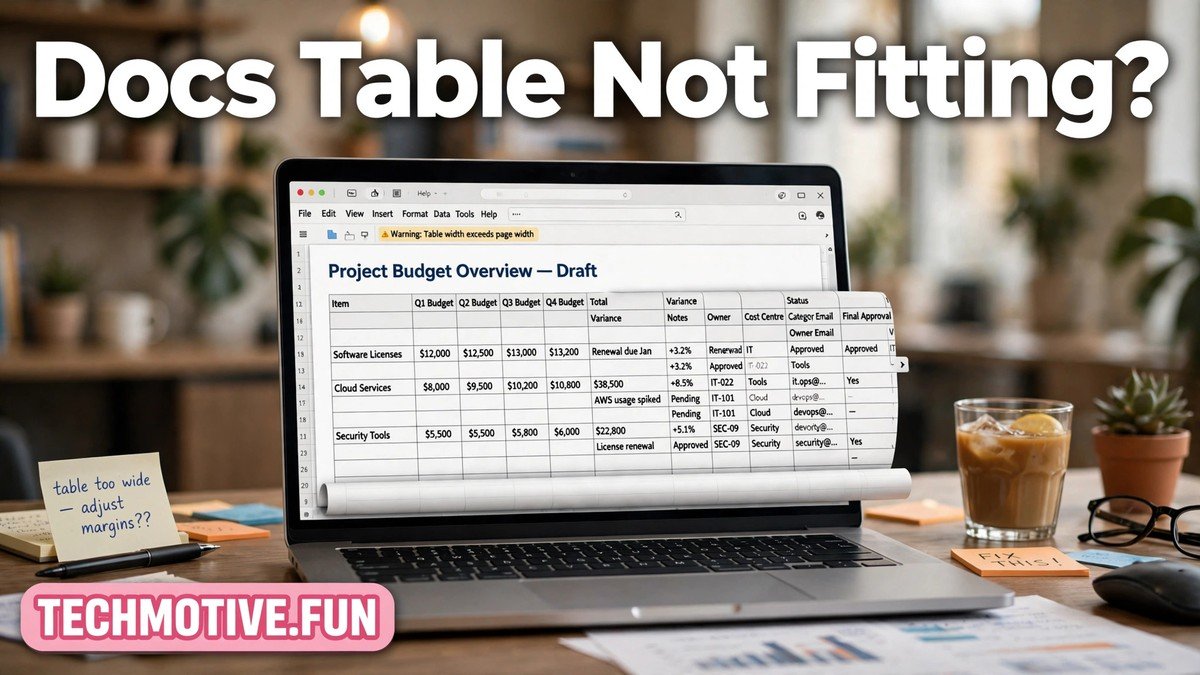
Google Docs Table Not Fitting Page? How to Fix It
A table that spills off the side of the page is one of the most annoying problems in Google Docs. You paste in a table, or you build one carefully, and suddenly the last column disappears beyond the margin. Printing makes it worse, because whatever is off the page simply does not show up.
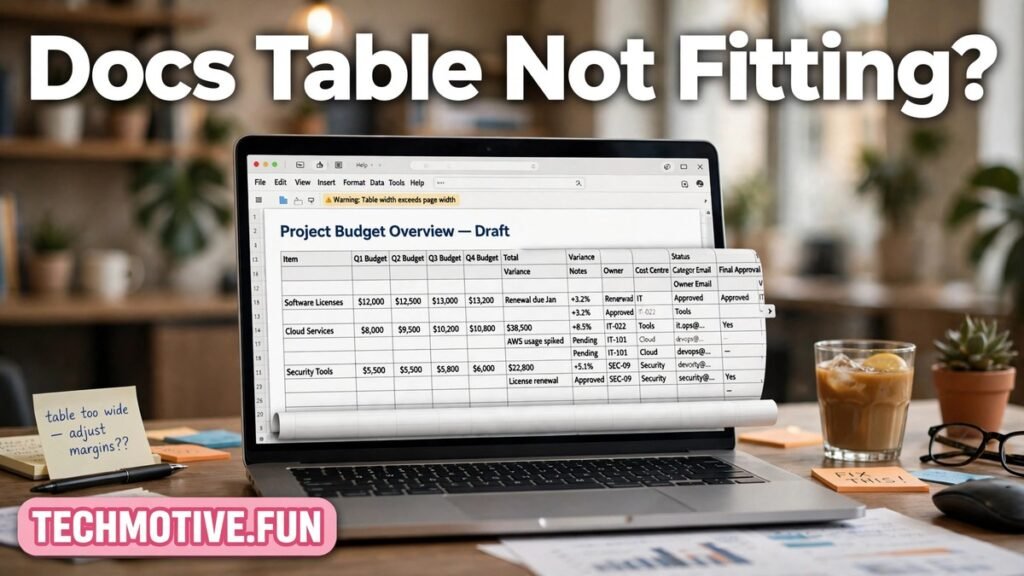
The good news is that this problem almost always has a simple cause. A column is too wide, the table is wider than the page allows, or a setting is stopping the table from adjusting itself. Once you find the cause, the fix usually takes less than a minute.
This guide walks through every common reason a table does not fit, starting with the quickest fixes and moving on to the trickier ones, like tables pasted from other programs and tables viewed on a phone.
First, Check How Wide Your Table Actually Is
Before changing anything, it helps to understand what “fitting” means in Google Docs. A page has a fixed width, and the margins on the left and right eat into that width. Your table has to fit inside the space between the margins, not the full width of the page.
If you are using the default page setup, that usable space is roughly six and a half inches wide. A table with five or six wide columns can easily exceed that, especially if each column holds long words or numbers that refuse to wrap.
Hover over the table and look at the column borders. If the rightmost border sits beyond the right margin line, or if a column looks cut off, the table is simply too wide for the page. That is the problem to solve, and everything below is a way of solving it.
Fix 1: Drag the Column Borders to Fit
The fastest fix is often the most obvious one. Click inside the table, then drag a column border left or right to resize that column.
Start with the widest column. Long text columns usually have room to spare, while narrow columns holding numbers or dates rarely need much width. Shrink the wide ones first and watch the table pull back inside the margins.
One thing to watch: dragging a border in Google Docs can push the next column wider instead of shrinking the total table. If the table does not get narrower, try dragging the rightmost border of the table itself inward. That forces the whole table to compress.
If a column refuses to shrink, something inside it may be preventing it. A very long word, a long web address, or an image inside a cell can set a minimum width that the column cannot go below. That brings us to the next fix.
Fix 2: Let Text Wrap Inside the Cells
When text inside a cell cannot wrap, the column stays as wide as the longest unbroken string. This is a common cause of tables running off the page, and it often happens with links, file names, or long product codes.
Look at the cells in your widest column. If you see a single long string stretching the cell, that string is the culprit. You have a few options.
You can shorten the text, for example by replacing a long URL with a shorter label. You can add a space or a hyphen to a long word so it can break across lines. Or you can split the content across two rows instead of cramming it into one cell.
Also check whether the cell contains an image that is too large. An image sets the minimum width of its column, so a wide image will force the whole table wider. Resize the image inside the cell, or move it out of the table entirely.
Fix 3: Open Table Properties and Adjust the Settings
Right-click inside the table and choose Table properties. This panel gives you more control than dragging borders, and it is worth opening even if you think dragging solved the problem.
First, look at the column width settings. If a column has a fixed width that is too large, reduce it here. You can also set the table alignment. A table aligned to the left with a large indent can push its right edge off the page, so centering the table or removing the indent sometimes fixes the overflow on its own.
Next, check the cell padding. Padding is the space between the cell content and the cell border. Large padding on every cell adds up across several columns and can quietly push a table over the edge. Reducing padding slightly often frees up enough room to bring the table back inside the margins.
Finally, look at the row settings. Make sure rows are allowed to break across pages if your table is long. A table that cannot split will behave strangely at page breaks, and while that is a different problem from width, the two often appear together.
Fix 4: Change the Page Margins or Orientation
Sometimes the table is fine and the page is the problem. If your document has wide margins, the usable space shrinks, and a table that would fit on a normal page suddenly does not.
Go to File, then Page setup, and check your margins. Reducing the left and right margins by even half an inch each gives your table a full extra inch of room. This is a perfectly reasonable fix for a document built around a wide table, such as a schedule or a price list.
If the table is still too wide, consider switching the page orientation to landscape for the section containing the table. A landscape page is much wider than a portrait one, and it is the standard solution for wide tables in reports and documents.
It is also worth checking whether the document has an unusually large indent applied to the table’s paragraphs. An indent shifts the whole table to the right, which eats into the space on the right side even when the columns themselves are a sensible width. Removing that indent, or setting the table alignment to center, can recover the missing room without touching a single column. This is easy to miss because the indent is not obvious until you look at where the table actually starts relative to the left margin.
Note that changing orientation affects the whole document in Google Docs unless you use section breaks, so think about whether the rest of your document will still look right. For a document that is mostly a wide table, landscape is usually the right call.
Fix 5: Fix Tables Pasted from Word, Excel, or Websites
Pasted tables are the single biggest source of fitting problems. A table copied from Microsoft Word, Excel, or a website brings its own column widths with it, and those widths were designed for a different page size.
When you paste a table and it runs off the page, do not try to fix it by dragging borders one at a time. Instead, try pasting it again using Paste without formatting, which you can find under Edit or with the usual keyboard shortcut. This strips the original widths and lets Google Docs size the table to fit your page.
If the table is already pasted and reformatting it from scratch would lose work, open Table properties and reset the column widths manually, starting with the widest columns. Another useful trick is to select the whole table, cut it, and paste it back without formatting into a fresh spot in the document. You will need to redo any bold text or colors, but the table will fit.
Tables pasted from Excel deserve special attention. Excel columns are often much wider than a Docs page allows, and a spreadsheet with ten or twelve columns will almost never fit on a portrait page. For those, landscape orientation or splitting the table into two smaller tables is usually better than shrinking every column until the text is unreadable.
Fix 6: Deal with Tables That Look Fine on Screen but Not in Print
A table can look acceptable on screen and still print badly. This usually happens because the print preview uses slightly different margins, or because the table sits close enough to the edge that a printer’s own unprintable border clips it.
Always check Print preview before printing a document with a table. If the table touches the edge of the preview page, it will be cut off on paper even if it looks fine in the editor. Shrink the columns a little more or reduce the margins until there is clear space on both sides in the preview.
Also remember that printers cannot print right up to the edge of the paper. Leaving a small safety gap on both sides of the table avoids unpleasant surprises, especially if someone else will print the document on a different printer.
Fix 7: Tables on the Mobile App Behave Differently
The Google Docs mobile app shows tables differently from the desktop version. On a narrow phone screen, a wide table may appear to run off the edge even when it fits perfectly on a desktop page.
On mobile, try switching to a different view if the app offers one, and avoid editing column widths on your phone. Column adjustments are much harder to control with touch, and it is easy to make the problem worse.
The best approach is to fix the table on a computer, then check it on mobile only to confirm it reads acceptably. If a table is meant to be read mainly on phones, keep it to two or three columns at most. Wide tables and small screens simply do not mix well, and no setting fully solves that.
When the Table Still Will Not Fit
If you have tried everything above and the table still overflows, the table may simply have too many columns for the page. This is not a settings problem, and no amount of dragging will fix it without making the text unreadable.
In that case, consider restructuring. Split one wide table into two narrower tables, one below the other. Move a column of notes or comments out of the table and into regular text below it. Or turn the least important column into a footnote.
A table that fits and is easy to read is always better than a table that technically contains everything but cannot be printed or read properly. Cutting one column is often the bravest and best fix.
A Quick Checklist Before You Finish
Run through this list before you call the table done. First, every column border sits inside the margin lines. Second, no cell contains an unbroken string or image wider than its column. Third, cell padding is reasonable, not excessive. Fourth, the table looks right in Print preview, not just in the editor. Fifth, if the document will be read on phones, the table has few enough columns to make sense on a small screen.
If all five check out, your table fits, and it will stay fitting when someone else opens or prints the document.
Frequently Asked Questions
Why does my Google Docs table go off the page?
The most common reason is that the total width of the columns is larger than the space between your page margins. This often happens with pasted tables, which bring their original widths with them, or with columns holding long unbroken text or large images that prevent the column from shrinking.
How do I make a table fit on one page in Google Docs?
Drag the column borders inward, reduce cell padding in Table properties, and check your page margins under File and then Page setup. If the table is very wide, switching the page to landscape orientation usually solves it. For long tables, also make sure rows are allowed to break across pages.
Why can’t I resize a column in my Google Docs table?
A column cannot shrink below the width of its widest unbreakable content. Look for a long URL, a long word without spaces, or a large image inside one of the cells in that column. Shorten the text or resize the image, and the column should become adjustable again.
How do I fix a table pasted from Word or Excel that is too wide?
Paste the table again using Paste without formatting so Google Docs sizes it to your page. If the table is already in place, open Table properties and reduce the column widths manually, or cut the table and paste it back without formatting. For very wide Excel tables, landscape orientation or splitting the table in two works better than shrinking every column.
Does changing the page margins affect the rest of my document?
Yes, margin changes apply to the whole document in Google Docs unless you use section breaks. If only one table needs more room, try resizing the table itself first. Change the margins only when the document is built around the table, or use a section break to isolate the wide-table section.
Why does my table look fine on my computer but broken on my phone?
The mobile app displays tables on a much narrower screen, so a table that fits a desktop page can still appear to overflow on a phone. Fix the table on a computer and keep mobile tables to two or three columns where possible. Avoid adjusting column widths on the phone itself, since touch controls make precise resizing difficult.
Related Guides
- Google Docs Voice Typing Not Working
- Google Docs Images Not Moving
- Google Docs Offline Mode Not Working


One Comment