
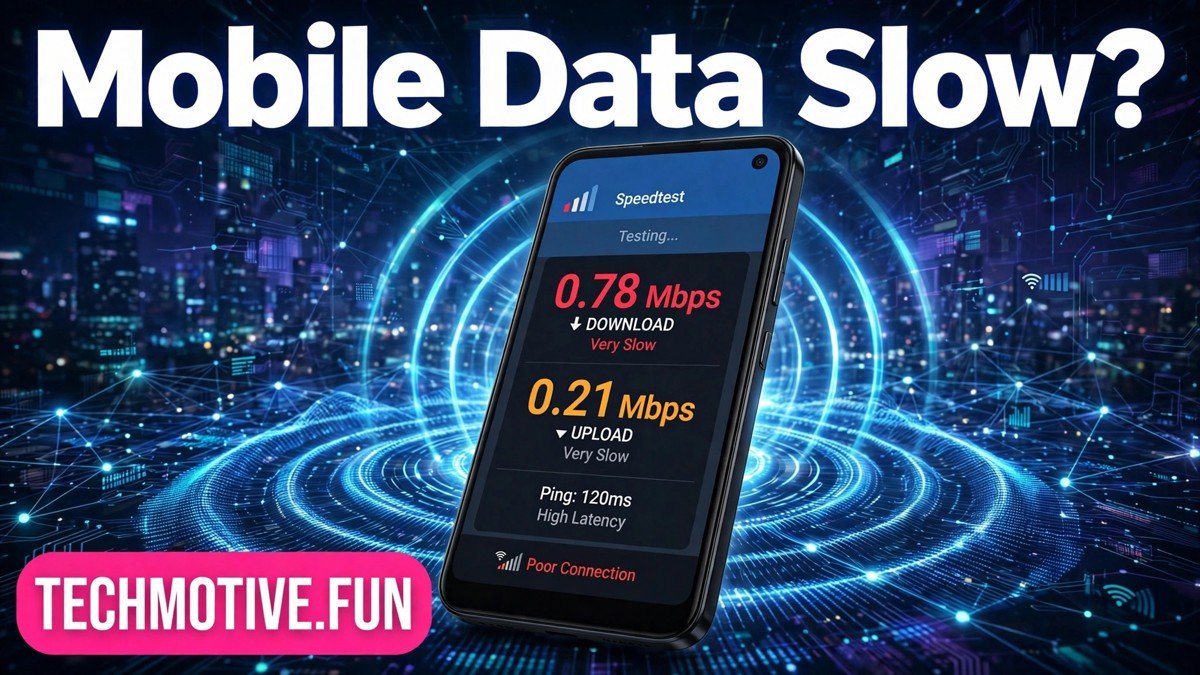
Android Mobile Data Slow? How to Fix It and Speed Up Your Connection
You tap a video, and it sits there buffering. A web page takes so long to load that you give up and try again, only to get the same result. Messages go through eventually, but everything else feels like it is crawling. On mobile data, that slowdown is frustrating because you cannot just plug in a cable or move closer to a router.
Slow mobile data does not always mean something is broken. Sometimes the signal is weak, sometimes the network is busy, and sometimes a setting on your phone is quietly holding things back. Most causes can be narrowed down in a few minutes, and the fixes are usually simple.
Before you change anything, work out whether the problem is your phone, your location, your plan, or the network itself. That way you avoid resetting settings you did not need to touch.
First, Find Out Where the Slowdown Is Coming From
Start with a speed test. Use a speed test app you already trust, or run a test in your browser. Run it twice, a minute apart, and note the download speed each time. A single slow result can be a fluke, but two slow results in a row point to a real problem. If you can, run the test again near a window or outside: a big jump tells you signal strength is playing a major role.
Next, compare mobile data with Wi-Fi. Connect to a Wi-Fi network you trust and load the same page or video that was struggling. If it loads quickly on Wi-Fi but crawls on mobile data, the problem is specific to your mobile connection. If it is slow on both, the app or website itself may be the bottleneck.
Then think about signal versus plan. Signal strength is about how well your phone can reach the nearest tower: a phone showing only one or two bars will struggle no matter how good your plan is. Your plan, on the other hand, is about what your carrier allows. Some plans slow speeds after a certain amount of high-speed data has been used, and some give lower priority to certain plans when the network is busy. These are different problems, so it is worth knowing which one you are dealing with.
Also check whether the slowdown affects everything or just one app. If only one app is slow, try clearing its cache or checking whether it has its own data-saving mode switched on. If everything is slow, the cause is more likely to be signal, settings, or your plan.
Finally, notice the pattern. Is data always slow, or only at certain times of day? Is it slow everywhere, or only at home or on your commute? Slow speeds every evening in a busy area often point to congestion, while speeds that are slow in one building but fine outside usually point to weak indoor signal.
What Your Symptoms Are Telling You
| Symptom | Likely cause |
|---|---|
| Everything loads slowly, but calls work fine | Weak signal, network congestion, or a plan-related slowdown |
| Videos buffer but web pages load acceptably | Limited bandwidth or a video quality setting that is too high for the connection |
| Only one app is slow while others work well | That app’s own settings, cache, or server problems |
| Data is fast outdoors but slow indoors | Weak signal inside the building |
| Speed drops sharply at the same time every day | Network congestion during peak hours |
Use this table as a starting point, not a final diagnosis. Symptoms can overlap, but matching what you see to a likely cause will point you to the most useful fix first.
Fixes, Easiest First
Work through these in order, testing after each change so you know which one actually helped. Stop as soon as your speed is back to normal.
1. Restart Your Phone or Toggle Airplane Mode
A restart clears temporary glitches and forces your phone to reconnect to the network fresh. Toggling airplane mode has a similar effect on the connection itself.
- Swipe down from the top of the screen to open Quick Settings.
- Tap Airplane mode to switch it on.
- Wait about 30 seconds.
- Tap Airplane mode again to switch it off.
- Wait for the signal bars and network indicator to return, then test your speed again.
If the phone reconnects to a stronger signal, you may see an immediate improvement. If nothing changes, move on.
2. Try a Different Network Mode
Modern phones prefer the fastest available network, usually 5G where it exists. But a weak or unstable 5G signal can be slower than a solid 4G connection, because the phone keeps struggling to hold on to a fading signal. Forcing the phone to use 4G can give you a steadier, faster connection.
- Open Settings.
- Go to Connections or Network & internet, depending on your phone.
- Tap Mobile networks.
- Tap Network mode or Preferred network type.
- Select an option that includes 4G or LTE, such as 4G/3G/2G (auto connect) or LTE/3G/2G.
Test your speed after the change. If 4G is clearly faster, leave it there for now and switch back to automatic 5G later, in an area with stronger coverage. Menu names vary between phone makers, so search Settings for Network mode if you cannot find it.
3. Turn Off Data Saver and Check Background Apps
Data Saver reduces how much data your phone uses, partly by limiting what apps can do in the background. That helps if you are trying to stay within a data allowance, but it can make apps feel sluggish, delay notifications, and slow down downloads.
- Open Settings.
- Go to Connections or Network & internet.
- Tap Data usage or Data Saver.
- If Data Saver is on, switch it off and test your speed again.
While you are there, think about background apps. Apps that sync, back up photos, or download updates share your connection with whatever you are actively doing. On a slow connection, even a small background download can crowd out a video stream. You do not need to delete these apps: pausing a large upload or download can free up a noticeable amount of speed.
Also check whether any single app has its own data-saving mode turned on. Video and music apps often cap streaming quality to save data, and those settings can stay on long after you have forgotten them.
4. Check Your APN Settings
APN stands for Access Point Name: the set of details your phone uses to connect to your carrier’s data network. If these details are wrong, data can be slow or stop working altogether. APN settings are usually set automatically when you insert a SIM card, but they can be changed by mistake or carried over incorrectly when you switch carriers.
Warning: before you change anything on this screen, write down or take a screenshot of the original values. If a change makes things worse, you will need those original values to put things back exactly as they were.
- Open Settings.
- Go to Connections or Network & internet.
- Tap Mobile networks.
- Tap Access Point Names.
- Check that the selected APN matches the one your carrier publishes for your plan. Use your carrier’s published values.
- If a value looks wrong, correct it carefully, save, and restart your phone.
If you are unsure about any value, do not guess. Ask your carrier to confirm the correct APN settings for your phone and plan: a wrong guess here can break mobile data completely, which is worse than slow data. If your phone offers a Reset to default option on the APN screen, that is usually safer than typing values in by hand, because it restores the carrier defaults.
5. Reset Network Settings
If none of the fixes above helped, resetting network settings is the strongest step you can take on the phone itself. It clears saved Wi-Fi networks, Bluetooth pairings, and mobile settings back to their defaults, which can remove a corrupted setting that is hard to find otherwise.
Warning: this reset deletes your saved Wi-Fi passwords and Bluetooth pairings. You will need to reconnect to your Wi-Fi networks afterwards and pair your Bluetooth devices again. It does not delete your photos, apps, or messages, but it is still worth knowing what you will have to set up again before you start.
- Open Settings.
- Go to General management or System, depending on your phone.
- Tap Reset.
- Tap Reset network settings.
- Confirm, then wait for the phone to restart if it does so automatically.
- Once the phone is back on, reconnect to your mobile network, test your speed, and then reconnect to Wi-Fi.
Only use this step after trying the earlier fixes. If the problem is signal, congestion, or your plan, a network reset will not fix it, and you will have reconnected everything for no gain.
When the Carrier Is Slowing Things Down
Sometimes the phone is fine and the settings are fine, and the slowdown comes from the carrier side. Two ideas are worth understanding: throttling and deprioritisation. Throttling means your speeds are deliberately reduced, often after you have used a certain amount of high-speed data on your plan. Deprioritisation means your traffic gets lower priority than other customers’ traffic when the network is busy, so your speeds drop during peak times even though you have not hit any limit.
Carriers describe these policies differently, and the details depend on your specific plan and region, so be cautious about online claims that promise a particular speed or limit for every customer. What matters is what your own plan actually says and what your carrier can confirm about your account.
If you suspect a carrier-side slowdown, these are the questions worth asking:
- Has my plan’s high-speed data allowance been used up for this billing period?
- Is my line subject to deprioritisation during busy periods, and what does that mean for my plan?
- Is there any network maintenance or tower work affecting my area right now?
- Is my SIM and plan set up for the fastest network type my phone supports?
- Are the APN settings on my phone the ones you recommend for my plan?
Note down what you are told, including the date of the call. If the carrier confirms a plan-related slowdown, your options are usually to wait until the next billing period, change to a different plan, or accept the slower speeds. Do not rush that choice: compare what a plan change actually offers before agreeing to anything, and be wary of any upsell that promises speeds the carrier cannot guarantee in your area.
Habits That Keep Mobile Data Fast
Once your speed is back, a few small habits help keep it that way. Restart your phone every few days, especially if things gradually get sluggish. Keep Data Saver off unless you genuinely need to conserve data, and check it again after software updates, which can sometimes switch settings back. Keep your phone software up to date, since updates can include fixes for connectivity problems.
If you regularly use data in a spot with weak signal, such as a particular room or a basement, use Wi-Fi there instead. Finally, keep an eye on your data usage through your carrier’s app or your phone’s Data usage screen, so a plan-related slowdown never catches you by surprise at the end of the month.
Slow mobile data is annoying, but it is rarely mysterious once you break it down. Test the speed, compare it with Wi-Fi, check the signal and your plan, then work through the fixes from easiest to strongest. Most of the time, one of those steps will bring your speed back, and if it does not, you will be able to describe the problem to your carrier in terms they can act on.
Frequently Asked Questions
Why is my mobile data slow but my Wi-Fi is fast?
This usually means the problem is specific to your mobile connection: weak signal, network congestion, a phone setting such as Data Saver, or a plan-related slowdown. If Wi-Fi is fast, your phone and apps are almost certainly fine, so focus on the signal, settings, and carrier checks above.
Will switching from 5G to 4G really help?
It can, if the 5G signal in your area is weak or unstable. A steady 4G connection often beats a 5G connection that keeps dropping or fading. Test both modes in the same location and keep whichever gives the better, more consistent result.
Does Data Saver slow down my internet?
Data Saver reduces data use, and it can make apps feel slower by limiting background activity and media quality. If you are not worried about your data allowance, turning it off is a quick test. If your speed improves, you have found at least part of the problem.
Is it safe to reset network settings?
Yes, in that it does not delete your photos, apps, or messages. But it does delete saved Wi-Fi passwords and Bluetooth pairings, so you will need to reconnect to Wi-Fi networks and pair devices again afterwards. Treat it as a last resort, after the simpler fixes have been tried.
Should I change my APN settings?
Only if they are wrong, and only with the correct values from your carrier. APN settings control how your phone connects to your carrier’s data network, so a mistake here can stop mobile data from working at all. Always note the original values before changing anything, and ask your carrier if you are unsure.
When should I contact my carrier?
Contact your carrier when the phone-side fixes have not helped, when speeds drop sharply at the same time every day, or when others on the same carrier nearby report the same problem. Ask whether your high-speed allowance has been used up, whether deprioritisation applies to your plan, and whether there is maintenance or an outage in your area.




2 Comments