Chrome Search Engine Keeps Changing? Here’s Who Is Actually Changing It
You set Google as your search engine on Monday. By Friday, you type something into the address bar and the results come from Yahoo, Bing, or a search page you have never seen before. You change it back. A few days later, it happens again.
Here is the key fact that makes this whole problem easier to solve: Chrome does not change your default search engine on its own. There is no Chrome update, no hidden setting, and no timer that quietly swaps Google for something else. If your chrome search engine keeps changing, something on your computer changed it — an extension, a program you installed, another person, or a setting pulled in from another device.
That means the fix is less about changing the setting over and over, and more about finding what keeps changing it. Think of it as a small investigation. This article works through the suspects in order: set the search engine back the right way, check the most common culprit, look for software that arrived bundled with something else, and rule out the quieter causes people miss. If it still changes back, a reset option at the end usually ends the cycle.
First, Set It Back the Right Way
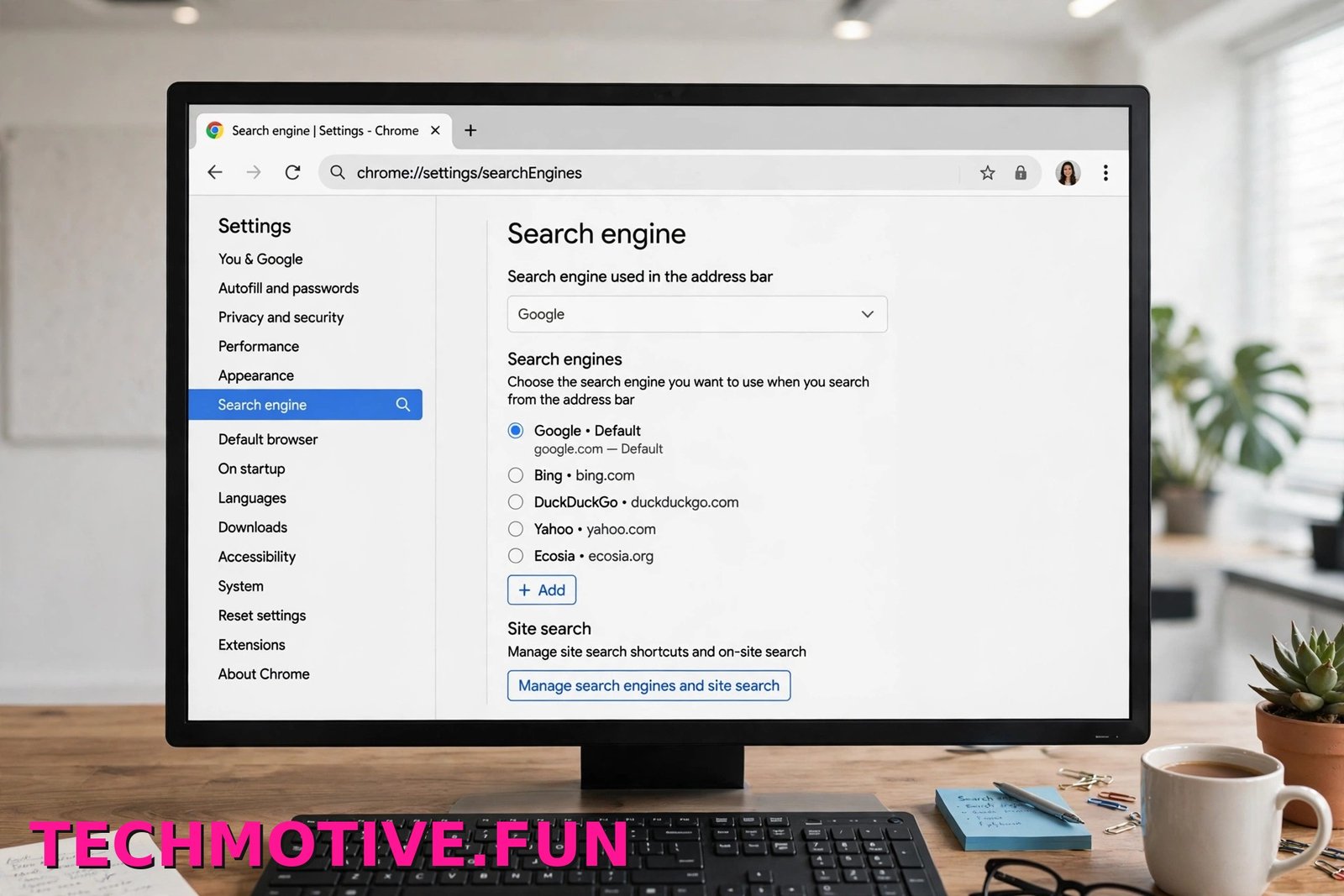
Before hunting for the cause, put the setting back where you want it. Do it in Chrome’s own settings page rather than through a prompt on a website, so you can see exactly what is selected.
- Open Chrome and type
chrome://settings/searchinto the address bar, then press Enter. You can also click the three-dot menu, choose Settings, and then click Search engine in the left sidebar. - At the top, find the section labelled Search engine used in the address bar.
- Click the drop-down menu and choose the search engine you actually want, such as Google, Bing, or DuckDuckGo.
- Close the tab and test it. Type a plain word into the address bar and confirm the results page is the one you picked.
While you are on this page, take one extra minute to look below the drop-down. Click Manage search engines and site search. This opens a list in two parts. The top part shows your main search engines. The lower part, Site search, shows shortcuts for searching inside specific websites.
Look through both lists for anything you do not recognise — an oddly named search engine, a site you never visit, or several near-identical entries. If you find one, click the three-dot menu next to it and choose Delete or Deactivate where offered. Removing an unfamiliar entry is safe; the standard engines like Google, Bing, and DuckDuckGo can stay.
Google’s own help page on how to set your default search engine walks through the same setting if you want to compare the steps.
Once the default is set and the list looks clean, use Chrome normally for a day or two. If the setting stays put, you may already be done. If it changes again, that tells you something important: something active on the PC is changing it back. That is where the suspects come in.
Suspect Number One: An Extension
Extensions are the most common reason a search engine will not stay set. Some extensions are built specifically around search — coupon finders, shopping helpers, price comparison tools, PDF converters, and add-ons with names like “search manager” or “safe search.” A number of them ask for permission to change your search settings when you install them, and many people click through that permission screen without reading it.
In some cases Chrome may tell you an extension is controlling this setting. You might see a note on the search engine settings page saying the setting is managed by an extension, or the drop-down may be greyed out so you cannot change it at all. If you see anything like that, you have almost certainly found your culprit.
Here is how to check your extensions properly:
- Type
chrome://extensionsinto the address bar and press Enter, or click the puzzle piece icon near the top-right of Chrome and choose Manage extensions. - Read through every card on the page. For each one, ask a simple question: do I recognise this, and did I install it on purpose?
- Pay special attention to anything search-related, anything you do not remember adding, and anything that appeared around the time the problem started.
- Use the toggle on each card to turn all extensions Off. Turning an extension off does not delete it; it just stops it running.
- Go back to
chrome://settings/searchand set your default search engine again. - Use Chrome for a while. Then turn your extensions back on one at a time, checking the search setting after each one. When the setting changes again, the last extension you enabled is the one doing it.
- On the extension that causes the problem, click Remove, then confirm by clicking Remove again in the pop-up.
That one-by-one method takes a little patience, but it works, and it stops you from deleting extensions you actually use. If you spot something completely unfamiliar straight away, skip the testing and remove it on the spot.
One habit helps in future: read the permissions screen before installing a new extension. If a simple tool — say, a screenshot add-on — wants permission to change your search settings, that mismatch is a good reason to cancel and look for an alternative.
Suspect Number Two: Software That Came With Something Else
The second common cause is not in Chrome at all. It is a program sitting in Windows.
Free software often arrives with extras. A download manager, a free PDF tool, a media player, or a file converter may include an optional add-on or toolbar in its installer. Those extras sometimes change browser settings during setup, and some keep re-applying the change every time they run or the computer restarts — which explains a pattern where you fix the setting in the evening and it is wrong again the next morning.
To check what has been installed recently:
- Open Windows Settings and go to Apps, then Installed apps.
- Sort the list by Install date so the newest programs sit at the top.
- Look for anything installed around the time your search engine first started changing — especially download tools, PDF readers from unfamiliar publishers, system “optimisers,” and anything with “search” or “toolbar” in the name that you do not recognise.
- If you find a program you did not knowingly install, select it, click the three-dot menu next to it, and choose Uninstall. Follow the prompts through to the end.
Be careful not to remove things Windows or your laptop maker needs. If a name means nothing to you and you are unsure, leave it alone for now and move to the scan below instead. Uninstalling the wrong thing helps nobody.
After that, run a full scan as a calm, sensible check. Unwanted software is a less common cause than extensions and bundled programs, but it is worth ruling out:
- Open Windows Security from the Start menu.
- Click Virus & threat protection.
- Click Scan options, choose Full scan, and then click Scan now.
- Let the scan finish, and follow any guidance it gives you if it finds something.
There is no need to panic about this step, and there is no need to download extra “cleaner” tools from random websites — those are often the very kind of bundled software that causes this problem in the first place. The built-in scan is a reasonable check on its own.
The Quieter Causes People Miss
If neither extensions nor installed programs explain it, a few less obvious causes are worth a look before you reset anything.
Sync pulling in someone else’s settings. Chrome sync copies settings between devices and profiles signed into the same account. If you sign into Chrome on a shared computer, or a family member uses your account on a machine where the default search engine is different, sync can pull that setting across to you. Check which account is signed in by clicking your profile picture at the top-right of Chrome. On a shared computer, separate Chrome profiles are the cleanest fix — each person gets their own bookmarks, extensions, and settings. If your data seems to be moving between devices in odd ways, our guide to fixing Chrome sync not working may help you sort out what is syncing where.
Another person changed it. This sounds too obvious, but it happens a lot on shared family PCs. Someone else may have changed the default, or clicked through a pop-up on a website that offered to “make this your search engine.” It is worth simply asking before you spend an hour troubleshooting.
Site search shortcuts causing confusion. This one is not really your default changing at all. Chrome automatically adds Site search shortcuts for websites you visit. When you type a site’s name in the address bar and press Tab, Chrome searches inside that site instead of using your normal search engine. It can look as if your search engine changed when it has not. You can review and deactivate these under Manage search engines and site search, as covered earlier.
If It Changes Back Again: Reset Chrome
If you have set the default, cleaned the extension list, removed suspicious programs, and the chrome search engine keeps changing anyway, resetting Chrome is the sensible next step. A reset is also worth trying alongside a quick run through Safety Check, which looks for harmful extensions and similar issues:
- Open Settings and click Privacy and security.
- Under Safety Check, click Check now and follow anything it flags.
Then do the reset itself:
- Type
chrome://settings/resetinto the address bar and press Enter, or open Settings and click Reset settings. - Click Restore settings to their original defaults.
- Read the confirmation box, then click Reset settings.
It helps to know what a reset does and does not do. It returns Chrome’s settings to their defaults, including your default search engine and homepage. It disables all extensions without deleting them, so you will need to turn the ones you want back on from chrome://extensions. It also clears temporary data such as cookies and cached site data, so some sites will ask you to sign in again.
What a reset does not do is just as important. It does not delete your bookmarks, your browsing history, or your saved passwords. Those stay in place. So if you are also dealing with sign-in problems, they need their own fix — for example, our article on what to do when the Chrome password manager is not showing your saved logins covers that separately. Google’s help page on resetting Chrome settings to default lists the same effects if you want the official wording.
After the reset, set your preferred search engine once more at chrome://settings/search. Then re-enable your extensions only a few at a time over the next day or so. If the problem returns right after a particular extension goes back on, you have found the cause for certain, even if the earlier test missed it.
Frequently Asked Questions
Why does my chrome search engine keeps changing to Yahoo or Bing when I never touched it?
In most cases, an extension or a program installed alongside something else is doing it. Yahoo and Bing are legitimate search engines, and some add-ons and bundled tools set them as the default on purpose. Chrome itself does not make this switch. Work through the extension check first, since that is where the cause usually is.
Can a virus change my search engine?
Unwanted software can change browser settings, yes, but it is not the most common explanation — extensions and bundled programs come first by a wide margin. Run a Full scan in Windows Security to rule it out. If the scan comes back clean and the setting still changes, focus on your extensions and recently installed apps rather than assuming the worst.
How do I stop an extension from controlling my search engine?
Open chrome://extensions, find the extension, and either turn it off with its toggle or click Remove to delete it completely. If Chrome’s search settings page says an extension is controlling the setting, removing that extension hands control back to you straight away. You may need to set your default once more afterwards.
Will resetting Chrome delete my bookmarks or passwords?
No. A reset does not delete bookmarks, browsing history, or saved passwords. It resets settings to their defaults, disables extensions without deleting them, and clears temporary data like cookies, so some websites will ask you to sign in again. If autofill details seem missing afterwards, that is a separate setting — our guide on fixing Chrome autofill not working explains how to check it.
How do I stop websites adding search shortcuts in Chrome?
Go to chrome://settings/search and open Manage search engines and site search. In the Site search section, click the three-dot menu next to any shortcut you do not want and choose Deactivate. Chrome adds these automatically for sites you use, so the list may grow again over time — a quick tidy-up now and then keeps it under control.
Is it safe to remove an unfamiliar search engine from the list?
Yes. Deleting an entry in Manage search engines and site search only removes that option from Chrome’s list. It does not break the browser, and standard engines can be added back anytime. If an entry keeps reappearing, that points back to an active extension or program re-adding it.
Keeping Your Search Engine Yours
Once you have found the cause, a couple of small habits stop this problem coming back. Read installer screens instead of clicking Next all the way through, and untick any optional extras you did not ask for. Audit your extensions every few months and remove anything you no longer use or no longer recognise. And if your chrome search engine keeps changing again in future, skip straight to the newest suspect — the extension or program you installed most recently is the first place to look, because Chrome will not have changed the setting by itself.