
How to Fix DNS_PROBE_FINISHED_NXDOMAIN in Chrome on Windows 11
What NXDOMAIN Means in Plain English
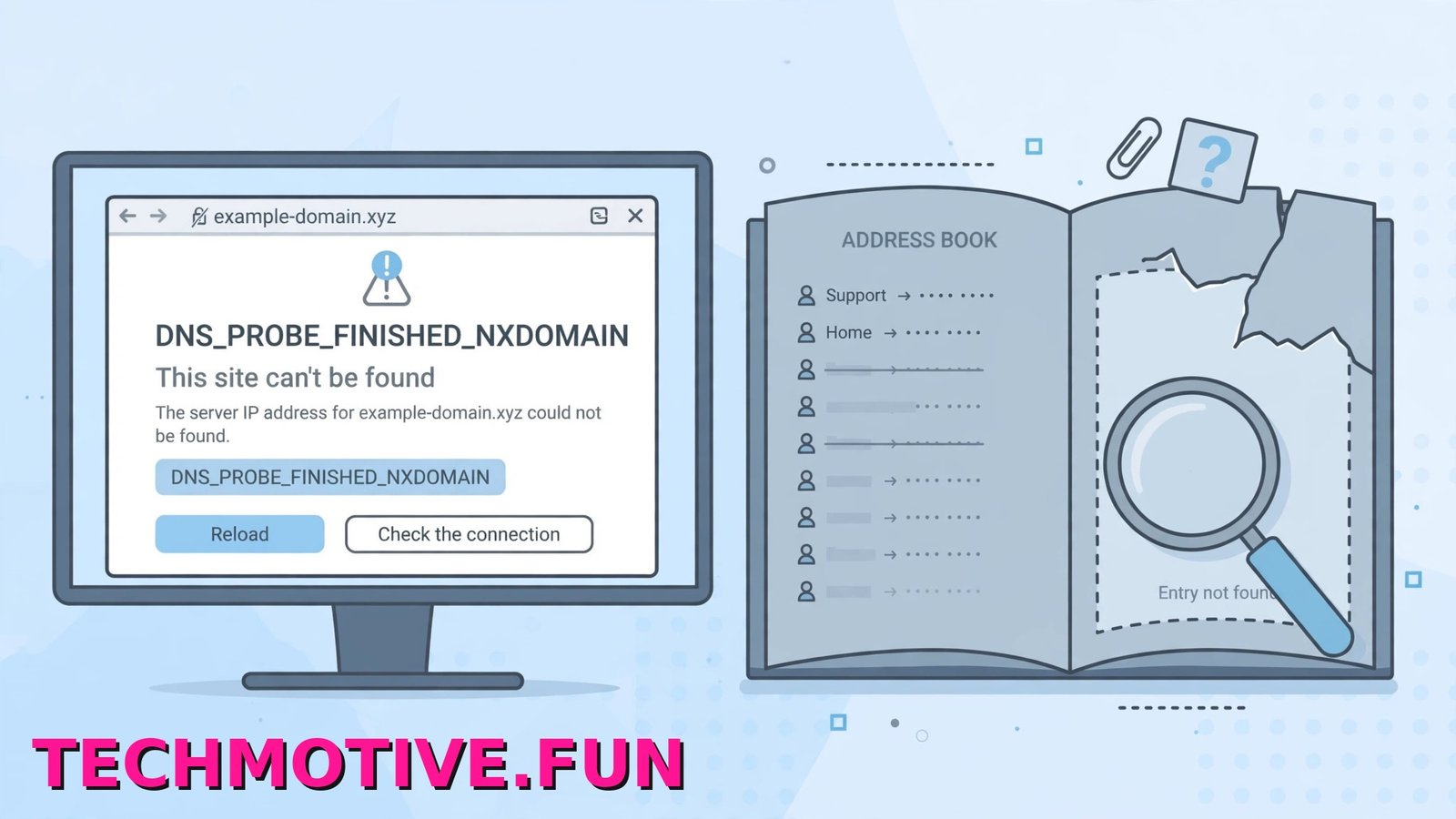
You type a website address, Chrome pauses, then gives up with a grey page that says This site can’t be reached and the site’s server IP address could not be found. Underneath sits the code: DNS_PROBE_FINISHED_NXDOMAIN.
The idea behind it is simple. DNS is the internet’s phone book. Your computer cannot use a name like a shop or a news site directly — it has to look the name up and get a number back, called an IP address. Only then can Chrome connect.
NXDOMAIN is short for “non-existent domain.” In phone book terms, Chrome looked up the name and the answer came back saying “that number isn’t listed.” The lookup finished — that is the DNS_PROBE_FINISHED part — but with no address, so Chrome had nowhere to go.
That answer is not always true. The site may work fine for everyone else while your computer still gets told it does not exist. The usual causes are:
- You typed the address slightly wrong, maybe a swapped or missing letter.
- The website has closed, moved to a new address, or been taken offline.
- The DNS server your connection uses is down or returning wrong answers.
- Windows has saved an old, incorrect lookup in its DNS cache and keeps reusing it.
- An entry in the Windows hosts file is pointing the name at the wrong place.
Google summarises what Chrome’s error pages mean on its page explaining common Chrome error messages, and NXDOMAIN sits in the “Chrome could not find the site” group. This is a lookup problem, not a sign Chrome is broken. Work through the checks below in order — the early ones take seconds and fix this surprisingly often.
First, Rule Out the Simple Stuff
Before changing any settings, spend two minutes checking whether the problem is even on your computer.
- Check the spelling of the address. Check the address bar character by character. One wrong letter creates a domain that genuinely does not exist. If you arrived via an old bookmark or email link, that address may be outdated.
- Try the site on your phone using mobile data. Turn off Wi-Fi on your phone so it uses mobile data, then open the site. If it fails there too, the website is most likely down, moved, or gone, and no setting on your PC will bring it back. If it loads, your computer or home network is the problem.
- Open a different, well-known website in Chrome. If a big site you use daily loads normally, your internet works and the problem is tied to that one address or to DNS. If nothing loads at all, you have a wider connection problem.
- Restart your router. Turn it off, wait about 30 seconds, and turn it back on. Routers hand out DNS settings to every device on the network, and one running for months can start giving bad answers. Give it a couple of minutes to reconnect, then test again.
If the site still shows NXDOMAIN, move on to the fixes — and test the same address after each one, so you know which step solved it.
Flush the DNS Cache
Windows keeps a saved list of website addresses it has already looked up. This DNS cache makes pages load faster, because your computer does not have to ask again every time. The downside: if a wrong or outdated answer gets saved, Windows keeps handing Chrome that bad answer, and the site stays “non-existent” to your PC.
Flushing empties that saved list and forces Windows to look every address up fresh — exactly what you want when the saved answer is wrong.
- Click the Start button and type
cmd. - Click Command Prompt in the results (Windows Terminal works too). Running this command as administrator is not required.
- Type this command and press Enter:
ipconfig /flushdns- You should see a message confirming the DNS resolver cache was successfully flushed.
- Close Chrome completely, reopen it, and try the site again.
That last step matters. Restarting Chrome makes sure the browser asks Windows for a fresh lookup instead of reusing the failed result. Older guides may tell you to clear a DNS or host cache from a special internal Chrome page, but those tools were removed from current versions of Chrome. Flushing through Windows and restarting Chrome covers the same ground.
Change Your DNS Server
If flushing did not help, the DNS server itself may be at fault. By default your computer uses your internet provider’s DNS server, through your router. If that server is struggling or holding wrong records, its lookups can fail in exactly this way. Switching to a large public DNS service gives your computer a different phone book to ask.
These steps use Google’s public DNS. To undo the change later, repeat the steps and set the assignment back to Automatic (DHCP) — nothing here is permanent.
- Open Settings and go to Network & internet.
- Click Wi-Fi if you are wireless, or Ethernet if you use a cable.
- Find DNS server assignment and click the Edit button next to it.
- Change the dropdown from Automatic (DHCP) to Manual.
- Turn the IPv4 switch on.
- In the Preferred DNS box, type
8.8.8.8. - In the Alternate DNS box, type
8.8.4.4. - Click Save, then close Settings.
- Restart Chrome and try the site again.
The alternate is a backup: if the preferred server does not answer, Windows asks it instead, so fill in both boxes.
If you would rather not use Google’s service, Cloudflare runs a similar public DNS: 1.1.1.1 as preferred and 1.0.0.1 as alternate, following the same steps. Either works — the point is finding out whether your provider’s DNS was the weak link. If NXDOMAIN disappears, leave the new settings in place.
Check Chrome’s Own Secure DNS Setting
Chrome also has its own DNS setting, separate from Windows: Use secure DNS. It changes how Chrome itself looks up addresses. It normally works quietly, but its provider can run into trouble or clash with your network’s DNS settings, and the result is the same NXDOMAIN page.
- In Chrome, click the three-dot menu and open Settings.
- Go to Privacy and security.
- Click Security.
- Scroll down to Use secure DNS.
- If it is on, try selecting a provider such as Google (Public DNS) from the list, then test the site.
- If the site still fails, go back and turn Use secure DNS off completely, then test again.
Turning it off does not leave you exposed — Chrome simply falls back to the Windows DNS settings, which you may have just set in the previous fix. Treat this as an experiment: whichever combination makes the site load is the one to keep. If neither changes anything, switch it back on and move on.
Check the Windows Hosts File
One more place Windows checks before asking a DNS server is the hosts file: a small text file that pairs a website name directly with an address, and that pairing wins over any normal lookup. An old or wrong entry for the site you want can send Chrome to the wrong place or make the lookup fail.
Be careful here. Most lines in a normal hosts file are harmless, and lines starting with # are just comments. Only remove a line if it clearly names the failing website and you recognise it as wrong. If unsure, leave it alone — deleting the wrong line could affect another program, or an old work or school setup.
- Search for Notepad from Start, right-click it, and choose Run as administrator.
- In Notepad, click File and then Open.
- Go to this folder:
C:\Windows\System32\drivers\etc- Change the file type dropdown to All Files, then open the file named hosts.
- Look for any line that contains the name of the website that will not load.
- If a line pairs that name with an address and you are confident it should not be there, delete that line only.
- Save the file, restart Chrome, and test the site.
If the file has no line for your site, nothing here is causing your problem. Close it without saving and move on.
Test With Your VPN and Antivirus Paused
VPNs and security software sit between Chrome and the internet, and both handle DNS their own way. A VPN sends lookups through its own DNS servers; an antivirus web shield may filter or redirect them. Either can glitch and report real sites as non-existent.
This is a short test, not a permanent change:
- If you use a VPN, disconnect it completely, then try the site. If it loads, the VPN’s DNS was the problem — reconnecting may fix it, or you may need to change the DNS setting inside the VPN app.
- If you do not use a VPN, open your antivirus and briefly pause its web shield or web protection feature, then test the site straight away.
- Turn your antivirus protection back on as soon as you have tested, whatever the result. Do not leave it paused while you browse other sites.
If pausing the shield makes the site load, do not just browse unprotected — look for an update for that program, or check whether it lets you exclude the site.
If the Error Won’t Go Away
If one site still returns NXDOMAIN after all of this, the cause is usually outside Chrome.
Try your phone as a mobile hotspot. Connect your PC to it and open the site in Chrome. If it loads there but not on your home network, your provider’s DNS is likely having an outage or holding a bad record for that site. Providers normally fix outages within hours, and the manual DNS settings from earlier often get you around it in the meantime by bypassing the provider’s servers.
It also helps not to mix this error up with its close cousins. If the page instead says the connection was reset, that is a different failure, covered in our guide to the ERR_CONNECTION_RESET error in Chrome. If Chrome reports the connection was refused, see the separate fixes for ERR_CONNECTION_REFUSED. And if a page complains about the cache, that is the unrelated ERR_CACHE_MISS error, which needs cache fixes, not DNS ones.
Google’s own guide to fixing connection and loading errors covers wider connection checks, such as restarting your internet hardware, if you suspect the problem goes beyond DNS.
Finally, accept that the site may simply be gone. Websites close, domains expire, and owners move without redirecting the old address. If it fails on your phone, a hotspot, and for other people too, there is nothing left to fix on your side. Search for the site’s name instead — if it has moved, its new home usually shows up in search.
The Short Version
NXDOMAIN means Chrome asked for a website’s address and the answer came back saying the domain does not exist. Sometimes that answer is right — a typo, or a site that has closed. Often it is wrong: a stale DNS cache, a struggling DNS server, a secure DNS hiccup, a hosts file entry, or software filtering your lookups.
Work in order: check the spelling, test the site on mobile data, restart the router, flush the DNS cache, then try a public DNS server. Those steps solve most cases. A chrome dns probe finished nxdomain fix is almost never a reinstall — it is nearly always one wrong answer somewhere between Chrome and the phone book it asks.
Frequently Asked Questions
Is NXDOMAIN my fault or the website’s?
It can be either. If the site fails on your phone using mobile data and fails for other people too, the website is down, moved, or closed, and the fault is not yours. If it loads everywhere except your PC, the problem is on your computer or network — usually a cached bad answer or a DNS server issue.
Is changing DNS safe?
Yes, as long as you use a well-known public service such as Google’s 8.8.8.8 or Cloudflare’s 1.1.1.1. You are only changing which phone book your computer asks. It changes no files or accounts, and you can undo it any time by setting DNS server assignment back to Automatic (DHCP).
Will flushing DNS delete anything important?
No. Flushing only clears Windows’ saved list of website lookups. Your bookmarks, passwords, history, and files are untouched. The only side effect is that a first visit to a site afterwards may take a fraction longer while Windows looks the address up fresh.
Why does the site open on my phone but not in Chrome on my PC?
Because the two devices get different answers. Your phone on mobile data uses your carrier’s DNS, while your PC uses your provider’s settings plus its own saved cache — and one of those PC-side answers is wrong. Flushing the DNS cache and changing the DNS server target that mismatch directly.
Does NXDOMAIN mean the website has been deleted?
Not necessarily. NXDOMAIN only means the lookup your computer made came back saying the domain does not exist. A broken DNS server, a stale cache, or a hosts file entry can all produce that answer for a site that is alive and well. It only really means the site is gone if it fails on other networks and devices too.
Do I need to reinstall Chrome to fix this?
Almost never. This error comes from address lookups, which happen in Windows, your router, and DNS servers — not in Chrome’s program files. Reinstalling keeps the same DNS settings, so the error would come straight back. The DNS fixes are quicker and aimed at the actual cause.




One Comment