Chrome Sound Not Working? Simple Fixes to Get Your Audio Back
Before You Dig Into Settings
You press play on a video, the picture moves, people are clearly talking, and you hear nothing. No error message, no warning, just silence. When chrome sound not working is the problem in front of you, it is tempting to jump straight into deep settings and start changing things at random. Resist that urge for two minutes. A few fast checks will either fix this right away or tell you exactly where the problem lives.
Start with the tab itself.
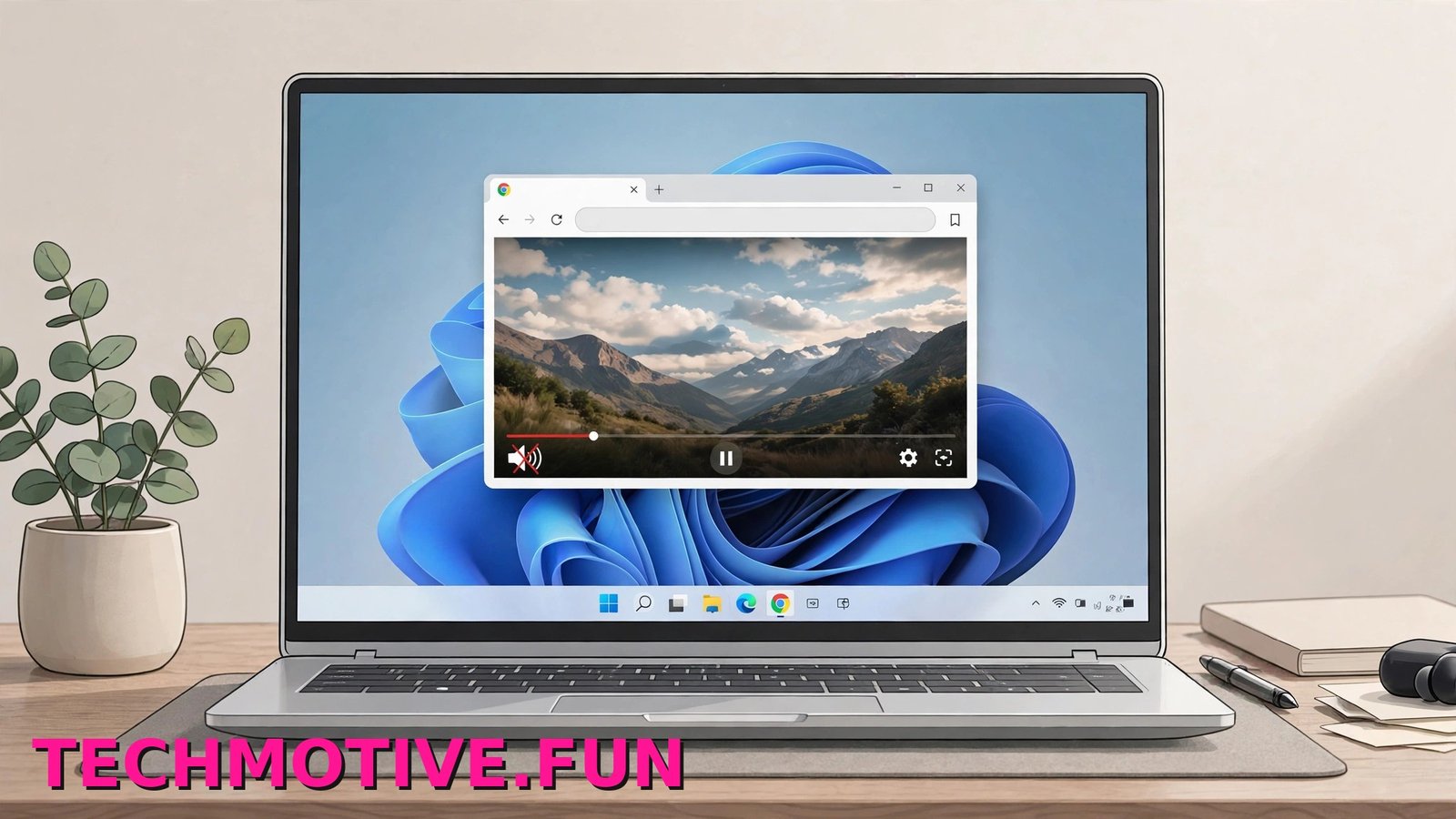
- Look at the tab that is playing the video or music. If you see a small speaker icon with a line through it, the tab is muted.
- Right-click that tab and select Unmute site if it appears.
- Check the volume slider inside the player itself. YouTube, streaming sites, and meeting tools all have their own mute button, and it is easy to knock by accident.
- Turn your Windows volume up using the speaker icon in the taskbar, and make sure the sound is not muted there either.
Next, try to narrow the problem down. Open a different website in Chrome and play something with sound. Then open the same kind of content in another browser, such as Edge or Firefox. This one test tells you a lot:
- If sound works on other sites but not one page, the problem is likely that single site or its player.
- If Chrome is silent everywhere but another browser plays sound fine, the problem is inside Chrome or its Windows settings.
- If nothing on the computer makes sound, the problem is wider than Chrome. It may be your speakers, headphones, or the Windows output device.
Also check any connected headphones or Bluetooth speaker, since Windows may be sending the audio there instead of to the speakers in front of you.
Why Chrome Loses Its Sound
Chrome rarely goes quiet for no reason. Most cases of no sound in Chrome trace back to one of a handful of causes, and knowing them makes the fixes below much less random.
A site permission is blocking sound. Chrome lets every website have its own sound setting. If a site ended up on the blocked list, that site will stay silent while everything else works. This is a common reason Chrome has no sound on YouTube for one person and works fine for another.
Windows switched your output device. Plug in a monitor, pair Bluetooth headphones, or join a call, and Windows may quietly change where sound goes. Chrome keeps playing, but the audio is going to a device you are not listening to.
Chrome is muted in the Volume Mixer. Windows gives every app its own volume control. Chrome can be set to zero there while the rest of the system sounds normal, which is why sound can work in other apps but not Chrome.
An extension is interfering. Ad blockers, privacy tools, and media extensions sit between Chrome and the page. Most behave well, but one bad update or one clashing pair can break audio on video sites.
Your audio driver is outdated or glitchy. The driver is the software that lets Windows talk to your sound hardware. After a Windows update, an old driver sometimes stops working properly.
Windows audio enhancements are causing trouble. These are processing effects meant to improve sound. On some computers they conflict with certain apps and cause crackling, delays, or complete silence.
With those causes in mind, work through the fixes in order. Start at the top, test Chrome after each one, and stop as soon as the sound comes back.
The Fixes, From Easiest to Most Involved
Fix 1: Unmute the Tab and Allow Site Sound
A muted tab or a blocked site permission is the simplest explanation, so clear it first.
- Open the page that has no sound.
- Right-click its tab at the top of Chrome and choose Unmute site if you see it.
- Click the tune icon (the small sliders icon) to the left of the website address in the address bar.
- Select Site settings.
- Find Sound in the list and set it to Allow.
- Reload the page and play the video again.
To check the general setting for all sites:
- Open Chrome and go to Settings.
- Click Privacy and security, then Site settings.
- Scroll to Sound and make sure it is set so sites can play sound, rather than blocked.
- Look at the list of sites that are not allowed to play sound, and remove the site you need from that list if it appears there.
Fix 2: Check Chrome in the Windows Volume Mixer
If Chrome is muted at the Windows level, nothing you change inside the browser will help.
- Play something in Chrome so the app is actively trying to make sound.
- Open Windows Settings and go to System, then Sound.
- Scroll down and select Volume mixer.
- Find Google Chrome in the list of apps.
- Raise its slider if it is set very low or to zero, and make sure it is not muted.
Fix 3: Set the Correct Output Device
This one catches people out all the time, especially with Bluetooth headphones and HDMI monitors.
- Open Windows Settings and go to System, then Sound.
- Under Output, look at which device is selected.
- Choose the speakers or headphones you are actually using.
- Play a test sound in Windows, then return to Chrome and test again.
If you use Bluetooth headphones, turn Bluetooth off and back on, or disconnect and reconnect the headphones. Sound that starts working the moment Bluetooth reconnects tells you the connection, not Chrome, was at fault.
Fix 4: Restart Chrome and Then Windows
A restart sounds too simple, but Chrome audio not working after days of sleep mode and dozens of open tabs is often just a stuck process.
- Close Chrome completely. If it will not close normally, open Task Manager, find Google Chrome, and select End task.
- Reopen Chrome and test the sound.
- If it is still silent, restart the whole computer from the Start menu using Restart, not Shut down.
The full Windows restart also reloads your audio driver and the Windows audio services, which clears many sound faults. If Chrome misbehaves in other ways too, see our guide to fixing an unresponsive Chrome page.
Fix 5: Run the Windows Sound Troubleshooter
Windows has a built-in tool that checks common audio problems and fixes some of them on its own.
- Open Settings and go to System.
- Select Troubleshoot, then Other troubleshooters.
- Find Playing Audio and click Run.
- Follow the steps on screen, and select the device you use for sound when asked.
- When it finishes, test Chrome again.
Microsoft’s own guide to fixing sound problems in Windows covers these checks in more depth.
Fix 6: Test With Your Extensions Disabled
Extensions are a common hidden cause. The quickest test is to switch them all off at once.
- Click the three-dot menu in Chrome and go to Extensions, then Manage extensions.
- Turn off every extension using its toggle switch.
- Reload the page with no sound and test it.
- If the sound returns, turn your extensions back on one at a time, testing after each one, until the sound breaks again. The last one you enabled is the culprit.
You can also do a faster first test in an Incognito window, since most extensions are disabled there by default. Extensions that change how pages load can also slow Chrome down, so if your browser feels heavy as well as silent, see our advice on reducing Chrome’s high memory usage.
Fix 7: Update Chrome
An outdated copy of Chrome can clash with newer websites and newer Windows updates.
- Click the three-dot menu and go to Help, then About Google Chrome.
- Chrome will check for updates and install any it finds.
- Click Relaunch when prompted.
- Test the sound on the same page as before.
Google’s help page for videos and games that will not play is a useful companion here, since audio faults often show up first on video sites.
Fix 8: Update or Reinstall Your Audio Driver
If other apps also sound odd, or the troubleshooter pointed at the driver, deal with it directly through Device Manager.
- Right-click the Start button and select Device Manager.
- Expand Sound, video and game controllers.
- Right-click your audio device and choose Update driver.
- Select Search automatically for drivers and let Windows finish.
- Restart the computer and test Chrome.
If updating changes nothing, reinstalling is the next step:
- Open Device Manager again and right-click the same audio device.
- Choose Uninstall device and confirm.
- Restart the computer. Windows will reinstall a fresh copy of the driver as it starts.
- Test Chrome once you are back at the desktop.
Fix 9: Turn Off Audio Enhancements
Enhancements are meant to improve sound, but they can conflict with individual apps.
- Open Settings and go to System, then Sound.
- Click your output device to open its properties.
- Find Audio enhancements and set it to Off.
- Return to Chrome and play something.
If the sound works with enhancements off, you have found your answer, and you can simply leave them off.
Fix 10: Reset Chrome Settings
Leave this until the end. Resetting returns Chrome’s settings to their defaults and disables extensions, which clears deep settings problems. It does not delete your bookmarks, history, or saved passwords.
- Open Chrome Settings.
- Click Reset settings in the left-hand menu.
- Select Restore settings to their original defaults.
- Click Reset settings to confirm.
- Test the sound, then sign back in and re-enable the extensions you trust, one at a time.
If Chrome has also been closing tabs on its own, that points to a wider browser problem, and our guide to stopping Chrome tabs from crashing is worth working through next.
When Chrome Is Still Silent
Still silent? Do not start again from the top. Run these three checks to pin down what you are dealing with.
Test in Incognito or a new profile. Press Ctrl + Shift + N to open an Incognito window and play the same video. If sound works there, something in your main profile, usually an extension or a changed setting, is responsible. You can confirm it by clicking your profile picture in Chrome, choosing Add, and testing sound in the fresh profile.
Confirm it is really only Chrome. Play the same content in Edge or Firefox. If those browsers are silent too, stop working on Chrome. The fault is in Windows, your driver, or your hardware, so revisit the output device, the driver steps, and a different pair of speakers or headphones.
Check for a Windows update. Go to Settings, then Windows Update, and select Check for updates. Install anything waiting, restart, and test again. Occasionally an update introduces an audio bug, and occasionally the next update is the one that repairs it, so a fully updated system is the cleanest place to troubleshoot from.
Frequently Asked Questions
Why does sound work in other apps but not Chrome?
Because Windows and Chrome each have their own controls. Chrome may be muted in the Volume mixer, a site may be blocked from playing sound, or an extension may be interfering. When other apps play fine, your speakers and main Windows volume are almost certainly working, so focus on Chrome’s own settings first.
Why is chrome sound not working on just one website?
That almost always comes down to that site. Either the site is muted or blocked in Chrome’s Site settings, its own player volume is down, or the page itself has a fault. Check the tune icon next to the address bar, set Sound to Allow, reload the page, and try a different video on the same site.
Why do my Bluetooth headphones work everywhere except Chrome?
Usually Windows has split its output between devices, or the Bluetooth connection dropped its audio profile. Check Settings, System, Sound and confirm your headphones are the selected Output device while Chrome is playing. Disconnecting and reconnecting the headphones, then restarting Chrome, clears most of these cases.
Could a Windows update have broken Chrome’s sound?
Yes, it can happen. An update can replace or unsettle an audio driver, or change a default device. Run Windows Update again to catch any follow-up fix, and update your audio driver through Device Manager. If the problem began right after an update, the driver step in this article is the one most likely to help.
How do I allow sound for one specific site?
Open the site, click the tune icon to the left of its address, and choose Site settings. Set Sound to Allow, then reload the page. That change applies only to that website, so every other site keeps whatever settings it already had.
Will resetting Chrome delete my passwords or bookmarks?
No. Resetting Chrome restores its settings to the defaults, clears temporary data such as cookies, and disables your extensions, but your bookmarks, browsing history, and saved passwords stay in place. You will need to turn your extensions back on yourself.
The Bottom Line
Most cases of chrome sound not working come down to something small: a muted tab, a blocked site permission, Chrome turned down in the Volume mixer, or Windows sending audio to the wrong device. Start with the quick checks at the top of this article, then work through the fixes in order and test after each one. Save the driver reinstall and the Chrome reset for last, since they take longer and are rarely needed. In the great majority of cases, the sound is back long before you reach them.