

Windows 11 ZIP File Not Opening? Redownload, Extract, and Repair the Archive
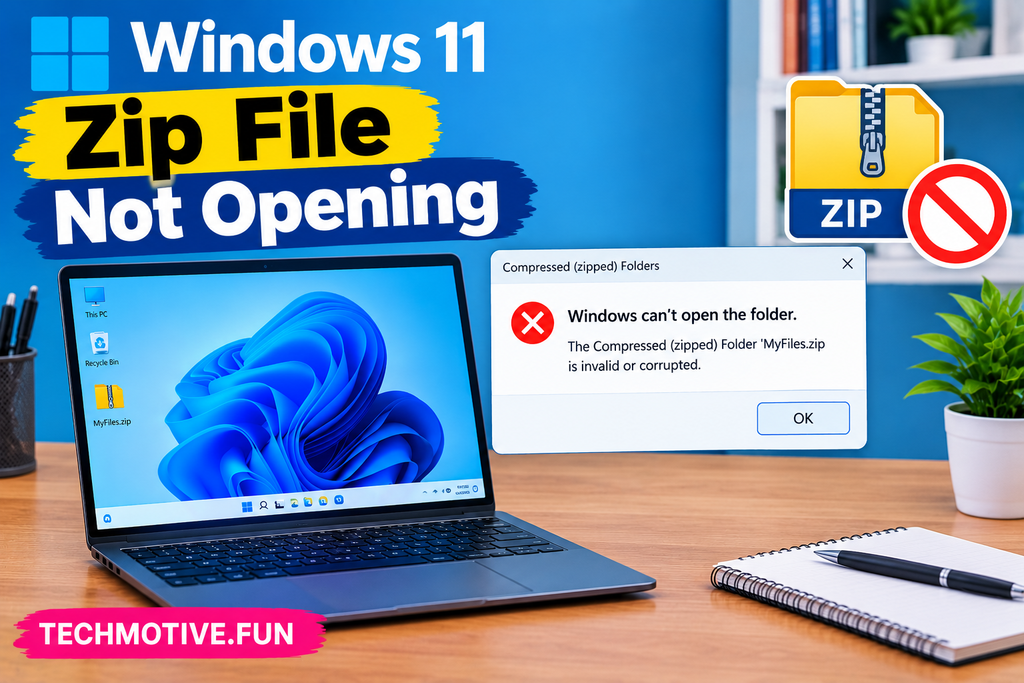
If a ZIP file is not opening in Windows 11, first try downloading it again and check whether the file is corrupted. You can also restart your PC, use Windows built-in extraction, try another archive tool, move the ZIP to another folder, and make sure you have permission to access the file.
Related Fixes: Windows 11 Apps Not Opening and Windows 11 File Explorer Not Responding
Why Is My ZIP File Not Opening in Windows 11?
ZIP files are normally easy to open in Windows 11 because File Explorer has built-in support for compressed folders. However, sometimes you may double-click a ZIP file and nothing happens, receive an error, or find that Windows cannot extract its contents.
The problem can have several causes. The ZIP file might be incomplete or corrupted, the download may have failed, or Windows could be having trouble with File Explorer.
A ZIP archive can also fail to open if it was created using a compression method that your current software doesn’t support. Password-protected or split ZIP files can cause problems as well.
Before trying complicated fixes, download the ZIP file again and see whether another ZIP file opens normally on your computer.
Also Read: Windows 11 PDF Files Not Opening? 9 Ways to Fix It
How to Fix ZIP File Not Opening in Windows 11
Restart Your Computer
Start with a simple restart. Temporary File Explorer or Windows problems can sometimes prevent compressed files from opening correctly.
Close any running programs and restart Windows 11. Once your PC starts again, locate the ZIP file and double-click it.
If it still doesn’t open, try the next fix.
Download the ZIP File Again
If the ZIP file came from a website, email, or cloud storage service, the download may have been interrupted or incomplete.
Delete the current copy and download it again from the original source.
If the file opens after downloading it again, the original copy was likely incomplete or corrupted.
Check the ZIP File Size
A quick way to identify a failed download is to check the file size.
Right-click the ZIP file and select Properties. Look at its size and compare it with the size mentioned on the website or provided by the sender, if available.
If the file is unusually small or the download appears incomplete, get a fresh copy.
Open the ZIP Using File Explorer
Windows 11 can extract ZIP files without additional software.
Right-click the ZIP file and select Extract All.
Choose where you want to extract the files and click Extract.
If Extract All works, the ZIP file is probably fine and the problem may have been caused by double-clicking or File Explorer temporarily behaving incorrectly.
Move the ZIP to Another Folder
Sometimes Windows can have trouble accessing files stored in certain locations.
Try moving the ZIP file to a simple folder such as Downloads or Documents.
Then right-click the file and select Extract All.
If the ZIP works after moving it, the original location may have had permission or path-related problems.
Check the File Permissions
If Windows says you don’t have permission to access the ZIP file, check its properties.
Right-click the file and select Properties.
Look for a security or permissions-related message. If the file was downloaded from the internet, you may also see an Unblock option on the General tab.
If Unblock appears and you trust the file’s source, select it, click Apply, and try opening the ZIP again.
Try Another ZIP File
This is a useful test because it tells you whether the problem is with Windows or with one particular archive.
Find another ZIP file on your computer and try opening it.
If other ZIP files open normally, the original ZIP is likely damaged, incomplete, password-protected, or created in a format your current extraction tool doesn’t support.
If no ZIP files open, continue with the fixes below.
Use Another Compression Tool
If Windows File Explorer can’t open the archive, try a reputable archive utility such as 7-Zip or WinRAR.
Install the latest version from its official source and then right-click the ZIP file to open or extract it.
This can help when the archive uses a compression method that Windows doesn’t handle properly.
If another tool also reports that the archive is corrupted, you’ll probably need to download or obtain the ZIP file again.
Repair Windows System Files
If ZIP files suddenly stopped working across your computer, corrupted Windows system files could be contributing to the problem.
Open Windows Terminal or Command Prompt as administrator and run:
sfc /scannow
Wait for the scan to finish. Windows will check protected system files and attempt to repair damaged ones.
Restart your computer after the scan completes and try opening the ZIP file again.
What If the ZIP File Is Still Not Opening?
If you’ve tried all the fixes above and the ZIP file still won’t open, determine whether the problem is with the specific archive or Windows itself.
Try opening several different ZIP files. If they all fail, consider repairing Windows system files and testing another archive application.
If only one ZIP file refuses to open, the archive is probably damaged or incomplete. Ask the sender to create and send a new ZIP file, or download it again from the original source.
Also check whether the archive is password-protected. Some ZIP files require a password before their contents can be extracted.
If the ZIP contains important files, don’t repeatedly modify or rename the archive in an attempt to repair it. Keep the original copy and work from a duplicate when possible.
Frequently Asked Questions
Why is my ZIP file not opening in Windows 11?
The ZIP file may be corrupted, incomplete, password-protected, or created using a compression method that Windows doesn’t support properly. File Explorer or Windows system problems can also cause ZIP files to fail.
How do I open a ZIP file in Windows 11?
Right-click the ZIP file and select Extract All. Choose a destination folder and click Extract. Windows 11 can handle many standard ZIP files without requiring additional software.
Why does Windows say my ZIP file is invalid?
This usually means the archive is damaged, incomplete, or not actually a valid ZIP file. Try downloading it again or asking the sender to create a new archive.
Can I open a ZIP file without installing software?
Yes. Windows 11 has built-in support for standard ZIP files. Right-click the archive and select Extract All to unpack its contents.
What should I do if Extract All is missing?
If Extract All doesn’t appear, Windows may not be recognizing the file as a standard ZIP archive. Check the file extension and try opening it with another archive utility.
Why won’t my password-protected ZIP file open?
Some password-protected archives require a compatible extraction program. Make sure you’re using the correct password and a trusted archive utility that supports the type of encryption used by the ZIP file.
How do I know if a ZIP file is corrupted?
Try opening another ZIP file on your computer. If other ZIP files work but one specific archive doesn’t, the problematic file may be damaged or incomplete. Downloading it again is usually the easiest first step.
Can a Windows update cause ZIP files to stop opening?
A Windows update can occasionally change file associations or affect system components. If the problem started immediately after an update, restart Windows, install any pending updates, and test the ZIP file again.
Read SOlution At official website: Microsoft Windows



2 Comments