
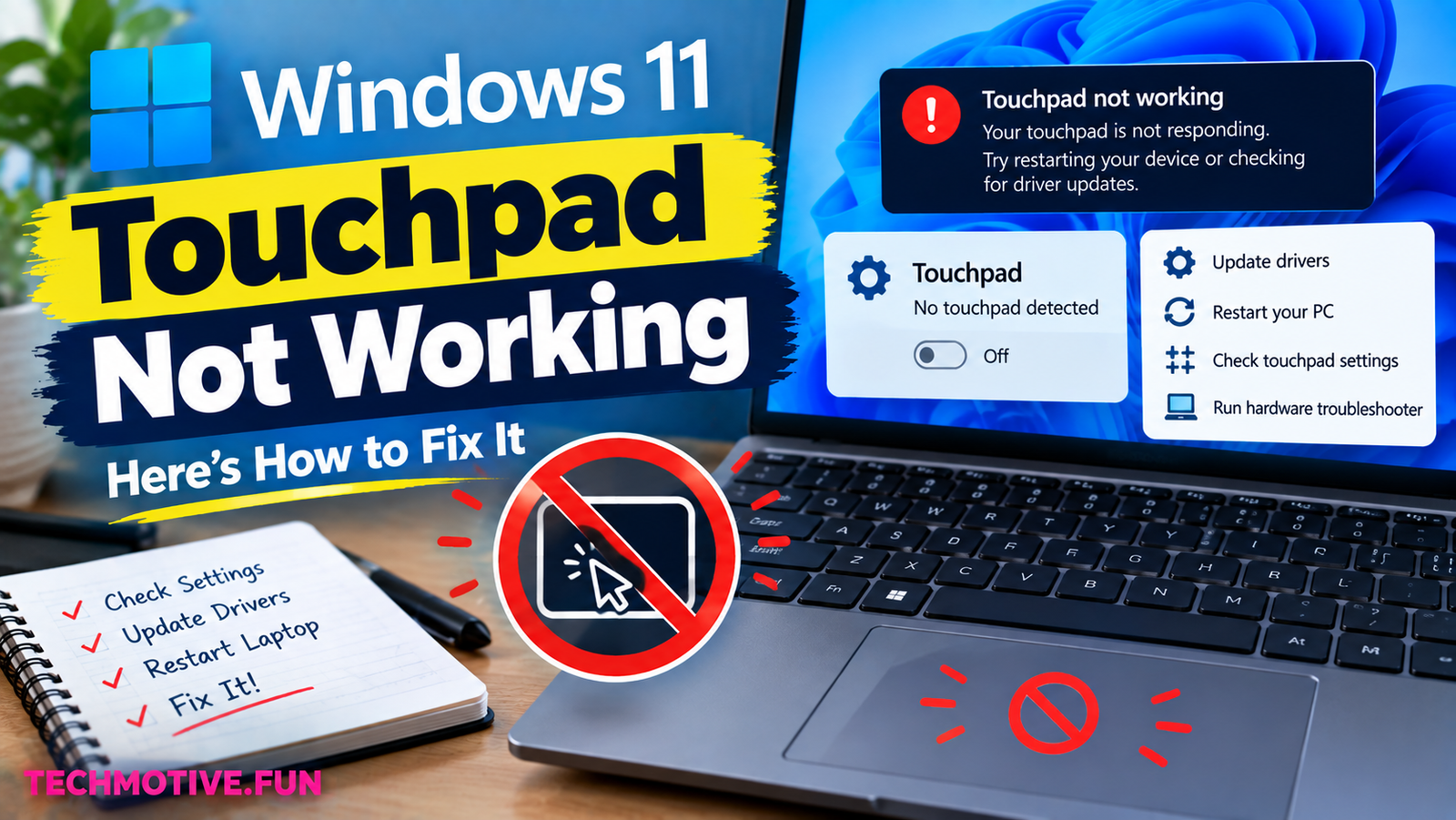
Windows 11 Touchpad Not Working? Check the Shortcut, Settings, and Driver
If your touchpad is not working in Windows 11, first check whether it is disabled using the keyboard shortcut or Windows settings. Then restart your laptop, update or reinstall the touchpad driver, check Device Manager, and run Windows troubleshooting. If the issue started after an update, rolling back the driver may also help.
Related Fixes: Windows 11 Mouse Lagging, Windows 11 Keyboard Not Responding, and Windows 11 Drag and Drop Not Working
Why Is My Touchpad Not Working in Windows 11?
A touchpad that suddenly stops responding can make your laptop difficult to use, especially when you don’t have a mouse nearby.
In many cases, the touchpad hasn’t actually failed. It may have been disabled accidentally, Windows may have changed a setting, or the touchpad driver may not be working correctly.
Some common reasons include:
- The touchpad was accidentally disabled.
- A keyboard shortcut turned off the touchpad.
- The touchpad is disabled in Windows settings.
- The touchpad driver is outdated or corrupted.
- Windows isn’t detecting the touchpad correctly.
- A recent Windows update caused a driver problem.
- The touchpad is disabled in Device Manager.
- A connected mouse has disabled the touchpad.
- There may be a hardware problem.
Before trying more advanced solutions, check your laptop’s keyboard for a touchpad icon. Some laptops have a dedicated key or an Fn + function key combination that can turn the touchpad on or off.
How to Fix Touchpad Not Working in Windows 11
1. Check the Touchpad Keyboard Shortcut
The touchpad may have been disabled accidentally.
Look at the function keys on your laptop keyboard for an icon that looks like a touchpad. Depending on the laptop manufacturer, you may need to press that key alone or use it together with the Fn key.
Press the appropriate key combination and try moving your finger across the touchpad.
If you don’t know which key controls your touchpad, check your laptop’s manual or manufacturer’s support information.
2. Make Sure the Touchpad Is Enabled in Settings
Windows 11 has a setting that allows you to turn the touchpad on or off.
Go to:
Settings → Bluetooth & devices → Touchpad
Make sure the Touchpad option is turned on.
If you have connected a USB or Bluetooth mouse, also check the available touchpad settings. Some laptops can disable the touchpad automatically when a mouse is connected.
After enabling the touchpad, move your finger across it to see if the cursor responds.
3. Restart Your Laptop
Sometimes the touchpad stops responding because of a temporary Windows or driver issue.
Save your work and restart your laptop.
Once Windows starts again, test the touchpad before opening other applications.
A restart can reload the touchpad driver and related Windows services, which may be enough to fix a temporary problem.
4. Check the Touchpad in Device Manager
Device Manager can help you determine whether Windows is detecting your touchpad.
Right-click the Start button and open Device Manager.
Look for your touchpad under sections such as:
- Human Interface Devices
- Mice and other pointing devices
The exact name can vary depending on your laptop.
If you see a warning icon, Windows may have detected a driver problem.
If the touchpad device is disabled, right-click it and select Enable device.
5. Update the Touchpad Driver
An outdated or incompatible driver can cause the touchpad to stop working.
Open Device Manager and find the touchpad device.
Right-click it and select:
Update driver → Search automatically for drivers
Allow Windows to search for an available driver.
You can also visit your laptop manufacturer’s official support website and download the latest touchpad or chipset driver designed for your exact laptop model.
Restart Windows after installing the driver.
6. Reinstall the Touchpad Driver
If updating the driver doesn’t solve the problem, reinstalling it may help.
Open Device Manager and find your touchpad under Mice and other pointing devices or Human Interface Devices.
Right-click the device and choose Uninstall device.
Follow the instructions and restart your laptop.
Windows may automatically detect the touchpad and reinstall the driver after restarting.
If it doesn’t, download the correct driver from your laptop manufacturer’s official support website.
7. Roll Back the Driver After an Update
If your touchpad worked normally before a recent Windows or driver update, the new driver may be causing the problem.
Open Device Manager, right-click your touchpad, and select Properties.
Open the Driver tab and look for Roll Back Driver.
If the option is available, follow the instructions and restart your laptop.
This option is particularly useful when the touchpad stopped working immediately after a driver change.
8. Disconnect External Mice
Some laptops automatically disable the touchpad when an external mouse is connected.
If you’re using a USB or Bluetooth mouse, disconnect it temporarily.
Then go to:
Settings → Bluetooth & devices → Touchpad
Check the available settings related to keeping the touchpad enabled when a mouse is connected.
Test the touchpad again after disconnecting the external mouse.
9. Run Windows Troubleshooting
Windows 11 includes troubleshooting options that can help identify hardware and system problems.
Go to:
Settings → System → Troubleshoot → Other troubleshooters
Run any relevant troubleshooting option available for your hardware or devices.
Follow the instructions shown by Windows.
After the troubleshooting process finishes, restart your laptop and check whether the touchpad is responding again.
What If My Touchpad Is Still Not Working?
If your touchpad is still not working after trying these fixes, connect a USB or Bluetooth mouse so you can continue using the laptop while troubleshooting.
Next, check your laptop manufacturer’s support page for the latest touchpad, chipset, and BIOS updates available for your exact model.
If the touchpad does not appear in Device Manager at all, Windows may not be detecting the hardware. This can sometimes be caused by missing drivers, firmware settings, or a hardware problem.
You can also enter your laptop’s BIOS or UEFI settings and check whether the internal pointing device or touchpad is enabled. The exact option and steps depend on the manufacturer.
If the touchpad stopped working after a Windows update, check for additional Windows updates or try rolling back the affected driver if that option is available.
If none of these solutions work and the touchpad remains completely unresponsive, the problem could be hardware-related and may require professional inspection.
Frequently Asked Questions
Why is my touchpad not working in Windows 11?
Your touchpad may be disabled, have a driver problem, or be affected by a Windows setting or recent update. Check the touchpad settings first, then Device Manager and the touchpad driver.
How do I turn my touchpad back on in Windows 11?
Go to Settings → Bluetooth & devices → Touchpad and make sure the Touchpad option is enabled. You can also check your laptop’s keyboard for a touchpad enable/disable shortcut.
Why did my touchpad stop working after a Windows update?
A Windows update can sometimes change drivers or device settings. Try updating the touchpad driver, reinstalling it, or using Roll Back Driver if the option is available.
How do I update my touchpad driver?
Open Device Manager, find the touchpad under Mice and other pointing devices or Human Interface Devices, right-click it, and select Update driver.
Can a mouse disable my laptop touchpad?
Yes. Some laptops have settings that automatically disable the touchpad when an external mouse is connected. Check the touchpad settings and disconnect the mouse temporarily to test it.
Why is my touchpad missing from Device Manager?
Windows may not be detecting the touchpad because of a missing driver, disabled hardware, firmware settings, or a hardware issue. Installing the manufacturer’s touchpad or chipset driver may help.
How do I use my laptop if the touchpad isn’t working?
You can connect a USB or Bluetooth mouse as a temporary replacement. You can also use Windows keyboard shortcuts to navigate through many settings without a touchpad.
Should I reinstall Windows if my touchpad doesn’t work?
Usually, reinstalling Windows isn’t necessary. Try checking touchpad settings, Device Manager, drivers, updates, and your laptop manufacturer’s support resources first. If the hardware itself has failed, reinstalling Windows will not fix it.



One Comment