
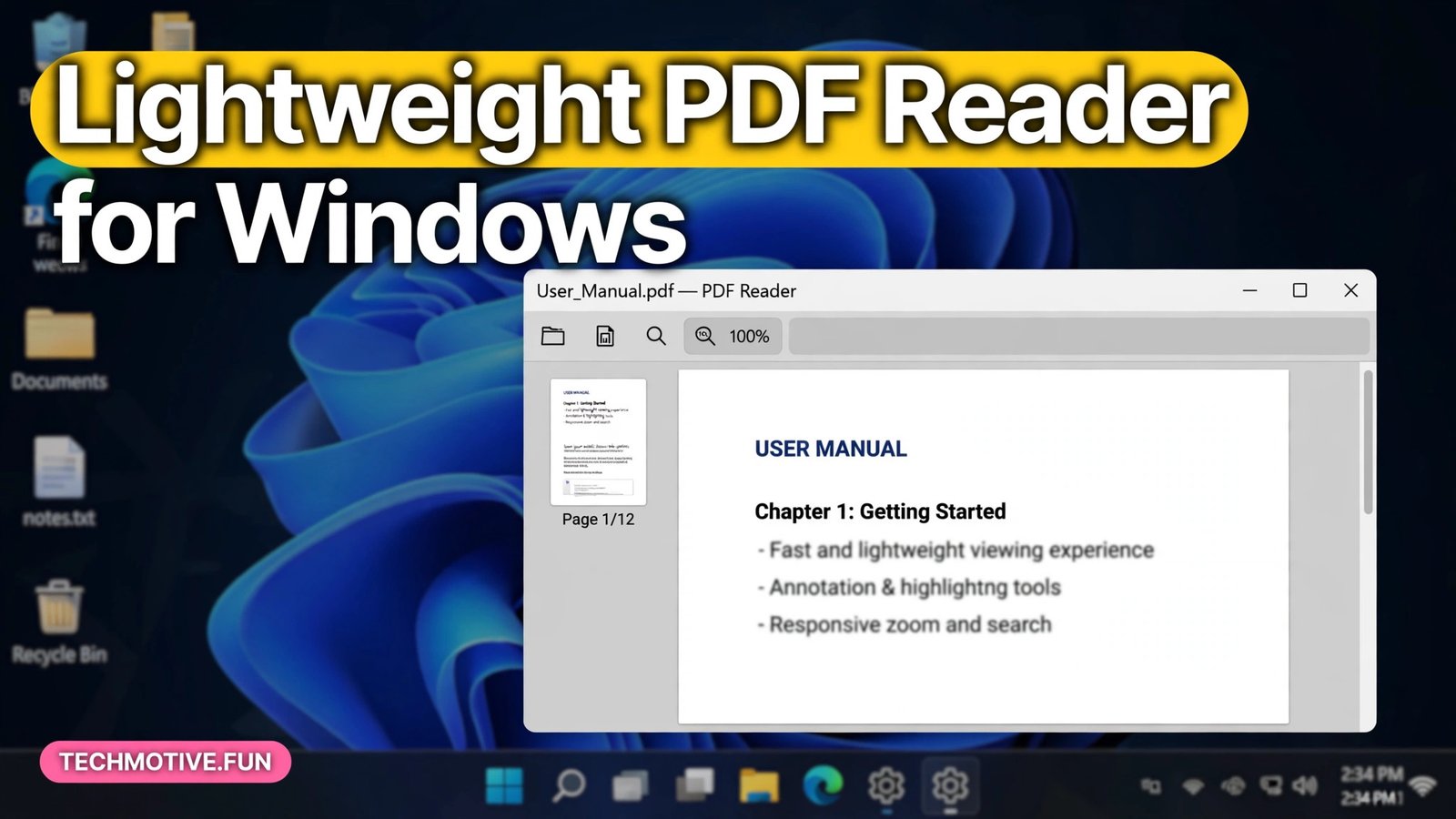
Lightweight PDF Reader for Windows: Fast Options That Won’t Slow Your PC
Opening a PDF should be instant. You double-click a file, and it appears. On many Windows PCs, though, it is not instant at all. The reader takes several seconds to load, the fan spins up, and a simple one-page document feels heavier than it should. That slowness usually has nothing to do with the PDF itself. It comes from a reader that does far more than reading.
A lightweight PDF reader does the opposite. It opens quickly, uses little memory, and stays out of your way. It may not edit PDFs, sign forms, or convert files, but if your main job is reading documents, that focus is exactly the point. This guide explains what lightweight really means, which kinds of readers qualify, and how to choose one that fits the way you work.
What Makes a Reader Lightweight?
Lightweight is not a single specification. It is a combination of traits that together make a reader feel fast, especially on an older or modest PC.
The first trait is start-up speed. A lightweight reader opens in a moment, even when you launch it cold, rather than making you wait while it loads plugins, checks for updates, or restores a previous session. If you open PDFs many times a day, those seconds add up quickly.
The second trait is low resource use. A light reader should not claim a large share of your memory or processor just to show a document, and it should not keep heavy background services running when it is closed. On a PC with limited memory, this is the difference between a reader that feels invisible and one that slows everything else down.
The third trait is simplicity. A lightweight reader focuses on viewing, searching, zooming, and printing, with a clean interface that does not bury those basics under editing panels and toolbars. Extra features are not bad in themselves, but each one adds weight, and a reader that tries to do everything will rarely feel light.
None of this means a lightweight reader is weak. A good one handles large documents, renders pages accurately, searches text quickly, and prints cleanly. It simply leaves the heavy editing work to other tools, which is a sensible trade for most readers.
The Option You Already Have: Your Browser
Before you install anything, consider the reader you already have. Modern browsers, including Microsoft Edge and Chrome, open PDFs directly, with search, zoom, and printing built in. For occasional reading, a browser is often the lightest option of all, because it adds no new software to your PC.
A browser reader is a good fit if you open PDFs from email or the web, read them once, and move on. It is less ideal if you read long documents every day, because browser tabs are easy to lose, bookmarks and annotations may not carry over, and a browser uses more memory than a dedicated light reader once many tabs are open.
If you already read PDFs in a browser and it feels fast enough, there is no need to change. A dedicated reader earns its place when you want faster opening, a cleaner reading view, or features such as a proper table of contents sidebar and remembered reading position.
Dedicated Light Readers Worth Trying
SumatraPDF is the classic example of a lightweight reader, and it is the first name most experienced Windows users mention. It is small, opens almost instantly, and focuses on reading, with support for PDFs and several other document formats. Its interface is plain, which is part of the appeal: there is nothing to configure before you start reading, and nothing competing for your attention.
Adobe Acrobat Reader is the official reader from the company behind the PDF format, and it is the safest choice when a document does not display correctly elsewhere. It is heavier than SumatraPDF, and it includes features and prompts for paid services that a light reader would not, but it remains the reference for compatibility. If a form, a signed document, or a complex layout looks wrong in another reader, opening it in Acrobat Reader is a sensible test.
Foxit PDF Reader sits between those two. It is a full-featured reader with annotation and form tools, so it is not as minimal as SumatraPDF, but it is generally lighter than a full editing suite. It suits readers who want basic annotation, such as highlighting and comments, without moving to a heavyweight editor.
The right choice depends on your documents. If you read plain reports, manuals, and articles, a minimal reader will feel fastest. If you regularly fill in forms or annotate documents, a reader with those tools, even if slightly heavier, will save you from switching apps constantly.
What About Editing, Signing, and Converting?
A common mistake is to judge a lightweight reader by features it never promised. If you need to edit PDF text, combine files, or convert PDFs to other formats, a viewing-only reader will disappoint you, and that is not a fault in the reader. It is a mismatch between the tool and the task.
For occasional editing, a separate tool is often a better answer than a heavier reader. Many people pair a light reader for daily reading with a dedicated editor, or a web-based tool, for the rare occasions they need to change a file. That combination keeps everyday reading fast while still covering the occasional edit.
This pairing approach is familiar from the wider world of free software. A free alternative to Adobe Acrobat may suit editing better than a minimal reader, while a light reader suits the daily job of simply opening and reading files. Choosing tools by task, rather than looking for one tool that does everything, usually gives the faster result.
Choosing Based on Your PC and Your Documents
Start by thinking about your PC. On a modern machine with plenty of memory, the difference between readers is smaller, and you can reasonably choose based on features rather than weight. On an older PC, or a laptop with limited memory, weight matters more, and a minimal reader will make the biggest difference.
Next, think about your documents. Short articles and manuals place few demands on any reader. Large scanned documents, textbooks with hundreds of pages, and files with complex graphics are more demanding, and a reader that handles them smoothly is worth more than one that merely opens quickly. Test a reader with your own largest file, not with a tiny sample, before you settle on it.
Then think about how you read. If you jump between sections, a good table of contents sidebar and fast search matter more than a pretty interface. If you read on a small laptop screen, a clean full-screen mode and comfortable zoom controls matter more than annotation tools. If you print often, check that printing is straightforward and that page sizes come out correctly.
Finally, consider trust. PDF readers come from many developers, and a reader has access to the documents you open. Download readers only from the developer’s own website or from the Microsoft Store, and avoid repackaged installers from download sites that bundle extra software. A reader that arrives with unwanted extras is not lightweight in any sense that matters.
Setting Your Default Reader
Once you have chosen a reader, set it as the default for PDF files, so double-clicking a PDF opens it in your chosen app instead of the previous one. On Windows, right-click any PDF file, choose Open with, then Choose another app, select your reader, and tick the option to always use it for PDF files.
If PDFs keep opening in the wrong app after you do this, check the default apps settings. Open Settings, then Apps, then Default apps, and confirm that PDF is assigned to your chosen reader. Browser updates and reader updates can occasionally reset this association, so it is worth checking again if PDFs suddenly start opening elsewhere.
You can also set different behaviour for different situations. Some people keep a light reader as the default for double-clicking files, while still opening web PDFs in a browser tab. That split works well, because it keeps local reading fast without changing how web links behave.
When a PDF Is Slow in Every Reader
Sometimes no reader feels fast, and the problem is the file, not the app. Scanned PDFs, which are really images of pages rather than text, are much heavier than text-based PDFs, and a long scanned book will be slow in any reader. Files with very large embedded images, or with hundreds of pages, also take longer to open and to scroll through.
In that case, a few checks help. First, make sure the file is stored locally, not on a slow network drive or a nearly full disk, because reading from a slow location will feel like a slow reader. Second, close other heavy apps while you test, so you can tell whether the reader or the PC is the bottleneck. Third, try the file in a second reader: if it is slow everywhere, the file is the likely cause.
A PC that struggles with every document may benefit from the same kind of clean-up that helps other slow software. Removing unneeded startup apps and keeping free disk space available will help a reader, just as it helps a system cleaner alternative help the PC as a whole, but do not expect a cleaner to fix a genuinely heavy file.
A Quick Shortlist for Different Readers
If you want the fastest possible reading experience and you mainly view documents, start with a minimal reader such as SumatraPDF. If compatibility matters most, because you deal with forms and signed documents, keep Adobe Acrobat Reader available, even if it is not your daily default. If you want light reading plus basic annotation, try Foxit PDF Reader and see whether its extra tools justify its extra weight for you.
If you only open PDFs occasionally, your browser may already be enough, and installing another app adds nothing. And if you are a heavy editor, do not judge a light reader by its editing features. Use it for reading, and keep a separate editor for the work it was designed to do.
For a first taste of how free software can replace a heavyweight tool without losing the essentials, the comparison in our guide to a free alternative to Photoshop for beginners follows the same logic: match the tool to the task, and keep the everyday tool light.
Frequently Asked Questions
What is the lightest PDF reader for Windows?
Minimal readers such as SumatraPDF are widely regarded as among the lightest, because they focus on viewing and open very quickly. The best choice still depends on your documents, so test a reader with your own largest file before deciding.
Is a browser good enough as a PDF reader?
For occasional reading, yes. Browsers open PDFs with search, zoom, and printing built in, and they need no extra install. A dedicated reader is better for daily, long-form reading, where bookmarks, a contents sidebar, and faster opening matter more.
Can a lightweight reader handle forms and annotations?
Some can, but minimal readers generally focus on viewing. If you need to fill in forms or annotate regularly, choose a reader that lists those features, such as Foxit PDF Reader or Adobe Acrobat Reader, and accept a little extra weight in exchange.
Why is my PDF slow even in a light reader?
The file itself may be heavy, especially if it is scanned or contains large images. Check that the file is stored locally, close other heavy apps while testing, and try the file in a second reader to see whether the slowness follows the file or the app.
How do I stop PDFs from opening in the wrong app?
Right-click a PDF, choose Open with, then Choose another app, select your preferred reader, and tick the option to always use it. If the setting resets after an update, check Settings, then Apps, then Default apps, and reassign PDF files there.
Conclusion
A lightweight PDF reader for Windows is not about finding a single perfect app. It is about matching the reader to the way you actually read. For fast, everyday viewing, a minimal reader or even your browser will beat a heavyweight suite. For forms and complex documents, a more complete reader is worth its extra weight. Choose by testing with your own files, set your default once, and you will spend less time waiting for documents to open and more time actually reading them.
Sources
- Adobe Acrobat Reader: https://www.adobe.com/acrobat/pdf-reader.html
- SumatraPDF: https://www.sumatrapdfreader.org



One Comment