The Best Free Alternative to CCleaner for Windows: Safe Picks by Job
Most people do not open a cleaner because they love cleaning. They open one because a drive is nearly full, a laptop feels sluggish at startup, or a program refuses to uninstall cleanly. That is why searching for a single free alternative to CCleaner often leads to disappointment. No one tool does every job equally well, and the safest replacement is usually a small combination of tools, each chosen for one clear task.
This guide starts with what people actually use CCleaner for, then matches each job to a free option. It also includes a pick-by-need guide and a warning about the feature to avoid in almost every cleaner: registry cleaning.
What People Actually Use CCleaner For
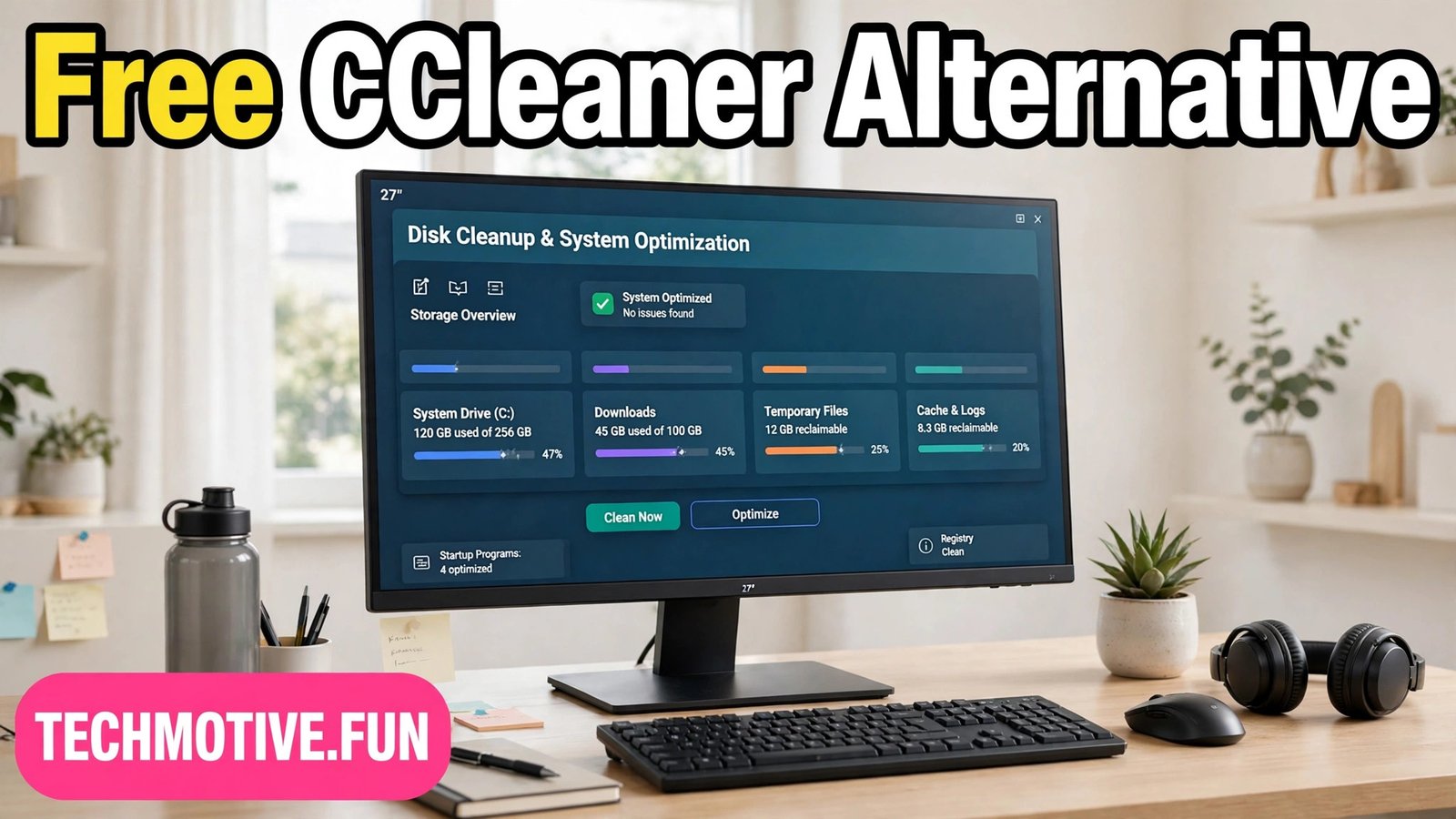
CCleaner became popular because it bundled several small chores into one window. For many users, the main attraction was deleting temporary files, browser caches, and leftover junk that builds up over weeks of normal use. Those files are rarely harmful on their own, but they do take up space, and clearing them can make a cramped drive feel roomier.
A second common use was uninstalling programs. Windows has its own uninstaller, but people liked having a list of installed software in one place, especially when they wanted to remove several programs in one sitting. The appeal was convenience, not power. A cleaner that lists everything clearly saves a lot of clicking through settings menus.
Startup management was the third draw. Many programs add themselves to startup without asking clearly, and each one adds seconds to boot time. A tool that shows what launches at startup, and lets you disable entries you do not need, feels like an instant speed boost. In reality, it mostly removes delay rather than making the computer itself faster.
Finally, some users liked the disk analysis view: a visual breakdown of what is eating their storage. Large video files, forgotten downloads, and old installers are often the real culprits behind a full drive. Seeing them grouped by size makes deciding what to delete much easier than guessing folder by folder.
Before You Install Any Cleaner: A Safety Note
Cleaning tools delete files by design, so they deserve more caution than most free software. Only download a cleaner from its official website or from the Microsoft Store, never from a download aggregator that bundles extra installers. Fake cleaner websites are a well-known trap, and one wrong download can cause far more harm than a few gigabytes of temporary files ever will.
Back up anything important before a major clean. You do not need a full system image every time you delete a browser cache, but if you plan to remove large numbers of files, uninstall several programs, or change startup entries, make sure your documents and photos are copied somewhere safe first. A backup turns a mistake from a disaster into a minor inconvenience.
Avoid registry cleaning entirely, unless you have a specific, well-understood reason and a backup of the registry. The Windows registry is a database of system settings, and aggressive registry cleaners can remove entries that programs or Windows itself still need. The performance benefit is usually negligible on a modern system, so if a tool pushes registry cleaning as its headline feature, treat that as a warning sign, not a selling point.
For Junk Cleaning: BleachBit
If your main goal is the classic CCleaner job — clearing temporary files, caches, logs, and other leftover junk — BleachBit is the closest free alternative in spirit. It is open-source software, which means its code can be inspected by anyone, and it focuses on cleaning rather than on selling upgrades or bundling unrelated features.
BleachBit lets you tick exactly what you want to clean, application by application, and preview the result before anything is deleted. That preview step is important. It shows how much space each category would free, so you can untick anything you would rather keep, such as cookies for sites you visit daily. Take your time on the first run and read the list rather than accepting every default.
One area where BleachBit asks for extra care is its advanced options. Some entries clean more deeply than a casual user expects, such as wiping free space or removing data that cannot be recovered. Those options have their uses, but they are not part of a routine tidy-up. For everyday cleaning, stick to temporary files, caches, and logs, and leave the destructive options alone unless you know exactly why you need them.
For an Official, Low-Drama Option: Microsoft PC Manager
Some readers would rather not install a third-party cleaner at all, and that is a reasonable instinct. Microsoft PC Manager is Microsoft’s own free utility for Windows, and it covers the gentler side of PC maintenance: health checks, junk cleanup, storage management, and pop-up management in one straightforward window.
Its main advantage is trust and simplicity. Because it comes from Microsoft, it is designed around Windows’ own maintenance tools rather than around aggressive deletion. The health check scans for junk files and potential issues, then suggests actions you can review before applying them. For a user who wants a tidy-up without learning a new tool’s quirks, that guided approach is reassuring.
PC Manager also includes storage tools that help you find large files and use Storage Sense, the built-in Windows feature that frees space automatically. If your real problem is a full drive rather than a slow computer, these storage views are often more useful than any junk cleaner, because they point at the big files instead of shaving megabytes off caches.
For Uninstalling Programs Properly
Uninstalling is one job where a cleaner-style tool can genuinely help, but only if it removes leftovers safely. Windows Settings already lists installed apps and lets you uninstall them, and for many programs that is enough. The trouble starts with programs that leave behind folders, shortcuts, or startup entries after the standard uninstall.
A dedicated uninstaller watches what an uninstall removes and then offers to clean up the leftovers it finds. That is useful, but it also carries risk, because leftover files are not always safe to delete automatically. A cautious approach is to uninstall through Windows first, then check whether the program’s folder still exists and remove it manually if you are sure it belongs to that program alone.
If you prefer a dedicated uninstaller, look for one that shows you exactly what it plans to delete before it acts, and that creates a restore point before making changes. Avoid uninstallers that bundle driver updaters, registry cleaners, or system optimisers into the same install. A tool that tries to do everything is more likely to bundle something you did not want.
For Startup Management: Task Manager First
Startup management is one area where you may not need a new tool at all. Windows Task Manager has a Startup tab that lists programs launching at boot, shows their impact, and lets you disable entries with a right-click. For most people, this is the entire job. Disable one or two heavy programs you do not need at boot, restart, and notice the difference.
The key is restraint. Disabling your chat app or cloud storage sync at startup is harmless if you open those apps manually when you need them. Disabling security software, audio drivers, or hardware utilities is not. If you do not recognise an entry, leave it enabled and look it up before changing it. A faster boot is not worth a broken laptop.
Startup cleaners that promise to speed up your PC by disabling dozens of entries at once are usually doing more harm than good. A few thoughtful changes beat a bulk cleanup every time, and your computer will thank you by actually starting correctly.
For Disk Analysis: Find the Big Files First
When a drive is full, junk cleaning alone rarely solves the problem. Temporary files might free a gigabyte or two, while a single forgotten video project can occupy far more room. That is why disk analysis deserves its own step before any cleaner runs.
A disk analysis tool scans a drive and shows folders and files by size, often as a visual map or a sorted list. The visual format helps because it makes the biggest offenders obvious at a glance. You might discover an old downloads folder, duplicate backups, or a game you no longer play taking up far more room than all your caches combined.
Once you can see the big files, the decision is usually simple. Delete what you no longer need, move large media to an external drive, or uninstall a program you have finished with. This kind of cleanup frees real space and does not depend on a cleaner guessing which temporary files are safe.
Do Not Forget the Tools Already on Your PC
Before installing any third-party cleaner, it is worth remembering how much Windows already does on its own. Storage Sense can automatically free space by removing temporary files and emptying the Recycle Bin on a schedule you choose. Disk Cleanup, the older built-in tool, still handles temporary files, system logs, and previous Windows installations. Neither tool needs a download, and neither will try to sell you anything.
The honest conclusion is that many users do not need a CCleaner replacement at all. They need Storage Sense turned on, a quick pass through Task Manager’s startup list, and an occasional look at what is filling their drive. Adding a third-party cleaner on top of that is optional, not essential, and it should only happen when it solves a specific problem the built-in tools cannot.
Pick by Need: A Quick Guide
If your drive is nearly full, start with disk analysis and Storage Sense, not with a junk cleaner. Find the large files first, remove what you no longer need, and only then run a cache cleanup for the remaining space. This order avoids deleting small files while the real problem sits untouched.
If your computer is slow to start, open Task Manager and disable a few startup programs you recognise and do not need immediately. Restart and compare. If boot time barely changes, the bottleneck is probably elsewhere, such as a nearly full drive or an ageing hard disk, and no cleaner will fix that.
If you want a regular, gentle tidy-up, BleachBit for junk cleaning or Microsoft PC Manager for a guided health check are both sensible choices. Pick one, learn its preview screen, and run it occasionally rather than daily. Cleaning is maintenance, not a daily ritual, and over-cleaning can remove useful caches that your programs then have to rebuild.
The Same Pick-by-Job Logic for Other Paid Software
Replacing CCleaner is part of a wider habit: matching each job to a free tool instead of paying for one bloated suite. The same thinking applies when you swap out other paid programs. If you record tutorials, for example, a free alternative to Camtasia can cover screen recording without a subscription. If you capture and annotate screenshots all day, a free alternative to Snagit may do everything you actually use. And if you design graphics occasionally rather than professionally, a free alternative to Illustrator is often enough. In each case, list the features you truly use before choosing, just as you did for cleaning.
What to Avoid in a CCleaner Replacement
The most important thing to avoid is any tool that makes registry cleaning its main feature. Registry cleaners promise speed and stability, but on modern Windows they usually deliver neither, and they introduce real risk. A single wrong deletion can break a program or cause confusing errors that are hard to trace back to the cleaner. Skip registry cleaning entirely for routine maintenance.
Finally, avoid installing several cleaners at once. Running two or three tools that all delete temporary files does not clean your computer three times as well. It increases the chance of conflicts, duplicated work, and accidental deletions. Choose one tool per job, use it deliberately, and uninstall anything you stop using.
FAQ
Is there a completely free alternative to CCleaner?
Yes. BleachBit is open-source and free, Microsoft PC Manager is free from Microsoft, and Windows includes Storage Sense, Disk Cleanup, and Task Manager. Choose by the job you need done, not by finding one tool that copies every CCleaner feature.
Is it safe to use a free PC cleaner on Windows?
It can be safe if you download only from official sources, preview what will be deleted, and avoid registry cleaning. The main risks are fake download sites, bundled installers, and tools that delete without showing a review list. When in doubt, use Windows’ built-in tools.
Do I still need CCleaner if I use Storage Sense?
For many people, no. Storage Sense handles routine temporary files, and Task Manager handles startup programs. A third-party cleaner only adds value for a specific feature, such as detailed per-application cache control, that built-in tools lack.
Will a cleaner make my old computer fast again?
Probably not on its own. Cleaning frees space and can shorten boot time if startup programs were the problem, but it cannot upgrade ageing hardware or fix a failing drive. If slowness remains, the cause is more likely hardware or too many programs running.
Should I clean the registry to speed up Windows?
No, not for routine maintenance. Registry cleaning offers little benefit on modern Windows and risks breaking programs or settings. Leave it alone unless troubleshooting a specific problem with a backup you know how to restore.
Final Thoughts
The best free alternative to CCleaner is not a single download. It is a small, deliberate toolkit: a junk cleaner like BleachBit when you need one, Microsoft PC Manager or the built-in Windows tools for gentle maintenance, Task Manager for startup control, and a disk analyser when space is the real issue. Each tool earns its place by doing one job well and explaining its actions before it takes them.
That approach keeps you in control: you decide what gets deleted, you know where each tool came from, and you avoid risky features. Choose calm tools, preview every deletion, back up before big changes, and skip registry cleaning.