
Google Sheets Filter Not Working? How to Fix It Fast
You open a sheet, click the filter arrow, and nothing changes. The rows stay in the same order, some data seems to disappear, or the filter option itself looks greyed out. It is a frustrating moment, especially when you are in a hurry and the sheet holds work you need right now.
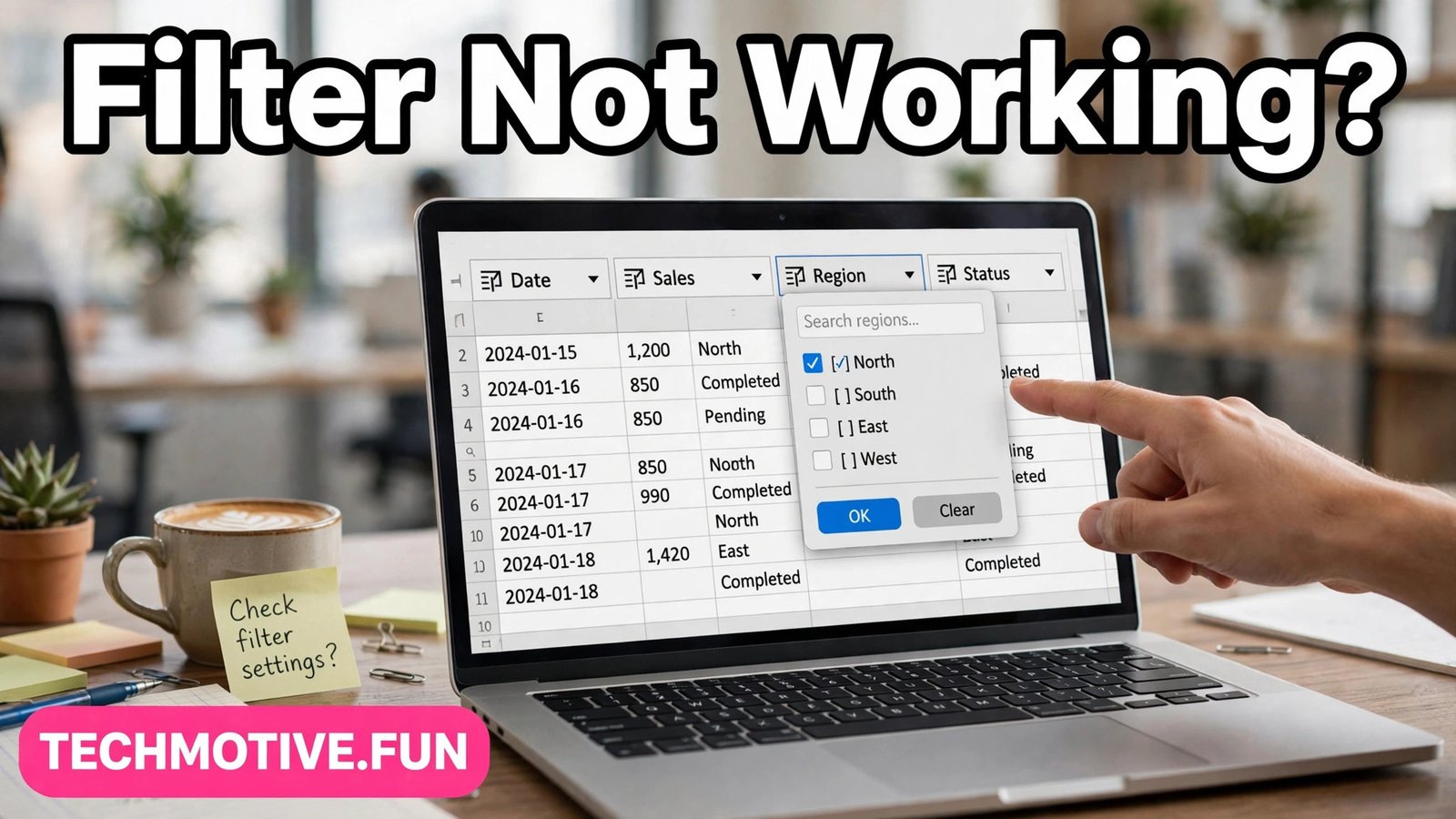
The good news is that most filter problems come from small, fixable causes. A filter view may be active instead of a regular filter, a few rows may be hidden, or the selected range may not cover the data you expect. Working through the checks below in order will help you find the cause without changing data you did not mean to change.
Before you start, avoid rushing into edits. Filters change what you see, not necessarily what is stored in the sheet, and that distinction will protect your data while you troubleshoot.
Start With the Simplest Check: Is a Filter Actually On?
Open the sheet and look closely at the header row. When a filter is active, you should see small dropdown arrows on the headers. If you do not see them, the filter may simply be off, or it may have been applied to a different range than the one you are looking at.
Click a single cell inside your data table first, then look for the filter controls in the menu. Applying a filter from outside the table can create a filter in the wrong place. If nothing happens when you turn it on, try selecting the header row and the data below it before applying the filter again.
Filter vs Filter View: A Mix-Up That Causes Most Confusion
A regular filter and a filter view sound alike, but they behave differently. A regular filter changes the view for everyone who opens the sheet. A filter view is personal, so it changes only what you see, while other people may see the sheet differently.
This difference explains many reports of a filter that seems to work for one person and not for another. You may be looking through a saved filter view with its own sorting and conditions, while a colleague sees the unfiltered sheet. Neither view is wrong, but they are not the same view.
To check, open the filter view menu and see whether a named view is selected. If one is, exit it and return to the normal view, then apply a regular filter and compare the result.
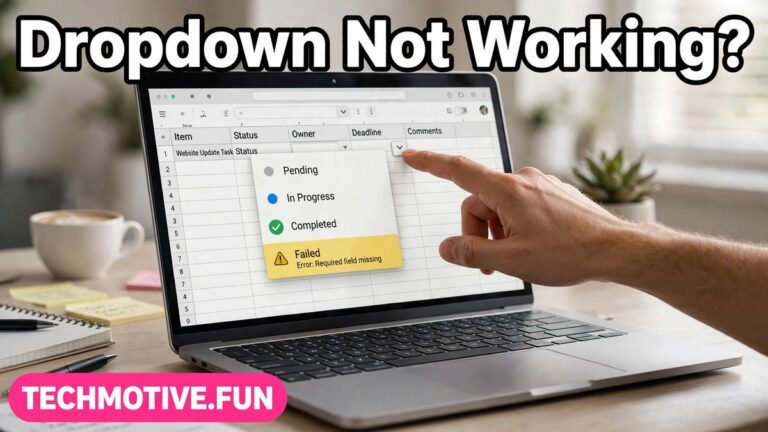
If the small dropdown arrows themselves are missing or do not respond, a related guide on Google Sheets dropdown controls may help you narrow down whether the problem is with the controls or the filter settings underneath them.
Hidden Rows and Why Your Data Looks Missing
Hidden rows are one of the most common reasons a filter appears broken. When rows are hidden, they do not show up in the filtered result, and it can look as though data has been deleted. In most cases, the data is still there, just out of sight.
Look for small gaps in the row numbers on the left side of the sheet. If the numbers jump, for example from row 12 to row 18, some rows in between are hidden. You can select the rows around the gap, then use the option to unhide them and see what returns.
Filters can also hide rows on purpose, based on the conditions you set. If you filtered for one category and expected to see another, check the filter conditions first. Clearing a single condition may bring back rows you thought were lost.
Clear the filter completely at least once during troubleshooting. Seeing the full, unfiltered sheet gives you a baseline, and reapplying one condition at a time shows which step changes the result.
A Warning Before You Edit Filtered Data
Do not delete rows while a filter is hiding data. This is one of the easiest ways to lose information by accident, because the rows you see are not the whole sheet. A row that looks empty or unimportant in a filtered view may contain data that is simply hidden by the current filter.
Check hidden rows before editing, deleting, or moving anything. Turn the filter off, unhide any hidden rows, and confirm what is actually in the sheet. Only then should you make changes that remove or rearrange data.
The same caution applies to sorting and pasting over a filtered view, which can move or place data in unexpected rows. When in doubt, work on the full, unfiltered sheet, or make a copy first and test your change there.
Check Your Header Row Before You Blame the Filter
Filters depend heavily on the header row. If the first row is blank, merged across columns, or contains repeated labels, Sheets may struggle to apply the filter cleanly. The result can look like a broken filter, even though the underlying data is fine.
Make sure the header row has a clear label for each column, with no blank header cells in the middle of the table. A blank header can confuse the filter, because Sheets has less information about which column each condition should apply to.
Also check for extra title rows above the headers. If the filter starts on a title row, it will treat the title as a header and the real headers as data. Moving the filter start point to the true header row often fixes the problem. Small typos can add to the confusion too, especially when a searched value is spelled slightly differently in the data. A guide on Google Docs spell check explains how checking tools behave when they do not seem to respond as expected.
Blank Rows, Merged Cells, and Gaps That Break the Range
A blank row in the middle of a table can act like a wall. Sheets may treat the data above the blank row as one table and the data below it as something separate. A filter applied to the upper part may then ignore everything below the gap.
Scan your table for empty rows or rows that contain only a note or separator. Removing an unnecessary blank row can help the filter cover the whole table again.
Merged cells cause similar trouble, particularly in the header row. Unmerging header cells and giving each column its own label usually makes filtering more predictable.
A tidy table with one header row, no merged headers, and no blank rows in the middle is much easier to filter, sort, and check.
Make Sure the Filter Covers the Right Data Range
Sometimes the filter is working, but only on part of your data. This happens when the range was set before new rows were added, or when the filter was created from a small selection. The newest rows sit outside the range, so they never respond to the filter conditions.
Click inside the table and check which range the filter covers. If the range stops short of your latest rows, remove the filter and reapply it with the full range selected. Including the header row and all data rows gives Sheets the complete picture.
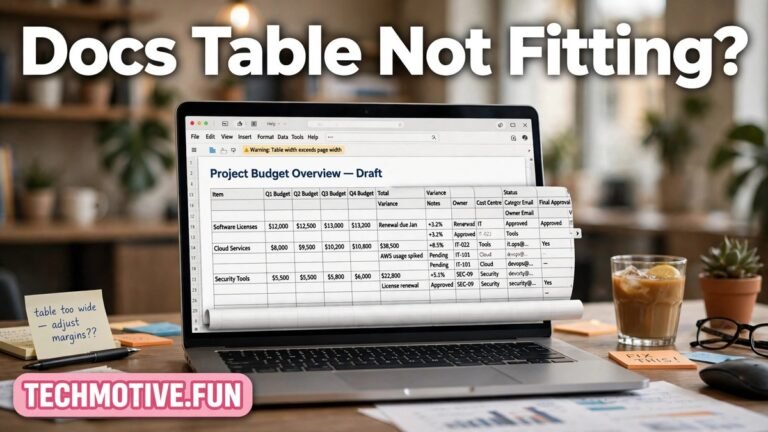
If your sheet uses a layout where content does not fit neatly on screen, a guide on Google Docs tables and page layout can help you think through width and layout issues that make a table harder to read, even when the data itself is intact.
Sorting Conflicts and Filters Fighting Each Other
Sorting and filtering work together, but they can also work against each other if they are applied in the wrong order. A sort applied before a filter can change the row order in a way that makes the filtered result look wrong, even though both tools are doing what they were asked to do.
If the result looks scrambled, clear both the sort and the filter, then start again. Confirm the full table looks correct first, then apply the filter, and only after that sort within the filtered result if you still need to. Also watch for a sort arrow left active from an earlier session, and check the full, unfiltered sheet if someone else may have sorted it.
Permissions: When View-Only Access Limits What You Can Do
If you can see the sheet but cannot change the filter, permissions may be the cause. View-only access lets you look at the data, but it may not let you create or change a filter. In that case, the filter controls may appear greyed out or unresponsive.
Check whether you are signed in to the account that has editing access. Sometimes a sheet opens under a different account, especially on a shared device.
If you do have editing access in general but not for this sheet, ask the owner to check your permission level. The owner can confirm whether you are listed as a viewer, commenter, or editor. That single detail often explains why a filter option is unavailable.
Do not work around a permission limit by editing a copy and assuming it will replace the original. Confirm access first, then work in the correct file.
Browser Glitches, Refreshes, and a Clean Retry
Browser problems can make a working filter look broken. A slow connection, a stuck tab, or a temporary glitch can stop the filter arrows from responding. Before you rebuild the whole sheet, try a clean retry.
Refresh the page and wait for the sheet to load fully before clicking the filter again. If the problem continues, try closing the tab and reopening the sheet from your drive or recent files. This removes any temporary state from the previous session.
Try a simpler step first, such as opening the sheet in a different browser or in a private window. If the filter works there, the issue is more likely tied to the original browser session than to the sheet itself. Also check your connection if the sheet feels slow, and wait a few seconds after each change rather than clicking repeatedly.
Remove the Filter and Add It Again, the Safe Way
When none of the checks above solve the problem, removing the filter and adding it again is a sensible next step. This resets the filter settings without deleting your data, as long as you follow the warning earlier in this guide.
First, turn off any filter view and clear any active filter. Then unhide hidden rows and confirm the full table looks complete. Check the header row, remove blank rows in the middle of the table if needed, and select the full range you want to filter. Now apply a fresh filter with no conditions, confirm the dropdown arrows appear on every header, then add one condition at a time.
If the fresh filter works, note which condition you need, so you can rebuild the same view later without guessing. If it still does not work, you now have a clear description of what you tried, which will help whoever supports the sheet to help you faster.
Frequently Asked Questions
Why does my Google Sheets filter show no results at all?
This often happens when a filter condition does not match any row, or when hidden rows and a narrow range are hiding the matching data. Clear the filter, check the full table, then add one condition at a time. That approach shows whether the problem is the condition itself or the range it covers.
Why do some rows disappear when I turn on a filter?
Rows can disappear because they are hidden, because they fall outside the filter range, or because they do not meet the filter condition. Turn the filter off and unhide rows to see the full table. From there, you can tell whether the rows are missing, hidden, or simply filtered out.
Can I filter a sheet if I only have view access?
In many cases, view-only access limits your ability to change filters, even though you can see the data. You may still be able to use a personal filter view, depending on the sheet settings. If the controls are unavailable, check your permission level with the sheet owner.
Should I delete rows while a filter is active?
No, you should not delete rows while a filter is active. The visible rows are only part of the sheet, and deleting in that state can remove hidden data by mistake. Turn the filter off, unhide rows, and confirm the full table before deleting anything.
Why does my filter work for others but not for me?
This is often a filter view issue. Another person may be seeing the normal view, while you are seeing a personal filter view with different conditions. Exit any filter view, return to the normal view, and compare the result. Browser session issues can also cause a difference, so a refresh is worth trying.
Conclusion
A Google Sheets filter that does not work is usually a sign of a small mismatch, not a broken sheet. The cause is often a filter view instead of a regular filter, hidden rows, a header problem, a gap in the table, or a range that stops short of the newest data. Permissions and browser glitches can add to the confusion, but they are also checkable with a few calm steps.
Work through the checks in order, and pause before editing a filtered view. Turn the filter off, look at the full table, and only then make changes. That simple habit protects your data and makes the real cause much easier to find.
If a fresh filter, applied to a clean range with one condition at a time, gives you the result you expect, you are back on track. Keep the table tidy and the header row clear, and the filter will be far easier to trust next time.
Sources
- Google Docs Help: https://support.google.com/docs/
- Google Sheets: https://www.google.com/sheets/about/


One Comment