Chrome Slow After a Windows Update? Work Through These Fixes in Order
Chrome was fine yesterday. Pages opened fast, tabs switched without a pause, and videos played without stuttering.
Then Windows updated overnight, and this morning everything feels heavy. Pages take ages to load, scrolling is jerky, and even opening a new tab takes effort. If that sounds familiar, the timing is usually not a coincidence.
When Chrome is slow after a Windows update, the problem is rarely Chrome on its own. More often, Windows is still finishing work in the background, a driver has changed, or Chrome itself now needs an update to match the new Windows underneath it.
Work through the fixes below in order. Test Chrome after each step, and stop when it feels normal again.
Before You Change Anything in Chrome
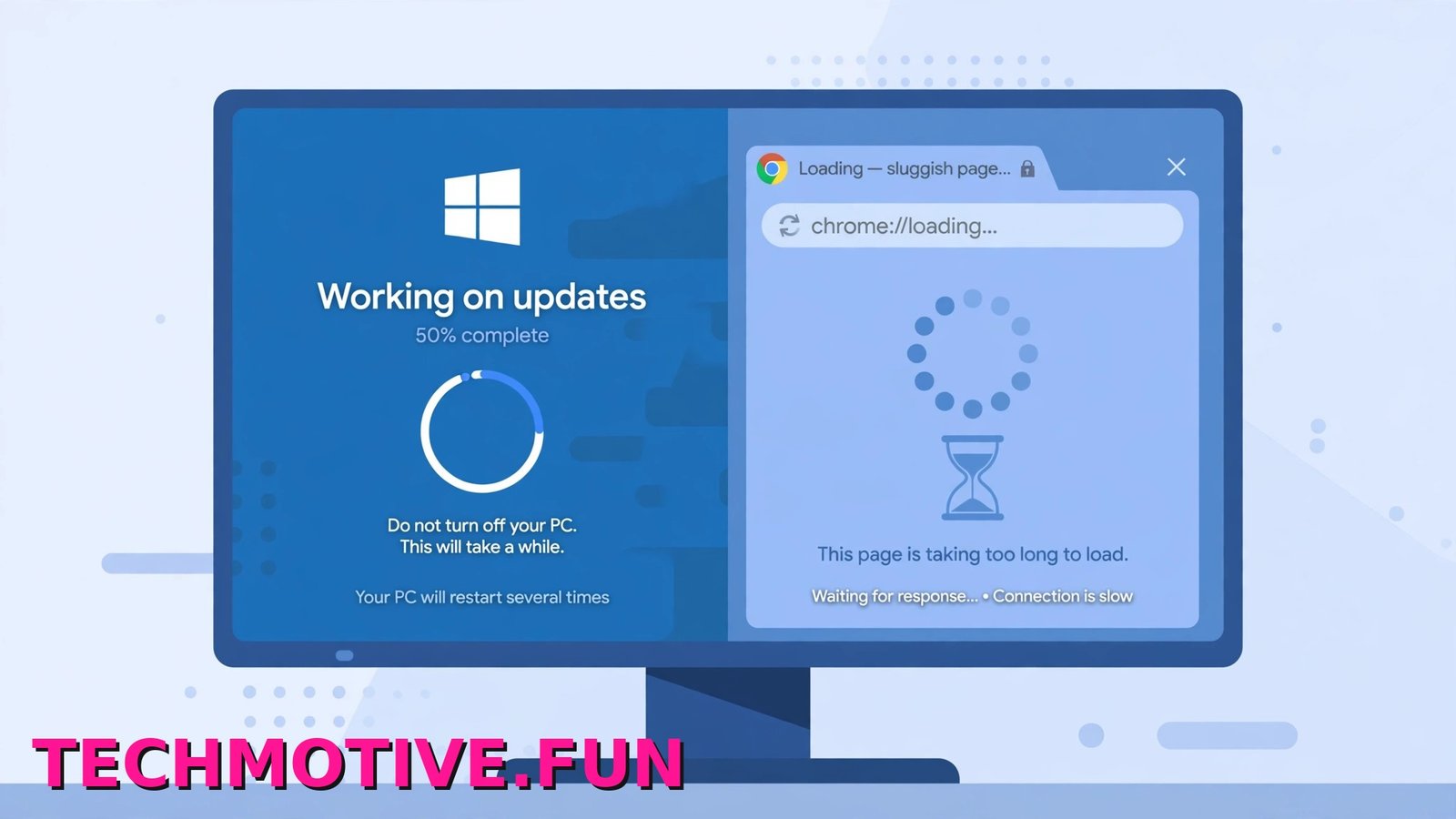
Before you touch a Chrome setting, give Windows a chance to finish what it started. A lot of post-update slowness clears on its own.
Start with a proper restart, not just closing the lid or putting the PC to sleep.
- Save your work and close your open apps.
- Click Start, then Power, then Restart.
- Wait for Windows to load fully, then give it a few minutes before you open Chrome.
Use Restart specifically after an update. On many Windows 11 PCs it is different from Shut down because of the fast startup feature, and it forces Windows to load everything fresh.
Next, check whether more updates are still waiting.
- Open Settings.
- Go to Windows Update.
- Look for a message saying a restart is pending or more updates are available.
- If you see Restart now or Install all, let Windows finish that step.
Leave the PC on and plugged in for a while if you can. After a larger update, Windows often keeps working in the background, indexing files for search or running post-update optimisation. That can make everything feel slow for the first hour or so, sometimes longer on an older drive.
Finally, check storage: open Settings, go to System, then Storage, and check the free space on your main drive. A nearly full drive can slow Windows and Chrome at the same time, and updates need room to install properly. If the drive is almost full, free up space before you troubleshoot further.
Why a Windows Update Can Slow Chrome Down
An update can replace system files, change drivers, and restart background services, and Chrome sits on top of all of that.
Sometimes it installs an older or more basic graphics driver than the one you had before. Chrome leans heavily on your graphics hardware to draw pages and play video, so a driver change can show up as slow scrolling, flickering, or lag when you switch tabs.
Windows Search is another common culprit. After an update it may rebuild its index, reading a lot of files in the background. That leaves less speed for everything else, including Chrome.
Windows Security can also be busy after an update, and a fresh scan can put extra load on the processor and disk for a while. There is also quiet optimisation work linked to .NET and other runtime components that runs after updates. You will not see a window for most of it. The PC just feels busy for a bit.
Power settings can change, too. An update might reset your power plan, especially on laptops. If the PC now favours battery life over performance, Chrome may feel slower than before.
None of this means the update broke your PC. It usually means one part of the system needs a matching update, a setting needs testing, or background work needs time to finish.
Update Chrome Itself First
This is the fix people skip most often. A big Windows update can land while Chrome is a version or two behind, and Chrome often needs its own update afterwards.
- Open Chrome and click the three-dot menu in the top-right corner.
- Go to Help, then About Google Chrome. You can also type
chrome://settings/helpinto the address bar and press Enter. - Chrome will check for updates automatically. If one is available, let it download.
- Click Relaunch when Chrome asks you to restart the browser.
After Chrome reopens, test the sites that felt slowest before. If Chrome says it is already up to date, you have ruled out one simple cause, so move on to the driver check.
Check for a Newer Graphics Driver
Because Chrome uses your graphics hardware so much, this step matters more than it might sound. Do it through Windows first, as that is the safest route for most people.
- Open Settings and go to Windows Update.
- Click Advanced options.
- Click Optional updates.
- Expand the Driver updates section if it appears.
- Tick any graphics driver update listed there, then click Download & install.
Restart the PC after the driver installs, even if Windows does not insist on it, then test Chrome again.
If no driver is listed there, right-click Start, select Device Manager, and expand Display adapters to see your graphics hardware. You can also check the graphics maker’s official site or app for a newer driver.
Avoid random driver updater tools. Stick to Windows Update, Device Manager, or the maker’s official site. Wording in Settings may differ slightly between versions, which is normal.
Test Hardware Acceleration On and Off
Chrome can use your graphics hardware to speed up pages and video. That setting is called hardware acceleration, and after a driver change it can flip from helpful to harmful. The only reliable way to know is to test it both ways.
- Open Chrome and go to Settings.
- Click System in the left-hand menu.
- Find Use graphics acceleration when available.
- If it is on, turn it off. If it is off, turn it on.
- Click Relaunch when Chrome prompts you.
Use Chrome for a few minutes after the relaunch. Scroll a long page, switch tabs, and play a short video. If the lag or flicker is gone, leave the setting as you just set it. If there is no difference, change it back and move on. This reversible setting solves the problem surprisingly often when slowness started right after an update.
Clear Chrome’s Cache
Chrome stores copies of images and files from sites you visit so pages load faster next time. After a major change, that data can get stale, and clearing it forces Chrome to fetch fresh copies. This will not delete passwords or bookmarks.
- Open Chrome and press Ctrl + Shift + Delete on your keyboard.
- In the window that opens, set Time range to All time.
- Tick Cached images and files.
- Leave the other boxes unticked for now, unless you also want to clear cookies.
- Click Delete data.
Close and reopen Chrome, then revisit your usual sites. The first load of each site may be a touch slower because Chrome is downloading fresh files. The second visit is the fair test.
If pages are not just slow but actually fail to load, Google has a help page for that side of things, and its guide to fixing connection and loading errors in Chrome is a sensible next read. If pages stop with a reset message rather than loading slowly, see our short note on connection reset errors in Chrome and come back here afterwards, as that issue needs its own fix.
Check Task Manager Before Blaming Chrome
It is worth checking whether Chrome is really slowing your PC down, or whether a Windows process is doing the heavy lifting in the background.
- Press Ctrl + Shift + Esc to open Task Manager.
- If you see a simple list, click More details.
- Click the CPU heading to sort by processor use, then check the Disk and Memory columns as well.
- Leave it open for a minute or two and watch what stays near the top.
If Windows Search Indexer is using a lot of disk, Windows is probably still indexing after the update, and the best fix is often patience. If Antimalware Service Executable is high, that is Windows Security running a scan. That is expected after an update and should settle, so do not turn your protection off to make Chrome faster.
If Chrome itself is at the top with very high processor use, read our guide on Chrome using too much CPU for checks such as a single bad tab or extension. If Memory is the column that is maxed out, our article on fixing Chrome’s high memory usage covers how to find which tab or extension is taking the most.
This step stops you resetting things that were never the cause.
Stop Chrome Running in the Background
Even after you close Chrome, it can keep processes running so extensions and background apps stay active. After an update, that can mean Chrome never gets a fresh start, and it keeps using resources when you think it is closed.
- Open Chrome and go to Settings.
- Click System.
- Turn off Continue running background apps when Google Chrome is closed.
Now close Chrome completely and reopen it. You can confirm it closed in Task Manager, where Chrome should disappear a few seconds after you close the last window. If you later miss web app notifications, turn the setting back on.
Last Resort: Uninstall the Specific Update
Only try this if you have worked through everything above, given Windows a day or so to finish its background work, and Chrome is still clearly slow, with the problem starting right after one particular update.
Uninstalling an update removes its security fixes as well as its changes, so treat this as a temporary test, not a permanent answer. Plan to install updates again later through Windows Update.
- Open Settings and go to Windows Update.
- Click Update history.
- Scroll down and click Uninstall updates.
- Find the most recent update, using the date it was installed to match it to when the slowness began.
- Click Uninstall next to that update and follow the prompts.
- Restart the PC when asked.
The exact layout of this page can vary slightly between Windows 11 versions, but Settings → Windows Update → Update history → Uninstall updates is the correct path in Windows 11.
After the restart, test Chrome. If it is fast again, do not leave the PC without that update for long, and let a newer update install when one is offered. If Chrome is still just as slow, reinstall updates as normal, as that update was probably not the cause.
If Chrome will not open or keeps crashing rather than simply running slowly, follow Google’s guide to fixing Chrome if it crashes or won’t open before you consider reinstalling Chrome.
The Bottom Line
When Chrome turns slow straight after a Windows update, start simple. Restart properly, let pending updates and background work finish, and check your drive is not full. After that, update Chrome itself and your graphics driver, test Use graphics acceleration when available both ways, and clear Cached images and files.
If those steps do not settle it, let Task Manager tell you whether Chrome or a Windows process is using your CPU and disk, and turn off Chrome’s background running. Save uninstalling an update for last. For most people, the fix is an early step: the Chrome update, the driver, or the graphics acceleration test.
Frequently Asked Questions
How long does post-update slowness usually last?
It varies, but background work often settles within the first few hours of the PC being on, sometimes into the next day on an older machine. Restarting properly and leaving the PC on helps it finish sooner. If Chrome is still slow after a day or two, work through the fixes above.
Should I uninstall the Windows update straight away?
No. Uninstalling an update should be the last step, not the first. Updates include security fixes, so removing one leaves your PC less protected. Try the restart, the Chrome update, the driver check, and the graphics acceleration test first. Only uninstall the specific update as a temporary test if everything else fails, and reinstall updates later.
Did the update change my Chrome settings?
A Windows update does not normally change your Chrome settings. What can change is what sits underneath Chrome, such as the graphics driver, power plan, or background services. That is why Chrome can feel different even though your bookmarks and passwords look the same.
Why is Chrome slow but other apps seem fine?
Chrome relies heavily on your graphics hardware, disk cache, and network connection, so it can show problems in those areas sooner than a simpler app does. A driver change may mainly affect how pages are drawn, and indexing or scanning may hit page loading first. Task Manager helps you see whether the load is coming from Chrome or from a Windows process behind it.
Will clearing the cache delete my passwords or bookmarks?
No, not if you only tick Cached images and files in the Clear browsing data window. Passwords and bookmarks are stored separately. If you also tick Cookies and other site data, you will be signed out of most websites, so leave that unticked unless you need to clear cookies.
What if Chrome will not open at all after the update?
That is a different problem from slowness. Start by restarting the PC and checking Windows Update for anything pending. If Chrome still will not open, follow Google’s official steps for a browser that crashes or will not open, linked above, before reinstalling anything.