Windows 11 Taskbar Disappeared? Restart Explorer, Unhide It, and Check Displays
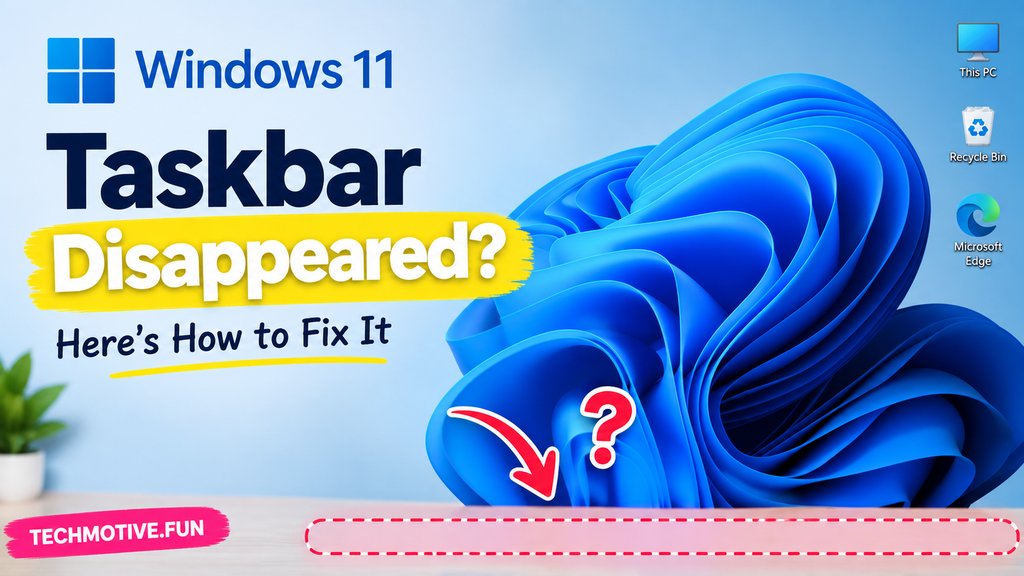
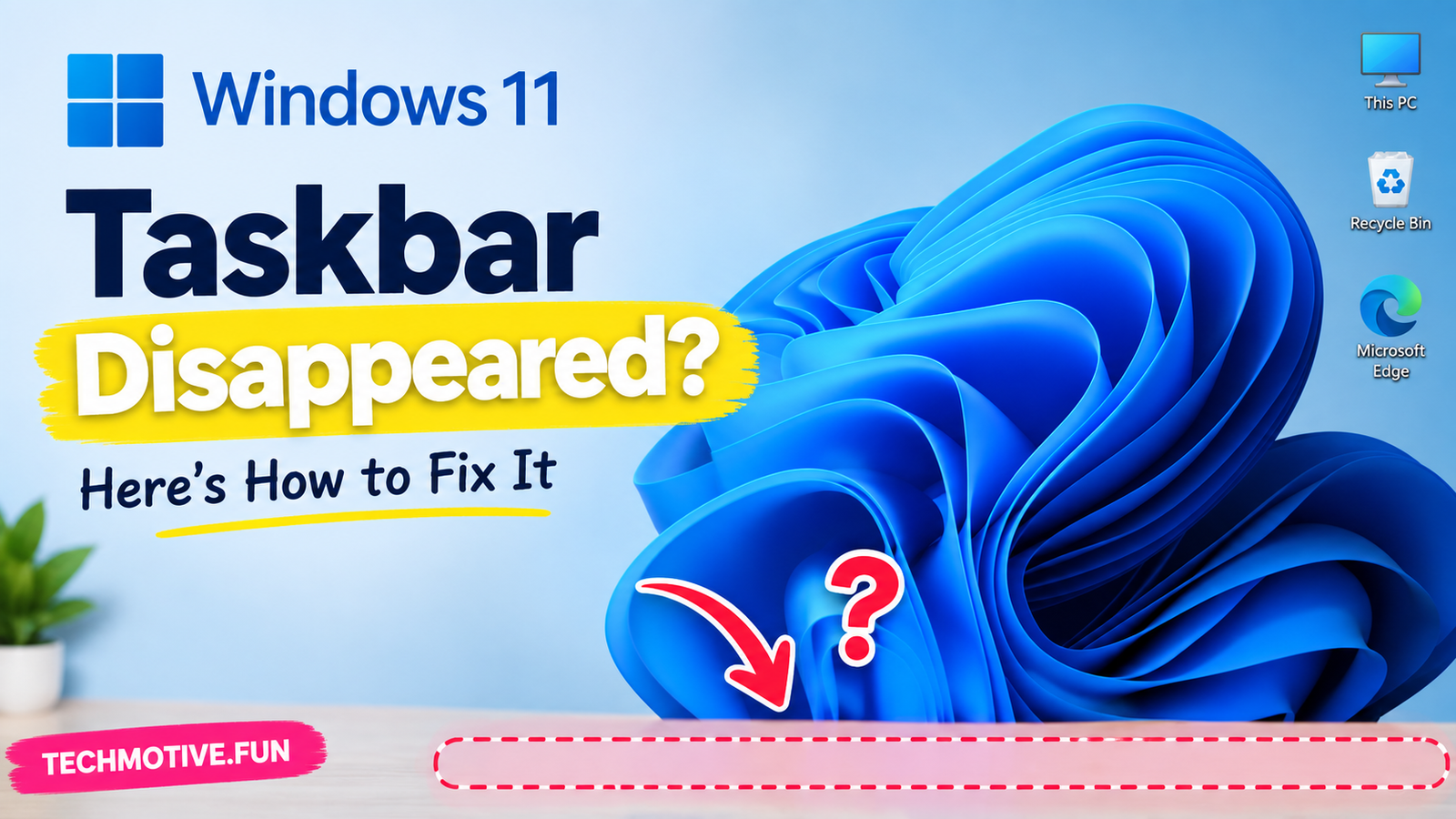
If the Windows 11 taskbar disappeared, it may be hidden, stuck, or affected by a temporary Windows Explorer problem. Start by restarting Windows Explorer and checking taskbar settings. If that does not work, restart your PC, install pending Windows updates, check display settings, and try the system repair methods below.
Related Fixes: Windows 11 Taskbar Icons Not Showing and Windows 11 Taskbar Not Responding
Also Read:Windows 11 Desktop Icons Disappeared? 9 Ways to Fix It
Why Did the Windows 11 Taskbar Disappear?
The taskbar is normally visible at the bottom of the Windows 11 desktop. When it suddenly disappears, you may also notice that the Start button, pinned apps, notification area, and system tray are missing.
There are several possible reasons for this problem:
- Windows Explorer has stopped responding.
- The taskbar is set to hide automatically.
- A temporary Windows glitch is affecting the desktop.
- Display or monitor settings have changed.
- A recent Windows update caused a problem.
- Corrupted system files are affecting Windows components.
- An application or background process is interfering with Explorer.
Before making major changes, try the simple fixes first. In many cases, restarting Windows Explorer is enough to bring the taskbar back.
How to Fix Windows 11 Taskbar Disappeared
1. Restart Windows Explorer
Windows Explorer controls several parts of the Windows desktop, including the taskbar. If Explorer gets stuck, the taskbar can disappear.
Press Ctrl + Shift + Esc to open Task Manager.
Find Windows Explorer in the list, right-click it, and select Restart.
Your desktop may briefly refresh. Wait a few seconds and check whether the taskbar has returned.
2. Check if the Taskbar Is Automatically Hidden
Windows 11 has an automatic taskbar hiding option. If it is enabled, the taskbar may remain hidden until you move your mouse to the bottom of the screen.
Press Windows + I to open Settings.
Go to:
Personalization > Taskbar > Taskbar behaviors
Look for Automatically hide the taskbar and make sure it is turned off if you want the taskbar to stay visible.
3. Restart Your Computer
A simple restart can fix temporary Windows problems that cause the taskbar to disappear.
Press Ctrl + Alt + Delete, select the power icon, and choose Restart.
If the normal desktop is difficult to use because the taskbar is missing, you can also use the power options from the security screen.
After Windows starts again, check whether the taskbar is visible.
4. Check Your Display Settings
If you use two monitors or recently changed your display configuration, Windows may be displaying the taskbar differently than expected.
Press Windows + P and check your projection mode.
If you are using multiple displays, go to:
Settings > System > Display
Check that your monitors are detected correctly and that the main display is selected as expected.
5. Check Windows Explorer Processes
Sometimes restarting Explorer once does not completely solve the problem.
Open Task Manager with Ctrl + Shift + Esc and look for Windows Explorer.
If it is running, select it and click Restart.
If Explorer is not listed, click Run new task in Task Manager, type:
explorer.exe
Then press Enter.
The Windows desktop and taskbar should load again.
6. Install Pending Windows Updates
A Windows update may contain a fix for desktop or taskbar problems.
Open:
Settings > Windows Update
Click Check for updates.
Install any available updates and restart your computer if required.
If the taskbar disappeared immediately after an update, also check whether another update is available that may address the issue.
7. Run System File Checker
Damaged Windows system files can sometimes cause built-in Windows components to behave incorrectly.
Open Windows Terminal or Command Prompt as administrator.
Run:
sfc /scannow
Wait for the scan to finish. Windows will check protected system files and attempt to repair damaged files.
Restart your PC after the process is complete.
8. Run DISM to Repair Windows
If SFC does not fix the problem, you can also use the DISM tool to repair the Windows image.
Open Windows Terminal as administrator and run:
DISM /Online /Cleanup-Image /RestoreHealth
The process can take some time, so let it finish without closing the window.
When it is done, restart your computer and check the taskbar again.
9. Check for Problematic Apps or Recent Changes
If the taskbar disappeared after installing an application, changing a system setting, or installing an update, that recent change could be related.
Think about what changed immediately before the problem started.
You can temporarily close recently installed applications and restart Windows. If the problem began after a specific system change, reverting that change may also help.
What If the Windows 11 Taskbar Is Still Missing?
If the taskbar is still missing after trying these fixes, the problem may be deeper than a temporary Explorer issue.
First, restart Windows and check whether the taskbar appears in Safe Mode. If it works normally there, a startup application or third-party program may be causing the problem.
You should also make sure Windows is fully updated and run both SFC and DISM to check for corrupted system files.
If the problem started recently and you have a suitable restore point, System Restore may also be an option. As a last resort, consider Windows recovery or repair options after backing up important files.
Frequently Asked Questions
Why did my Windows 11 taskbar disappear?
The taskbar can disappear because Windows Explorer has stopped responding, automatic hiding is enabled, display settings have changed, or Windows is experiencing a temporary system problem.
How do I get my taskbar back on Windows 11?
Try restarting Windows Explorer from Task Manager. You can also check the taskbar behavior settings, restart your PC, and make sure Windows is updated.
Why is my taskbar hidden at the bottom of the screen?
Automatic taskbar hiding may be enabled. Go to Settings > Personalization > Taskbar > Taskbar behaviors and check the automatic hiding option.
Can restarting Windows Explorer fix the missing taskbar?
Yes. Since Windows Explorer manages the Windows desktop and taskbar, restarting it can resolve temporary Explorer-related problems.
What should I do if restarting Explorer does not work?
Restart your computer, check display settings, install pending Windows updates, and run SFC and DISM to look for damaged system files.
Can a Windows update cause the taskbar to disappear?
A Windows update can sometimes be associated with temporary interface problems. If the issue started after an update, check Windows Update again for newer fixes and restart the computer.
Can I use Windows without the taskbar?
Yes, many Windows functions can still be accessed with keyboard shortcuts such as Windows + I for Settings and Windows + R for the Run dialog. However, fixing the taskbar is recommended for normal everyday use.