Windows 11 Brightness Slider Missing? Restore It With Driver and Display Checks
If the Windows 11 brightness slider is missing, the problem is often related to the display driver, monitor connection, or Windows settings. Start by checking Quick Settings and restarting your PC. If the slider is still unavailable, update or reinstall the display driver, check Windows Update, and scan for hardware changes.
Related Fixes: Windows 11 External Monitor Not Detected, Windows 11 Second Monitor Not Working, and Windows 11 Taskbar Disappeared
Why Is the Brightness Slider Missing in Windows 11?
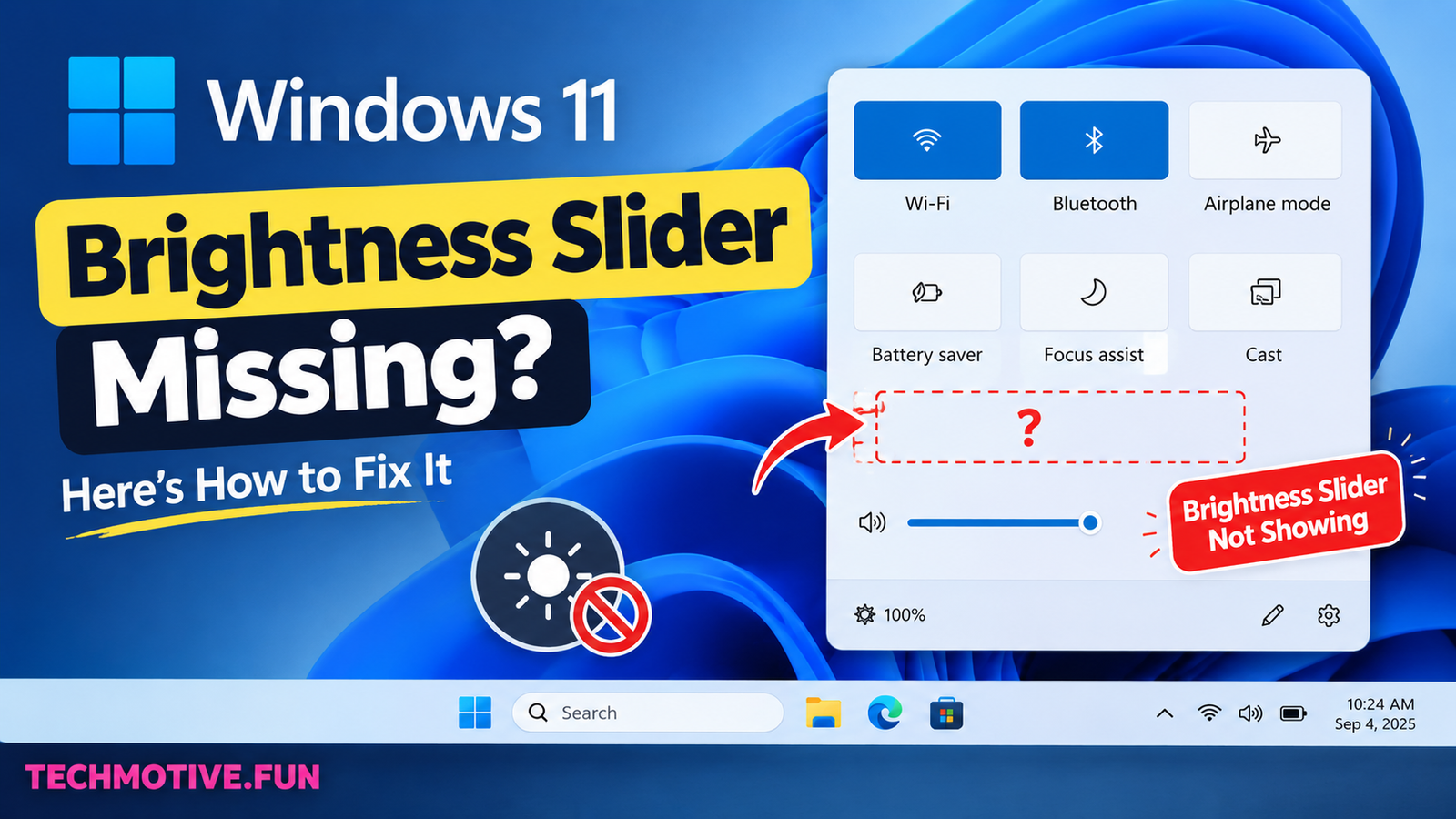
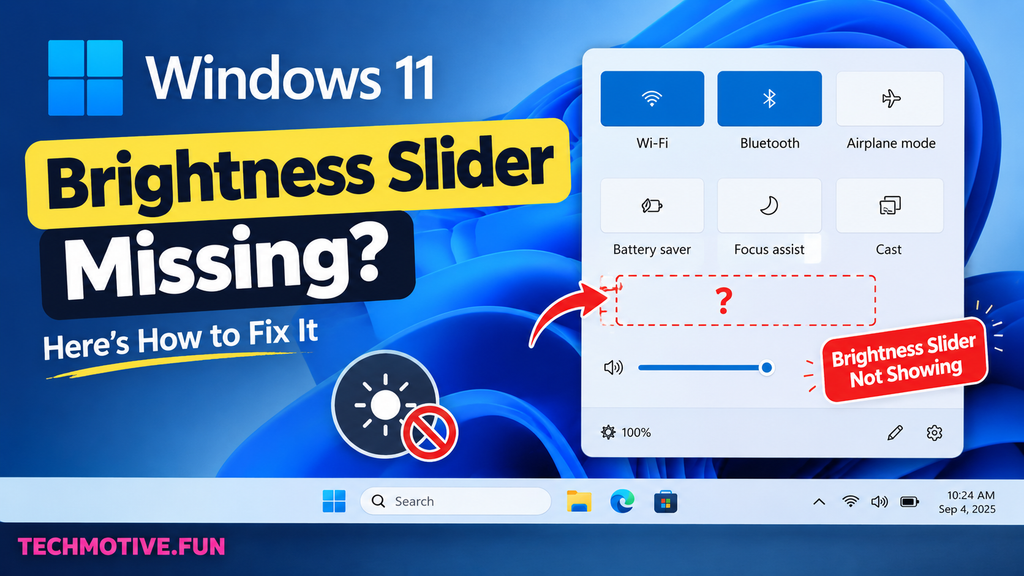
The brightness slider in Windows 11 normally appears in Quick Settings, which you can open by clicking the network, volume, or battery area on the taskbar or by pressing Windows + A.
If the slider suddenly disappears, Windows may not be detecting your display correctly or the required display driver may have a problem.
Common reasons include:
- An outdated or corrupted display driver
- Windows not detecting the built-in display correctly
- A recent Windows update or driver change
- Using an external monitor
- Display adapter problems
- Disabled or malfunctioning graphics hardware
- Temporary Windows glitches
- Problems with Windows system components
The good news is that you usually do not need to reinstall Windows just because the brightness slider has disappeared.
How to Fix Windows 11 Brightness Slider Missing
1. Check Windows Quick Settings
Before trying advanced fixes, make sure the brightness control has not simply become difficult to find.
Press Windows + A to open Quick Settings.
Look for the brightness slider among the available controls. If you see it, drag the slider left or right to test whether brightness changes.
If the brightness control is completely missing, continue with the next fixes.
2. Restart Your Computer
A temporary Windows or graphics-driver problem can sometimes make the brightness control disappear.
Save your work and restart your computer.
After Windows starts again, press Windows + A and check whether the brightness slider has returned.
This is particularly worth trying if the problem appeared suddenly after waking your laptop from sleep or connecting a display.
3. Check Your Display Settings
Windows 11 provides additional display controls through Settings.
Go to:
Settings > System > Display
Check whether Windows correctly identifies your display.
If you are using a laptop with a built-in screen, you should normally see display-related options appropriate for that screen.
If you have multiple monitors connected, select the built-in or intended display and check whether the available brightness controls change.
4. Update the Display Driver
A corrupted or outdated graphics driver is one possible reason the Windows 11 brightness slider disappears.
To check for a driver update:
- Right-click Start.
- Select Device Manager.
- Expand Display adapters.
- Right-click your graphics device.
- Select Update driver.
- Choose the option to search for drivers automatically.
After the update finishes, restart your computer and check Quick Settings again.
5. Reinstall the Display Driver
If updating the driver does not help, reinstalling it may resolve a corrupted driver installation.
Open Device Manager and expand Display adapters.
Right-click your graphics device and select Uninstall device. Follow the instructions shown by Windows and then restart your computer.
Windows may reinstall a compatible display driver automatically after the restart.
For laptops, you can also check your laptop manufacturer’s official support page for the latest graphics driver designed specifically for your model.
6. Check Windows Update
The brightness control can be affected by Windows or driver-related bugs. Installing available updates can sometimes resolve the issue.
To check for updates:
- Press Windows + I.
- Select Windows Update.
- Click Check for updates.
- Install available updates.
- Restart your PC if requested.
After updating, open Quick Settings with Windows + A and check for the brightness slider.
7. Check the Monitor Connection
If you are using an external monitor, the normal Windows brightness slider may not be available in the same way it is on a laptop’s built-in display.
Check your monitor’s physical buttons or built-in menu for brightness controls.
If you recently connected or disconnected an external monitor, restart Windows and check Settings > System > Display.
For a laptop, disconnect the external monitor temporarily and see whether the built-in display provides the brightness control.
8. Check the Display Adapter in Device Manager
If Windows does not properly detect your graphics hardware, the brightness control may disappear.
Open Device Manager and expand Display adapters.
Look for warning symbols next to your graphics device. A warning icon can indicate a driver or hardware-related problem.
You can also right-click the display adapter and select Scan for hardware changes.
Restart your computer after making any driver changes.
9. Run System File Checker
If the brightness slider is still missing, damaged Windows system files could be contributing to the problem.
Open Windows Terminal as Administrator and run:
sfc /scannowWait for the scan to finish. Windows will attempt to repair corrupted system files it finds.
Once the process is complete, restart your computer and check the brightness controls again.
What If the Brightness Slider Is Still Missing?
If the Windows 11 brightness slider is still missing, the next step is to determine whether you are using a laptop display or an external monitor.
On many laptops, brightness is controlled through the built-in display and graphics driver. If Windows cannot communicate correctly with the display hardware, the brightness control may disappear.
Check Device Manager for problems with the display adapter and install the latest graphics driver from your laptop or PC manufacturer’s official support website.
If the problem started after a recent driver or Windows update, consider whether that change coincided with the issue. Windows may also offer driver recovery or rollback options depending on the device.
For persistent problems, running SFC can help rule out corrupted Windows system files. If the brightness control remains unavailable after driver and Windows troubleshooting, the issue may require device-specific support.
Frequently Asked Questions
Why is my brightness slider missing in Windows 11?
The brightness slider can disappear because of an outdated or corrupted display driver, Windows update issues, display detection problems, or because you are using an external monitor.
How do I get the brightness slider back in Windows 11?
Press Windows + A and check Quick Settings first. If the slider is missing, restart your PC, update or reinstall the display driver, check Windows Update, and inspect your display adapter in Device Manager.
Why can’t I change the brightness on my Windows 11 laptop?
A graphics or display driver problem is one possible cause. Check Device Manager > Display adapters and update the graphics driver. Also install any available Windows updates.
Why is there no brightness option on my external monitor?
External monitors often use their own physical buttons or on-screen menu for brightness. Windows may not provide the same brightness slider available for a laptop’s built-in display.
Can updating the graphics driver fix the missing brightness slider?
Yes, if the problem is caused by an outdated, corrupted, or incompatible display driver. Update the driver through Device Manager or obtain the appropriate driver from your computer manufacturer’s support website.
How do I update my display driver in Windows 11?
Right-click Start, open Device Manager, expand Display adapters, right-click your graphics device, and select Update driver.
Does Windows Update affect the brightness slider?
Windows updates can change or update display drivers and system components. If the brightness slider disappeared after an update, checking for newer updates or reviewing the display driver can help identify the cause.
Can SFC fix a missing brightness slider?
SFC can repair certain corrupted Windows system files. It may help if system corruption is contributing to the problem, although it will not fix every display-driver or hardware issue.
Do I need to reinstall Windows 11?
Usually not. Check the display driver, Windows Update, display settings, and monitor connection first. Most software-related brightness problems can be investigated without reinstalling Windows.