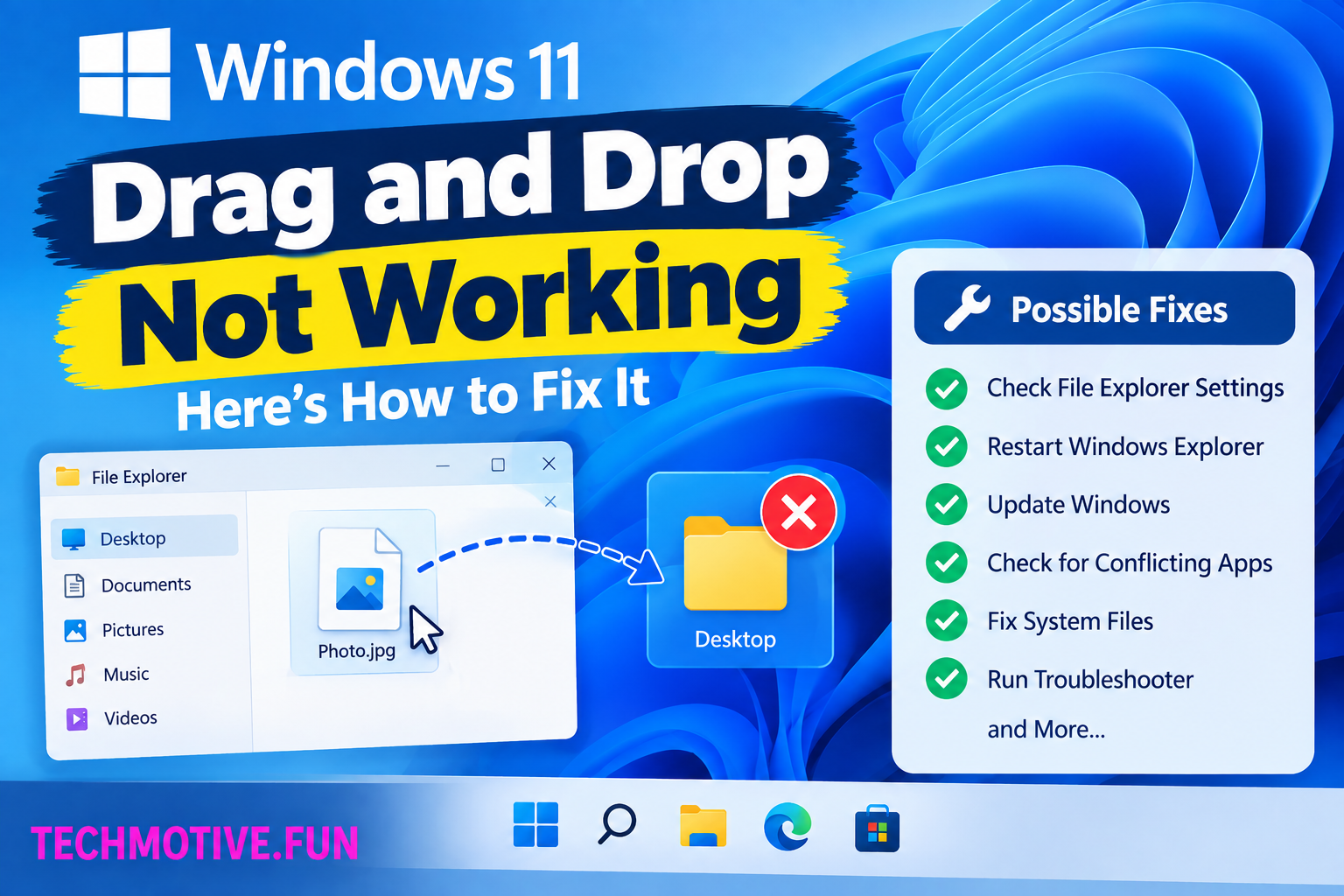
Windows 11 Drag and Drop Not Working? Restart Explorer, Check Your Mouse, and Update Drivers
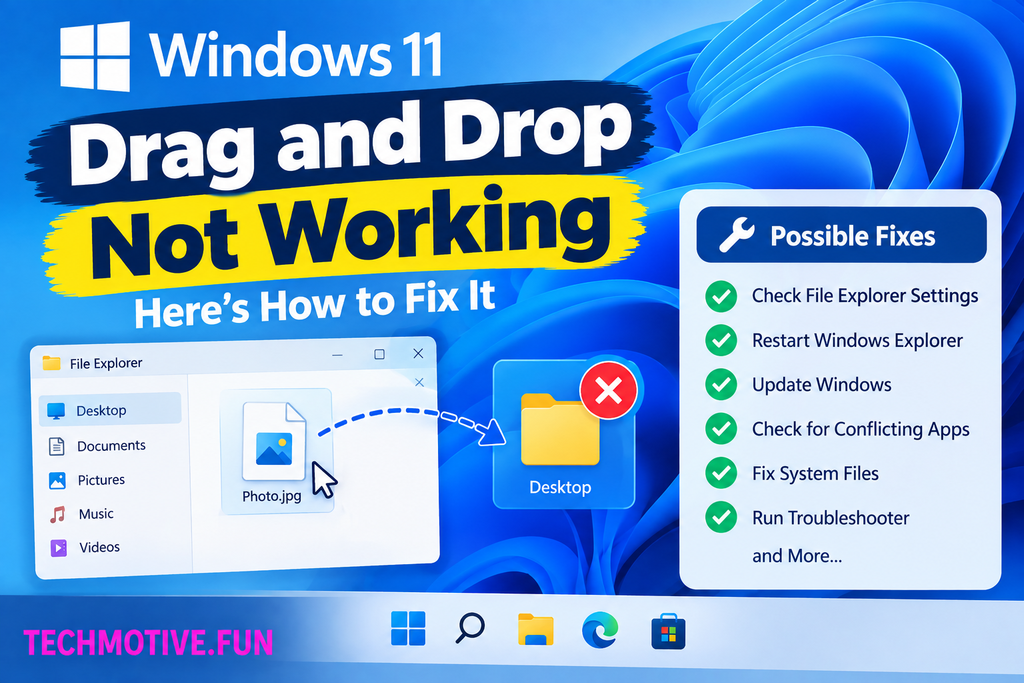
If drag and drop is not working in Windows 11, restart Windows Explorer first and test your mouse or touchpad. If the problem continues, check mouse settings, restart related processes, update Windows, run system file repairs, and test drag and drop in another application. These steps can fix most common drag-and-drop problems.
Related Fixes: Windows 11 Copy Paste Not Working, Windows 11 Mouse Lagging, and Windows 11 Touchpad Not Working
Why Is Drag and Drop Not Working in Windows 11?
Drag and drop makes it easy to move files, folders, images, and other items around Windows. When it suddenly stops working, you may find that files will not move when you hold the mouse button and drag them.
The problem can be caused by several things, including:
- A temporary Windows Explorer glitch
- A mouse or touchpad problem
- An application that is not responding correctly
- Incorrect mouse or touchpad settings
- Windows system file corruption
- Outdated drivers
- A recent Windows update or software change
- Problems with File Explorer
- Permission restrictions when moving certain files
Before making major changes, try dragging a file from one folder to another. Then test dragging an item inside another application. This helps determine whether the problem is limited to File Explorer or affects Windows more broadly.
How to Fix Drag and Drop Not Working in Windows 11
1. Restart Windows Explorer
Windows Explorer is responsible for managing files, folders, and much of the Windows desktop interface. If Explorer gets stuck, drag and drop may stop responding.
Restarting it is one of the quickest things to try.
- Press Ctrl + Shift + Esc to open Task Manager.
- Find Windows Explorer.
- Right-click it.
- Select Restart.
- Wait for the desktop and taskbar to reload.
Now open File Explorer and try dragging a file again.
2. Restart Your Computer
If Windows Explorer restart does not help, restart your entire computer.
A background process or Windows service may have stopped responding properly. A restart reloads these components and can clear temporary glitches.
Select Start > Power > Restart.
Once Windows starts again, open two File Explorer windows and try dragging a file from one folder to another.
3. Check Your Mouse or Touchpad
Sometimes the problem is not Windows at all. A faulty mouse button, wireless connection, or touchpad can prevent Windows from detecting a drag action correctly.
Try the following:
- Disconnect and reconnect your mouse.
- Replace the mouse batteries if it is wireless.
- Try another USB port.
- Test another mouse if available.
- If using a laptop, test the touchpad.
- Restart Bluetooth if you are using a Bluetooth mouse.
If drag and drop works with another mouse, the original input device may be causing the problem.
4. Test Drag and Drop in Another Application
Check whether drag and drop works outside File Explorer.
For example, try dragging an image into a browser window or moving text within a basic application.
If drag and drop works in other applications but not in File Explorer, the issue may be related to Explorer rather than your mouse.
In that case, restart Windows Explorer and check for Windows updates.
5. Check Mouse Settings
Incorrect mouse settings can sometimes affect how your mouse behaves.
To check them:
- Press Windows + I.
- Go to Bluetooth & devices.
- Select Mouse.
- Review the available mouse settings.
- Make sure your primary mouse button is configured correctly.
You can also search Windows Settings for additional mouse options and test whether changing the pointer settings makes any difference.
6. Update Windows 11
A Windows bug can occasionally affect File Explorer or other parts of the desktop interface.
Check for available updates:
- Open Settings with Windows + I.
- Select Windows Update.
- Click Check for updates.
- Install available updates.
- Restart your computer if Windows asks you to.
After updating, test drag and drop again.
7. Update or Reinstall Your Mouse Driver
If your mouse or touchpad is not responding correctly, its driver could be outdated or corrupted.
To check the driver:
- Right-click the Start button.
- Select Device Manager.
- Expand Mice and other pointing devices.
- Right-click your mouse or touchpad device.
- Select Update driver.
- Follow the instructions provided by Windows.
If updating does not help, you can uninstall the device from Device Manager and restart your PC. Windows may automatically reinstall the required driver after restarting.
8. Repair Corrupted Windows System Files
Damaged Windows system files can sometimes cause File Explorer and other desktop features to behave unexpectedly.
To check for corrupted files, open Windows Terminal as Administrator and run:
sfc /scannowLet the scan complete. If Windows finds corrupted system files, it will attempt to repair them.
Restart your PC after the scan and check whether drag and drop is working again.
9. Run DISM to Repair Windows
If System File Checker does not resolve the problem, you can also use the DISM tool to repair the Windows component store.
Open Windows Terminal as Administrator and run:
DISM /Online /Cleanup-Image /RestoreHealthWait until the process finishes. It may take several minutes.
Afterward, restart your computer and test drag and drop again.
What If Drag and Drop Is Still Not Working?
If Windows 11 drag and drop is still not working after trying these solutions, try to identify exactly where the problem occurs.
If you cannot drag files anywhere, test another mouse or touchpad first. This can quickly rule out an input-device problem.
If dragging works in some applications but not File Explorer, restart Explorer and install pending Windows updates. If the issue began after installing a new application or utility, temporarily disable or uninstall that software to see whether the behavior changes.
You can also test the feature using another Windows user account. If drag and drop works normally in another account, the problem may be connected to your current user profile.
For persistent system-wide problems, running both SFC and DISM is worth trying before considering more drastic Windows repairs.
Frequently Asked Questions
Why is drag and drop not working in Windows 11?
Drag and drop may stop working because of a Windows Explorer glitch, mouse or touchpad problems, outdated drivers, incorrect settings, corrupted system files, or software conflicts.
How do I fix drag and drop in Windows 11?
Start by restarting Windows Explorer and your computer. Then test another mouse, check mouse settings, update Windows and drivers, and run SFC and DISM if the problem continues.
Why can’t I drag files in File Explorer?
File Explorer may have temporarily stopped responding correctly. Restart Windows Explorer from Task Manager and then try moving a file between two folders again.
Can a mouse cause drag and drop to stop working?
Yes. A damaged or malfunctioning mouse button can prevent Windows from detecting the press-and-hold action required for dragging. Try another mouse or USB port to check.
Why does drag and drop work in some apps but not others?
Different applications handle drag-and-drop operations differently. If the feature works elsewhere, the problem may be limited to the specific application or File Explorer.
How do I restart Windows Explorer?
Press Ctrl + Shift + Esc, find Windows Explorer in Task Manager, right-click it, and select Restart. Windows will reload the desktop and taskbar automatically.
Can outdated drivers cause drag and drop problems?
Yes. Mouse and touchpad drivers can affect how Windows receives input. Updating or reinstalling the relevant driver through Device Manager may resolve the problem.
Will SFC fix Windows 11 drag and drop?
SFC can repair corrupted Windows system files that may contribute to system problems. It does not fix every drag-and-drop issue, but it is a useful troubleshooting step when basic solutions do not work.
Do I need to reinstall Windows 11?
Usually not. Try restarting Explorer, checking your mouse or touchpad, updating Windows and drivers, and running SFC and DISM before considering a Windows reinstall.