
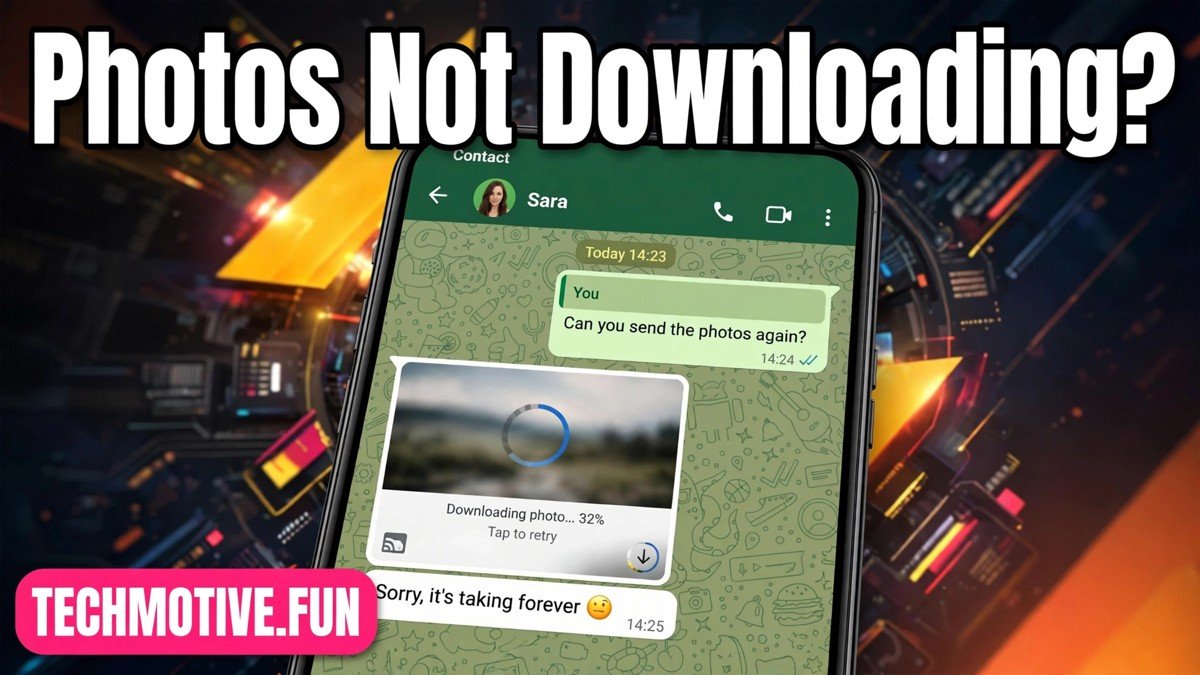
WhatsApp Photos Not Downloading? 12 Fixes That Actually Work
You tap a photo in a chat, the circle spins for a few seconds, and then nothing happens. The image stays blurred, the download never finishes, and you are left guessing whether the problem is your phone, your connection, or WhatsApp itself.
This is one of the most common WhatsApp frustrations, and it rarely has a single cause. A weak connection, a full phone, a changed permission, or a setting you adjusted months ago can all block a download. The good news is that most cases are fixed in a few minutes once you work through the causes in order.
Start with the quick checks first. They solve the majority of cases, and they stop you from taking a drastic step, like reinstalling the app, when a simple setting was the real problem.

What a Stuck Download Usually Means
When a photo arrives on WhatsApp, it first appears as a small, blurred preview. Tapping it should download the full image to your phone. If that download stalls, you will usually see one of three things: a spinning circle that never completes, a greyed-out image with a download arrow, or an error message saying the download could not be completed.
A greyed-out photo with a download arrow is the most useful clue. It means WhatsApp knows the photo exists but has not yet saved a copy on your device. That often points to a connection or storage problem rather than a broken chat. If the photo appears for a second and then disappears, or if only some photos fail while others load fine, the problem is more likely tied to that specific file or to a temporary server hiccup.
The 2-Minute Checks
Before changing any settings, run through these four quick checks. They take about two minutes and they rule out the simplest explanations.
- Check your internet connection. Open a browser and load a page, or try sending a short text message in WhatsApp. Text messages need very little data, so if they go through but photos do not, your connection may be too slow or unstable for media. Switch between Wi-Fi and mobile data to see whether the problem follows the connection or the phone. If photos download on one connection but not the other, the connection is the culprit.
- Ask a friend to send you a test photo. This is the fastest way to check whether WhatsApp itself is having trouble. If your friend’s photo also fails to download, the problem is on your phone or connection. If it downloads fine, the original photo may be the problem, and re-sending it may solve everything.
- Check your free storage. WhatsApp needs free space to save photos. Open your phone’s storage settings and look at how much space is left. If your phone is nearly full, downloads will fail even when your connection is fine. You do not need a huge amount of free space for a single photo, but a phone with almost nothing left will refuse new files.
- Check your date and time settings. WhatsApp connects to its servers using your phone’s clock. If the date or time is wrong, the connection can fail in strange ways, including blocked downloads. Set the date and time to automatic in your phone’s settings, then try the download again.
If all four checks look fine and photos still will not download, move on to the settings below. Do not skip ahead to reinstalling the app. Reinstalling is a last resort, and it carries a real risk of losing chats if your backup is not ready.
Check Media Auto-Download Settings for Each Connection Type
WhatsApp lets you decide which media downloads automatically, and it splits that choice by connection type. Many people change this setting once to save mobile data and then forget about it, which is why photos suddenly seem to stop downloading on one connection but work fine on another.
Open WhatsApp, go to Settings, then Storage and data, then Media auto-download. You will see three separate options: When using mobile data, When connected on Wi-Fi, and When roaming. Each one controls which types of media download on their own.
If photos are unchecked under When using mobile data, photos sent while you are on mobile data will sit in the chat as blurred previews until you tap each one. That is normal behaviour, not a fault, but it can feel like a bug if you do not remember changing it. Tick Photos for the connection types where you want automatic downloads.
This setting also explains a confusing pattern: photos download at home on Wi-Fi but not when you are out. That usually means photos are enabled for Wi-Fi but disabled for mobile data. Matching the two settings, or at least knowing which one is off, removes a lot of confusion.
Check App Permissions and Background Data
WhatsApp cannot save photos if your phone has taken away its permission to do so. This happens more often than people expect, especially after a phone update, because updates sometimes reset permissions without an obvious warning.
On Android, open Settings, then Apps, then WhatsApp, then Permissions. Look for Photos and videos or Files and media, depending on your Android version, and make sure WhatsApp is allowed to access them. If permission is set to denied or to ask every time, downloads may fail or ask you repeatedly. Set it to allow, then return to WhatsApp and try the photo again.
Background data is the second permission-style check, and it matters most when downloads stall while the app is not open. In the same WhatsApp app settings screen, open Mobile data or Data usage and confirm that Background data is turned on. If background data is off, WhatsApp may only download media while you are actively looking at the chat, and downloads can pause or fail when you switch to another app.
If you changed any permission, restart WhatsApp fully before testing again. Close it from the recent apps list, reopen it, and tap the photo. A permission change sometimes needs a fresh start of the app to take effect.
Free Up Storage and Clear the Cache
A full phone is one of the most common reasons whatsapp photos not downloading becomes a daily annoyance. WhatsApp cannot save a photo if there is nowhere to put it, and the error message does not always say so clearly.
Start by checking what is eating your storage. Large video files, old downloads, and apps you no longer use are the usual suspects. Delete a few large files you do not need, or move photos and videos to a cloud service or a computer, and then try the download again. Even freeing a modest amount of space can be enough, because a single photo is small. The problem is usually that the phone has almost nothing left at all.
Inside WhatsApp itself, you can also trim what the app is holding. Go to Settings, then Storage and data, then Manage storage. This screen shows how much space WhatsApp is using and which chats hold the most media. You can review large files and delete ones you no longer need, chat by chat, without deleting the conversations themselves.
Clearing the cache is another safe step, and it is worth understanding clearly because it is often confused with a much riskier action. Clearing the cache removes temporary files that WhatsApp uses to run smoothly. Clearing the cache is safe: it does not delete your chats, photos, or account. To do it, open Settings, then Apps, then WhatsApp, then Storage, and tap Clear cache.
Warning: do not tap Clear data on that same screen unless you have a complete, verified backup and you understand what it does. Clearing data removes the app’s local information, including downloaded media and local chat data, and forces you to set WhatsApp up again. That is a very different action from clearing the cache, and mixing the two up is how people lose things. If you are ever unsure which button you are looking at, stop and leave the screen alone.
After freeing space and clearing the cache, restart your phone. A restart clears temporary glitches in the download process itself, and it is a simple step that people often skip because it feels too basic. Try the photo download once more after the restart.
SD Card and Phone Storage Problems
If your phone uses an SD card, storage problems get a little more complicated, because WhatsApp may be trying to save photos to a card that is failing, full, or no longer readable.
First, check whether the SD card is recognised at all. Open your phone’s storage settings and see whether the card appears and how much free space it shows. If the card is missing from the list, or if its size reads as zero, the card itself may be damaged or badly seated. Remove it carefully, reinsert it, and check again. If the phone still cannot read it, the card may need replacing, and no WhatsApp setting will fix that.
If the card is recognised but nearly full, the same rule applies as with internal storage: free up space or move files off the card before expecting downloads to work. Photos, videos, and music stored on the card all count against the same limited space.
Some phones also let you choose where new media is stored, and a card that was working fine can develop errors over time. Signs of a failing card include photos that download but appear corrupted, files that vanish after saving, or the phone repeatedly asking you to format the card. Warning: do not format a card that holds photos or files you have not backed up elsewhere. Formatting erases everything on the card. Copy anything important to another device first, even if that takes extra time.
If you do not use an SD card, the same logic still applies to your internal storage, just without the card step. A phone that is nearly full will block downloads, and the fix is the same: free space, clear the cache, restart, and try again.
Backup First, Then Reinstall as a Last Resort
If every fix above has failed, reinstalling WhatsApp can help, because it replaces the app itself and clears out a corrupted installation. But this step comes with a serious warning, and it should never be rushed.
Warning: back up your chats to Google Drive first, and do not delete WhatsApp until that backup has fully completed. Reinstalling without a backup can permanently lose your chat history, including photos and videos that were only stored on your phone. Open WhatsApp, go to Settings, then Chats, then Chat backup, and run a backup. Wait for it to finish completely, and check the time of the last successful backup before you do anything else.
Warning: never delete WhatsApp before a backup completes. If the backup is still running, or if it failed, deleting the app can remove local chats that were never copied to the cloud. If the backup keeps failing, fix that problem first, whether it is a storage issue on Google Drive or a connection issue, before you touch the app installation.
Once you have a confirmed backup, you can uninstall WhatsApp and install it fresh from the official app store. Sign in with the same phone number, restore from the Google Drive backup when asked, and then test a photo download before restoring anything else or changing settings. If downloads work on the fresh install, the old installation was the problem, and you have lost nothing.
If downloads still fail after a clean reinstall with a confirmed backup, the problem is almost certainly outside WhatsApp: a failing SD card, a phone storage fault, or a network restriction. Repeating the same reinstall will not fix a hardware or network fault.
Frequently Asked Questions
Why do WhatsApp photos download on Wi-Fi but not on mobile data?
This usually comes down to the media auto-download settings. Open Settings, then Storage and data, then Media auto-download, and check the When using mobile data option. If Photos is unchecked there but checked for Wi-Fi, photos will only download automatically at home. Ticking Photos for mobile data fixes it, though it will use more of your data allowance.
Why does one photo fail while all my other photos download fine?
A single failed photo usually means the file itself is the problem. The sender may have deleted the message before you downloaded it, or the photo may have expired from the server. Ask the sender to send the photo again. If the resent photo also fails, run the storage and permission checks above, because a phone-wide problem would normally affect more than one photo.
Is it safe to clear the WhatsApp cache?
Yes. Clearing the cache only removes temporary files and does not delete your chats, photos, or account. It is a safe first step when downloads misbehave. Clearing data is a different action and is not safe without a backup, so make sure you tap Clear cache and not Clear data.
Can a full phone really stop photos from downloading?
Yes, and it is one of the most common causes. WhatsApp needs free space to save each photo. When your phone is nearly full, downloads fail even if your connection is strong. Freeing space, deleting unneeded files, and checking the Manage storage screen in WhatsApp usually fixes it.
Will reinstalling WhatsApp delete my chats?
It can, if you do not have a backup. Warning: back up your chats to Google Drive and confirm the backup has finished before you uninstall anything. When you reinstall and restore from that backup, your chats should return. Without a backup, chats stored only on your phone may be lost permanently.
What should I do if photos still will not download after all these fixes?
Test on a different network, check whether your SD card is failing, and confirm that WhatsApp has storage permission and background data turned on. If the problem affects only one sender’s photos, ask them to resend. If it affects everything and survives a clean reinstall, the cause is likely your phone’s storage or your network, and your device maker or carrier is the next place to ask.







2 Comments