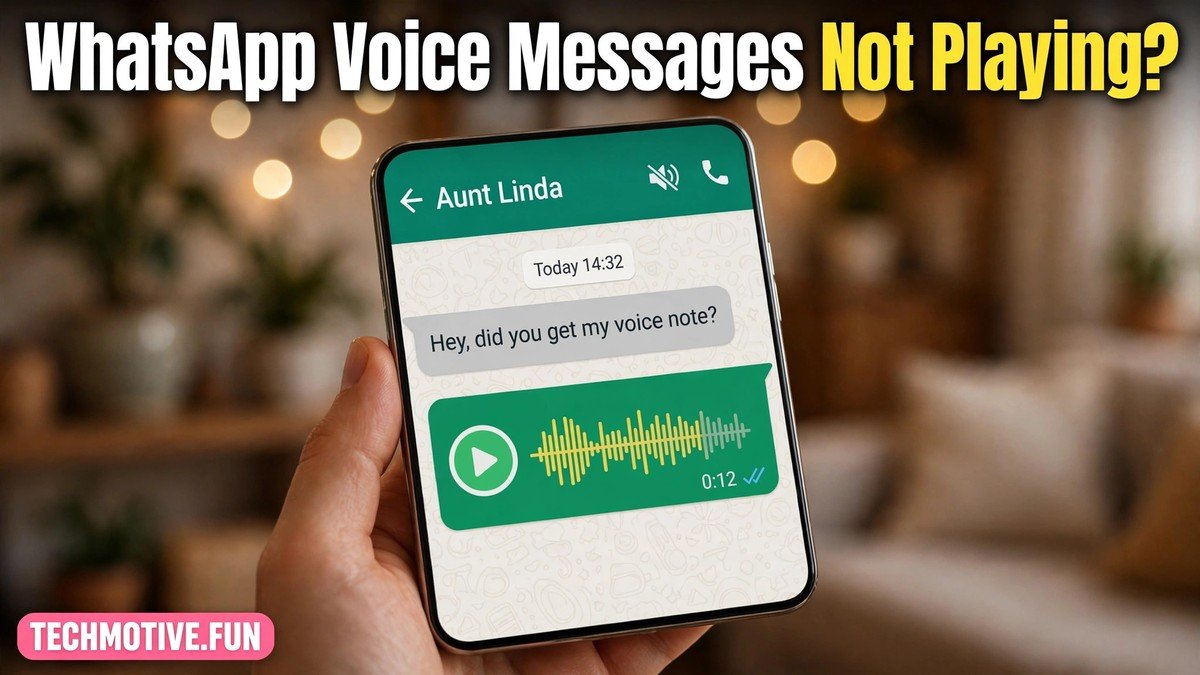
WhatsApp Voice Messages Not Playing? How to Fix It
You tap play on a voice message, the timer starts moving, and yet you hear nothing. Or the message plays for a second and then goes quiet. Or it only plays when you hold the phone to your ear, but not through the speaker. It is a frustrating problem, because voice messages are supposed to be the quick, easy way to stay in touch.

The good news is that in most cases, this is not a serious fault with your phone or with WhatsApp itself. It is usually a small setting that has changed without you noticing: the volume is down, the phone is on silent, the audio is being routed to the wrong output, or WhatsApp no longer has permission to use your phone’s audio. Working through the causes one by one will fix the problem for most people, and it rarely takes more than a few minutes.
This guide works through each likely cause in order, from the quickest checks to the deeper fixes. Where a step carries any risk, such as clearing app data, it is clearly flagged so you can protect your chats first.
Start With the Quick Checks
Before changing any settings, rule out the simplest explanations. First, try playing a different voice message, ideally one from a different contact. If only one message is silent, the problem may be with that single recording or its download, not with your phone. If every voice message is silent, the cause is almost certainly a setting on your device.
Next, check whether other audio works on your phone. Play a short video, open a music app, or play a voice note in another app. If no app produces sound, the problem is with your phone’s audio in general, and the volume and silent-mode steps below matter most. If other apps play sound normally and only WhatsApp is silent, focus on the WhatsApp-specific steps, such as permissions and storage.
It is also worth restarting your phone if you have not done so in a while. A restart clears temporary glitches in the audio system and in running apps, and it costs nothing. Many people skip this step because it feels too simple, but it genuinely resolves a surprising number of audio problems.
Check Volume and Silent Mode
The most common reason for silent voice messages is also the most embarrassing to admit: the volume is simply too low, or the phone is muted. Media volume and ringtone volume are separate controls on most phones, so your phone can ring loudly while media plays quietly, or the other way around.
While a voice message is playing, press the volume-up button on the side of your phone. On Android, this usually adjusts the media volume while media is playing. You should also open your phone’s sound settings and check the media volume slider directly, in case the side buttons are set to control something else.
Also check whether your phone is in silent or vibrate mode. On many Android phones, silent mode silences media as well as ringtones, depending on the settings. Switch the phone back to normal sound mode and try the voice message again. If you use Do Not Disturb, check whether it is switched on, and either turn it off temporarily or check that media sounds are allowed while it is active.
Some phones also have a separate mute switch or a quick-settings tile that silences all sound. Swipe down from the top of the screen and look at the quick settings panel for anything related to sound, mute, or Do Not Disturb before moving on.
Speaker or Earpiece: Where Is the Sound Going?
WhatsApp voice messages can play through two different outputs: the loudspeaker at the bottom of the phone, or the small earpiece speaker at the top that you use for phone calls. WhatsApp switches between them automatically, and that switching is a frequent source of confusion.
When you hold the phone to your ear, or when the proximity sensor near the top of the phone is covered, WhatsApp may play the message quietly through the earpiece, as if you were on a call. If your hand, a phone case, or a screen protector is covering the sensor, the message can sound silent even though it is actually playing very quietly through the earpiece. Try playing a message with the phone flat on a table, away from your face and hands, and listen carefully.
You can also control the output yourself. While a voice message is playing, look for the speaker icon in the chat. Tapping it usually toggles between the loudspeaker and the earpiece. If the message is playing through the earpiece and you can barely hear it, tap the speaker icon to send it to the loudspeaker instead.
If the sound is very quiet through the earpiece but normal through the loudspeaker, the earpiece itself may be blocked by dust or debris. A gentle clean around the earpiece opening, without pushing anything sharp into it, can help. If the earpiece produces no sound at all in phone calls either, that points to a hardware issue, and a repair shop is the right next step rather than more settings changes.
Check WhatsApp’s Permissions
On Android, apps need permission to use certain parts of your phone. WhatsApp needs microphone permission to record voice messages, and it relies on normal media playback for playing them. If permissions were changed during an update, or if you denied a permission by accident, playback and recording can both misbehave.
Open your phone’s Settings, go to Apps, find WhatsApp, and open Permissions. Make sure the microphone permission is allowed. While you are there, check that no other relevant permission has been set to denied. You do not need to grant permissions that WhatsApp does not ask for, but the microphone permission should be allowed for voice messages to work properly.
After changing a permission, close WhatsApp completely and reopen it.
Storage, Cache, and a Warning Before Clearing Data
Voice messages are audio files that WhatsApp downloads to your phone. If your phone is very low on storage, downloads can fail partway through, leaving a message that looks complete but has no playable audio. Check your storage in Settings, and if it is nearly full, free up some space by deleting old photos, videos, or files you no longer need. Even a small amount of freed space can be enough for voice messages to download properly.
Clearing WhatsApp’s cache is a safe next step. The cache holds temporary files, and clearing it does not delete your chats, photos, or voice messages. On Android, go to Settings, then Apps, then WhatsApp, then Storage, and tap Clear Cache. Restart WhatsApp afterwards and test a voice message.
Warning: do not tap Clear Data or Clear Storage unless you have a backup, because that option can remove your WhatsApp data from the phone, including chats. Clearing data is different from clearing cache, and the two buttons often sit side by side, so read carefully before tapping. Before you consider any step that clears data, back up your chats first. In WhatsApp, go to Settings, then Chats, then Chat backup, and create a backup. Only once the backup is confirmed should you consider stronger steps, and for most people the cache step and the other fixes in this guide will be enough without ever touching Clear Data.
If a particular message still will not play after freeing storage and clearing the cache, ask the sender to resend it. A file that was interrupted during download may never repair itself, and a fresh copy often plays without any trouble.
Update WhatsApp and Your Phone Software
Bugs in older versions of an app can break features that used to work fine, and audio playback is one of the areas where updates matter. Open the Google Play Store, search for WhatsApp, and check whether an update is available. If there is one, install it and test a voice message again.
Phone software matters too. Android system updates sometimes fix audio routing and Bluetooth problems. In Settings, look for Software update or System update and check whether one is waiting. Install it when your phone is charged and connected to Wi-Fi, and restart the phone after the update finishes.
If the problem started right after an update, other users may be reporting the same issue, and a further update may follow. The volume, speaker, and Bluetooth checks above are still worth working through meanwhile.
Bluetooth and Headphone Audio Routing
If your phone is connected to a Bluetooth speaker, headphones, earbuds, or a car system, WhatsApp audio may be playing there instead of through your phone’s speaker. This is one of the most confusing causes, because the phone itself appears silent while the sound is actually going somewhere else entirely.
Check your phone’s Bluetooth settings and see what is connected. If a Bluetooth device is connected and you are not using it, disconnect it or turn Bluetooth off temporarily, then play a voice message again. Also check for wired headphones: if a headphone plug is not fully seated, or if the headphone jack has dust in it, the phone may think headphones are connected when they are not.
Some Bluetooth earbuds also have their own volume control, separate from the phone’s volume. If a message plays through your earbuds but is very quiet, raise the volume on the earbuds themselves as well as on the phone.
A useful test is to turn Bluetooth off completely, unplug any headphones, and play a voice message through the phone’s own speaker. If it plays normally, you have found the cause, and you can then reconnect your usual audio device and adjust its settings.
When the Message File Itself Is the Problem
Sometimes the fault is not with your phone at all, but with one particular message. A voice message that was recorded in a very noisy place, or sent over a poor connection, may be quiet, distorted, or incomplete. If only one contact’s messages fail to play, and everyone else’s work fine, the sender’s recording or connection is the likely cause.
A corrupted download is another possibility. If the message shows a download arrow or appears to be stuck, tap it to download it again over a stable Wi-Fi connection. Avoid playing it while the connection is weak, because a partial download can produce silence or cut off partway through.
What to Try If Nothing Has Worked Yet
If you have worked through every section above and voice messages still will not play, a few last steps remain. First, check whether the problem happens in WhatsApp only, or in other apps too. If no app produces sound, the phone’s speaker may be faulty, and a repair check is the sensible next step. If only WhatsApp is affected, reinstalling WhatsApp may help, but only after backing up your chats, as described in the warning above.
When reinstalling, download WhatsApp from the official Google Play Store listing, restore your backup during setup, and test a voice message before changing any other settings. If the problem persists even after a clean reinstall on a phone whose other audio works, it is worth checking WhatsApp’s official help pages for any known issue, and making sure your phone model and Android version are still supported.
Related guides on this site cover nearby WhatsApp problems in the same step-by-step style: if your microphone is the issue, see our guide on WhatsApp microphone not working, if the camera fails when you try to send a photo or video, see WhatsApp camera not working, and if alerts are missing as well as audio, see WhatsApp notifications not showing on Android.
Frequently Asked Questions
Why do WhatsApp voice messages play but I hear no sound?
In most cases, the sound is going to the wrong output or the media volume is too low. Check the media volume while a message is playing, make sure the phone is not on silent or Do Not Disturb, and tap the speaker icon to switch between the loudspeaker and the earpiece. Also check whether a Bluetooth device is connected and receiving the audio instead of your phone.
Why does the voice message only play when I hold the phone to my ear?
WhatsApp uses the proximity sensor to decide which speaker to use. When the sensor is covered, it plays quietly through the earpiece, as if you were on a call. Keep the phone flat and uncovered while playing, and tap the speaker icon to force loudspeaker playback if needed.
Will clearing WhatsApp’s cache delete my chats?
No. Clearing the cache only removes temporary files and does not delete chats, photos, or voice messages. Clearing data or storage is different and can remove your WhatsApp data from the phone, so always back up your chats before considering that step, and read the button carefully before tapping it.
Why do some voice messages play but others do not?
When only certain messages fail, the problem is usually with those specific files. They may have been recorded badly, sent over a poor connection, or downloaded incompletely. Ask the sender to resend the message, and try downloading it again over stable Wi-Fi before changing any settings.
Do I need to reinstall WhatsApp to fix this?
Usually not. Most playback problems are fixed by the volume, speaker, permission, cache, Bluetooth, and update steps in this guide. Reinstalling is a last resort, and you should back up your chats first, because reinstalling without a backup can mean losing chat history stored only on the phone.
Can Bluetooth headphones cause WhatsApp voice messages to go silent?
Yes. If Bluetooth headphones, earbuds, a speaker, or a car system is connected, the audio may be routed there even when you expect it from the phone speaker. Turn Bluetooth off temporarily and test playback through the phone speaker to confirm, then reconnect your device and check its own volume control.
What should I do if no app on my phone produces sound?
If music, videos, and other apps are silent too, the problem is with the phone’s audio in general rather than WhatsApp. Check the media volume, silent mode, and headphone or Bluetooth routing, restart the phone, and if the speaker still produces no sound in any app, have the phone checked by a repair service.
Sources
For official guidance, see WhatsApp’s help pages at WhatsApp Help Center and Google’s Android support pages at Android Help.