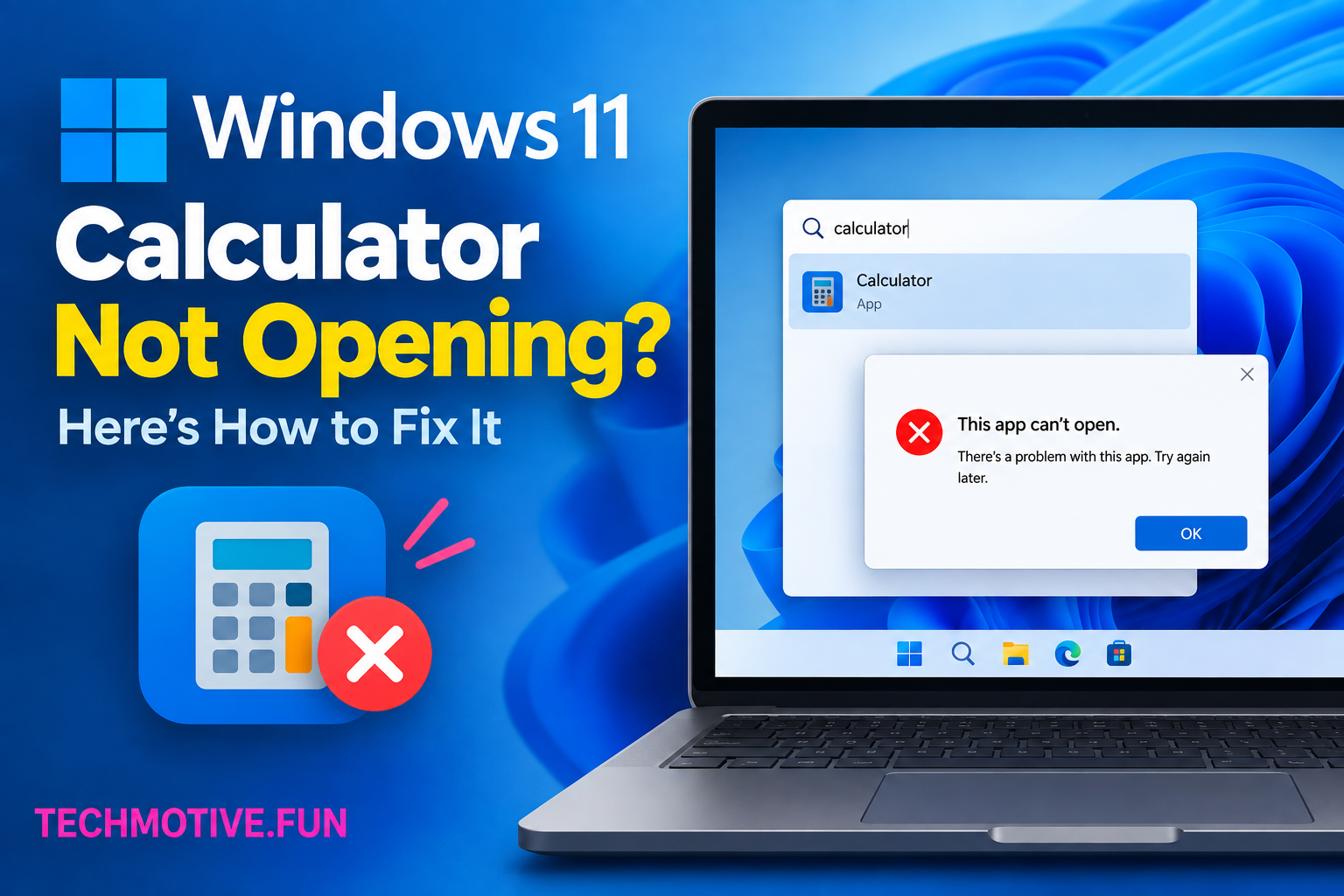
Windows 11 Calculator Not Opening? Repair, Reset, and Reinstall Steps
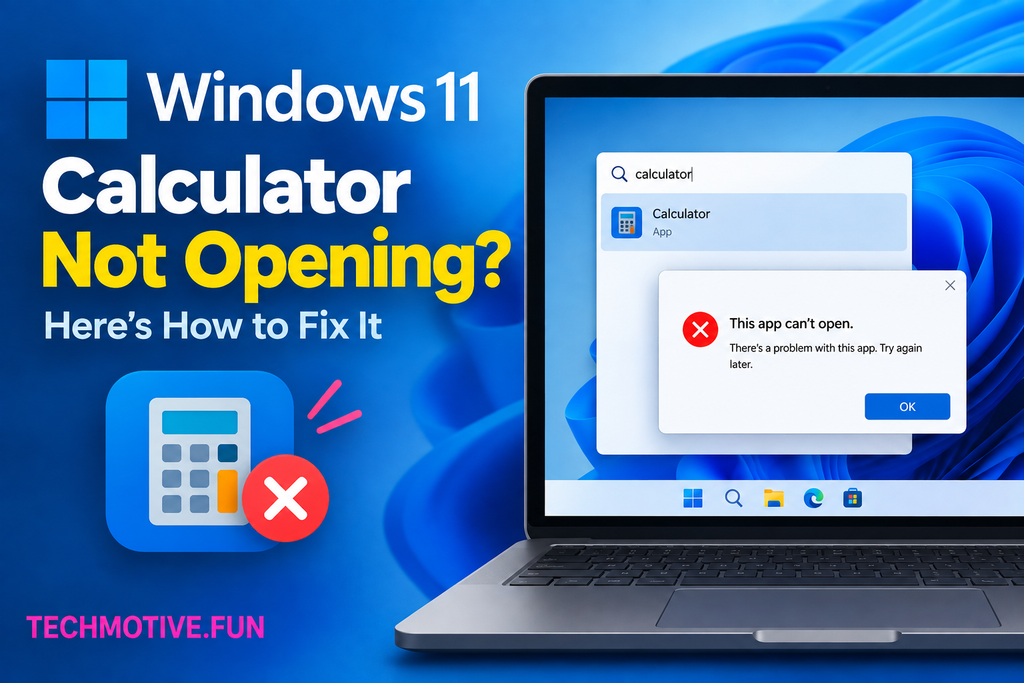
If Windows 11 Calculator is not opening, first restart your PC and check for Windows updates. If that doesn’t help, repair or reset the Calculator app from Settings. You can also reinstall Calculator, restart related Windows services, and run system file checks to fix damaged components.
Related Fixes: Windows 11 Apps Not Opening, Windows 11 Microsoft Store Not Opening, and Windows 11 Settings App Not Opening
Why Is Windows 11 Calculator Not Opening?
There can be several reasons why the Calculator app refuses to open. Sometimes the problem is caused by a temporary Windows glitch. In other cases, the Calculator app itself may have corrupted data or installation files.
A Windows update can also occasionally create compatibility problems with built-in apps. If other Microsoft Store apps are having similar issues, the problem may be related to the Microsoft Store or Windows app services rather than Calculator itself.
Some common causes include:
- Temporary Windows glitches
- Corrupted Calculator app data
- An outdated Windows installation
- A damaged Calculator installation
- Microsoft Store problems
- Corrupted Windows system files
- Problems with Windows app services
The good news is that most of these issues can be fixed without reinstalling Windows.
How to Fix Windows 11 Calculator Not Opening
Try the following fixes in order. After each method, open Calculator and see if it starts normally.
1. Restart Your Computer
It may sound too simple, but restarting Windows is often enough to fix an app that suddenly stops working.
Background processes can occasionally get stuck, preventing Calculator and other Windows apps from opening correctly.
Click:
Start → Power → Restart
Once your computer starts again, press the Windows key and search for Calculator.
Try opening the app. If it works, the issue was probably just a temporary Windows problem.
2. Check for Windows Updates
An outdated version of Windows can cause problems with built-in apps.
To check for updates, open:
Settings → Windows Update
Click Check for updates.
If Windows finds available updates, install them and restart your computer.
This is particularly useful if Calculator stopped working after another Windows update or system change. Microsoft may have already released a fix for the issue.
3. Repair the Calculator App
Windows 11 gives you an option to repair certain apps without removing their data.
Open:
Settings → Apps → Installed apps
Find Calculator in the list.
Click the three dots next to it and select Advanced options.
Under the Reset section, click Repair.
Windows will try to repair the app without deleting its saved data.
Once the repair is finished, open Calculator again.
4. Reset Calculator
If repairing the app doesn’t solve the problem, try resetting it.
Go back to:
Settings → Apps → Installed apps → Calculator → Advanced options
Select Reset.
Windows will remove the Calculator app’s stored data and return it to its default state.
Don’t worry about your Windows files. Resetting the Calculator app does not reset your computer or delete your personal documents.
After the reset is complete, try opening Calculator.
5. Reinstall Windows Calculator
If Calculator is still not opening, reinstalling the app can help replace damaged files.
You can remove Calculator from Settings → Apps → Installed apps if the uninstall option is available.
Then open the Microsoft Store, search for Windows Calculator, and install it again.
After installation finishes, launch Calculator and check whether the problem has been fixed.
If the Microsoft Store itself isn’t working, you may need to repair or reset the Store before reinstalling Calculator.
6. Restart Microsoft Store-Related Services
Windows apps depend on several background components. If one of these components isn’t working correctly, Calculator may also have trouble opening.
Press Windows + R, type:
services.msc
and press Enter.
Look through the services for components related to Microsoft Store and Windows app functionality.
If you know a particular service is stopped, you can restart it. However, avoid changing random services because some Windows services are required for other parts of the operating system.
For most users, repairing or resetting Calculator is a safer first option.
7. Run Windows Troubleshooter
Windows 11 includes troubleshooting tools that can identify certain problems automatically.
Open:
Settings → System → Troubleshoot → Other troubleshooters
Run any relevant troubleshooter that Windows provides for apps or system components.
You can also search Windows Settings for troubleshooting recommendations.
The available troubleshooters can vary between Windows 11 versions, so you may not see a specific Calculator troubleshooter.
8. Repair Windows System Files
If Calculator isn’t the only Windows app having problems, damaged system files could be responsible.
You can use System File Checker to scan Windows for corrupted files.
Open Windows Terminal or Command Prompt as administrator.
Run:
sfc /scannow
Wait until the scan reaches 100%.
Windows will attempt to repair damaged system files when possible.
After the scan completes, restart your computer and try opening Calculator again.
If SFC reports problems it couldn’t fix, you may need to use additional Windows repair commands.
9. Re-register Windows Apps
If Calculator and several other built-in Windows apps refuse to open, re-registering Windows app packages can sometimes resolve the issue.
This is an advanced solution and usually involves using PowerShell with administrator permissions.
Because PowerShell commands can affect Windows apps and settings, don’t copy commands from random websites without understanding what they do.
Try the simpler solutions first, especially repairing, resetting, or reinstalling Calculator.
What If Windows 11 Calculator Is Still Not Opening?
If Calculator still won’t open after trying all nine methods, check whether other built-in Windows apps are also affected.
Try opening apps such as Notepad, Paint, or Photos. If several Windows apps fail to open, the issue is probably not limited to Calculator.
You should also check whether your Windows user account is causing the problem. A temporary local account can be useful for testing. If Calculator works normally on another account, your original Windows profile may have a configuration problem.
If system files are damaged and SFC cannot repair them, Windows’ built-in repair options may be the next step.
You don’t normally need to reinstall Windows just because Calculator isn’t opening. Try the basic fixes first and move toward advanced repair only if the problem affects multiple apps.
Frequently Asked Questions
Why is my Windows 11 Calculator not opening?
Calculator may fail to open because of corrupted app data, outdated Windows files, a damaged installation, or a temporary system problem. Repairing or resetting the Calculator app often fixes the issue.
How do I reset Calculator in Windows 11?
Go to Settings → Apps → Installed apps → Calculator → Advanced options and select Reset. This restores the app to its default state.
Can I reinstall Windows Calculator?
Yes. You can uninstall Calculator when Windows provides the uninstall option and then install it again through the Microsoft Store.
Why does Calculator open and then immediately close?
This can happen because the app’s files or stored data are corrupted. Try using the Repair and Reset options in Calculator’s Advanced options.
Will resetting Calculator delete my files?
No. Resetting Calculator only removes the app’s stored data. It does not delete your personal documents, photos, or other files.
Can Windows Update fix Calculator?
Yes. If the problem is caused by a Windows bug or compatibility issue, installing the latest Windows 11 updates may resolve it.
What should I do if other Windows apps are not opening?
If multiple built-in apps are failing, check for Windows updates and run sfc /scannow. The problem may involve Windows system files rather than Calculator itself.
Do I need to reinstall Windows if Calculator doesn’t work?
Usually, no. Repairing, resetting, or reinstalling the Calculator app should be tried first. Reinstalling or resetting Windows is generally a last resort when broader system problems are present.
Final Thoughts
When Windows 11 Calculator is not opening, there’s usually no need to panic. Start with a simple restart and install any pending Windows updates. If Calculator still refuses to open, use the Repair and Reset options under its Advanced options.
Reinstalling Calculator, checking Windows system files, and troubleshooting other Windows apps can help if the basic solutions don’t work. In most cases, you can get Calculator running again without reinstalling Windows.