Google Sheets Cells Not Updating? 11 Fixes That Actually Work
Google Sheets Cells Not Updating? 11 Fixes That Actually Work
You change a number in Google Sheets. You hit Enter. And nothing happens.
The cell next to it should have recalculated. The total at the bottom should have moved. Instead, everything sits exactly where it was, like the sheet didn’t notice you at all. It’s the kind of small glitch that can wreck a budget, a report, or a whole afternoon — because you stop trusting the numbers in front of you.
Google Sheets cells not updating usually comes down to a handful of causes: a recalculation setting that got switched off, a formula that’s quietly broken, a browser holding onto an old copy of the sheet, or a value that looks like a number but isn’t one. The good news? Nearly all of them take under five minutes to fix. This guide walks through them in the order you should try them, from the quickest check to the deeper ones.
First, Make Sure the Sheet Is Actually Stuck
Before you change anything, confirm the problem is real and not just a slow connection.
Type a simple test in an empty cell: =1+1. If it shows 2, calculation is working and the problem is specific to your formula or your data. If it shows nothing, or shows the formula text itself, Sheets isn’t calculating at all — and the fixes in the next section are where to start.
Also try pressing Ctrl+R (or Cmd+R on a Mac) to reload the page, then look at the cell again. Sheets saves every change to Google’s servers and syncs it back to your browser, and a stale browser tab is one of the most common reasons a cell looks frozen. If the value updates after a reload, the sheet was fine all along — your tab just hadn’t caught up.
Fix 1: Turn Recalculation Back On
Sheets has a setting most people never touch, and it can quietly stop your formulas from updating.
Go to File, then Settings, then Calculation. You’ll see a “Recalculation” dropdown with three options: On change, On change and every minute, and On change and every hour. For most sheets, “On change” is the right choice — every edit recalculates immediately.
If yours is set to “On change and every hour,” that’s your answer. Your formulas only refresh once an hour, so edits in between look ignored until the next hourly recalculation. Switch it to “On change” and your cells will update the moment you edit.
There’s a catch worth knowing. “On change and every minute” exists mainly for sheets that pull in live data through functions like GOOGLEFINANCE or IMPORTDATA. It doesn’t make normal formulas faster — “On change” already does that.
Fix 2: Check Whether the Cell Is Showing Text, Not a Formula
This one fools people constantly. You type =SUM(A1:A10) and the cell displays =SUM(A1:A10) as plain text instead of a result. Sheets isn’t broken — the cell is formatted as plain text, so it treats your formula as words.
Click the cell and look at the formula bar. If you see your formula there but the cell shows the formula text, select the cell, go to Format, then Number, and choose Automatic. Then click into the formula bar and press Enter again. The formula should calculate.
The same thing happens with numbers. A value like 1,250 typed into a cell formatted as plain text is not a number to Sheets — it’s text that happens to look like one. Any formula that references it will ignore it or throw an error. The fix is the same: Format, Number, Automatic, then re-enter the value.
How do numbers end up as text in the first place? Usually from pasting. Data copied from a website, an email, or another program often arrives as text. If the damage is already done, select the range, set the format to Automatic, and re-enter the values — or use the VALUE function in a helper column to convert them.
Fix 3: Look for a Leading Apostrophe or Space
A single stray character can silence a formula. If a cell starts with an apostrophe ('=SUM(A1:A5)), Sheets treats everything after it as text. The apostrophe is invisible in the cell itself — you only see it in the formula bar.
A leading space does the same thing in a different way. =SUM(A1:A5) with a space before the equals sign is not a formula at all. Delete the space and the formula wakes up.
These strays usually arrive through copy-paste from documents or chat messages. When a formula looks right but won’t run, click the cell, check the formula bar character by character, and remove anything before the =.
Fix 4: Clear the Browser Cache and Disable Extensions
If the sheet updates on another device but not on yours, your browser is the suspect.
Start with the cache. In Chrome, go to Settings, Privacy and security, Delete browsing data, and clear cached images and files. Then reload the sheet.
Extensions are the next suspect. Ad blockers, privacy tools, and some productivity extensions can interfere with how Sheets loads and syncs. Open the sheet in an incognito window (where most extensions are off by default) and test an edit. If it works there, disable your extensions one at a time in your normal window until you find the one causing it.
Offline mode deserves a mention too. If you’ve enabled offline access for Google Drive, Sheets may be showing you a locally stored copy that hasn’t synced yet. Check the small cloud or sync icon near the top of the screen — if it shows a sync problem, reconnect to the internet and wait a few seconds for the sheet to catch up.
Fix 5: Check for Circular References
A circular reference is a formula that depends on itself, directly or through a chain of other cells. =A1+B1 in cell B1, for example, can never finish calculating — so Sheets may stop updating the cells involved.
Sheets usually warns you with a small “Circular dependency detected” message in the cell. If you see it, trace the chain: click the cell, follow its references, and find where the loop closes. The fix is to restructure the formula so no cell depends on itself. Move the calculation to a different cell, or replace one link in the chain with a fixed value.
Circular references sometimes hide in longer chains — A1 depends on B1, B1 on C1, C1 on A1 — so if a whole block of cells has gone quiet, a loop somewhere in the middle is a strong suspect.
Fix 6: Check Your Formulas for Silent Errors
Some formulas fail quietly instead of showing an error. A VLOOKUP that can’t find its key returns #N/A. A division by an empty cell returns #DIV/0!. But subtler problems produce a wrong-looking result or no update at all.
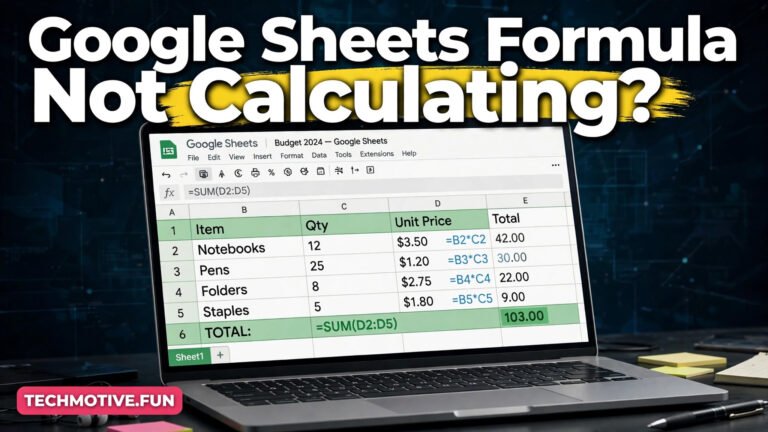
Common culprits — and if a formula that used to work suddenly stops, the troubleshooting steps for Google Sheets formulas not calculating cover the same ground from a different angle:
- Wrong range.
=SUM(A1:A9)when your data now runs to A12 misses the last three rows. Check that ranges still cover all your data after rows are added. - Absolute vs relative references. A formula copied down a column with
$A$1locked in place will keep pointing at the same cell. Remove the dollar signs if the reference should move with the row. - Mismatched data types. Comparing a number to text — for example,
=A1="100"when A1 holds the number 100 — returns FALSE, and a formula built on that comparison gives the wrong answer. - Hidden rows and filters. A formula that references a filtered-out row still counts it. That’s normal behaviour, not a bug — but it surprises people when a SUM doesn’t match what’s visible on screen. If you want only visible cells counted, SUBTOTAL is the function for that job. Filters cause their own headaches too — see Google Sheets filter not working if your filter buttons are misbehaving on top of everything else.
When a single formula is the problem, the fastest diagnostic is to rebuild it from scratch in a blank cell. If the new version works, the old one had a typo or a stale reference. Copy the working version back in.
Fix 7: Deal With IMPORT Functions and External Data
Functions like IMPORTRANGE, IMPORTDATA, IMPORTHTML, and GOOGLEFINANCE pull data from outside the sheet, and they update on their own schedule — not instantly.
IMPORTRANGE refreshes roughly every 30 minutes, and IMPORTDATA and IMPORTHTML can take a similar amount of time. GOOGLEFINANCE data can lag by up to 20 minutes. If your cells depend on one of these, waiting is sometimes the only fix. There is no button to force an instant refresh.
What you can do is check whether the source is still reachable. An IMPORTRANGE that lost permission — because the source sheet’s sharing changed, or the owner revoked access — will show a #REF! error. Click the cell, then click “Allow access” again if it appears. If the source sheet was deleted or moved, you’ll need to point the formula at the new location.
Too many import functions in one sheet can also slow recalculation to a crawl. If your sheet has dozens of IMPORTRANGE calls, consider consolidating them or moving the data into the sheet directly.
Fix 8: Check Whether a Script or Add-on Is Interfering
Add-ons and Apps Script automations can change cell values behind your back — or block changes from taking effect. A script that runs on every edit (an onEdit trigger) and writes values back can overwrite your edit a fraction of a second after you make it, which looks exactly like the cell not updating.
Go to Extensions, then Add-ons, and review what’s installed. Disable them one at a time and test an edit after each one. If you have custom scripts, check Extensions, then Apps Script, and look for onEdit or onChange triggers that touch the range you’re editing.
The same goes for conditional formatting rules and data validation — they can’t stop a value from updating, but a validation rule that rejects your entry will silently refuse it. If you type a value and it vanishes, check Data, then Data validation, for a rule on that cell.
Fix 9: Look at the Sheet’s Size and Complexity
Very large sheets can simply be slow. A sheet with tens of thousands of rows, hundreds of formulas, and volatile functions like NOW(), TODAY(), or RAND() recalculates constantly, and on a weaker device that can take noticeable time — sometimes long enough that edits seem ignored.
Check the bottom of the screen for the calculation indicator. If Sheets shows it’s still calculating, wait. If it never finishes, the sheet may be too heavy for the device. A few things help: replace volatile functions with static values where the live update isn’t needed, break one giant sheet into smaller ones, and remove unused rows — a sheet that extends to row 100,000 because of a stray formatting change is bigger than it looks.
Fix 10: Check Sharing, Permissions, and Protected Ranges
If you’re editing a shared sheet and your changes don’t stick, permissions may be the reason. Viewers can’t edit at all — their keystrokes simply do nothing. Commenters can add comments but not change values.
Even as an editor, a protected range can block you. If someone protected a range of cells, edits to those cells are rejected, sometimes without a clear message. Go to Data, then Protect sheets and ranges, and see whether your cells are inside a protected area. If they are, you’ll need the sheet owner to adjust the protection or give you permission.
This also explains a confusing symptom: the sheet updates when the owner edits it but not when you do. Different permission levels, different behaviour.
Fix 11: When Nothing Else Works — Copy the Sheet
If every fix above fails, the sheet itself may be corrupted. It happens rarely, but it happens — usually after a bad import, a broken add-on, or a very long edit history.
Make a copy: File, then Make a copy. Test the copy. In most cases the copy calculates normally, because copying rebuilds the sheet’s internal structure. If the copy works, move your team to the copy and archive the original.
How to Stop It Happening Again
A few habits keep this problem from coming back — and if you work with data validation lists as well, the fixes for Google Sheets dropdown not working use the same check-the-format-first approach.
Keep the recalculation setting on “On change” and check it after any big change to the sheet. Use paste-values (Ctrl+Shift+V) when bringing data in from outside, so text-formatted numbers don’t sneak in. Give formulas a quick glance after adding rows — ranges don’t always grow the way you expect.
Sheets is usually reliable to the point of invisibility, which is exactly why a frozen cell feels so strange. But the cause is almost always one of the eleven above, and most of them are fixed in under a minute. Work through them in order, test after each one, and you’ll find the culprit before you reach the end of the list.
FAQ
Why do my Google Sheets cells update on my phone but not my computer?
That points to your computer’s browser — its cache, an extension, or offline mode. Clear the cache, try an incognito window, and check that offline sync isn’t holding an old copy. If the sheet is fine on your phone, the data itself is fine.
How often does Google Sheets recalculate?
With the default “On change” setting, normal formulas recalculate the moment you edit a cell. Import functions like IMPORTRANGE refresh roughly every 30 minutes, and GOOGLEFINANCE data can lag up to 20 minutes. The “every minute” and “every hour” settings only matter for those live-data functions.
Why is my formula showing as text instead of calculating?
The cell is probably formatted as plain text, or there’s a stray apostrophe or space before the equals sign. Set the format to Automatic (Format, Number, Automatic), remove any leading characters, then click into the formula bar and press Enter.
Can too many formulas slow down Google Sheets?
Yes. Very large sheets with hundreds of formulas — especially volatile ones like NOW() and RAND() — can take a long time to recalculate. Simplifying formulas, removing unused rows, and splitting giant sheets into smaller ones all help.
Why does my SUM ignore some numbers?
Those “numbers” are probably stored as text. Select the range, set the format to Automatic, and re-enter the values. Data pasted from websites and emails often arrives as text, which formulas ignore.
Sources
- Google Docs Editors Help — Change a spreadsheet’s settings — Google’s official guide to calculation and recalculation settings in Sheets.
- Google Docs Editors Help — Use formulas — Google’s official reference for how formulas work in Sheets.