Android Keyboard Keeps Disappearing? How to Fix It
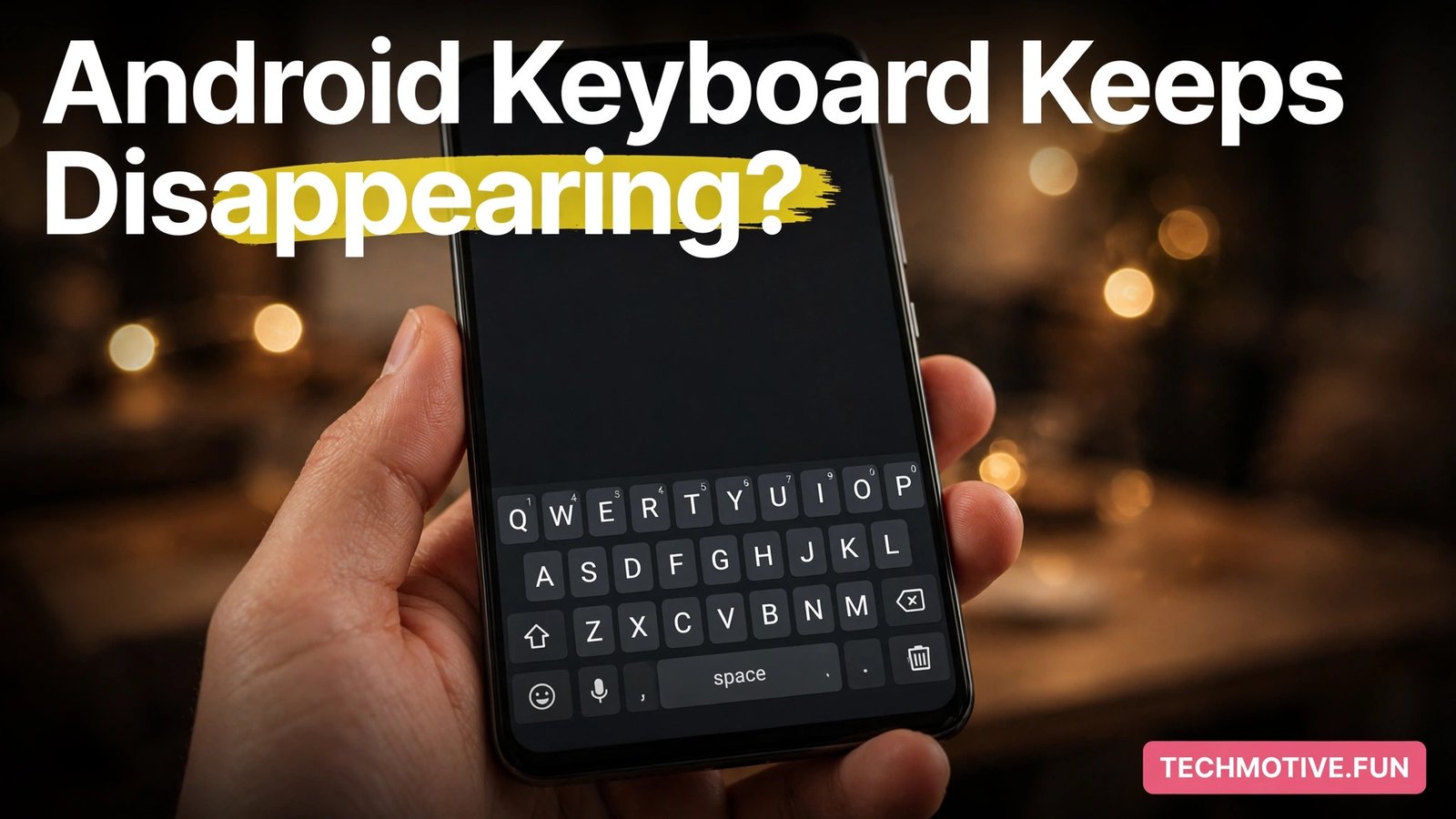
You are halfway through a message when the keyboard just vanishes. You tap the text field again, it pops up for a second, and then it is gone. It is a small problem that turns into a big annoyance fast, because almost everything on a phone starts with typing.
The good news is that it is almost always fixable without a repair shop visit. In most cases, the cause is a misbehaving keyboard app, a changed setting, or a phone running low on memory. Work through the causes in order, starting with the quick checks.
Quick Fixes to Try First
First, restart your phone. A restart clears temporary glitches and frees up memory. Hold the power button, tap Restart, and test the keyboard in a messaging app once the phone is back on.
Second, tap a different text field. If the keyboard works in your browser but disappears in one particular app, the app itself may be the issue rather than the keyboard.
Third, check whether the keyboard is in floating mode. Gboard can be dragged into a small floating window, so if the keyboard appears as a small box you can move around, tap the keyboard settings icon and turn off floating mode. It can look disappeared when it has only shrunk or drifted to an edge.
If none of these helped, move on to the full fixes below. Test the keyboard after each one so you know which step fixed it.
Why Your Keyboard Keeps Vanishing
The keyboard app itself may have crashed. Like any app, Gboard can crash in the background, and Android may take a few seconds to restart it.
Another app may be interfering. Apps that draw over other apps can push the keyboard away, and full-screen games, video apps, and some accessibility tools are frequent culprits. If the keyboard only disappears in one app, that app is the suspect.
The keyboard app may be out of date. An old version of Gboard can clash with a newer version of Android, and updates often contain fixes for exactly this kind of problem. Having more than one keyboard installed can also cause trouble, since Android may keep handing control back and forth and the keyboard disappears in the gap.
The phone may be running low on memory. When RAM is full, Android closes background processes to free space, and the keyboard can get closed. A corrupted cache can cause the same symptoms, and battery optimization can put the keyboard app to sleep.
Fix 1: Check Your Default Keyboard
Confirm that Gboard, or whichever keyboard you prefer, is set as your default. If no keyboard is properly selected, Android can behave as if there is no keyboard at all.
Open Settings, then System, then Languages and input, then On-screen keyboard. The exact path varies by brand; on Samsung phones, look under General management, then Keyboard list and default. Tap Default keyboard and choose Gboard. If Gboard is already selected, switch away and then switch back, which forces Android to re-register the default. While you are here, turn off any keyboards you never use.
Fix 2: Clear the Gboard Cache
Clearing the cache is safe and quick. It removes temporary files without deleting your personal dictionary, saved words, or keyboard settings. Open Settings, then Apps, then See all apps. Find Gboard and tap it. Tap Storage and cache, then tap Clear cache. Now test the keyboard.
If that did not help, you can clear the storage as well, but read the warning first. Clearing storage resets Gboard and deletes your learned words, dictionary entries, and custom settings such as your theme. Sync may restore some of this, but not everything comes back. Only clear storage if the cache clear did not work.
Fix 3: Update Gboard and Your Phone
An outdated keyboard app is a common cause, and the fix takes about a minute. Open the Play Store, tap your profile picture, then Manage apps and device, then Updates available. If Gboard is listed, tap Update. While you are there, update the app where the keyboard disappears most often.
Next, check for an Android system update under Settings, then System, then System update. Make sure your phone has enough battery and is connected to Wi-Fi before starting one.
Fix 4: Turn Off the Floating Keyboard
A floating keyboard is one of the sneakiest causes. The keyboard is not gone; it has shrunk into a small window that is easy to miss, or drifted to a corner. Open any app where you can type, bring up the keyboard, and tap the three-dot menu or the settings icon on the toolbar. If you see an option for Floating, turn it off. On Gboard, you can also drag the floating keyboard by its handle and tap the icon that docks it back to the bottom of the screen.
Also check whether the problem happens only in full-screen apps, which hide the keyboard to give the app the whole screen. If so, swipe up from the bottom edge to bring up the navigation bar, then tap the text field again.
Fix 5: Check Battery Optimization
Battery optimization can be overzealous. If Android decides that Gboard is using too much battery in the background, it can put the keyboard to sleep, and the keyboard may close or fail to appear. Open Settings, then Apps, then See all apps, and tap Gboard. Tap Battery and look at the setting. If it is set to Restricted, change it to Unrestricted or Optimized, depending on what your phone offers.
On Samsung phones, go to Settings, then Battery and device care, then Battery, then Background usage limits, and make sure Gboard is not under sleeping or deep sleeping apps. This matters most if the keyboard works after a restart but gets worse over the day.
Fix 6: Test in Safe Mode
Safe mode starts your phone with only the built-in system apps running, and it is the best way to find out whether a third-party app is causing the problem. Press and hold the power button until the power menu appears, then press and hold the Power off option until you see a prompt asking whether to reboot to safe mode. Tap OK. On some phones the steps differ slightly, so check your phone maker’s instructions if this does not work.
Once the phone restarts, Safe mode appears in a corner of the screen. Test the keyboard in a messaging app. If it works normally, a third-party app is the cause. Restart normally to leave safe mode, then uninstall recently installed or updated apps one at a time, testing after each removal.
Fix 7: Reset App Preferences
Resetting app preferences restores the default settings for all apps at once. It does not delete your apps, photos, or files, but it resets disabled apps, notification settings, and default app choices, including your default keyboard. You will need to set Gboard as your default again afterwards.
Go to Settings, then System, then Reset options, then Reset app preferences, and tap Reset apps to confirm. On Samsung phones, the path is Settings, then General management, then Reset, then Reset app preferences. After the reset, set Gboard as your default keyboard again and test it.
Fix 8: Check Accessibility Settings
Accessibility services can change how the keyboard behaves, and a service you turned on and forgot about can be the hidden cause. Go to Settings, then Accessibility, and look through the installed services. If you see one you do not recognize or no longer need, turn it off and test the keyboard. Services that control the screen or simulate touches are the most likely to interfere.
Also check TalkBack and Switch Access. If either is turned on by accident, it can change how taps are handled and make the keyboard behave strangely. Turn them off if you do not use them.
Fix 9: Free Up Memory and Storage
A phone short on memory or storage can close the keyboard without warning, especially an older phone or one with many apps open. Close apps you are not using from the recent apps screen. If the keyboard problem mostly happens when many apps are open, this is a strong clue.
Check your storage under Settings, then Storage. If it is almost full, delete unused apps, old videos, and large files you no longer need. Android needs some free space to work smoothly, and a nearly full phone can cause apps and keyboards to close on their own. Restart the phone after freeing up space and test the keyboard again.
Fix 10: Factory Reset as a Last Resort
If nothing else has worked, a factory reset is the final option. It wipes the phone back to its factory state, removing any corrupted setting or file causing the problem. It also deletes your apps, accounts, photos, and files, so treat it as a last resort.
Back up everything first. Make sure your photos, contacts, and important files are backed up to your Google account or another safe place, and check the backup has completed before you reset. Without a backup, a reset means losing data you may not get back.
To reset, go to Settings, then System, then Reset options, then Erase all data (factory reset). Set the phone up again, install Gboard, and test the keyboard before restoring your apps. If it still disappears, the problem may be hardware related, such as a faulty touch screen, so contact your phone maker or visit a service centre.
When the Problem Is Limited to One App
Sometimes the keyboard works everywhere except in one app. That points to the app, not the keyboard. Clear the app’s cache under Settings, then Apps, then Storage and cache. Then update the app from the Play Store. If it is already up to date, check whether other users report the same problem, since an app update can introduce a bug that affects the keyboard.
For a related issue where the keyboard does not appear at all, see our guide on Android keyboard not appearing.
Troubleshooting Table
| Symptom | Most likely cause | Try this first |
|---|---|---|
| Vanishes in every app | Gboard crash or bad cache | Restart, then clear the Gboard cache |
| Disappears in one app only | That app is interfering | Clear the app cache, update the app |
| Shows as a small floating box | Floating mode is on | Turn off floating mode |
| Works after a restart, then fails later | Battery optimization or low memory | Turn off battery optimization |
| Disappears while typing long messages | Low memory or a keyboard crash | Close background apps, update Gboard |
| Fails after an Android update | System glitch or outdated keyboard | Update Gboard, reset app preferences |
| Disappears in games and video apps | Full-screen mode hides it | Swipe up, then tap the text field |
| Fails only with a second keyboard installed | Keyboard conflict | Disable unused keyboards |
Matching the symptom to the cause saves time and stops you from trying fixes you do not need.
How to Stop the Problem Coming Back
Once the keyboard works again, a few habits will keep it that way. Keep Gboard updated with automatic updates on, since most keyboard bugs are fixed in updates. Do not install several keyboards at once; pick one and stick with it. Restart your phone once a week, and keep some storage free, because when storage gets very low, Android starts closing things to cope.
If the keyboard keeps crashing, see our guide on Android apps keep crashing for more steps that apply to any misbehaving app.
Frequently Asked Questions
Why does my Android keyboard disappear when I start typing?
The keyboard app has usually crashed or run out of memory. Restart the phone, clear the Gboard cache, and update the app. If it happens in only one app, that app may be interfering.
Why does my keyboard disappear in full-screen apps and games?
Full-screen apps hide the keyboard to give the app the whole screen. Swipe up from the bottom edge to bring back the navigation bar, then tap the text field again.
Is clearing Gboard data safe?
Clearing the cache is safe and deletes only temporary files. Clearing storage is different: it resets Gboard and deletes your learned words, dictionary entries, and custom settings. Clear the cache first, and only clear storage if that did not fix it.
Why does my keyboard keep disappearing after an Android update?
System updates can change how Android handles the keyboard, and an older Gboard may not work well with the new system. Update Gboard first. If that does not help, reset app preferences.
Can a third-party app make my keyboard disappear?
Yes. Apps that draw over other apps or use accessibility services can interfere. If the keyboard works normally in safe mode, a third-party app is the cause. Uninstall recently installed or updated apps one at a time.
Should I switch to a different keyboard app?
Switching can show whether the problem is with Gboard or with your phone. Try a different keyboard for a day. If it works fine, a fresh install of Gboard may fix it.
Does low storage make the keyboard disappear?
Yes. When storage is almost full, Android may close background processes, including the keyboard. Free up space by deleting unused apps and large files, then restart the phone.
What should I do if the keyboard still disappears after a factory reset?
The problem is unlikely to be caused by your settings or apps. It may be a hardware fault, such as a touch screen problem. Contact your phone maker or visit a service centre, and tell them the steps you have already tried.
Conclusion
A keyboard that keeps disappearing is frustrating, but it is rarely a serious problem. In most cases, a restart, a cache clear, or an update to Gboard is all it takes. If those do not work, the steps above cover the other common causes, from battery optimization to low memory.
Match the fix to what you are seeing. If the keyboard disappears everywhere, start with Gboard itself. If it disappears in one app, look at that app. If it only fails after the phone has been running a while, check battery settings and memory. A factory reset, done with a proper backup, will tell you whether the problem is in your setup or the phone itself.
If your notifications are also acting up, check our guide on Android notifications not showing — the two problems often share the same underlying cause.
Sources
- Google Gboard Help: https://support.google.com/gboard/
- Google Android Help: https://support.google.com/android/answer/7680439