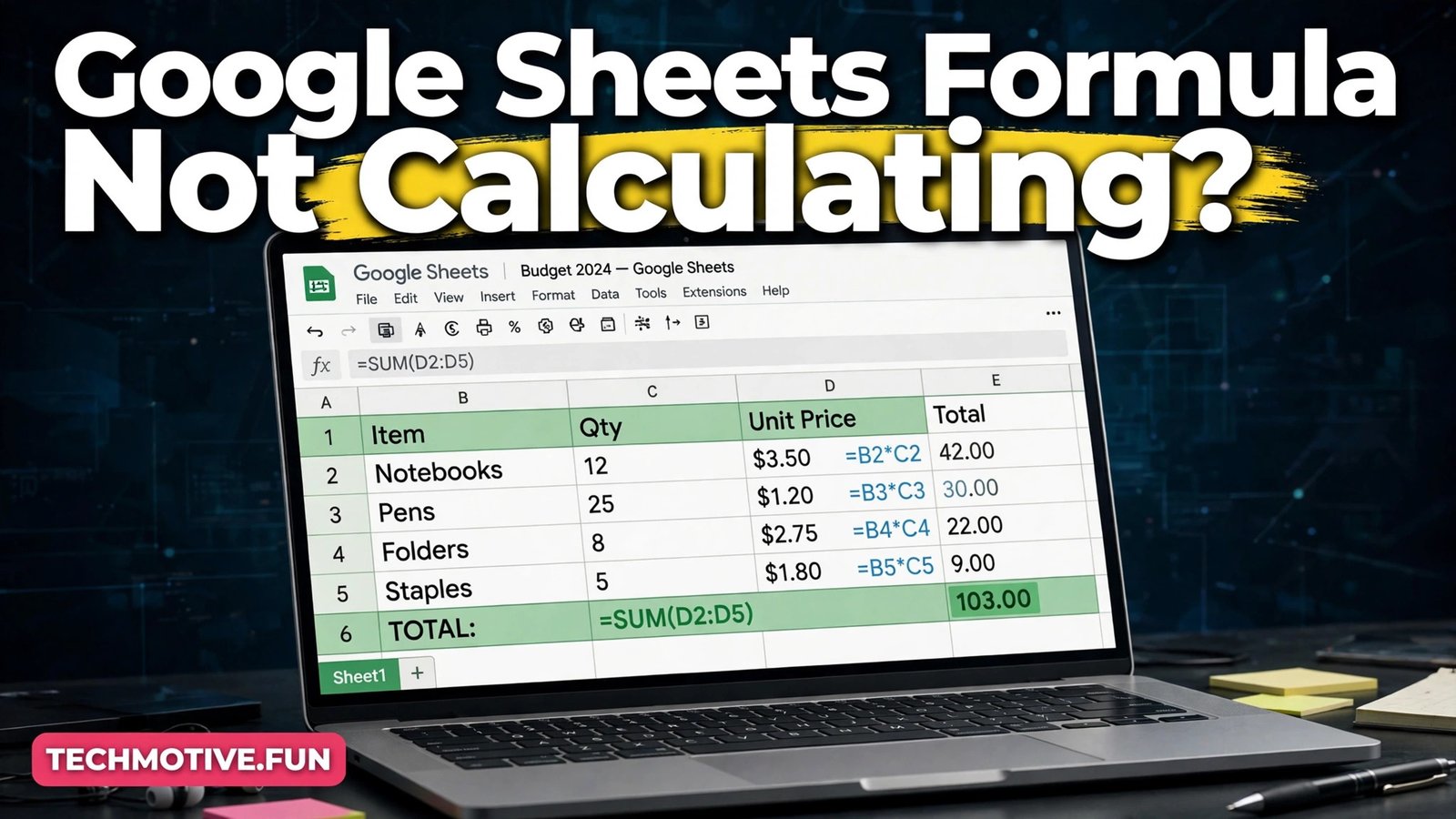
Why Is Your Google Sheets Formula Not Calculating? How to Fix It Step by Step
There is a particular kind of frustration that only a spreadsheet can cause. You type a formula, press Enter, and instead of an answer you get the formula itself, a zero, or a short error message that explains almost nothing. The rest of the sheet looks fine, so the problem feels personal, even though it is usually one small setting or one mistyped character. Before you make bulk edits, make a copy of the spreadsheet first.
The good news is that most formula problems fall into a small set of causes. Once you learn to read the symptom, you can usually narrow the fault down in a minute or two. A formula that shows as plain text points in a different direction from one that returns zero, and both differ again from a formula that throws an error code.
First, Read the Symptom Before You Change Anything
It is tempting to delete a broken formula and start again, but that often destroys the clue. Before you edit anything, note exactly what the cell shows: the formula text itself, such as =SUM(A2:A10), a number that is clearly wrong, like zero, or an error code beginning with a hash sign.
Each outcome tells a different story. Text in the cell usually means Sheets never treated your entry as a formula at all. A zero often means the formula ran, but the values it found were empty, text, or outside the range you meant. An error code usually means Sheets understood that you wanted a formula, but something inside it could not be resolved.
Symptom 1: The Formula Shows as Text Instead of a Result
If a cell displays =SUM(A2:A10) rather than a total, Sheets is treating the entry as text. The formula was never calculated, so there is nothing wrong with the arithmetic itself. The first thing to check is the View menu, because Google Sheets has a “Show formulas” view that displays every formula instead of its result.
Next, look at the very start of the entry in the formula bar. A formula must begin with an equals sign, and a space before that sign may cause Sheets to read the whole entry as text. A leading apostrophe causes the same effect, because it forces the entry to be treated as text. Delete either character, press Enter, and the formula should calculate.
Formatting can cause the same symptom in a quieter way. If a cell was formatted as Plain text before you typed the formula, Sheets may keep treating new entries as text. Select the cell, change its format to Automatic or Number, then re-enter the formula, since changing the format alone is sometimes not enough.
Symptom 2: The Formula Runs but Returns 0
A zero result is more puzzling than an error, because Sheets is not complaining about anything. It has calculated something, and that something happens to be zero. The usual explanation is that the formula is adding, counting, or averaging cells that Sheets does not recognise as numbers.
Start by checking the cells the formula refers to. They may look like numbers but actually be text, which happens often with imported data and with values copied from emails or documents. A quick test is to check one suspect value with the ISNUMBER function in a blank cell, for example =ISNUMBER(A2). If it returns FALSE, the cell holds text, even if it looks like a number.
Check the range itself, too. It is easy to write A2:A10 when you meant A2:A20, or to sum the wrong column after inserting a new column. Click the formula cell and look at the coloured outlines Sheets draws around the referenced ranges. Those outlines show exactly which cells are included, and a misaligned outline is often visible at a glance.
Symptom 3: The Formula Shows an Error Code
Error codes look alarming, but they are genuinely helpful once you know what each one means. Sheets is not just saying that something failed; it is pointing at the kind of failure. Read the code before you rewrite the formula, because each code suggests a different fix.
The #DIV/0! error means the formula tried to divide by zero or by an empty cell, which is common in averages and ratios where the denominator has not been filled in yet. The fix is usually to check the denominator cell, not the whole formula. If a blank denominator is a normal, temporary state, wrapping the formula in IFERROR can display a cleaner message while the data is incomplete.
The #VALUE! error means the formula received the wrong type of data, such as text passed to a function that expects a number. The #REF! error means a reference is no longer valid, usually because a row, column, or sheet the formula pointed to has been deleted. The #NAME? error means Sheets does not recognise a function name or a named range, most often because of a misspelling.
The #N/A error means a lookup could not find what it was asked for. If you use VLOOKUP or MATCH, this usually means the search value is not in the lookup range, or that it differs by a space, a spelling, or a data type. Finally, “Formula parse error” means Sheets could not understand the structure of the formula at all, often because of a missing parenthesis, a missing comma, or a quotation mark that was never closed.
Cause 1: Calculation and View Settings
Google Sheets normally recalculates when you edit a spreadsheet, so a stale result is not usually caused by a manual calculation mode. Still, the settings are worth checking when a whole sheet seems frozen, especially if the sheet uses time-based or random functions. Open File, then Settings, and look at the Calculation tab.
If a sheet that worked yesterday suddenly shows stale results in cells nobody changed, try refreshing the page before rebuilding anything. Browser and connection glitches occasionally leave a sheet displaying old values, and a refresh is a cheap test. If the problem survives a refresh, it is in the sheet itself, not in the display.
Cause 2: Text Formatting and Imported Values
Text formatting is the most frequent cause of formulas that refuse to calculate, and it is also the easiest to overlook because text numbers look identical to real numbers. A cell formatted as Plain text, or holding a text value imported from elsewhere, will not behave like a number no matter how correct your formula is.
To confirm this, select the input cells, open the Format menu, point to Number, and see which option is highlighted. If Plain text is selected, change it to Automatic or Number, and then re-enter the values or the formula. Changing the format alone does not always convert values that are already stored as text.
Spaces are a quieter version of the same problem. A number with a leading or trailing space, or a lookup value with an extra space at the end, will not match or calculate as expected. The TRIM function removes leading and trailing spaces, and it is a good diagnostic step when a lookup fails even though the values look identical.
Similar display quirks can affect other parts of Sheets. For example, when a filter does not behave as expected, the cause is often the same kind of mismatch between what a cell shows and what it actually holds.
Cause 3: A Leading Apostrophe or a Stray Space
The apostrophe is invisible in the grid itself. The cell appears to hold a normal formula or number, and only the formula bar reveals the leading apostrophe. That is why clicking into the cell and reading the formula bar is such an important habit: if you only look at the grid, you will never see the character causing the problem.
A leading space behaves in much the same way. It is invisible in the grid, obvious in the formula bar, and capable of stopping a formula from being recognised. When you paste a formula from a document or a web page, check for a space before the equals sign before you assume the formula itself is wrong. The fix in both cases is simple: delete the character, then press Enter.
Cause 4: Wrong References, Ranges, and Sheet Names
Many formula failures are really reference failures. The formula is well written, but it points at the wrong place. Inserting or deleting rows and columns, renaming a sheet, or copying a formula to a new location can all shift a reference without you noticing.
Click the formula cell and study the coloured range outlines, which are the fastest way to see what the formula actually includes. If an outline stops one row short, covers the header row, or points at a neighbouring column, you have found the problem. Adjust the range in the formula bar rather than retyping the whole formula.
Sheet names need care, too. If a sheet name contains a space, the reference must be wrapped in single quotation marks, as in 'Monthly Sales'!A2. Renaming a sheet normally updates references automatically, but references typed as text inside functions such as INDIRECT will not update, and those are a common source of silent failures.
Cause 5: Circular References and Iterative Calculation
A circular reference happens when a formula refers to its own cell, either directly or through a chain of other formulas. Cell A2 might refer to B2, B2 might refer to C2, and C2 might refer back to A2. Sheets cannot settle on an answer, because each result depends on the next one in the loop.
Sheets normally responds with a circular dependency message rather than a number. That message is useful, since it tells you there is a loop, even if it does not tell you exactly where the loop runs. To find it, trace the references backwards from the affected cell, clicking each formula cell in turn and following the coloured outlines until you find the cell that points back to the start.
Most circular references are mistakes, and the right fix is to break the loop. That might mean changing one formula to point at a different input cell, or moving a total out of the range it is summing. A common version of this mistake is a SUM formula that includes its own cell, for example a total in A11 that sums A2:A11 instead of A2:A10.
Iterative calculation is the exception, and it should only be used deliberately. It allows Sheets to repeat a circular calculation a set number of times until the result stabilises, and you can switch it on under File, then Settings, then the Calculation tab. It can hide genuine mistakes by producing a plausible-looking number from a broken loop, so if you cannot explain why the loop should exist, breaking it is the safer fix.
Preventing the Problem Next Time
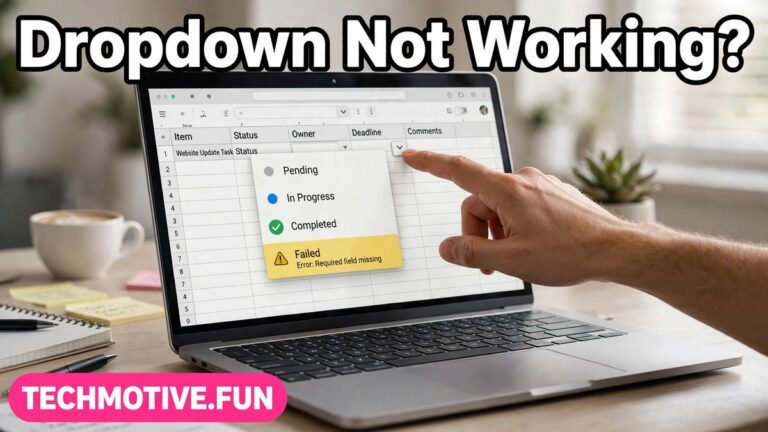
A dropdown that stops working often traces back to the same kind of range or formatting slip, and the same habit of checking the underlying data first will get you to the answer faster. The same is true in Docs, where a spell check problem is often a settings issue rather than a fault in the document itself.
Frequently Asked Questions
Why does my Google Sheets formula show the formula instead of the answer?
This usually means Sheets is treating the entry as text. Check that “Show formulas” is off in the View menu, remove any leading apostrophe or space in the formula bar, and make sure the cell is not formatted as Plain text. If the format was Plain text, change it to Automatic or Number and then re-enter the formula.
Why does my formula return 0 when the cells contain numbers?
The cells may look like numbers but actually hold text, especially if the data was imported or pasted from another program. Test one input cell with ISNUMBER to find out. If it returns FALSE, convert the text values to numbers, check that the formula’s range covers the right cells, and make sure no blank or text cells are being counted where you expected numbers.
What should I do about a circular dependency error?
Trace the chain of formulas backwards from the affected cell until you find the cell that refers back to the start of the loop. In most cases, the right fix is to break the loop by changing one reference or by moving a total outside the range it sums. Only switch on iterative calculation if the loop is deliberate and you understand what result it should converge to.
Can a formula break when I copy it to another cell?
Yes, and this is very common. Relative references move when a formula is copied, so a reference that should stay fixed will drift unless you lock it with dollar signs. If a formula works in its original cell but fails after copying, compare the copied version’s references with the original and lock any reference that should not move.
How do I know if the problem is the formula or the data?
Test the formula in a blank sheet with small values you type yourself. If it calculates correctly there, the formula logic is sound and the problem is in the original sheet’s data, formatting, or references. If it still fails with clean test data, the formula itself needs fixing.
Conclusion
A Google Sheets formula that will not calculate is rarely a mystery once you read the symptom properly. Text in the cell points to formatting, an apostrophe, or a view setting. A zero points to text values or a wrong range. An error code points to a specific kind of failure, from a broken reference to a circular loop, so working through those clues in order will solve most cases without rebuilding the sheet.
Sources
- Google Docs Editors Help, “Add formulas & functions”: https://support.google.com/docs/answer/46977
- Google Docs Editors Help, “Google Sheets function list”: https://support.google.com/docs/table/25273?hl=en&ref=allenc.com