
Android Apps Not Opening? How to Fix It on Your Phone
There is nothing quite as annoying as tapping an app icon and watching nothing happen. The screen may flash, the app may close at once, or it may sit on a loading screen that never ends. It often happens at the worst moment, when you need a map, a message, or a payment app in a hurry.
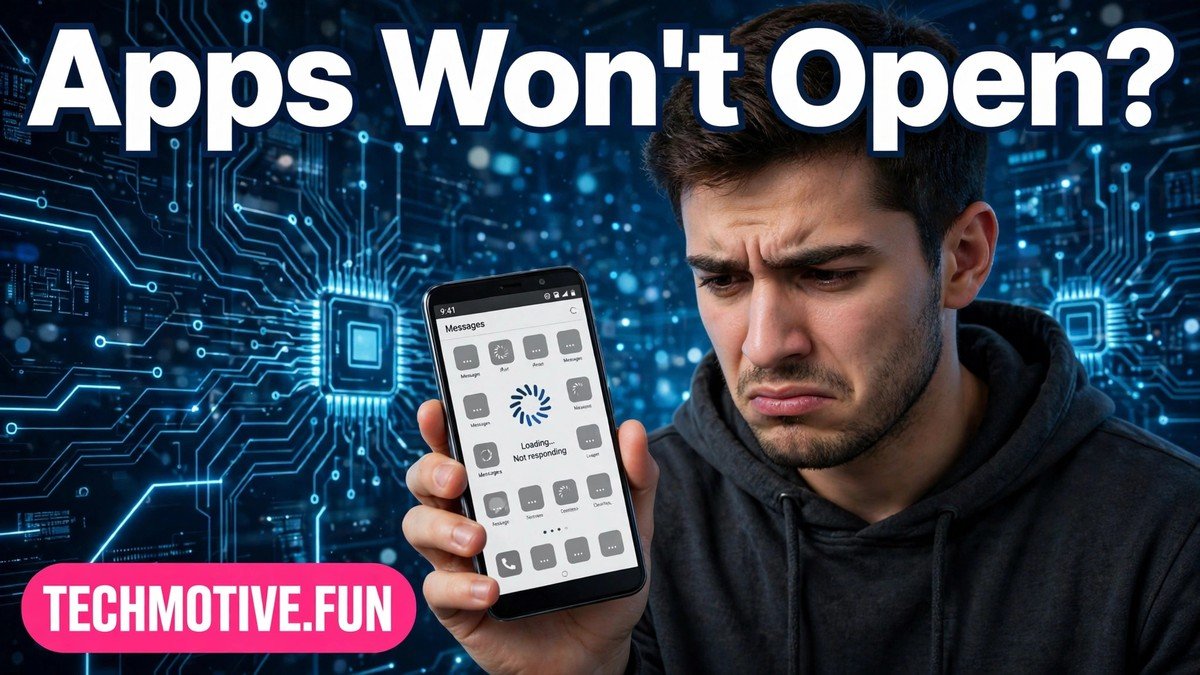
The good news is that most cases of android apps not opening have a simple cause. It is often a temporary glitch, a full cache, a weak connection, or a setting that changed after an update. You do not need to be technical to fix most of these problems, and you do not need to reset your phone straight away.
This guide walks through the fixes in order, from the easiest to the more involved. Start at the top and test the app after each step. In many cases, you will find the answer in the first few fixes, and you can stop there.
What the Problem Looks Like
Apps can fail in different ways, and the symptom often points to the cause. Use this quick guide to narrow things down before you start changing settings.
| What you see | What it often means |
| App closes at once after tapping it | A temporary crash, a corrupt cache, or a failed update |
| App freezes on a logo or loading screen | A connection problem, or the app waiting for data it cannot reach |
| Only one app will not open | The problem is likely inside that app, not your phone |
| Many apps will not open | A system problem, low storage, or a recent system update |
| App opens but closes when you use a feature | A problem with one part of the app, such as camera or location access |
| App worked yesterday but not today | An update, a changed permission, or a full storage problem |
If only one app is affected, focus on that app first. If many apps are affected, start with the phone-level fixes, such as a restart and a storage check, before you touch individual apps.
12 Fixes, Easiest First
1. Wait a Moment and Try Again
Sometimes an app fails once for no clear reason. Close it fully, wait a few seconds, and open it again. On many phones, you can swipe up from the bottom of the screen to see recent apps, then swipe the problem app away to close it.
If the app still will not open, move on. A single failed attempt does not mean the app is broken, but repeated failures do point to something that needs fixing.
2. Restart Your Phone
A restart clears temporary errors and frees up memory. Press and hold the power button, then choose Restart. If your phone does not show that option, turn it off, wait about thirty seconds, and turn it back on.
This simple step fixes a surprising number of app problems. It is also safe. A restart does not delete your photos, messages, or app data, so it is always a good first step when apps start behaving oddly.
3. Check Your Internet Connection
Many apps need a connection to open fully, even if they seem simple. If your connection is weak or unstable, the app may hang on a loading screen or close without warning. Try opening a website in your browser to test the connection.
If pages also fail to load, the problem may be your connection rather than the app. A quick check of your mobile data or Wi-Fi settings can save you from changing app settings for no reason. For a slow connection, the steps in this guide to fixing slow mobile data can help you work through the basics.
4. Check Wi-Fi and Mobile Data Settings
If you are on Wi-Fi, try turning Wi-Fi off and on again. If you are on mobile data, check that mobile data is turned on for the app in question. Some phones let you block mobile data for single apps, and that setting can stop an app from loading.
Also try switching between Wi-Fi and mobile data, if you can. If the app opens on one connection but not the other, you have found the area to investigate. A connection that keeps dropping can make apps look broken, and the advice in this guide to Wi-Fi that keeps disconnecting covers the common causes.
5. Free Up Storage Space
Phones need free space to run apps well. When storage is almost full, apps may fail to open, crash on launch, or refuse to update. Go to Settings, then Storage, and see how much space is left.
If space is very low, delete files you no longer need, such as old downloads, duplicate photos, or large videos you have already backed up. Empty the trash or recycle bin in your gallery app if your phone has one. After freeing space, restart your phone and try the app again.
6. Update the App
An out-of-date app can clash with a newer version of Android. Open the Play Store, search for the app, and see if an update is available. If it is, install it and test the app again.
Also check whether other users are reporting the same problem after a recent update. If a new update caused the fault, the developer may release a fix soon. In that case, updating again in a day or two may solve it without any other changes from you.
7. Update Your Phone Software
System updates fix bugs that can stop apps from opening. Go to Settings, then System, then System Update, and check for updates. The exact menu names can vary a little by phone maker, but the idea is the same.
Install any update that is offered, and make sure your phone has enough battery and a stable connection before you start. After the update finishes, restart the phone if it does not restart on its own, then test the app.
8. Force Stop the App
If an app is stuck in the background, it may fail every time you try to open it. Forcing it to stop gives it a clean start. Go to Settings, then Apps, then find the app and tap Force Stop.
This does not delete your data. It simply ends the app completely. Open the app again after force stopping it. If it opens normally, the problem was likely a stuck process rather than a deeper fault.
9. Clear the App Cache
The cache holds temporary files that help an app load faster. Over time, those files can become damaged and stop the app from opening. Clearing the cache removes only those temporary files. It does not delete your account, photos, or saved work inside most apps.
To do it, go to Settings, then Apps, find the app, tap Storage, and choose Clear Cache. Try the app again. If it opens, you have fixed the problem without losing anything important, which is why this step comes before clearing data.
10. Check App Permissions
Some apps need a permission to work, such as storage, camera, or location access. If a needed permission was turned off, the app may close when it tries to use that feature. Go to Settings, then Apps, find the app, tap Permissions, and review what is allowed.
Turn on only the permissions the app genuinely needs for the task you are doing. If you are unsure, allow the permission, test the app, and review it later. Never grant every permission at once just to get an app working, especially for apps that do not need that access.
11. Clear App Data With Care
Clearing data is stronger than clearing the cache. It returns the app to a fresh state, as if you had just installed it. That can fix stubborn problems, but it also removes saved settings and, in some apps, downloaded content.
Before you do this, read the warning in the next section. If you decide to go ahead, go to Settings, then Apps, find the app, tap Storage, and choose Clear Data or Clear Storage. You will need to sign in again and set the app up from scratch, so only use this step when the earlier fixes have failed.
12. Uninstall and Reinstall the App
Reinstalling gives you a clean copy of the app and removes any damaged files. Press and hold the app icon, choose Uninstall, then install it again from the Play Store. Sign in and test it before you restore a lot of settings.
This step is also covered by the warning below. Do not uninstall an app that holds your only copy of important chats, photos, or notes until you have checked how that app stores your data. If the app syncs to an account or a cloud backup, reinstalling is much safer.
Warning: Check Your Data Before Clearing Data or Uninstalling
This is the step people regret skipping. Clearing data and uninstalling can remove things that are stored only on your phone. That may include downloaded files, offline content, app settings, and, in some apps, messages or notes that were never backed up.
Before you clear data or uninstall, ask three questions. First, does the app sync to an account you can sign back into? Second, have you backed up anything important from inside the app? Third, do you know your login details? If the answer to any of these is no, pause and sort that out first.
A few minutes of checking can save hours of lost work. If you use the app for banking, messaging, or work, be extra careful. Make sure you can sign in again, and check whether the app offers its own backup option in its settings menu.
When to Reinstall and When to Reset
Reinstalling one app is the right move when only that app is failing and the earlier fixes have not helped. It is focused, quick, and leaves the rest of your phone untouched. Most single-app problems end here.
A factory reset is very different. It erases everything on your phone and returns it to its out-of-the-box state. It should be a last resort, only when many apps fail, the phone itself is unstable, and you have already tried updates, storage fixes, and a restart.
Never reset your phone without a full backup of your photos, contacts, messages, and files. If you are not confident about backing up, ask someone you trust for help, or check the official help pages listed in the Sources section. A reset can fix deep system problems, but it is not worth the risk if your data is not safely backed up first.
If a hotspot or sharing feature is also acting up while you troubleshoot, it may point to a wider connection issue rather than a single app fault. In that case, this guide to a hotspot that is not working can help you separate a connection problem from an app problem.
Frequently Asked Questions
Why do my Android apps keep closing as soon as I open them?
This usually points to a crash on launch. A restart, a force stop, or clearing the cache often fixes it. If it keeps happening, check for an app update and free up storage space. When only one app crashes, the fault is usually inside that app. When many apps crash, check for a system update and low storage first.
Will clearing the cache delete my photos or messages?
No, clearing the cache only removes temporary files. Your account, photos, and messages should stay in place. Clearing data is different, and that is why it is listed as a separate, more careful step. If you are unsure which option you tapped, stop and read the button label before you confirm.
Why does an app work on Wi-Fi but not on mobile data?
This often means mobile data is restricted for that app, or the mobile connection itself is weak. Check the app’s data permissions and test another app on mobile data. If all apps struggle on mobile data, the connection is the likely cause, not the single app.
Should I factory reset my phone if one app will not open?
No. A factory reset is far too strong for a single-app problem. Try the fixes in order first, ending with a reinstall of that one app. Only consider a reset when many apps fail, the phone is unstable overall, and you have a complete backup ready.
What should I do if the app opens but freezes on a loading screen?
First, check your connection and try again. Then force stop the app, clear its cache, and restart your phone. A loading freeze often means the app cannot reach the data it needs. If the problem continues on both Wi-Fi and mobile data, check for an app update or a service outage.
Conclusion
When android apps not opening stops you in your tracks, work through the simple fixes first. Restart your phone, check your connection and storage, update the app, and clear its cache. Those steps solve most cases without any risk to your data.
Save the stronger steps for last. Only clear data or reinstall once you know your logins and backups are safe, and only consider a reset when the whole phone is affected and everything is backed up. With a calm, step-by-step approach, you can usually get your apps working again without losing anything that matters.
Sources
- Google Android Help: https://support.google.com/android/
- Google Play Help: https://support.google.com/googleplay/





One Comment