Chrome Download Button Not Working? Check the Download Folder, Disable Extensions, and Reset Settings
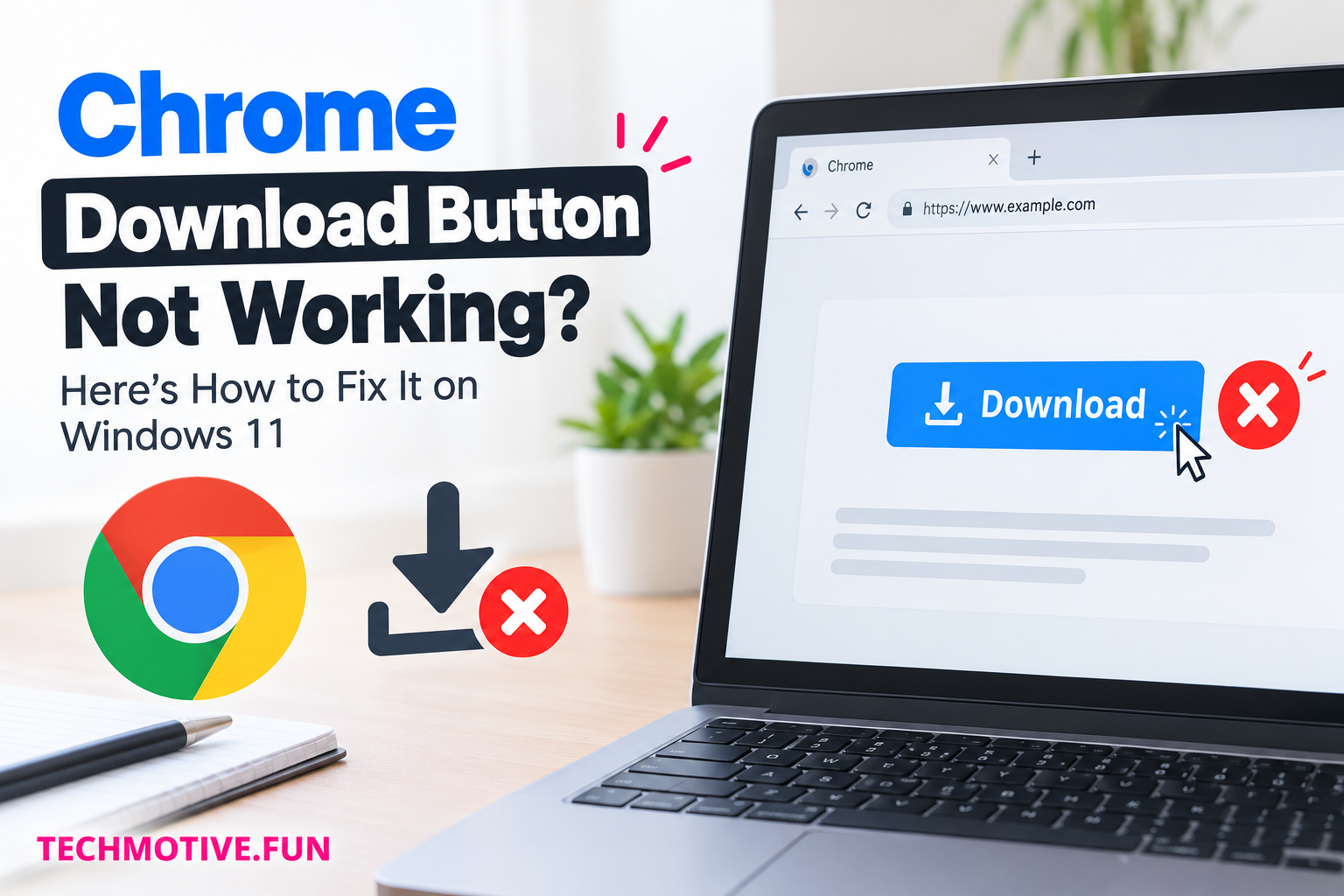
When the Chrome download button stops working, clicking it may do nothing, the download icon may disappear, or a file may refuse to start downloading. Sometimes the problem affects just one website, while other times Chrome cannot download anything at all.
The good news is that you usually do not need to reinstall Chrome. Start by checking whether the button itself is unresponsive or whether Chrome is blocking the download after you click it. Then check the download settings, available storage, browser extensions, and Windows security settings.
Here are nine practical ways to troubleshoot the problem on Windows 11, starting with the simplest checks.
1. Find Out Whether the Download Button or the Download Process Is Broken
Before changing Chrome settings, identify exactly what happens when you click the button. This small check can save you time because a website button that does nothing requires a different solution from a download that starts and immediately fails.
Try the following:
- Open Chrome and visit a trusted website that offers a file you can safely download.
- Click its download link or button.
- Watch the top-right corner of Chrome for the download indicator.
- Press Ctrl + J to open Chrome’s Downloads page.
- Check whether the file appears in the download list.
Pay attention to the result:
- Nothing happens: The website’s button, a JavaScript error, or an extension may be interfering.
- The file appears but does not download: Chrome may be blocking it, or the download may be failing.
- The download starts and then stops: Check storage, network stability, and security software.
- Only one website has the problem: The website itself may be responsible.
Try the same website in an Incognito window by pressing Ctrl + Shift + N. If the button works there, an extension or your regular Chrome profile may be involved. Keep in mind that some websites behave differently in Incognito mode.
Related Fixes: Chrome Downloads Stuck on Windows 11, Chrome Extensions Not Working, and Chrome Not Opening on Windows 11
2. Restart Chrome Completely
Chrome can occasionally get stuck because of an unresponsive tab, a background process, or a temporary browser issue. Restarting it is worth trying before you make more complicated changes.
How to restart Chrome
- Save any work you have open in your browser.
- Click the three-dot menu in the top-right corner.
- Select Exit.
- Wait a few seconds.
- Open Chrome again and test the download button.
If Chrome remains open in the background, use Windows Task Manager:
- Press Ctrl + Shift + Esc.
- Open the Processes section.
- Look for Google Chrome.
- Select the relevant Chrome process or process group and click End task if Chrome has become unresponsive.
- Reopen Chrome.
Important: Ending Chrome tasks closes open browser windows and can interrupt active downloads. Save your work first.
If the button still does not respond, move on to the next fix.
3. Check Whether Chrome Is Blocking the Download
One common reason a download appears not to work is that Chrome has blocked it or requires you to review a warning. This can happen when Chrome considers a file potentially unsafe or cannot verify its safety.
Review your download history
- Open Chrome.
- Press Ctrl + J.
- Look for the file you tried to download.
- Read any warning or error message displayed beside it.
You might see a message indicating that the file was blocked, could not be downloaded, or was considered unsafe.
If Chrome flags a file, do not automatically bypass the warning. Verify that the file comes from the official website, check that the download address is correct, and consider whether you actually need the file. Avoid files from unknown sources, especially executable files such as .exe and .msi.
If the file is legitimate but Chrome reports a temporary network or server error, try downloading it again from the website’s official download page.
Also check whether the website requires you to sign in, accept its terms, or complete another action before the download begins.
What if nothing appears in Downloads?
If clicking the website’s button does not create an entry in the download list, Chrome may never have received a download request. In that case, checking extensions and testing another website are more useful than changing download permissions.
4. Check Chrome’s Download Settings and Folder
A missing or inaccessible download folder can cause files to fail even when the download button responds correctly. Chrome’s download settings also determine where files are saved and whether it asks you for a location each time.
Confirm the download location
- Open Chrome.
- Click the three-dot menu and select Settings.
- Choose Downloads from the settings menu, or enter
chrome://settings/downloadsin the address bar. - Check the location shown beside Location.
- Click Change if the folder no longer exists or is difficult to access.
- Select a folder you can access, such as your Windows Downloads folder.
If you are unsure whether the current folder is working, create a temporary folder on your desktop called Chrome Test Downloads and select it as the download location.
Try downloading a small, harmless file again.
Test the Ask where to save each file option
On the same settings page, look for Ask where to save each file before downloading.
If the option is enabled, Chrome should prompt you to choose a location when you start a download. If the prompt is appearing behind another window or is being dismissed accidentally, it may look like the button does nothing.
Temporarily turn the option off and test another download. If downloads start normally, you may have an issue with the save-location prompt or the folder you were choosing.
You can turn the option back on afterward if you prefer to select a location for every file.
5. Make Sure the Downloads Folder Has Enough Space
Chrome cannot save a file properly if the destination drive is full or the folder is unavailable. This is particularly important when downloading large installers, videos, archives, or software packages.
Check available storage in Windows 11
- Open Settings.
- Select System → Storage.
- Wait for Windows to calculate the storage usage.
- Check how much free space remains on the drive containing your download folder.
If the drive is nearly full, remove unnecessary files or move large personal files to another drive. Emptying the Recycle Bin may also help if it contains files you no longer need.
You can also open File Explorer with Windows + E, select This PC, and check the free space displayed for your drives.
If your Chrome download folder is on an external drive, confirm that the drive is connected and accessible. If the folder is on a network location or cloud-synced directory, test a normal local folder instead.
Do not delete unfamiliar Windows system files just to free up space.
If there is plenty of free storage and downloads still fail, continue with the browser-specific checks below.
6. Disable Extensions That May Be Interfering
Browser extensions can change website behavior, block scripts, manage downloads, or filter web requests. An extension that worked correctly yesterday may start causing trouble after an update or a change to a website.
Extensions related to ad blocking, privacy, security, scripts, and download management are especially worth checking.
Test Chrome without extensions
- Type
chrome://extensionsin Chrome’s address bar. - Review the installed extensions.
- Turn off extensions using their switches.
- Return to the website and test the download button.
- If it works, return to the extensions page.
- Turn extensions back on one at a time, testing the button after each change.
When the problem returns, the last extension you enabled may be responsible.
You can leave that extension disabled, update it, or remove it if you no longer need it.
Why Incognito mode can help
Incognito mode usually disables extensions unless you have explicitly allowed them to run there. If the download button works in Incognito but not in your regular window, that is a useful clue.
However, Incognito mode does not disable every possible cause. It may still use different website sessions, and some extensions can be permitted to run in Incognito.
If disabling extensions does not solve the problem, restore your preferred extensions and check whether Chrome itself is up to date.
7. Update Chrome and Test a Fresh Browser Session
An outdated browser or a temporary problem with your Chrome profile can interfere with website features. Updating Chrome is a sensible next step, particularly if the issue started after a browser update or affects several websites.
Install any available Chrome update
- Open Chrome.
- Click the three-dot menu.
- Select Help → About Google Chrome.
- Allow Chrome to check for updates.
- If an update is available, let it install.
- Click Relaunch if prompted.
Save your work before relaunching. Chrome will usually reopen your previous tabs, but you should not rely on that to preserve unsaved information.
After restarting, try the download button again.
Test with a new Chrome profile
If the button still fails, a temporary Chrome profile can help determine whether your normal profile is causing the problem.
- Click the profile icon near the top-right corner of Chrome.
- Select the option to add a Chrome profile.
- Create a temporary profile and open the affected website.
- Test the download button without installing extensions or changing settings.
The exact wording may vary slightly by Chrome version.
If downloads work in the new profile, your original profile may have a problematic extension, setting, or local browser data. You can troubleshoot the original profile rather than immediately deleting it.
Do not delete your old profile as a first step. Local bookmarks, settings, and other data may not all be backed up or synchronized.
8. Check Windows Security and Other Antivirus Software
Sometimes the download button appears to work, but the file is blocked or removed before you can use it. Windows Security or third-party antivirus software may flag a file that appears suspicious.
This is different from a button that never responds, so first check Ctrl + J to see whether Chrome recorded an attempted download.
Review Windows Security
- Open the Windows Start menu.
- Search for Windows Security and open it.
- Select Virus & threat protection.
- Open Protection history if you need to review recent detections.
- Check whether a recent item corresponds to the file you attempted to download.
Protection history can help explain why a file was blocked or quarantined. If you find a relevant detection, read its details rather than immediately allowing the file.
If the file is legitimate, verify it through the software publisher’s official website or contact the publisher for a safe copy. Do not restore or run a file simply because you expected the download to succeed.
If you use third-party security software, review its recent alerts and quarantine records as well.
Avoid turning off real-time protection just to test Chrome. Doing so can expose your computer to malicious downloads. If you believe a security product is producing a false positive, use its official support process.
If Windows Security has not blocked the file and no download appears in Chrome’s history, the cause may lie with the website, a browser setting, or the connection.
9. Reset Chrome Settings or Reinstall the Browser
If the download button fails across multiple websites, extensions have been ruled out, and Chrome is updated, consider resetting the browser’s settings. Reinstallation should be a later step rather than the first thing you try.
Reset Chrome settings
Chrome provides a reset option that restores many browser settings to their defaults.
- Open Chrome.
- Enter
chrome://settings/resetin the address bar. - Select Restore settings to their original defaults.
- Read the confirmation window.
- Click Reset settings if you want to proceed.
- Restart Chrome and test the download button.
Resetting Chrome settings does not normally delete bookmarks, history, or saved passwords. However, it can reset startup pages, pinned tabs, search engine settings, content settings, and extensions may be disabled. Review the confirmation before proceeding.
If the problem was caused by a changed setting, this may resolve it.
Reinstall Chrome if necessary
If resetting the browser does not help, reinstalling Chrome may fix damaged application files.
Before uninstalling, make sure your important bookmarks and other browser data are backed up or synchronized to your Google Account if you use Chrome Sync.
Then:
- Open Settings → Apps → Installed apps in Windows 11.
- Find Google Chrome.
- Use the three-dot menu to uninstall it.
- Follow the prompts.
- Open another browser, such as Microsoft Edge.
- Visit Google’s official Chrome website and download the installer.
- Install Chrome and test the affected download.
Avoid downloading Chrome installers from third-party download sites.
If you reinstall Chrome and the same problem immediately returns, investigate security software, Windows account permissions, network restrictions, or the affected website instead of repeating the installation.
What If the Download Button Works on Other Websites?
If only one website has a nonresponsive download button, the problem may not be Chrome at all.
Try these checks:
- Reload the page using Ctrl + R.
- Sign in again if the website requires an account.
- Check whether the website asks you to accept cookies, complete a verification step, or select a download option first.
- Try a different download link on the same website.
- Open the page in another browser to see whether the button works there.
- Check whether the website is temporarily unavailable or experiencing a problem.
If the button fails in Chrome and another browser, the website may have a broken link, a server-side issue, or a script that is not working properly.
If it works in another browser but not Chrome, return to the extension, profile, and browser-setting checks above.
Do not install unknown extensions or download unofficial copies of a file just to get around a broken website button.
Common Mistakes to Avoid
When troubleshooting Chrome downloads, a few seemingly easy fixes can create additional problems.
Do not repeatedly click a button that may already have started a download. Check the Downloads page first to avoid duplicate files.
Do not disable every security feature. A blocked download may be a genuine threat. Investigate the warning before deciding what to do.
Do not clear all browsing data immediately. Clearing cookies can sign you out of websites, while deleting other local data may remove information you wanted to keep. Test extensions and the download folder first.
Do not delete your Chrome profile without a backup. Your local data may not be fully synchronized.
Do not reinstall Chrome before testing another website. If the problem is limited to one website, reinstalling the browser is unlikely to fix its broken download button.
Frequently Asked Questions
Why is my Chrome download button not responding?
The website’s download script may be broken, an extension may be blocking the action, or Chrome may be experiencing a temporary problem. Test another website, check Ctrl + J, and try Incognito mode to narrow down the cause.
Why does clicking Download do nothing in Chrome?
If nothing appears in your download history, the website may not be sending a download request. JavaScript errors, blocked pop-ups or scripts, an extension, or a website problem may be responsible. Try reloading the page and testing with extensions disabled.
How do I fix the Chrome download button without reinstalling Chrome?
Start by restarting Chrome, checking its Downloads page, changing the download folder, disabling extensions, and installing available browser updates. If these checks do not help, test a new Chrome profile or reset Chrome settings before considering a reinstall.
Can an ad blocker stop a download button from working?
Yes. Some ad blockers and privacy extensions can block scripts or requests that a website needs to start a download. Disable the extension temporarily to test the page. If that fixes the issue, adjust its settings or use a trusted alternative rather than disabling browser security features.
Why does Chrome say a download is blocked?
Chrome or your security software may have identified a potential threat, or the download may have failed for another reason. Open Ctrl + J and read the displayed message. Verify the source before taking any action, and never bypass a warning for an unknown file.
Why can I download files in Edge but not Chrome?
If the same file downloads in Microsoft Edge but not Chrome, the issue may be related to Chrome’s settings, extensions, profile, or installation. Test Chrome in Incognito mode, disable extensions, check the download folder, and reset Chrome settings if necessary.
Will resetting Chrome delete my bookmarks and passwords?
Chrome’s built-in settings reset does not normally delete bookmarks, history, or saved passwords. It does restore many browser settings to their defaults and may disable extensions. Back up important data before making major changes, particularly before deleting a profile or reinstalling Chrome.
Can a Windows 11 update cause Chrome downloads to stop working?
It is possible for a Windows update to coincide with changes in security software, drivers, or other system components that affect downloads. However, the timing alone does not prove that Windows caused the issue. Check Chrome’s download history and security alerts first, and install any available Chrome updates.
The Bottom Line
When the Chrome download button is not working, the most useful first step is to check whether Chrome registers the download at all. Press Ctrl + J, test another website, and try a different download folder before making major changes.
If the problem continues, disable extensions, update Chrome, check Windows Security, and test a fresh browser profile. Resetting Chrome or reinstalling it should come later, after you have ruled out a broken website, a blocked file, and a simple settings issue.