
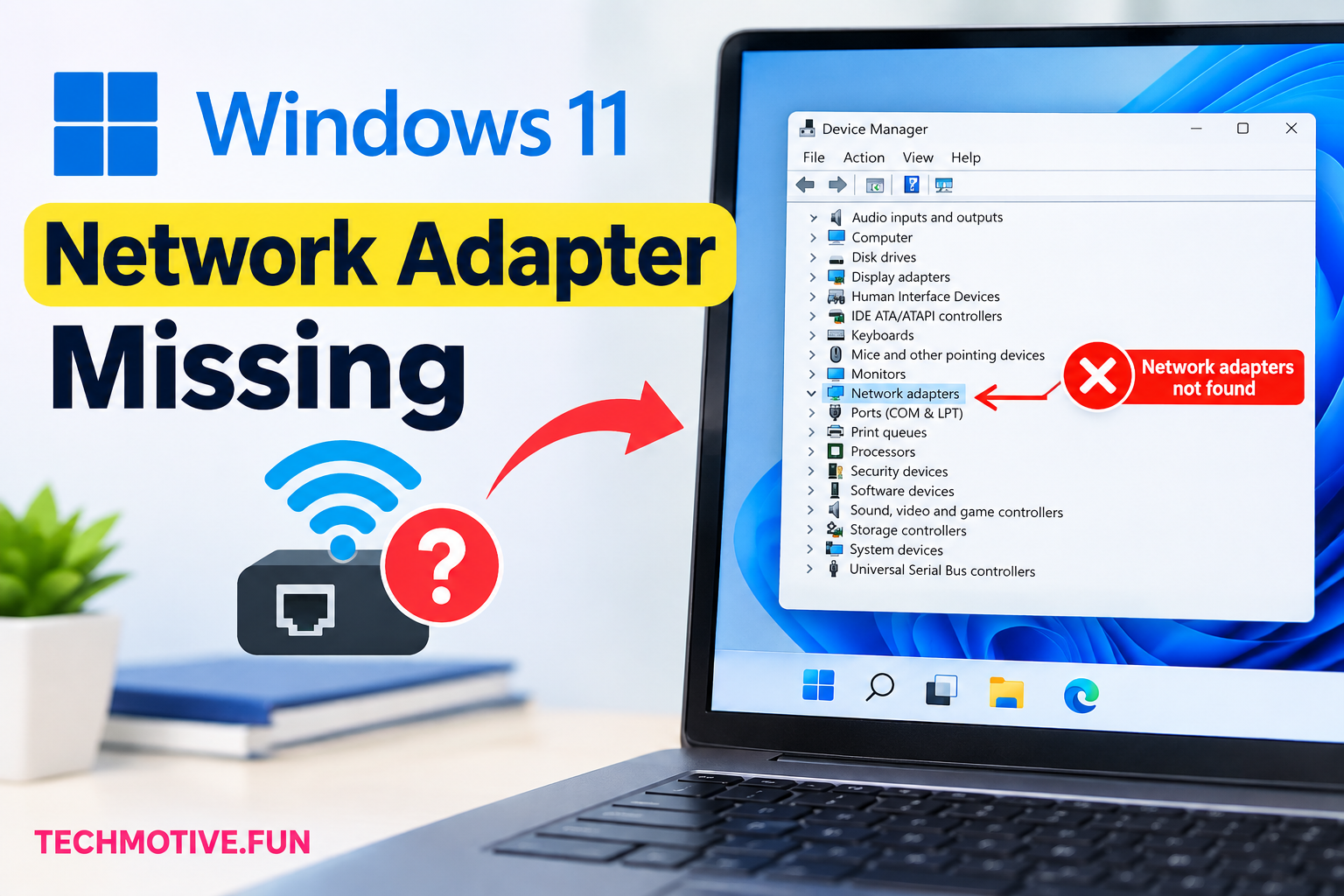
Windows 11 Network Adapter Missing? Show Hidden Devices, Reinstall, and Reset Network
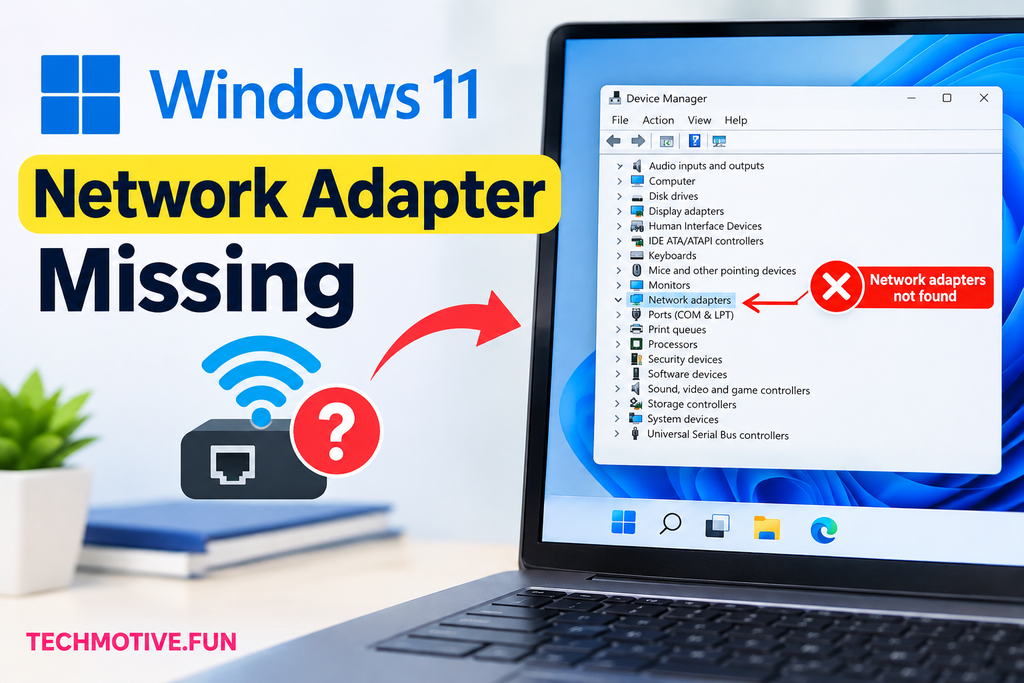
If your network adapter is missing in Windows 11, start by restarting your PC and checking Device Manager for hidden or disabled adapters. You can also restart network services, install the correct network driver, run Windows network troubleshooting, and reset network settings. If the adapter still doesn’t appear, check your manufacturer’s driver and BIOS settings.
Related Fixes: Windows 11 WiFi Option Disappeared and Windows 11 Ethernet Not Working
Why Is My Network Adapter Missing in Windows 11?
A missing network adapter can prevent your computer from connecting to WiFi or Ethernet. If the adapter suddenly disappears, the problem is often related to a driver, Windows update, disabled hardware, or a temporary system error.
Sometimes Windows detects the adapter but disables it. In other cases, the network driver may become corrupted or incompatible after an update.
Before making major changes, restart your computer. A simple restart can reload network drivers and services and may bring the adapter back.
If it is still missing, work through the fixes below.
How to Fix Windows 11 Network Adapter Missing
1. Restart Your Computer
Before changing drivers or network settings, restart Windows 11.
Click:
Start → Power → Restart
After the computer starts again, open Device Manager and check Network adapters.
If the adapter appears again, the problem was probably caused by a temporary driver or Windows service issue.
2. Check Device Manager
Device Manager is the first place to check when a network adapter disappears.
Right-click the Start button and select Device Manager.
Expand Network adapters and look for your WiFi or Ethernet adapter.
If you don’t see it, click:
View → Show hidden devices
A hidden adapter may appear after enabling this option.
Also look for a device with a yellow warning icon. This usually indicates a driver or hardware problem that needs attention.
3. Enable the Network Adapter
Your network adapter may be detected by Windows but disabled.
In Device Manager, right-click the network adapter and look for Enable device.
If the option is available, click it and wait a few seconds.
You can also check network connections by pressing Windows + R, typing:
ncpa.cpl
and pressing Enter.
If your WiFi or Ethernet adapter appears there but is disabled, right-click it and select Enable.
4. Restart Network Services
Windows uses several services to manage network connections. If one of these services stops working, your adapter may not function properly.
Press Windows + R, type services.msc, and press Enter.
Look for services such as:
- WLAN AutoConfig
- Network Connections
- Network List Service
- Network Location Awareness
For a WiFi connection, right-click WLAN AutoConfig and select Restart.
If the service isn’t running, open its Properties and make sure the startup type is set appropriately, then start the service.
5. Reinstall the Network Driver
A corrupted or incompatible driver is one of the most common causes of a missing network adapter.
Open:
Device Manager → Network adapters
Right-click your network adapter and select Uninstall device.
Confirm the removal and restart your PC.
Windows may automatically reinstall the driver after restarting.
If the adapter doesn’t return, download the correct network driver from your laptop, desktop, or motherboard manufacturer’s official website. Use another computer or phone if your PC currently has no internet connection.
Make sure you download the driver specifically for your Windows 11 version and computer model.
6. Update the Network Driver
If the adapter is visible but isn’t working correctly, try updating its driver.
Right-click the adapter in Device Manager and select:
Update driver → Search automatically for drivers
Windows will check for an available driver.
You can also install a newer driver manually from your computer manufacturer’s support page. Manufacturer-provided drivers are often preferable when Windows is having trouble identifying specific hardware.
7. Run Windows Network Troubleshooter
Windows 11 has built-in troubleshooting tools that can identify some network problems automatically.
Go to:
Settings → System → Troubleshoot → Other troubleshooters
Run the available network or internet-related troubleshooter.
Follow the instructions and allow Windows to apply any recommended fixes.
After the process finishes, restart your computer and check Device Manager again.
8. Reset Network Settings
If the adapter is still missing or network components aren’t working correctly, try a network reset.
Open:
Settings → Network & internet → Advanced network settings → Network reset
Click Reset now.
Windows will remove and reinstall network adapters and restore network settings to their default configuration.
Remember that you may need to reconnect to WiFi afterward because saved network configurations can be removed.
9. Check for Windows and Optional Driver Updates
A recent Windows update may have caused a compatibility problem with your network driver.
Go to:
Settings → Windows Update
Click Check for updates.
Also check:
Advanced options → Optional updates
If Windows offers a network-related driver update, install it and restart your computer.
If the problem began immediately after a particular Windows update, checking Update history can also help identify when the issue started.
What If the Network Adapter Is Still Missing?
If your network adapter doesn’t appear in Device Manager even after enabling hidden devices and reinstalling drivers, Windows may not be detecting the hardware.
First, visit your computer manufacturer’s support website and download the latest network driver for your exact model.
If the driver installation doesn’t help, check whether the network adapter is enabled in your computer’s BIOS or UEFI settings. The exact location of this option varies between manufacturers.
For desktop computers, make sure the Ethernet or WiFi hardware is properly installed. If you’re using a separate WiFi adapter, disconnect it and reconnect it to another USB or PCIe slot if applicable.
If the adapter remains completely invisible to Windows, there could be a hardware problem. At that point, manufacturer support or a qualified technician can help determine whether the network hardware itself is faulty.
Frequently Asked Questions
Why is my network adapter missing in Windows 11?
A network adapter can disappear because of a corrupted driver, Windows update, disabled adapter, stopped network service, or a hardware detection problem.
How do I find a missing network adapter in Windows 11?
Open Device Manager → View → Show hidden devices, then expand Network adapters. Check whether your WiFi or Ethernet adapter appears.
Why is my WiFi adapter not showing in Device Manager?
If the WiFi adapter isn’t listed, Windows may have a missing driver or may not be detecting the hardware. Installing the correct manufacturer driver is a good next step.
How do I reinstall a network adapter in Windows 11?
Open Device Manager, right-click your network adapter, select Uninstall device, and restart your PC. Windows may automatically reinstall the adapter driver.
Can Windows Update remove my network adapter?
A Windows update can sometimes cause network driver compatibility problems. If the adapter disappeared immediately after an update, checking for newer drivers or optional updates may help.
How do I enable a disabled network adapter?
Open Device Manager, expand Network adapters, right-click the adapter, and select Enable device. You can also check ncpa.cpl to see whether the adapter is disabled in Network Connections.
Will resetting network settings fix a missing adapter?
A network reset can repair corrupted network configurations and reinstall network components, but it won’t fix a hardware failure or necessarily restore an adapter that Windows cannot detect.
What if my network adapter doesn’t appear after a network reset?
If the adapter is still completely missing from Device Manager, download the latest driver from your computer manufacturer’s website and check BIOS/UEFI settings. If Windows still cannot detect the hardware, a hardware issue may need to be investigated.
Final Thoughts
When the Windows 11 network adapter is missing, don’t immediately assume that your WiFi or Ethernet hardware has failed. Start with Device Manager, enable hidden devices, and check whether the adapter is disabled. From there, reinstall or update the driver, restart network services, and use network reset if necessary. If Windows still cannot detect the adapter, investigate manufacturer drivers and BIOS/UEFI settings before considering a hardware problem.



2 Comments