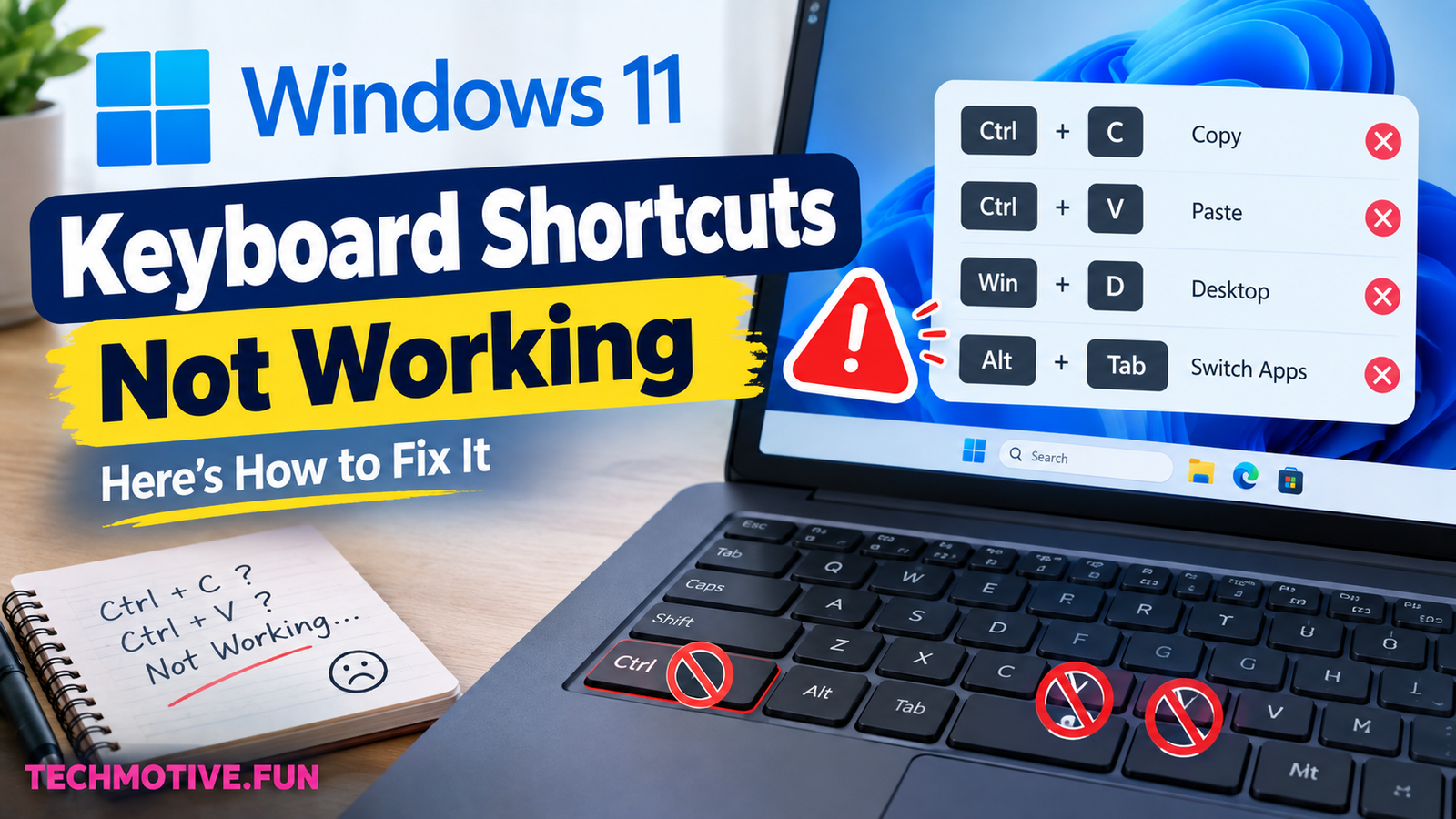
Windows 11 Keyboard Shortcuts Not Working? Check Sticky Keys, Drivers, and the Keyboard Itself
If Windows 11 keyboard shortcuts are not working, first restart your PC and check whether the Ctrl, Alt, Windows, and Fn keys work normally. Turn off Sticky Keys and Filter Keys, check your keyboard connection, update the keyboard driver, restart Windows Explorer, and install pending Windows updates. These steps usually fix shortcut problems.
Related Fixes: Windows 11 Copy Paste Not Working, Windows 11 Keyboard Not Responding, and Windows 11 Screenshot Not Working
Why Are Keyboard Shortcuts Not Working in Windows 11?
Keyboard shortcuts can suddenly stop working for several reasons. Sometimes the problem is caused by a simple Windows glitch, while in other cases, a keyboard setting or driver may be responsible.
Common causes include:
- Sticky Keys or Filter Keys settings
- A temporary Windows Explorer problem
- Outdated or corrupted keyboard drivers
- Problems with the physical keyboard
- Conflicting third-party software
- Windows updates or system bugs
- Function-lock or Fn-key settings
- Damaged system files
Before trying complicated solutions, test a few basic shortcuts such as Ctrl + C, Ctrl + V, Alt + Tab, and Windows + E. This can help you determine whether all shortcuts are affected or only certain ones.
How to Fix Keyboard Shortcuts Not Working in Windows 11
1. Restart Your Computer
It may sound too simple, but restarting Windows can fix temporary keyboard and system problems.
Save your work and restart your PC. After Windows loads again, test the shortcuts that were not working.
If the shortcuts work after restarting, the issue was probably caused by a temporary system or background-process glitch.
2. Check If Your Keyboard Keys Work
Before changing Windows settings, make sure the important keys themselves are working.
Test the Ctrl, Alt, Shift, Windows, and Fn keys individually. You can also open Notepad and type normally to see whether the keyboard responds correctly.
If one particular key does not work, the problem could be hardware-related rather than a Windows shortcut issue.
For a wireless keyboard, check its battery and reconnect the wireless receiver or Bluetooth connection.
3. Turn Off Sticky Keys and Filter Keys
Accessibility features can sometimes interfere with the way keyboard combinations behave.
Open:
Settings → Accessibility → Keyboard
Turn off Sticky Keys and Filter Keys if they are enabled.
Now try your keyboard shortcuts again. If the problem was related to one of these settings, shortcuts such as Ctrl + C or Alt + Tab should start working normally.
4. Restart Windows Explorer
Windows Explorer controls several parts of the Windows interface, including the desktop and taskbar. If Explorer becomes stuck, some Windows shortcuts may stop responding correctly.
Press Ctrl + Shift + Esc to open Task Manager.
Find Windows Explorer, right-click it, and select Restart.
Your taskbar and desktop may briefly disappear and come back. Once Explorer has restarted, test your keyboard shortcuts.
5. Check the Fn or Function Lock
If shortcuts involving the function keys are not working, check whether your keyboard has an Fn Lock or Function Lock enabled.
For example, keys such as F1, F2, F5, and F11 may behave differently depending on your keyboard’s function settings.
Try pressing Fn + Esc on keyboards that support Fn Lock. The exact combination can vary by manufacturer, so check your keyboard’s documentation if necessary.
6. Update the Keyboard Driver
An outdated or corrupted keyboard driver can cause strange input problems in Windows 11.
To update it:
- Right-click the Start button.
- Select Device Manager.
- Expand Keyboards.
- Right-click your keyboard.
- Select Update driver.
- Choose Search automatically for drivers.
Restart your computer after the update and test the shortcuts again.
7. Check for Windows Updates
Microsoft regularly releases Windows updates that include bug fixes and improvements. If your keyboard shortcuts stopped working after a system change, installing available updates may help.
Go to:
Settings → Windows Update
Click Check for updates and install any available updates.
Restart your computer when Windows asks you to do so.
If the problem started immediately after a recent update, however, the update itself may be related to the issue. In that situation, checking Microsoft’s current support information or considering available recovery options may be appropriate.
8. Run the Keyboard Troubleshooter
Windows 11 includes troubleshooting tools that can help identify common device and system problems.
Open Settings and go to:
System → Troubleshoot → Other troubleshooters
Look for the available keyboard-related troubleshooting option on your version of Windows and run it.
Follow the instructions on screen and apply any recommended fixes.
The exact troubleshooting options can vary between Windows 11 versions, so you may not see the same options on every PC.
9. Repair Corrupted Windows System Files
If keyboard shortcuts are still not working, damaged Windows system files could be contributing to the problem.
Open Windows Terminal or Command Prompt as Administrator and run:
sfc /scannowWait for the scan to finish. Windows will check protected system files and attempt to repair corrupted files.
After the process finishes, restart your computer and test the shortcuts again.
If SFC reports problems that it cannot repair, you can also use the DISM repair command:
DISM /Online /Cleanup-Image /RestoreHealthAfter DISM finishes, run sfc /scannow again and then restart Windows.
What If Windows 11 Keyboard Shortcuts Are Still Not Working?
If none of the fixes above work, connect another keyboard to your computer and test the same shortcuts. This is a useful way to determine whether the problem is with Windows or your keyboard.
If another keyboard works normally, your original keyboard may have a hardware or configuration problem.
You can also try starting Windows with unnecessary startup applications disabled. Some keyboard utilities, gaming software, macro programs, and manufacturer-specific keyboard tools can interfere with shortcuts.
If the problem affects only one application, check that application’s own keyboard shortcuts and settings. Windows shortcuts may work normally while a particular program blocks or changes certain key combinations.
For persistent system-wide problems, consider using Windows recovery options after backing up important files.
Frequently Asked Questions
Why are my Windows 11 keyboard shortcuts suddenly not working?
A temporary Windows glitch, keyboard setting, driver problem, or third-party application can cause shortcuts to stop working. Restarting Windows and checking Sticky Keys, Filter Keys, and keyboard drivers are good first steps.
Why is Ctrl+C and Ctrl+V not working in Windows 11?
Check whether the Ctrl key itself is working. Then restart Windows Explorer and turn off Sticky Keys or Filter Keys. If the issue continues, update the keyboard driver and restart your PC.
Why is the Windows key not working?
The Windows key may be disabled by keyboard software, gaming mode, or a hardware problem. Test the key with Windows + E or Windows + R and check whether your keyboard has a Windows-key lock or gaming mode.
Why is Alt+Tab not working?
Restart Windows Explorer first and test the Alt and Tab keys separately. Third-party software or a temporary Windows interface problem can also interfere with Alt + Tab.
Can a keyboard driver cause shortcuts to stop working?
Yes. A corrupted or outdated keyboard driver can cause keyboard input problems. Updating or reinstalling the keyboard device through Device Manager can help.
Do I need to replace my keyboard?
Not necessarily. Try another keyboard before buying a replacement. If another keyboard works correctly on the same Windows 11 PC, your original keyboard may have a hardware or configuration problem.
Will restarting Windows fix keyboard shortcuts?
Sometimes. A restart clears temporary system problems and reloads Windows services and drivers. If the shortcuts stop working again after every restart, you should investigate the underlying cause.