Google Docs Voice Typing Not Working? 9 Fixes for Chrome and Your Mic
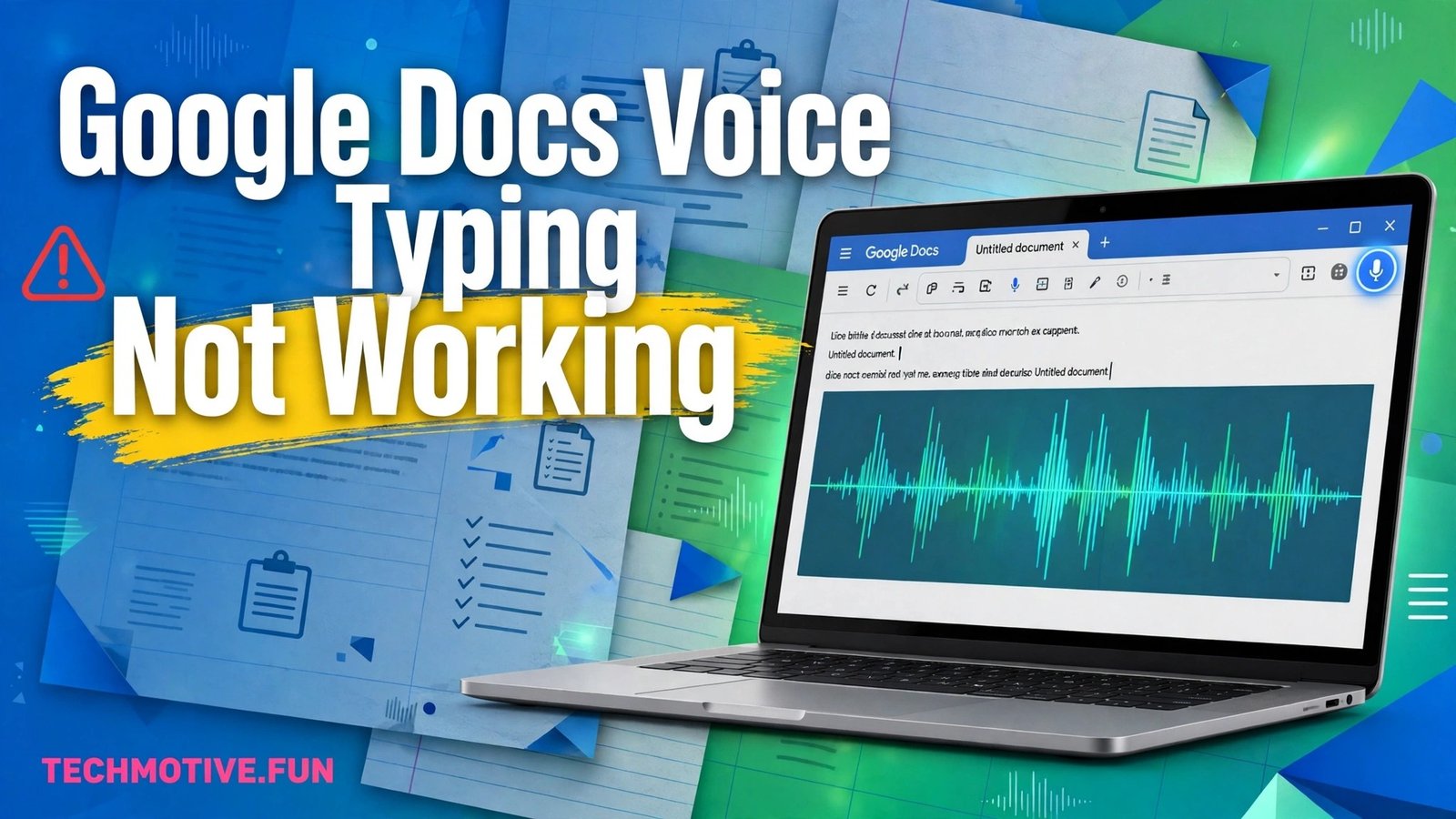
You open a document, click the microphone, start talking, and nothing happens. No words appear, no error explains itself, and the red recording dot may not even show up. It is a frustrating moment, especially when you were counting on dictation to get through a long draft quickly.
The good news is that most voice typing failures come from a small set of causes. A blocked microphone permission, the wrong audio input, a muted headset, or a browser setting can each silence the feature completely. Once you find the weak link, the fix is usually quick.
This guide walks through those causes in a sensible order. Start with the fast checks, then work through the nine fixes one at a time. Test voice typing after each change so you know exactly what solved the problem.
Why Voice Typing Stops Working
Voice typing depends on several parts working together at the same time. Your microphone has to be connected and selected, your browser has to be allowed to use it, your internet connection has to be steady, and Google Docs has to be ready to listen. If any one of those parts fails, dictation will fail with it.
That is why the problem can feel random. The microphone may work fine in a video call but still fail in Docs because the browser permission is different. A headset may be plugged in but not selected as the input device. A browser extension may block the microphone without showing an obvious warning.
It also helps to understand one basic requirement first. Voice typing in Google Docs is described by Google as a feature for Chrome. If you are trying it in another browser, that alone may explain why the microphone button is missing or does nothing. For the rest of this guide, assume you are working in Chrome on a computer.
Do These Quick Checks First
Before changing settings, run through this short list. It takes about a minute and rules out the simplest explanations.
- Make sure your microphone is plugged in, charged if wireless, and not physically muted with a switch on the headset or cable.
- Check that no other app is already using the microphone in a way that locks it, such as a video call running in another window.
- Look at the microphone icon in Docs and confirm whether it turns red when you click it, which shows Docs is trying to listen.
- Speak at a normal volume and distance, rather than whispering or shouting, and reduce loud background noise if you can.
- Confirm your internet connection is working by loading another page, since voice typing needs a connection to work.
If everything here looks fine and dictation still fails, move on to the fixes below. Work through them in order and test after each one.
Fix 1: Use Chrome and Make Sure It Is Up to Date
Voice typing in Google Docs is a Chrome feature, so the first fix is to confirm you are actually in Chrome. Open Docs in Chrome rather than another browser and try the microphone again. If the voice typing option is not available where you expect it, the browser itself may be the problem.
An outdated version of Chrome can also cause strange behaviour. Browser updates often include fixes for audio, permissions, and web features that Docs relies on. Open the Chrome menu, go to the help and about section, and let Chrome check for an update. Restart the browser after the update finishes, then reopen your document.
This step sounds basic, but it removes a whole category of doubt. If voice typing works after the update, you do not need to change any deeper settings. If it still fails, you know the browser version is not the cause.
Fix 2: Allow the Microphone Permission for Google Docs
This is the most common cause of silent voice typing. Chrome asks for microphone permission the first time a site needs it, and it is easy to dismiss that prompt by accident. Once permission is blocked, Docs cannot hear anything, even if your microphone works everywhere else.
Click the lock or site settings icon in the address bar while your document is open. Look for the microphone permission and set it to allow. If it already says allow, try setting it to block and then back to allow, which can refresh a stuck permission. Reload the document after changing the setting.
Also check your operating system privacy settings. On both Windows and Mac, there is a system level microphone permission that can block apps and browsers. Make sure microphone access is turned on for your browser. A browser permission means little if the system itself has cut off microphone access.
Warning: do not grant microphone access to sites you do not trust while you are fixing this. Change the permission only for the document site you are using, and leave other site permissions as they are.
Fix 3: Select the Right Microphone in Chrome and Your System
Many computers have more than one microphone available. A laptop may have a built-in microphone, a webcam microphone, and a headset microphone all listed at once. If Docs is listening to the wrong one, your voice will never reach the document, even though the microphone icon looks active.
In Chrome, open the site settings for your document and check which microphone is selected. Choose the microphone you are actually speaking into, not just the first option in the list. Then open your system sound settings and confirm the same device is set as the input device there as well.
This mismatch is easy to miss because the wrong microphone may still show activity from room noise. Speak a test sentence and watch the input level meter in your system sound settings. The bar should move clearly when you talk and fall quiet when you stop. If it does not move, you have the wrong device selected.
Fix 4: Check the Mute Switch, Volume, and Input Level
A surprising number of voice typing failures come down to a mute switch. Headsets often have a small mute button on the ear cup or inline control, and some microphones have a physical switch that is easy to bump. Check the hardware first, then check the software mute in your system sound settings.
Next, look at the input volume. If the input level is set very low, Docs may not pick up your voice at all. Raise the input volume to a middle or higher level and test again. If the level is already high and your voice sounds distorted in other apps, lower it slightly, since distortion can also hurt recognition.
Warning: avoid turning the input volume to maximum and leaving it there. Very high gain picks up keyboard noise, fan noise, and room echo, which can make dictation insert the wrong words. Aim for a level where your normal speaking voice registers clearly without constant background activity.
Fix 5: Test the Microphone Outside Google Docs
If you are not sure whether the problem is Docs or the microphone itself, test the microphone somewhere else. Use your system sound settings, a voice recorder app, or a video call test. If the microphone fails there too, the problem is with the hardware or system settings, not with Docs.
Try a different microphone if you have one available. Plug in a basic headset or use the built-in microphone instead of an external one. If voice typing works with the second microphone, the first microphone may be faulty, disconnected, or using a driver that needs attention.
If the microphone works fine outside Docs but fails inside Docs, return to the browser permission and device selection steps. That contrast tells you the hardware is healthy and the issue sits in Chrome or in the document settings. Narrowing the problem this way saves you from changing settings that were never broken.
Fix 6: Restart Chrome, Reopen the Document, and Try a Fresh Document
Temporary browser glitches can block voice typing even when every setting looks correct. Close Chrome completely, not just the document tab, and open it again. Reload your document and try the microphone once more. A clean restart clears stuck audio sessions that a simple page reload sometimes leaves behind.
If the problem continues, try voice typing in a brand new blank document. This test separates a document problem from a system problem. If dictation works in the new document, the original document may have a temporary issue, and copying the text into a fresh document can be a practical workaround.
Also try signing out and back in if you are using a shared or managed account and the problem started suddenly. Warning: save your work before signing out or restarting, and make sure any changes in the document are saved. A restart is a safe step only when you are not relying on unsaved changes in another tab.
Fix 7: Turn Off Extensions That Could Block the Microphone
Browser extensions can interfere with audio and site permissions in ways that are hard to see. Privacy extensions, ad blockers, script blockers, and even some productivity tools can limit what a web page can access. If voice typing stopped working after you installed a new extension, that extension is a strong suspect.
Open a private or incognito window in Chrome and try voice typing there. Incognito mode usually runs without most extensions, so it gives you a clean test. If dictation works in incognito mode, an extension is likely causing the problem in your normal window.
To find the culprit, disable your extensions one at a time and test after each change. Start with privacy, security, and audio related extensions. Once you find the one that blocks voice typing, you can leave it disabled while you dictate or adjust its settings for the document site only.
Fix 8: Match the Voice Typing Language to the Language You Speak
Voice typing listens for a specific language, and speaking a different language can produce silence or garbled text. In Docs, the voice typing tool lets you choose a language from a dropdown above the microphone. Make sure the selected language matches the language you are actually speaking.
This matters even for speakers who switch between languages during the day. A document set to one language will struggle with another, and the result can look like a microphone failure when it is really a language mismatch. Change the language, click the microphone again, and speak a short test sentence.
Also speak in complete phrases rather than single words when testing. Short fragments give the system less to work with, and background noise can overwhelm them. A normal sentence at a steady pace is the fairest test of whether recognition is working.
Fix 9: Check Your Connection, Restart Your Computer, and Rule Out Hardware Failure
Voice typing needs a stable internet connection, so a weak or dropping connection can interrupt dictation. If web pages load slowly or video calls keep freezing, fix the connection first. Move closer to your router if you are on Wi-Fi, or try a wired connection if one is available.
If none of the earlier fixes help, restart your computer. A restart resets audio drivers and clears any app that may be holding the microphone without showing it. After the restart, test the microphone in your system settings before opening Docs, so you know the hardware is ready.
If voice typing still fails after a restart and with a known good microphone, the problem may be hardware related. A damaged port, a failing headset cable, or a faulty built-in microphone will not be fixed by browser settings. Trying a different port, a different headset, or a USB microphone can confirm whether replacement hardware is needed.
Frequently Asked Questions
Why does the microphone icon appear but no words show up?
This usually means Docs is listening to the wrong microphone or the input level is too low. Check the selected input device in Chrome and in your system sound settings, and watch the input meter while you speak. If the meter does not move, Docs cannot hear you, even though the icon looks active.
Why is voice typing missing from my document?
Voice typing in Google Docs is a Chrome feature, so it may not appear or work as expected in another browser. Open the document in Chrome and look for the voice typing option in the tools menu. If you are on a managed school or work account, also check whether an administrator has restricted the feature.
Do I need a special microphone for voice typing?
No special microphone is required. A built-in laptop microphone or a basic headset is usually enough for clear dictation. What matters more is that the correct device is selected, the input level is set well, and background noise is kept low while you speak.
Why does voice typing work in one document but not another?
Try the same test in a fresh blank document. If dictation works there, the original document may have a temporary issue. Copying your text into a new document can solve the problem without changing your system settings.
Can background noise stop voice typing completely?
Heavy background noise can confuse recognition and produce missing or incorrect words. It is less likely to silence the feature entirely, but a noisy room combined with a low input level can make dictation look broken. Move to a quieter spot, speak clearly, and test again before changing deeper settings.
Keep Going With These Related Guides
If your document or microphone still gives you trouble, these related guides cover nearby problems. Learn how to fix a Google Docs page break that is not working, find out why the Google Docs word count is not showing, and work through a broader Windows 11 microphone problem if the issue affects more than Docs.
Sources
The steps in this guide follow the official help pages for the feature and for browser microphone permissions. See the Google Docs help page on typing with your voice and the Chrome help page on allowing sites to use your microphone for the documented requirements and settings described above.