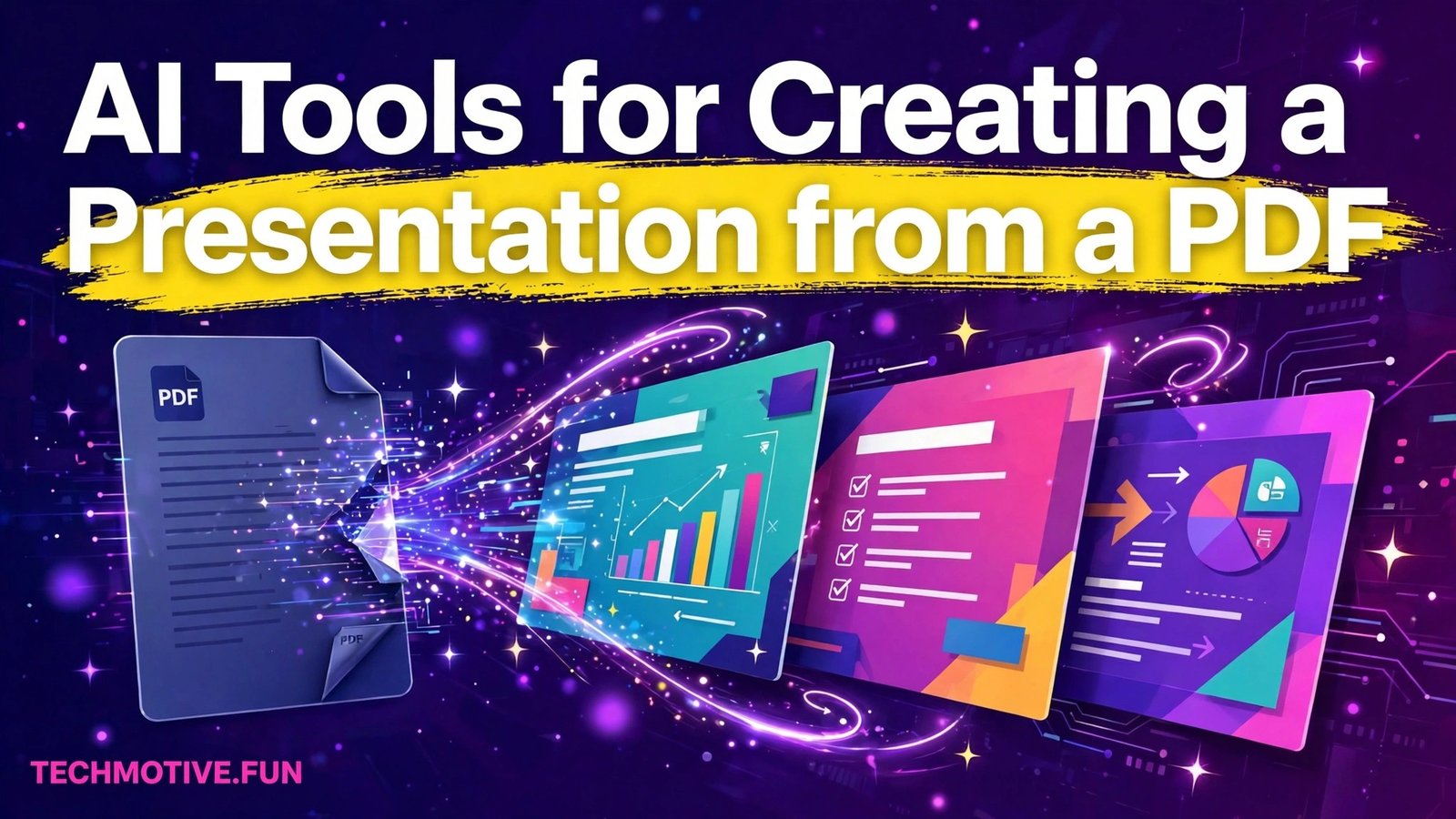
AI Tools for Creating a Presentation from a PDF: How to Pick the Right One
Turning a long PDF into a presentation sounds simple. In practice, it is a judgment call. A report, a research paper, a training manual, and a company handbook all need different kinds of slides. An AI tool can help you get started, but it cannot decide what matters most to your audience.
That is why picking the right approach matters more than picking the first tool you find. The best result usually comes from a clear goal, a clean source document, and a careful review of every slide. Speed is useful, but accuracy and clarity matter more.
This guide explains how these tools generally work, what to look for, and how to check the result before you present it. It focuses on the workflow, not on hype. By the end, you should be able to choose an option with confidence and fix its output where needed.
What Turning a PDF into Slides Really Involves
A PDF is often written to be read, not presented. It may contain long paragraphs, detailed tables, footnotes, and background explanation. A slide deck, on the other hand, is meant to be scanned quickly while someone speaks. The two formats serve different purposes.
When an AI tool converts a PDF, it usually tries to identify headings, key points, and supporting details. It then rearranges that material into shorter slide-sized pieces. Some tools also suggest layouts, headings, or simple visuals to go with the text. The quality of that first draft depends heavily on how clear the original document is.
A well-structured PDF with clear headings will usually produce a better draft. A scanned or loosely organized document will be harder for any tool to interpret. That is worth checking before you upload anything. If the source is messy, a little cleanup can save a lot of editing later.
Three Broad Ways These Tools Work
Most tools in this space fall into a few broad patterns. Understanding the pattern helps you set realistic expectations. It also helps you avoid paying for features you may not need.
The first pattern is upload-and-draft. You upload a PDF, and the tool produces a set of slides based on its content. This is useful when you want a fast first version. You will still need to edit it, but the basic structure is there.
The second pattern is outline-first. The tool creates an outline or a set of suggested slide titles, and you approve or adjust that outline before slides are generated. This gives you more control over the flow. It is a good fit when the order of ideas matters.
The third pattern is assisted editing. You may already have slides, or you may build them step by step with AI help for wording, summaries, or layout suggestions. This approach is slower, but it keeps you closer to the final wording. It suits sensitive or high-stakes decks.
None of these patterns is automatically better than the others. The right choice depends on how much time you have, how much control you want, and how important accuracy is for your audience.
Before You Upload: Prepare the PDF
A few minutes of preparation can improve the result a lot. Start by asking what the presentation must achieve. Is it meant to inform, persuade, train, or summarize?
Write that goal down in one sentence. It will guide every editing decision later.
Next, look at the length and structure of the PDF. A short guide may become ten slides. A long report may need careful selection rather than a slide for every page.
You do not have to cover everything. In fact, trying to cover everything is one of the most common mistakes.
Remove or set aside material that is not needed for this audience. Appendices, detailed methods, and long background sections may belong in a handout instead of on slides. If the PDF contains outdated or irrelevant pages, exclude them where the tool allows it. If it does not allow selection, note the sections to delete after generation.
Check for tables, charts, and images that carry important meaning. Text-based tools may summarize a chart in words and lose the detail. You may need to keep the original chart or recreate it yourself. Make a short list of visuals that must stay accurate.
Finally, think about privacy. Some PDFs contain personal data, internal figures, or unpublished work. Before uploading such a document to any online service, check how that service handles uploaded files. When in doubt, use a redacted copy or a shorter excerpt that contains only what the slides need.
A Sensible Workflow, Step by Step
A calm, step-by-step workflow beats rushing through generation and hoping for the best. The steps below work with most tools in this category. Adapt them to the tool you choose.
First, define the audience and the time available. A ten-minute talk needs fewer slides than a full training session. This decision also affects how much detail each slide should carry.
Second, choose the source material. Decide which chapters or sections are in scope. If the tool lets you select pages or paste text, use that option to keep the focus tight. A narrow input usually produces a clearer deck.
Third, generate a first draft and treat it as a draft. Do not assume it is ready to present. Read it once for structure, and once for detail. Look for missing ideas, repeated points, and slides that try to say too much.
Fourth, rewrite the slides in your own voice. Shorten long sentences. Replace vague wording with concrete points.
Add speaker notes where the slide alone does not tell the full story. This step is where a generic draft becomes a useful presentation.
Fifth, design for readability. Keep one main idea per slide where possible. Use short bullet points rather than paragraphs. Leave enough white space so the audience can focus on the key message.
Sixth, do a final check. Read the deck from start to finish, out loud if you can. Fix awkward phrasing, check numbers against the source, and confirm that every claim can be traced back to the PDF or another reliable source.
Check the AI Output Slide by Slide
This is the most important part of the process. AI-generated slides can look polished while containing errors. A clean layout does not guarantee correct content. That is why a slide-by-slide review is essential.
Start with the headings. Does each heading match what the slide actually says? A misleading heading can confuse the audience even if the body text is correct. Rewrite headings that overpromise or misdescribe the content.
Then check the facts. Compare numbers, names, dates, and definitions with the original PDF. Pay special attention to anything the tool may have simplified. A summary can easily drop a condition, a caveat, or an exception that changes the meaning.
Look for invented connections. Sometimes a tool links two ideas that were separate in the source. Sometimes it fills a gap with a plausible-sounding sentence that was never in the document. If you cannot find a point in the source, remove it or verify it elsewhere before keeping it.
Check the order as well. A logical flow matters. Background should come before detail, and a conclusion should follow the evidence. Move slides around if the generated order feels jumpy or out of sequence.
Privacy and Accuracy: Two Things Not to Skip
Privacy deserves a pause before any upload. A PDF may look ordinary but still contain names, contact details, financial figures, or internal plans. Once a file is uploaded to an online tool, you may have less control over where it goes. Read the service’s privacy information and think about whether the document is suitable for upload.
If the document is sensitive, consider alternatives. You could summarize the key points yourself and generate slides from that summary. You could also use a redacted version with sensitive details removed. The extra effort is worth it when the material is private.
Accuracy needs the same care. AI tools are good at rephrasing, but they are not a substitute for understanding the source. If a slide covers a topic you do not know well, check it against the PDF before presenting. If something seems uncertain, say so, or leave it out until you can confirm it.
What a Good Result Looks Like
A good AI-assisted deck does not try to say everything. It highlights the main ideas and leaves room for the speaker. Each slide should be understandable at a glance. The audience should grasp the point without reading a wall of text.
Good slides also have a clear story. They move from the problem to the key points, and then to a conclusion or next step. The transitions feel natural. The listener can follow the argument without getting lost.
Most importantly, a good deck sounds like the presenter. If you would not say a sentence in a real talk, rewrite it. Your audience will trust a deck that feels honest and natural far more than one that sounds generated.
Choosing a Tool Without Falling for Hype
With so many options available, it is easy to get distracted by marketing claims. Focus instead on what you actually need. A long feature list does not help if the basic output needs heavy fixing every time.
Start by testing with a short, non-sensitive document. See how the tool handles headings, lists, and tables. Notice whether the slides follow the source closely or drift away from it. A short test tells you more than a sales page.
Consider control. Can you edit the outline before slides are created? Can you change slide order, wording, and layout easily? Can you export the result in a format you can use?
These practical points matter more than flashy extras.
Consider the output format as well. Some decks need to be edited further in a familiar presentation program. Others are meant to be shared as a link. Choose a tool whose export options fit how you will actually use the deck.
Finally, avoid deciding on price or limits alone, especially when those details change often. Check the current terms on the provider’s own site before committing. A tool that fits your workflow today is a better choice than one that merely looks impressive.
Common Mistakes to Avoid
One common mistake is presenting the first draft unchanged. Even a strong draft usually needs editing for accuracy, tone, and flow. Treat generation as the starting point, not the finish line.
Another mistake is overloading slides. Long paragraphs belong in a document, not on a slide. If a slide has too much text, split it or move detail into speaker notes. Your audience should listen to you, not read ahead silently.
A third mistake is losing the source. When slides are edited many times, it is easy to forget where a claim came from. Keep notes on which section of the PDF supports each key point. This makes fact-checking much faster.
A fourth mistake is ignoring the audience. A deck that works for one group may fail for another. Adjust examples, depth, and language for the people in the room. Small changes here can make a large difference.
A fifth mistake is trusting visuals blindly. Charts and diagrams generated from text may simplify or distort the original data. Compare any important visual with the source before you present it. When in doubt, use the original chart.
A Simple Checklist Before You Present
Use this checklist as a final pass. It takes only a few minutes, and it catches many avoidable problems.
- Does every slide have one clear main idea?
- Can every important claim be traced to the source PDF?
- Are numbers, names, and terms spelled and stated correctly?
- Is the order logical from start to finish?
- Is the text short enough to read at a glance?
- Have you removed anything sensitive or irrelevant?
- Do the slides sound like you when read aloud?
- Is there a clear opening and a clear closing slide?
If you can answer yes to most of these, the deck is probably in good shape. If several answers are no, spend a little more time editing. A short delay is better than a confusing presentation.
For related guidance, see these related guides: AI tools for converting a PDF into study notes, AI tools for summarizing YouTube videos, and how to fix Windows 11 PDF files that will not open.
Frequently Asked Questions
Can AI turn any PDF into a presentation?
In general, yes, it can produce a draft from most text-based PDFs. The quality, however, varies a lot. Clear, well-structured documents tend to produce better drafts. Scanned pages, complex layouts, and image-heavy PDFs may need more manual work or a different approach.
How much editing should I expect after generation?
Expect meaningful editing, even with a good tool. You will likely need to check facts, shorten text, fix headings, and adjust the order. Think of the AI output as a helpful first draft. The final quality still depends on your review.
Should I upload a private or confidential PDF?
Be cautious with private material. Check how the service stores and uses uploaded files before you proceed. For sensitive documents, consider using a redacted copy, a short excerpt, or a summary you write yourself. When unsure, keep the document offline.
Will the slides keep my tables and charts accurate?
Not always. Text summaries can simplify tables, and generated visuals may not match the original data. Always compare important tables and charts with the source PDF. For critical data, it is safer to reuse the original visual or rebuild it carefully.
What if the generated deck misses an important section?
This happens when the tool prioritizes some parts of the document over others. Review the outline or slide list against the PDF’s headings. Add a slide for the missing section yourself, using the source wording as a guide. Do not assume the tool covered everything.
Is an AI-generated deck ready to present as it is?
Usually not. A quick review for accuracy, clarity, and tone is always worth doing. Read the deck aloud, check the facts, and adjust anything that does not sound natural. That final pass is what turns a draft into a presentation you can trust.
Sources
Presentation makers that accept document uploads vary in their features and terms, so check the provider’s own pages for current details. Two well-known starting points are Gamma and Canva presentations.